Most small businesses do not go looking for customer complaint tracking software. They discover the need like this: a customer calls, says "I wrote to you about this last week", and nobody can find the message. Then a second customer says the same sentence. By the third one the question has changed: "How many requests do we get in a week, and how many do we close on time?" There is no answer, because there is nothing countable to answer with.
This guide is written for a team handling somewhere between 5 and 50 support requests a day: a field service company, an online store's operations desk, a software team, an agency, a dealer network. What they share is the shape of the problem. Requests arrive through chat apps, phone calls, email and a web form at the same time, each one lands somewhere different, and nobody can see the whole picture of which ones have been answered. Our running example is Northfield Climate Services: an eleven-person team installing and maintaining air conditioning systems, mostly for business customers. (Demo data.)
The life of a ticket, and its five leaks
Between a problem reaching you and a customer saying "yes, that is sorted", there are six links. Tickets do not get lost inside those links; they get lost in the gaps between them. The diagram below shows one month at Northfield.
What the five have in common is that none of them is a mistake. Nobody did anything wrong; a step simply never got recorded. One at a time.
- 1. The chat message never became a ticket. A large share of small-business support arrives through WhatsApp or a similar messenger, and that is not a bad thing: it is the easiest channel for the customer. The bad part is when the problem stays there. A message in one technician's phone is on nobody's list, in nobody's name, with no clock running. You do not need to change the channel. You need to open the record. The conversation carries on in chat; the problem lives in the system.
- 2. A ticket opened with nobody on it. The unowned record is the one everyone can see and nobody has picked up, and without exception it is the one that waits longest. "The team can see it" is not an assignment.
- 3. Priority depends on who is typing. If the same fault is logged as critical in the morning and medium in the afternoon, your queue order stops meaning anything. Priority is not a feeling, it is a definition written down in advance, such as "critical means work has stopped completely".
- 4. Fixed, but the customer was never told. This is the most expensive silence in support. The problem gets solved, nobody says so, and the customer raises the same thing again the next day. That gap is exactly the difference between resolved and closed: the notification.
- 5. Nobody knows how many came in this month. The sum of the other four. Support load that is never counted cannot be planned, staffed or priced. "We were really busy this month" is not data.
The long version of running messenger traffic without losing it is in the WhatsApp customer management guide. The difference here is that the problem at the end of that traffic needs to live as its own record.
What to record at every link
You do not close these leaks with more effort. You close them by deciding in advance what gets recorded at each step. The table below is the trail a problem should leave on its way from first message to closure.
| Link | Record | Fields that must be filled | Who, and when |
|---|---|---|---|
| 1. Channel | The ticket is opened | Channel (phone, email, web, chat), account, contact | Whoever sees the message first, that day |
| 2. Ticket no | Number and subject | Number (automatic), a one-sentence subject, description | Automatic plus the person logging it |
| 3. Owner | An owner or a queue | The responsible person; if unclear, the right queue | An assignment rule, on creation |
| 4. SLA timer | The priority field | Priority; the target hours follow from it | The person logging it, against the definition |
| 5. Resolution | The resolution note | What was done, which part, which setting, by whom | Whoever fixed it, at closing |
| 6. Notification | Email or message | What the customer was told, and when | The owner, at resolution |
Row five is the one everyone skips. The resolution note is not written for today, it is written for three months from now: when the same customer calls about the same unit, being able to read what was done last time is the single thing that makes a second visit unnecessary. It does not need to be longer than two sentences, but "sorted it" is not enough either.
What an SLA is, and how to read the timer
An SLA, a service level agreement, is the written version of how fast you will get back to someone. In enterprise contracts it is a legal clause. In a small team it does something far more practical: it decides what to work on next without anyone having to ask. If you have five open tickets and the team is discussing which one comes first, that team does not have an SLA.
Sizing the target by priority rather than by customer is the only workable approach for a small team. Four priorities and four numbers are enough. Pick numbers your team can genuinely hit: an SLA you miss every week is worse than none at all, because it turns into a promise made to a customer and then broken.
| Priority | Definition (write it down) | Example | Target | Who takes it |
|---|---|---|---|---|
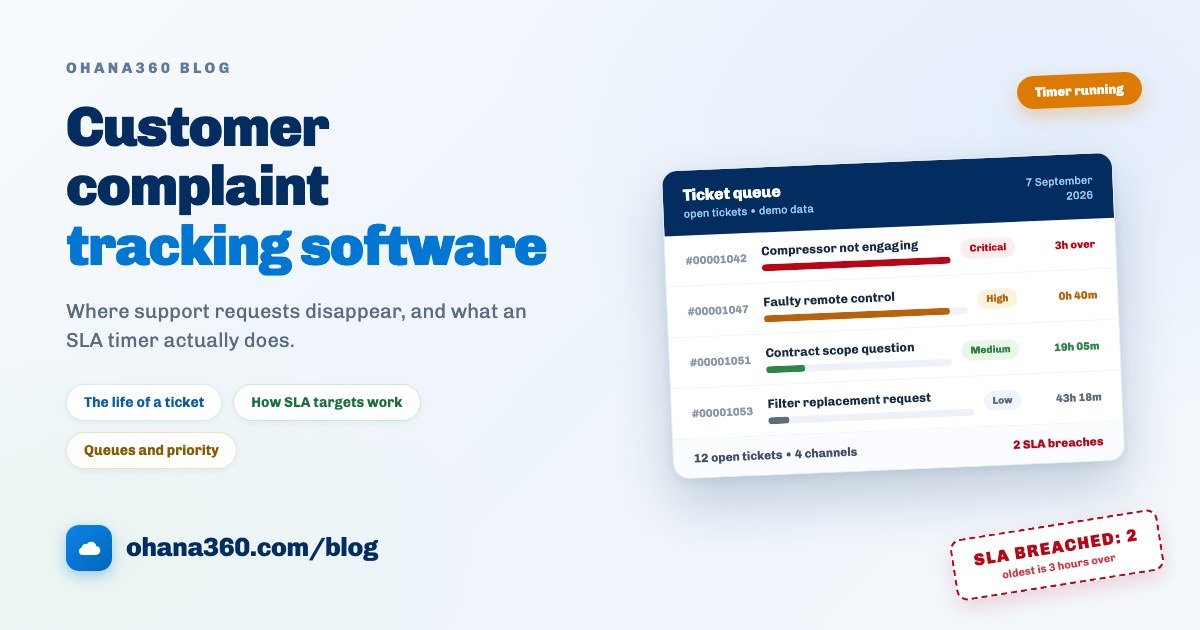
| Critical | Work has stopped, revenue is being lost right now | Cold storage unit is down | 4 hours | On-call engineer, immediately |
| High | Degraded but running, a workaround exists | One of two units is out | 8 hours | Account owner, same day |
| Medium | Annoying, not urgent, can be scheduled | Faulty remote control | 24 hours | Queue, next available person |
| Low | A question, an information request, an idea | Query about contract scope | 48 hours | Queue, in order |
The timer has three states and all three are visible at a glance on the list: on track (time remaining, green), warning (into the last quarter of the window, amber) and breached (time is up, red). It starts the moment the ticket is opened and recalculates instantly if the priority changes. One honest caveat: the timer does not know about office hours or public holidays, it counts wall-clock time. A 24-hour ticket opened at 17:00 on Friday arrives on Monday already breached. The fix is to set targets that acknowledge this: on a team working weekdays 09:00 to 18:00, "24 hours" really means "next business day", and 48 is the more honest number to promise.
Queues, assignment and statuses
The answer to unowned tickets is not making everyone watch every ticket. It is a queue: a shared pool that can own records, where members see and edit the queue's records as if they were their own. If a ticket cannot go to a person, it goes to a queue, and it never sits in the middle of nowhere. Three queues usually cover a small service business: Field Team, Technical Support, and Billing and Contracts.
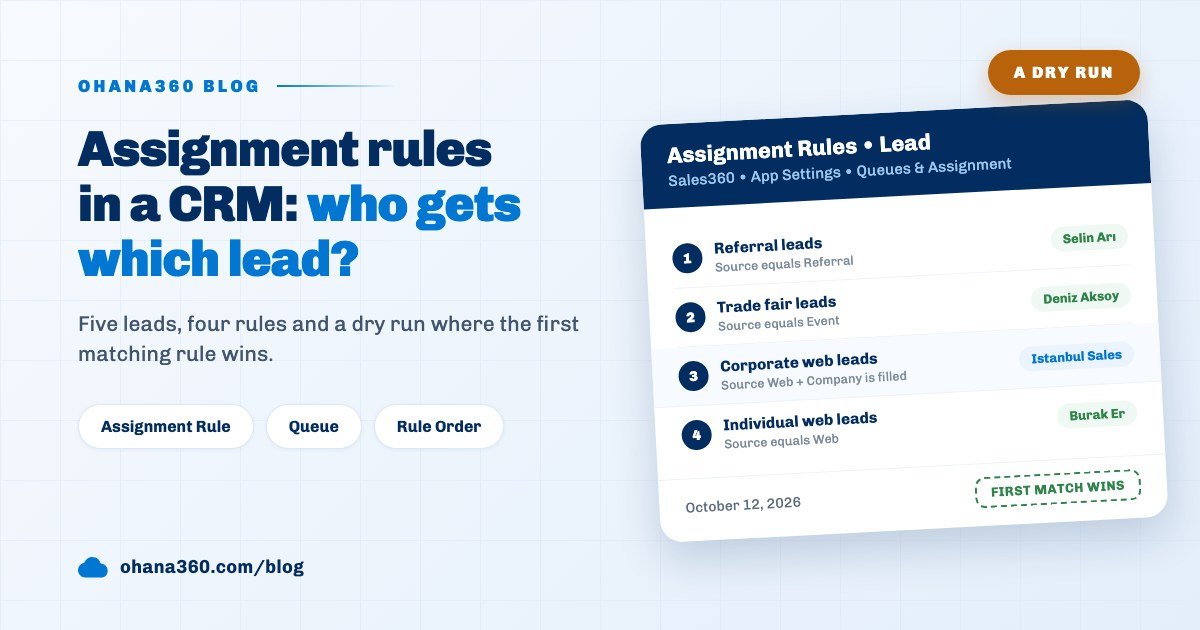
Assignment rules automate the queue. You write conditions, and the first matching active rule sets the owner. A starting set might look like this:
- If priority is Critical, the owner is the on-call engineer.
- If the channel is Web, the owner is the Technical Support queue.
- If the type is Complaint, the owner is the operations manager directly.
The status list matters just as much as the owner, because the honesty of your overdue report depends on it. Six statuses cover a service team:
| Status | What it means | Whose move |
|---|---|---|
| New | Logged, nobody has looked at it yet | Yours |
| In Progress | An owner picked it up, work has started | Yours |
| Waiting on Customer | Waiting for information, approval or access | Theirs |
| Escalated | Beyond the first responder, moved up a level | Yours, different person |
| Resolved | Work done, note written, customer informed | Theirs (confirmation) |
| Closed | Confirmed, or the window expired | Nobody's |
The most valuable of the six is Waiting on Customer. Without it, tickets where the customer owes you an answer look exactly like tickets you are sitting on, and your overdue count stops telling the truth.
The first 7 days: a setup plan
The most common way this migration fails is trying to move every historical conversation across. Do not. One hour a day for seven days is enough, and on day eight every new request comes out of the system.
| Day | What to do | What you have at the end of it |
|---|---|---|
| 1 | Rewrite the channel list to match reality (add WhatsApp and Portal) and simplify the ticket types | A record that tells you where a request came from, in one field |
| 2 | Write the four priority definitions down and enter the SLA targets in hours | An urgency order that does not change with who is typing |
| 3 | Create the queues, add members, and write two or three assignment rules | Tickets that never end up unowned |
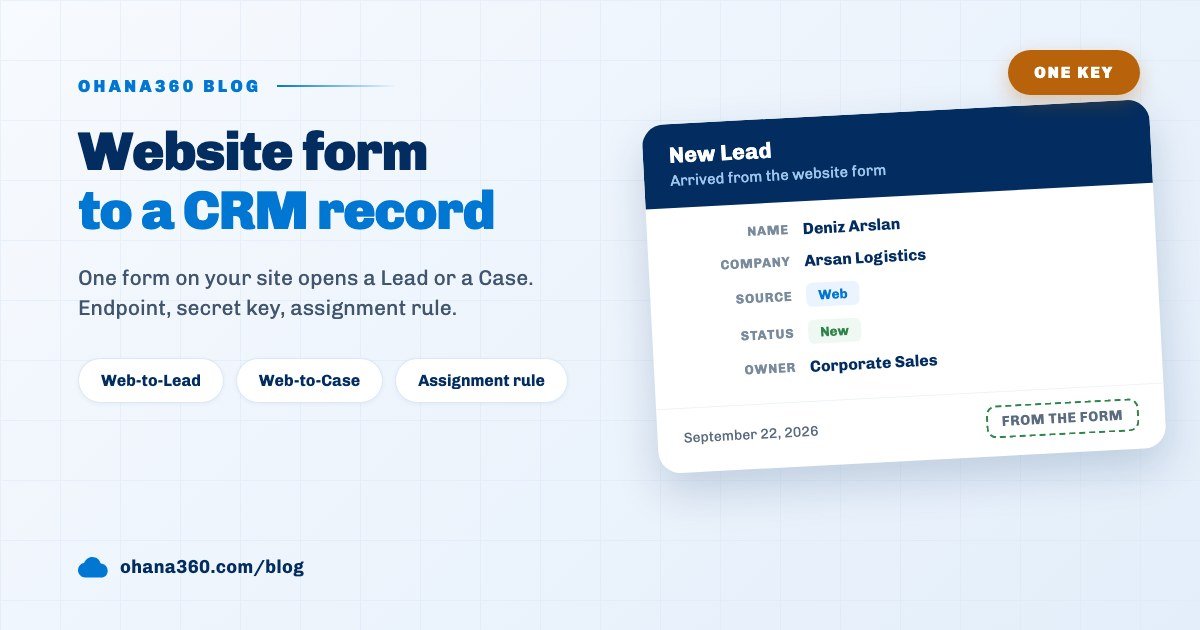
| 4 | Embed the web form on your site and file a test ticket through it | Your "contact us" traffic arriving as numbered records |
| 5 | Write and publish knowledge base articles for your five most frequent questions | A team that never writes the same answer twice |
| 6 | Switch on two ready-made flows: a call task on critical tickets, a nudge on anything open three days | Your first two alerts running by themselves |
| 7 | Build the reports and run a 30-minute rehearsal: turn a chat message into a ticket in sixty seconds | A working loop and a team that knows it |
Day eight has one rule: no parallel running. Keeping two systems in week one teaches people the new one. Keeping them in week two ruins both, because nobody writes the same thing down twice and once they stop, neither list can be trusted.
How the flow works in Ohana360
Service360 owns this entire loop. Here is what it does, without inflation, and what it does not do, without hiding it.
- The ticket record: every case gets an automatic number (in the form 00001001, from an org counter). The fields are: Subject, Type (Question, Problem, Request, Complaint), Priority (Low, Medium, High, Critical), Channel (Phone, Email, Web, Social), Account, Contact, Status and Description. Type and Channel are editable picklists in the Object Manager, so you add values such as WhatsApp or Portal yourself. Status and Priority are system lists, because the SLA calculation and the closing flow depend on them.
- SLA targets: set from the App Settings card on the Service360 home page (admins only), which opens a single panel with three tabs: SLA Targets, Queues and Assignment, and Web-to-Case. On the first tab you enter the hour target for each of the four priorities; the defaults are 4, 8, 24 and 48 hours. A change is reflected immediately in the remaining time and breach calculation of every open ticket.
- The SLA timer: runs from the moment the ticket is created. It shows on the list and on the record as "3h 12m left", turns amber in the last 25% of the window, and becomes an SLA Breach when the time is up. Once the ticket moves to Resolved or Closed the timer stops and the badge settles as SLA Met or SLA Breach.
- List and kanban: the Cases tab is a full list view (Ticket No, Subject, Account, Priority, Status, SLA and Channel columns, with double-click inline editing, filters, and bulk priority and status changes). The same tab switches to a kanban board: columns are statuses, cards carry the number, SLA badge, subject, priority and channel, and dragging a card changes its status.
- Queues and assignment: the second settings tab. You create queues and add members; assignment rules are written as condition lists, and the first matching active rule sets the owner. A rule never overrides an owner that was chosen deliberately, and the rules also run on tickets arriving from the web form.
- Web-to-Case: the third tab holds a ready-made form snippet for your site (subject, name, email, message, plus an invisible bot trap). A submission opens with channel Web, priority Medium and status New; admins get an email, the notification centre gets an entry, a mobile push goes out, and assignment rules run. The person who filled in the form is shown the ticket number. The endpoint is rate limited per IP. If you rotate the token, the old form on your site stops working until you paste in the new code.
- Tickets from Portal360: with Portal360 enabled, your customer signs in to their own portal and opens a ticket from the My Cases tab with + New Case, entering a subject and a description. It lands in Service360 with channel Portal, status New, priority Medium and the portal user's account; your team gets a "new case from the portal" notification and your record-triggered flows run on it as usual. The portal user can also see the status of their own tickets and the resolution note, which takes a good share of the "any update on this?" calls off your phone.
- Suggested Articles: with Knowledge360 on, the card on the ticket page takes the words from the subject, looks for them in the title, summary and category of your published articles, and offers the three best matches. You link an article to the ticket, and unlink it if it turns out not to fit. To be straight about it: this is keyword matching, not AI. It works very well when your article titles use the words your customers use, and not at all when they do not.
- Email from the record: the Email card is on the ticket page by default. You pick a template, write, and the message lands in the record's conversation and on the activity timeline as a completed email, with your signature appended. That is how "what did we last tell this customer" stays answerable.
- Resolution and closing: the Resolve button on the record (or picking Resolved on the status path) opens a dialog that makes the resolution note mandatory. The note is saved, the resolution time is stamped, and the ticket shows as Resolved on the list. There is no closing without a note.
- The home page: four blocks. The SLA strip puts breached open tickets at the top. The Cases needing attention list ranks open tickets by reason: SLA breached, critical priority, open longer than seven days, unassigned. The object inventory cards show the record count and status split for each tab, and clicking a segment opens that filtered list. The App Settings card is visible to admins only.
- Notifications: the bell menu carries a separate Live SLA Breaches card, where you mark breaches as seen one by one so the same ticket is not picked up twice by two people.
- Not included: automatic conversion of incoming chat messages into tickets, email-to-case, phone system integration, a live chat widget, pausing the SLA timer against business hours and public holidays, and automatic measurement of first response time. There is a First Response field on the ticket, but it does not fill itself; if you want to track it, you type it in.
Want to see the loop in 94 seconds?
Which alerts to put on rails
The flow engine ships with three case templates, and all three are worth switching on in week one:
- Critical ticket to an urgent call task: a record-triggered flow. When a ticket opens with priority Critical, it creates a call task due today for the owner and sends a notification.
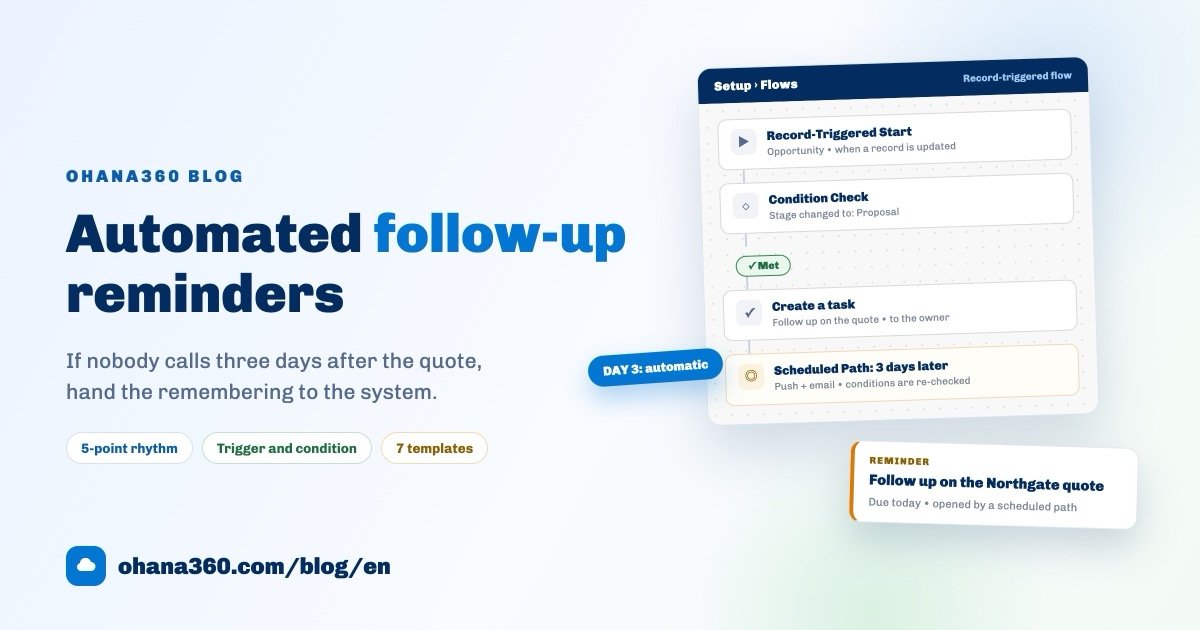
- Open three days to a nudge: a flow with a scheduled path. Three days after the ticket was created, if it is still not closed, it sends a notification and a push. This is the alert that catches records ageing quietly.
- Satisfaction survey on close: when the status changes to Closed, it sends a survey from Survey360. One honest detail here: the flow reads the recipient from an email field on the record, and a ticket has no standard email field. As it ships, the flow therefore opens a "send the survey" task for the owner rather than emailing directly. If you want it to send by itself, add a custom email field to the ticket and fill it at intake.
You build the remaining alerts yourself on the same screen. Date conditions in scheduled flows offer three options: "in the past", "within the next X days" and "older than X days". Escalation tiers are built the same way, for example a manager notification on "status is New and created more than 2 days ago". The general logic of making follow-up the system's job is covered in the automated customer follow-up guide.
Which reports to build
Two case reports come ready in the report list: Cases by status and Cases by priority. You build the rest in the report builder, drop them on a dashboard and add an email subscription if you want one. The reportable fields on the case object are: Subject, Status, Priority, Channel, Ticket No and Created date. Date fields group by day, week, calendar month, quarter and year.
| # | Report | Object | Group by | Measure / filter |
|---|---|---|---|---|
| 1 | Cases by status | Cases | Status | Record count (ready-made) |
| 2 | Cases by priority | Cases | Priority | Record count (ready-made, donut) |
| 3 | Incoming cases by month | Cases | Created (calendar month) | Record count |
| 4 | Incoming cases by week | Cases | Created (week) | Record count |
| 5 | Open cases | Cases | Status | Record count, filter: Status ≠ Closed |
| 6 | Critical cases by month | Cases | Created (calendar month) | Record count, filter: Priority = Critical |
| 7 | Tasks by type | Tasks | Type | Record count (ready-made) |
Two honest boundaries. First, SLA breaches and resolution time are not fields in the report builder; both are calculated values. You watch breaches from the SLA strip on the home page and the Live SLA Breaches card in the notification centre, and if you want a monthly breach count you export the case list and split it in a spreadsheet. Second, the channel breakdown is not reliable in the report builder; for a channel split, filter and count from the Channel column on the list view, or export it.
If your customer records still live in spreadsheets, that is the sensible place to start the migration: the Excel customer tracking guide comes with a template and a migration order. Current numbers are on the pricing page, and you can request a demo to try it with your own data.
Frequently asked questions
What does customer complaint tracking software do that a shared inbox does not?
What is an SLA, and how should a small business set its targets?
Do WhatsApp messages become tickets automatically?
What statuses should a support ticket move through?
How do I stop answering the same question over and over?
Does the customer get an email automatically when a ticket is updated?
Give every problem a number
Requests from chat, phone, email and your web form on one list: owned, timed, and closed with a note that says what was actually done.