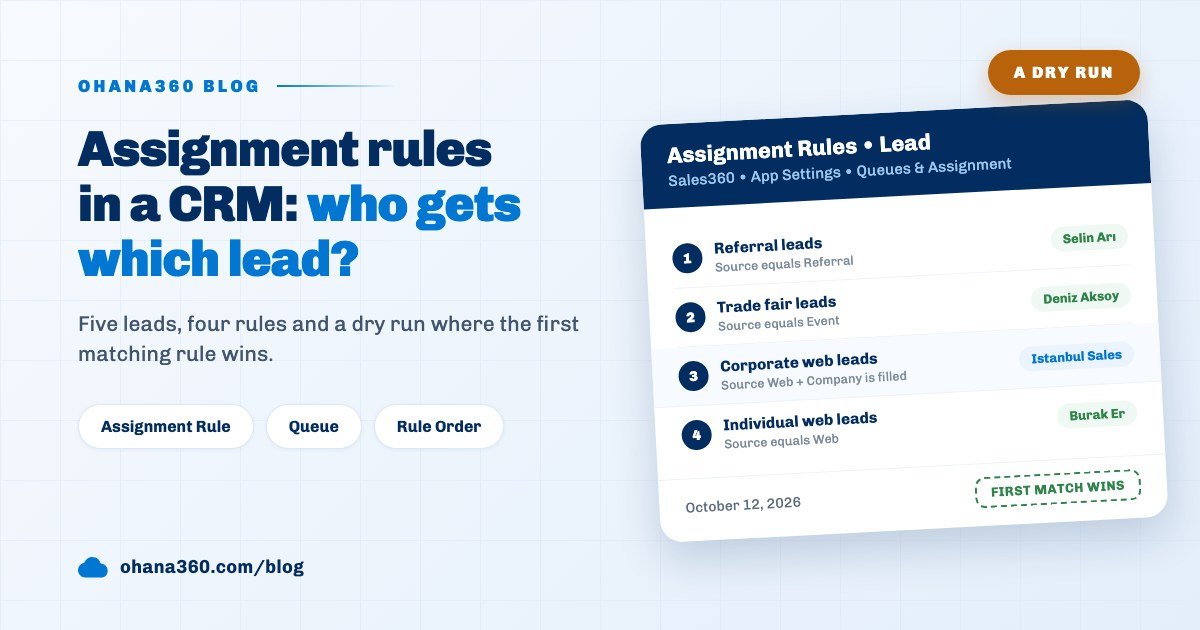
An assignment rule in a CRM automatically gives a newly created lead or support case to a person or a team queue based on conditions. In Ohana360 rules are set up on the Queues & Assignment tab in the App Settings of Sales360 and Service360; the system tries the rules in list order and stops at the first one that matches.
Ohana360 is a business cloud that keeps sales, service and marketing records in one database; assignment rules work on two of its objects: leads and cases. Rather than describe the feature, this post tests it. The sales team at Akın Ofis, an office furniture seller, wrote four rules. Five leads came in on the same morning: two from the web form, one referral, one from a trade fair and one by phone. The table shows how each lead passed through the four rules and who it went to; after that we open up the rule behind each decision.
Where do you set up assignment rules?
Assignment rules are set up in the settings of the app concerned: lead rules on the Sales360 > App Settings > Queues & Assignment tab, case rules on the Service360 > App Settings > Queues & Assignment tab. Only admins see App Settings; a sales rep cannot write a rule, only live with its result.
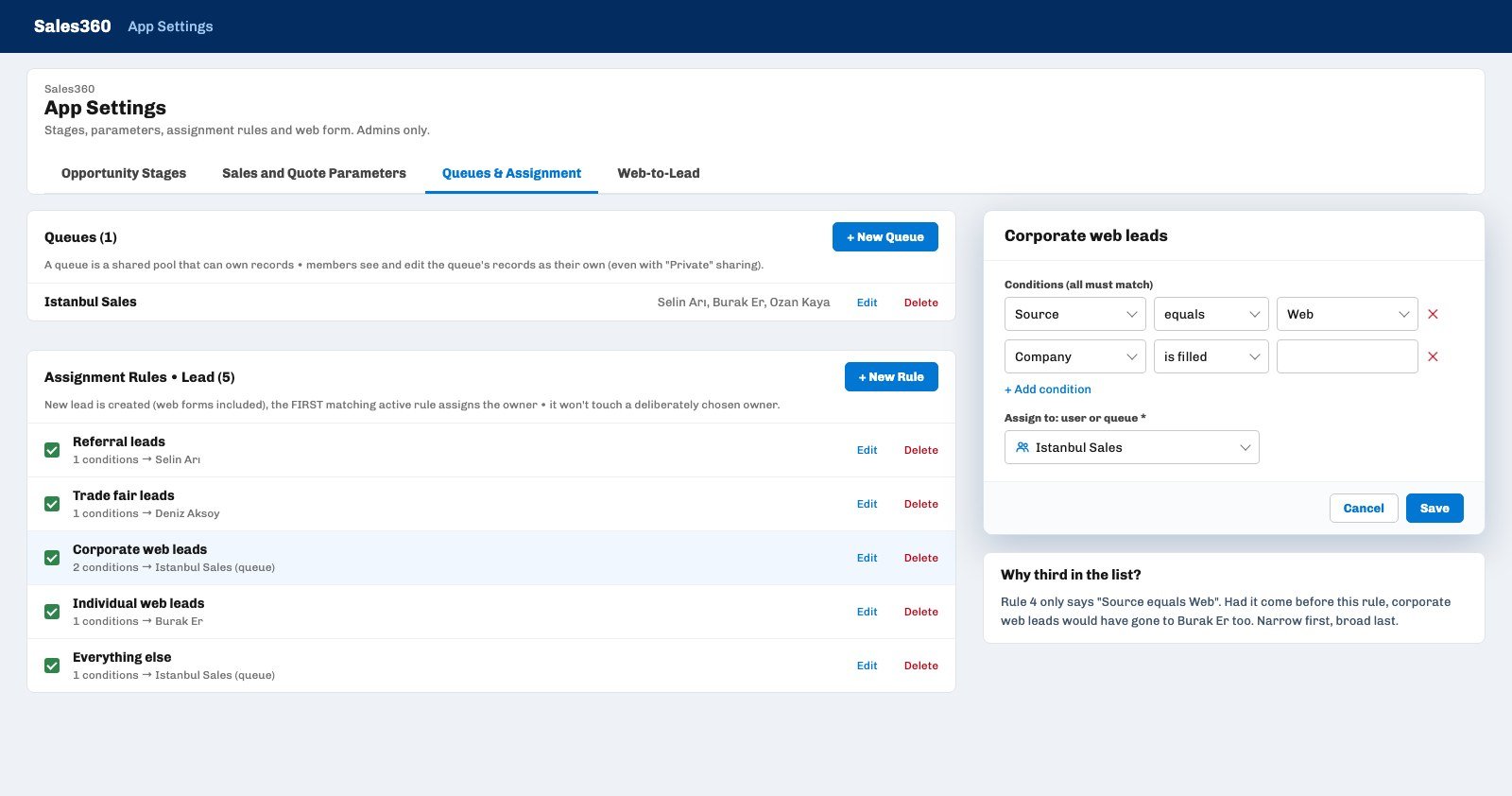
The tab has two parts. The Queues list sits at the top, the Assignment Rules list for the object below it. Each rule row shows an Active checkbox, the rule name, the number of conditions and the target, for example "2 conditions → Istanbul Sales (queue)". A rule is defined in the window that opens with + New Rule by four things:
- Rule name. The name shown in the list; make it say what the rule does: "Corporate web leads".
- Conditions (all must match). Each line is a field, an operator and a value. On leads you can pick First Name, Company, Source, Status, Email and Phone plus any custom fields you added. Picklist fields have four operators (equals, not equal, is filled, is empty), text fields seven (contains, does not contain, equals, not equal, starts with, is filled, is empty).
- Assign to: user or queue. The target is a single active user or a queue. One rule cannot assign to two people at once.
- Active checkbox. An inactive rule is not deleted; it waits in the list with a grey label and is not evaluated. That is how you switch a rule off while testing.
Conditions inside a rule are joined with AND; to say "Source Web OR Referral" you write two separate rules. If a condition that needs a value has an empty value box, the Save button does nothing.
Why does rule order matter?
Rule order matters because Ohana360 tries active rules from top to bottom and stops at the first rule whose conditions hold; a second rule that would also fit the record is never evaluated. Each of the five leads in the table is explained by that single principle.
- Nur Demirel, Referral. Rule 1 matches, the lead goes to Selin Arı and the other three rules are not checked.
- Hakan Tekin, Event. Rule 1 does not match, Rule 2 does; the lead goes to Deniz Aksoy, who covers trade fairs.
- Ayşe Yıldız, Web, Mavi Lojistik. Both conditions of Rule 3 hold: Source is Web and Company is filled. The lead lands in the Istanbul Sales queue and Rule 4 is never reached.
- Kerem Aydın, Web, no company. The second condition of Rule 3 fails, Rule 4 matches; the individual buyer goes to Burak Er.
- Zeynep Kılıç, Phone. None of the four rules matches and the lead is left without an owner.
Rules 3 and 4 show why order decides the outcome. Rule 4 only says "Source equals Web" and fits every web lead. Placed at the top of the list it would have sent Ayşe Yıldız to Burak Er as well, and the corporate queue would never have received a record. The rule of thumb: narrow conditions first, broad conditions last.
There is a practical limit here. A new rule is always added to the end of the list and there is no button to move rules up or down. If you later need to slot a rule in between, two options remain: rewrite the conditions and targets of existing rules with Edit, or delete the rules below and recreate them in the right order. With a handful of rules this takes a minute, which is why designing the order on paper first is the cheapest approach.
What happens to a lead with no owner?
A lead that matches no rule is left without an owner, and in Ohana360 a record without an owner counts as everyone's own record; even with Private sharing on leads and cases, every user in the org sees it. That is why Zeynep Kılıç's record shows up in every list on the team but is nobody's responsibility.
There are two reasons. The lead and case forms have no Owner field, so the owner is always decided by a rule; the rep who creates the phone lead cannot type their own name into the form. The fix is a catch-all rule at the very end of the list that fits every new record. A rule without conditions cannot be saved, at least one condition is needed; the form defaults Status to New and the web form always creates leads as New, so the condition "Status equals New" does the job. Akın Ofis added this as a fifth rule and made the Istanbul Sales queue its target.
Whose lists a record appears in depends on sharing. When sharing on leads and cases is Private, the record is seen by its owner, by people above the owner in the role hierarchy, by the queue's members if the owner is a queue, and by admins. Profiles and sharing are covered in the user roles and permissions guide.
What is a queue, and when do you assign to one instead of a person?
A queue is a shared pool that can own records: it is a name plus a member list, and every member sees and edits a record assigned to the queue as their own. Assigning to a queue instead of a person is for cases where you know which team a record should go to but not which person.
- When the team works together. Whoever calls a corporate web lead first takes it; Selin Arı, Burak Er and Ozan Kaya, the members of the Istanbul Sales queue, all see the same leads.
- So work does not stop when someone is away. A rule tied to one person leaves leads waiting while that person is out; in a queue one of the members picks the record up.
- When sharing is Private. A queue is the simplest way to give a team shared visibility under Private sharing; no extra sharing rule is needed.
A queue is created with + New Queue: you type a name and pick people from the members list. A second queue with the same name cannot be created. If a queue is deleted, the owner of records assigned to it does not change; the records keep a name with no members as their owner, and former members can no longer see them as their own. Move the records to another owner before you delete a queue.
How do you set up assignment rules for cases?
Case rules are set up on the Service360 > App Settings > Queues & Assignment tab with the same window as lead rules; the condition fields are Subject, Type, Priority, Status, Case Origin and Description plus any custom fields added to cases. The Akın Ofis support team wrote three rules:
| Order | Rule | Condition | Target |
|---|---|---|---|
| 1 | Critical cases | Priority equals Critical | Senior Support (queue) |
| 2 | Complaints | Type equals Complaint | Ece Kurt |
| 3 | Web form cases | Case Origin is empty | Support Desk (queue) |
The third rule relies on a detail. A case from the Web-to-Case form is created with Status New and Priority Medium, and its Case Origin and Type fields are empty. A "Case Origin equals Web" condition does not catch these cases; "Case Origin is empty" does. Case Origin is required on the case form in the app, so this condition does not affect cases opened by hand. Web form cases always come in at Medium priority, so Rule 1 never fits them; priority is raised by hand once the team has read the case.
If priority is later raised to Critical the rule does not run again, because assignment only happens when a record is created. To hand a case to the senior team when its status moves to Escalated or its priority goes up, you use the Assign Owner action of a record-triggered flow. SLA targets and the full complaint process are covered in the customer complaint tracking guide.
Which records does an assignment rule run on?
An assignment rule only runs when a new lead or case is created: the new record form in the app, web forms and the REST API are the entry points. CSV import, cases opened from the customer portal and updates to an existing record do not run the rule.
Two entry points need extra care. On a record created through the REST API, even if the request sends an owner, the owner is replaced by the rule's target when a rule matches; to keep the external system's own assignment, send those records with values that match no rule. Leads imported from a CSV file arrive without an owner; after a large import, distribute them with a flow or by hand from a list view filtered on Status. The order of a data migration is covered in the CRM migration guide.
How do you notify the person a record was assigned to?
An assignment rule sends no notification; to tell the new owner you add a Push Notification action to a record-triggered flow and pick the record owner as the target. Among the ready-made templates under Setup > Flows, "Web lead → call within a day" sets this up: when a lead with Source Web is created it creates a call task due tomorrow and sends a push to the owner.
- The flow runs after assignment. The rule writes the owner first and then the flow runs, so the push goes to the person the rule picked.
- No push to a queue. If the owner is a queue, the push to the record owner is skipped, because a queue is not a user. For queue records, route the notification to everyone or to the team lead.
- A scheduled path for untouched records. The "Lead untouched for 7 days → reminder" template sends a push to the owner a week later if the lead is still at Status New.
Reminder and task flows are covered in the automated follow-up reminders guide, and turning an assigned lead into an account, contact and opportunity in the lead conversion guide.
Not included: what assignment rules do not do
- No round robin or workload-based distribution. There is no rotation, capacity limit or "give it to whoever has the fewest" option; each rule assigns to one user or one queue.
- Rule order cannot be changed. A new rule goes to the end of the list; there is no move up or move down button.
- Conditions are joined with AND only. For OR logic you write separate rules; a rule without conditions cannot be saved.
- Two objects only. Rules run on leads and cases; there are no assignment rules for opportunities, accounts, industry apps or custom objects.
- Only at creation. When a record is updated the rule does not run again; reassignment is done with the Assign Owner action in a flow.
- CSV import and portal cases do not run rules. These records arrive without an owner.
- The Owner field is not shown on lead and case screens. There is no Owner on the form, on the Details card of the record page or among the list columns, and no "take ownership" button for moving a queue record to one person. Who owns a record shows only in who can see it.
- No automatic notification on assignment. Task assignment notifies the new owner; lead and case assignment does not, so notification is built with a flow.
- Picklist values appear as stored. In the English interface the value list inside a rule shows picklist values as they are stored, so you see Referans for Referral and Etkinlik for Event; pick from the list and the match is exact.
- Only admins set up rules. App Settings is open to admins; a team lead cannot write the rules for their own team.
What should you check before turning the rules on?
Testing every assignment rule with at least one trial record before you rely on it saves the first week's leads from going to the wrong person. The six-point list Akın Ofis used:
- Lay out the order on paper. Write the rules from narrow conditions to broad ones, then enter them in the app in that order.
- Keep the last rule for the gap. A catch-all rule with the condition "Status equals New" leaves no record without an owner.
- Create one trial record per entry point. Create one through the form, the web form and the API if you use it, and check the result from the account of a queue member and of the target user.
- Pick picklist values from the list. The condition value is compared exactly with the value on the record; on picklist fields choose the value from the window's dropdown instead of typing it.
- Wire up notifications with a flow. Set up a push to the owner for records assigned to a person, and a notification to the team lead for records assigned to a queue.
- Keep members and leavers up to date. When someone leaves the team, change the rule that targets them and their queue membership on the same day.
Assignment rules work with the same window for leads in Sales360 and for cases in Service360; the logic of rule conditions is the same as the condition lines described in the validation rules guide.