The decision is made, the tool is chosen, the contract is signed. The real work starts here, and this is the part that hurts most teams: a CRM migration is not a software installation, it is a house move. Somebody has to decide which furniture travels, what stays in the basement, who moves on which day, and when the keys to the old place go back.
This guide is not a tool comparison. If you have not settled on the tool yet, the Salesforce alternative guide covers cost and scope, and what is a CRM covers the vocabulary. What follows is the three weeks after the decision.
To keep it concrete we will follow Kestrel Lab Supplies, a 27-person distributor of laboratory instruments selling to universities and private testing labs. Their old system held 6,204 account records, 9,880 contacts, 2,240 deals and around twenty-eight thousand activity rows. The move took 18 working days, and a little over half of those records made it across. (Demo data.)
The order of a migration: ten steps, three phases
Order matters more than speed. Read the whole list before you prepare a single file; most migration accidents come from doing step six before step four.
- Take a complete export out of the old system. Before touching anything else. That archive is the one fixed point you can return to all the way through.
- List the objects that will move. Accounts, contacts, deals, cases, products. Write a one-sentence reason for each; an object you cannot justify in a sentence does not travel.
- Cut the dead records. Accounts with no deal, no activity and no open work stay in the old system.
- Clean duplicates on the old side. Identical names and rows with no contact details take minutes to strip out in a spreadsheet.
- Write the field mapping sheet. Old column, new field, format rule. Three columns on one page will settle every argument that follows.
- Run a rehearsal import. Fifty rows. Open every record that comes out of it.
- Load accounts first, then contacts and deals. Links are made by name, so the order cannot be reversed.
- Move the pilot team. Three people, five days, on real work.
- Move everyone else on one day. A staggered rollout means working in two systems at once, and a team working in two systems is really working in neither.
- Run the first-week checklist. A migration that ends without measurement is back in the old spreadsheet by month three.
What moves and what stays behind
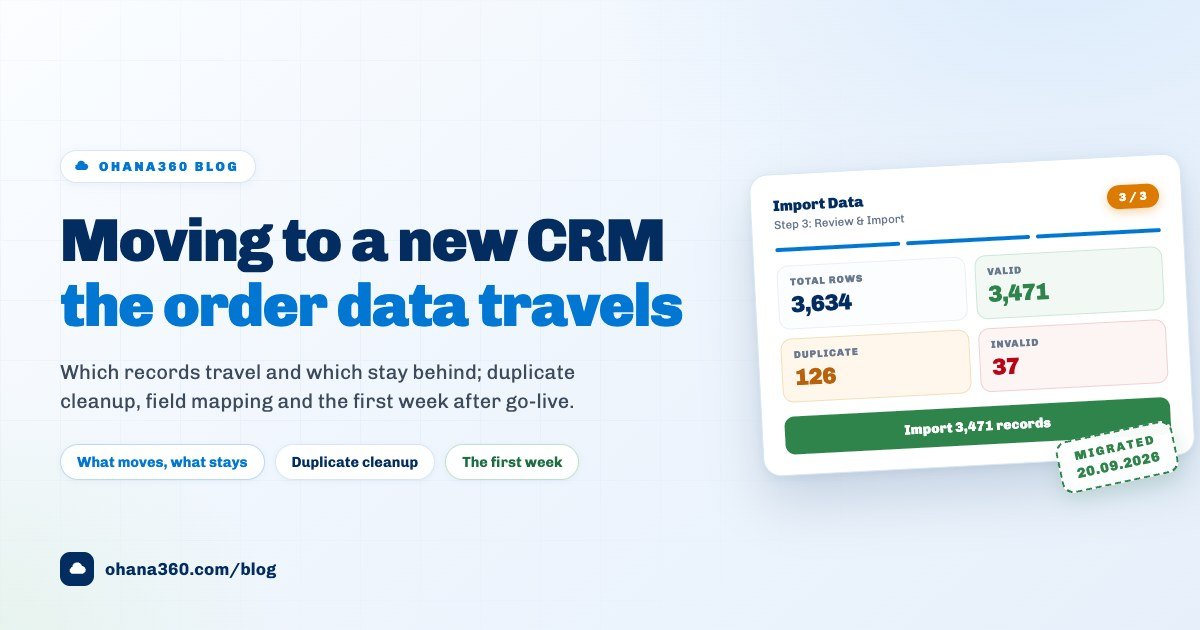
The worst decision in any migration is "let us bring it all across, just in case". Kestrel refused that sentence and moved 3,634 of their 6,204 account records. What stayed: 1,010 rows that were exact-name duplicates and 1,560 accounts nobody had touched in three years with no deal ever attached. On the contact side, 1,402 of 9,880 rows belonged to accounts that were not travelling and 918 had neither an email nor a phone number, so 7,560 contacts went across. Of 2,240 deals, only the open ones and those closed in the last eighteen months travelled, 1,115 in total. The twenty-eight thousand activity rows did not move at all.
The rule is short: every record that enters the new system has to do a job there. If an account has live work, it travels; if it does not, it belongs in the archive. The same holds for activity history. Teams that try to carry three years of call notes across lose weeks and end up with a pile nobody opens, while keeping the old tool readable, or holding one full export archive, buys exactly the same safety for free.
Closing duplicates before the move, not after
A duplicate costs twice as much to clean once it is inside the new system, because by then it has contacts, deals and cases hanging off it. So the blunt half of the work happens on the old side: identical names, rows with no contact details, records somebody opened to test something in 2023.
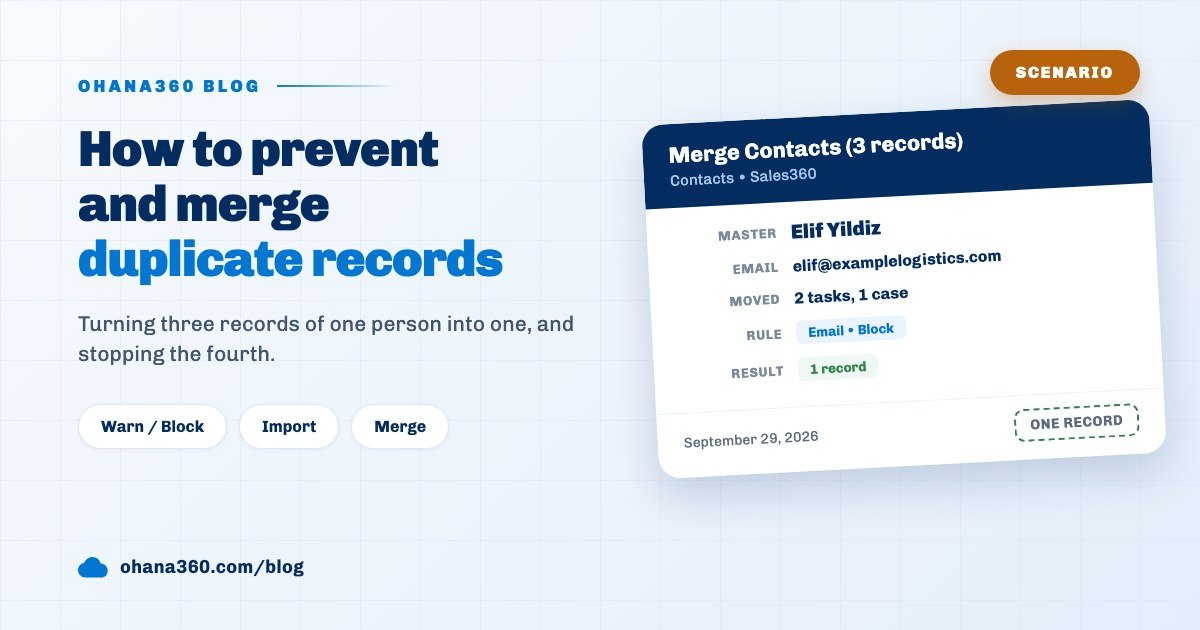
What remains is the pairs where a name was spelled differently, and Ohana360 offers two doors for those. The first is Object Manager > object > Duplicate Check: if all of the fields you pick match (ignoring empty ones), the record counts as a duplicate. On a record form it warns or blocks, and in an import it marks the row Duplicate on the Review step and skips it by default. Date fields cannot be used as matching fields. The second door is after the load: select two or three records in the Accounts, Contacts or Leads list and press Merge. You pick the master record, then pick a winner for each field where the values differ; blanks on the master are filled from the others, the losers go to the Recycle Bin, and when you merge accounts their contacts, opportunities, cases, orders and invoices are reattached to the master.
Field mapping: from an old column name to a new field
Mapping is the dullest step and the one that decides everything. Open a sheet with three columns: old column, new field, format rule. For every column you cannot map there are three legitimate answers: create a custom field, leave the data behind, or fold it into another field.
The Ohana360 import recognises headers in three shapes and makes its own guess whichever one arrives: the internal field name (name, amount, email), the API name you are used to (StageName, CloseDate, AnnualRevenue, LeadSource), or the field label as it appears in the interface. You correct the guess row by row on the Column Mapping step, where each row shows the header, a sample value taken from the first data row, and a field picker. Columns you leave unmapped are simply ignored and do not block anything.
Map something badly and the screen will not let you through. While you are updating without an Id column mapped, or inserting without the required fields mapped, or as long as two columns point at the same field, the continue button stays inert.
Dates, phones and amounts: three format traps
The import strips currency symbols and separators out of amount fields, and writes every other field exactly as the file has it. That produces three familiar traps.
| Trap | What happens | Fix |
|---|---|---|
| Dates | A date written as 15/03/2026 cannot be read and the field lands empty | Format the column as Text in Excel and write dates as 2026-03-15 |
| Phones | The leading zero is dropped on the spreadsheet side, so the number arrives short | Set the phone column to Text before you export the file |
| Amounts | A value like 412,000.00 with a symbol in front collapses to zero | Strip symbols and thousand separators, use a dot for decimals |
| Picklists | "proposal" and "Proposal" are not the same value, so nothing sticks | Copy the exact spelling from the picklist in the Object Manager |
| Owner | A record with no owner falls outside your sharing rules | Map the owner column, or assign owners in bulk from the list afterwards |
Who moves when: the pilot team and the one-day rule
A migration calendar asks two questions whose answers look contradictory.
The pilot team: three people, five days, on real work. At Kestrel the pilot was a field rep, a service coordinator and a manager. That spread matters, because a pilot drawn from one role only ever finds the problems on one screen. At the end of the five days the pilot's list ran to fourteen items: nine field naming corrections, three list view changes and two genuine data errors.
Everyone else: one day. Everybody outside the pilot moves on the same morning. A staggered rollout sounds cautious, but in practice it means the company runs in two systems, and by the third week nobody knows which one is right. On cut-over morning the old tool is closed for writing and every new record is created in the new system only.
Two practical precautions for that day. Do not schedule it against a big customer meeting or a month-end close, and open exactly one channel where questions are collected for the first three days. In migrations where questions scatter, the same question gets answered six times.
How long should the old system stay open?
The two commonest mistakes are opposites of each other. One is shutting the old system down on cut-over day; the other is leaving it running for six months.
The balanced route: on cut-over day the old system is closed for writing and left readable for sixty days. That window is more than enough to go looking for a quote that did not travel or an old thread, and it leaves nobody a door back into the old way of working. Before the sixty days are up, take a complete export out of the old system and keep the archive in-house, because the export button goes when the subscription does.
For the backup on the new side, Ohana360 has Setup > Data Export: one ZIP holding a separate CSV per object, your custom objects, the user list, a file list and the org configuration. It can be run up to ten times a day, and file contents are not in the archive, files.csv is a list only. Take one immediately before every large load.
The Ohana360 import screen, step by step
The screen sits under Setup > Data Import and runs in three steps. No record is created before you have seen the numbers on the third one.
| Step | What you do |
|---|---|
| 1. Source | Pick the object (Account, Contact, Lead, Opportunity, Case, or one of your custom objects) and the action: create new records, or update the ones matched by an Id column. Then drop a file, pick one, or paste cells copied out of Excel. To start from ready-made headers, download that object's Excel or CSV template from the panel on the right. |
| 2. Column Mapping | Each column shows its header, one sample value from the first data row, and a field picker. The system fills in its guess and you correct it. If a mapping is missing or two columns collide, a notice appears and the step will not let you past it. |
| 3. Review & Import | Four numbers appear: total rows, Valid, Duplicate and Invalid. Each tile is also a filter, so pressing one shows those rows in the table below. Bad rows carry their reason: Required field missing, Id not found, a validation message, or Duplicate. The number on the button tells you how many rows will actually be written. |
The screen after the load reports how many records were created and how many rows were skipped, and Download skipped rows hands you every skipped row with its reason as an Excel file. In practice that is the most productive loop of the whole migration: load, download the skipped rows, fix them in the file, load again. To bring duplicates in deliberately, tick Import duplicates too.
Your validation rules apply to imports as well; a row that trips one is counted as Invalid and is not written. You may want to relax a rule for the duration of the move, but write the rule you relaxed into the first-week checklist so it goes back on.
What it does not do
- No activities, notes, emails or files. The import screen works with record objects. There is no path for tasks, events, notes, attachments or email history, so the old tool's activity archive either stays readable or lives on as an export file.
- Created dates are not preserved. Every imported record gets the import day as its created date and the admin who ran the import as its creator. To keep the original date, add a custom field first and map it there.
- Flows and assignment rules do not run on a bulk insert. Creating new standard records skips record-created flows and assignment rules. That spares you a thousand notifications, but owners have to be assigned by hand. In an update import, and in any import into a custom object, flows do run row by row.
- Imports are not written to the Audit Log. Exports are logged, imports are not, so keep the answer to "when did these records arrive and who loaded them" in your own migration notes.
- There is no undo button. You reverse a bad import by mass-deleting it, but the Recycle Bin keeps the last hundred records, so a five-hundred-row mistake does not come back whole.
- Merge takes three records at a time at most. And it lives on the Accounts, Contacts and Leads lists only. A record with four copies takes two rounds, and there is no duplicate merge on opportunities or cases.
- Accounts link by name and nothing else. There is no matching on a tax number or a legacy system code; the account name has to match exactly.
The first week after go-live: a checklist
A migration is not judged on the day it goes live but on day ten. The list below is the admin's first week.
| Day | Check | Time |
|---|---|---|
| 1 | Compare record counts against the old system, object by object: accounts, contacts, deals, cases. Any gap gets explained the same day | 20 minutes |
| 2 | Open twenty records at random and see with your own eyes that fields landed where you meant them to, dates and amounts especially | 30 minutes |
| 3 | Filter the list for records with no owner and assign owners in bulk; an ownerless record falls outside your sharing rules | 25 minutes |
| 4 | Turn Duplicate Check on and close the remaining pairs with Merge, two or three at a time, without rushing it | 40 minutes |
| 5 | Run a report over your stage and picklist fields: is anything empty or carrying a value you did not expect | 30 minutes |
| 6 | Switch back on the flows you disabled and the validation rules you relaxed for the load; read the list out of your migration notes | 20 minutes |
| 7 | Take the first clean backup from Setup > Data Export and ask the team one question: what did you fail to find this week | 15 minutes |
At the end of week two, look at a single number: how many records the team created in the new system. At Kestrel it was 61 in the first week and 148 in the second. If it is not climbing, the problem is not in the data but in the habit, and habits only change once the old system is genuinely closed.
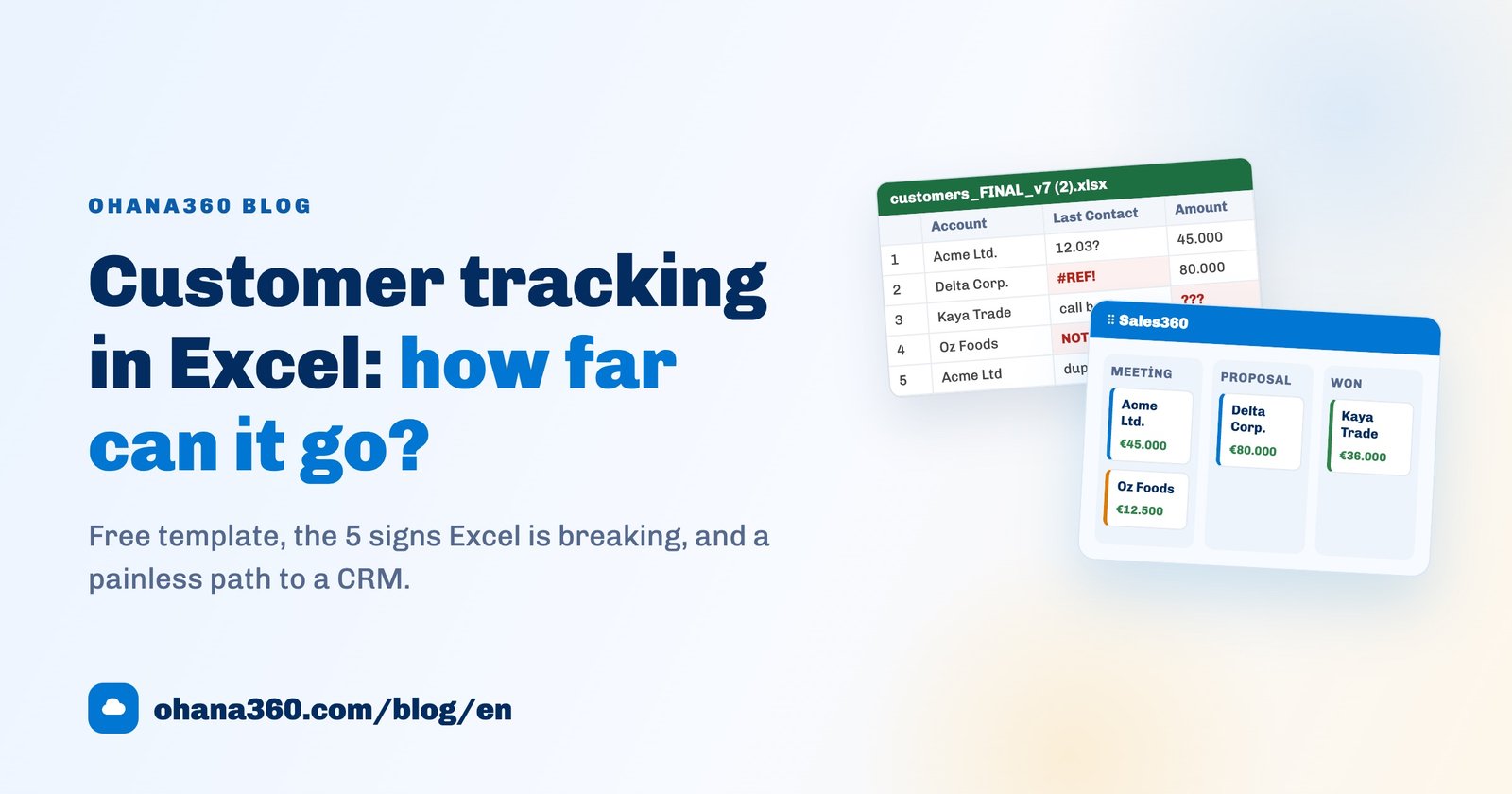
Once the data is clean, the next move is to cut it into groups worth acting on; the customer segmentation guide shows how a working segment comes out of a clean list. If you are migrating out of a spreadsheet, the Excel customer tracking guide gets the column layout ready for the import.
Frequently asked questions
Do we have to bring every year of history across?
Should duplicates be cleaned before or after the move?
Which files and which records does the Ohana360 import accept?
Does an import trigger automations and flood the team with notifications?
Can a bad import be undone?
When is it safe to cancel the old subscription?
Rehearse before you move
Start with a fifty-row file, map the columns, read the numbers on the review screen. Fifteen minutes will tell you how the real migration is going to go.