Half past nine on a Tuesday. At Ashgrove Laundry Systems, the leaflet for the new dryer range is sitting on Rhian Calloway's desk, and the question on her screen is the only one that matters: who does this go to? There are 612 leads and 408 contacts on file. The leaflet was written for hotel laundries, and nobody can say which of those records are hotels. Rhian has three options and all three are bad: send it to everyone, pick thirty names from memory, or export a spreadsheet and tick boxes for an afternoon. (Every number below is demo data.)
Last year they sent it to everyone. A handful of non-hotel leads unsubscribed, the sales team spent two days filtering irrelevant replies, and half of the people who should have read it never opened the message. This guide is about removing those three bad options: how to segment customers in a CRM, which fields a segment can actually read, how it connects to a send and a campaign, how consent protects the whole thing, and what to do when segments run out of road.
Segmentation is a question, not a list
The common mistake is to start from the field list. The right order is the other way round: write the message as a sentence first, then look for the qualifier inside it. Rhian's sentence is "I want to tell hotel laundries about the new dryer range." The qualifier is "hotel laundries". One question remains: which field on the record carries that?
The answer is usually plainer than expected. Ashgrove's leads have no industry field, but the company names carry it anyway: Ravenhill Hotel, The Waverley Hotel, Pentland Hotel Group. Every record whose company name contains "Hotel" is the audience. The information was already there; nobody had asked it a question.
In practice four axes do most of the work, and each of them sits on a single field.
- Where it came from. A web form, a trade show, a referral. The lead source carries it, and the tone of the message follows: you do not introduce yourself from scratch to someone whose hand you shook last month.
- Which stage it is at. New, in conversation, lost. The status carries it. Sending a campaign to a lost lead is marketing reopening a conversation that sales deliberately closed.
- What the business does. Hotel, school, restaurant. With no dedicated field, the company name or the email domain carries it, and both are more reliable than people expect.
- Who they are. Still a lead, or a contact attached to an account. That is not a field but an object, and it is the first decision a segment makes.
What a segment is built on in Ohana360
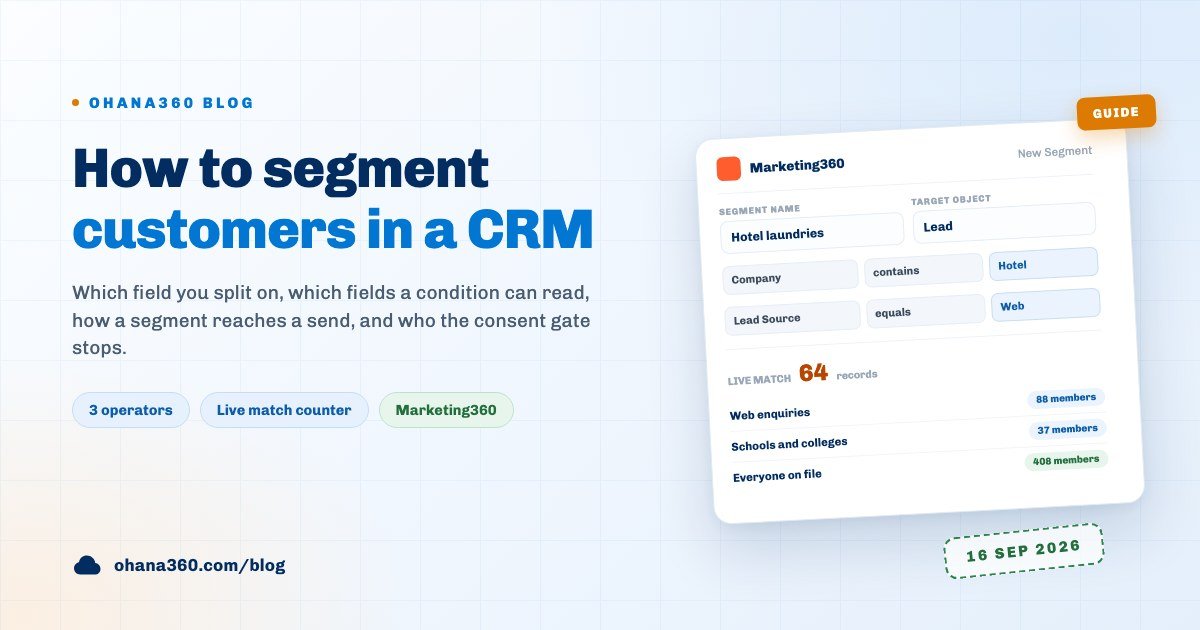
On the Segments tab in Marketing360, + New Segment opens one plain dialog. It holds four things and nothing more: a name, a target object, the conditions, and a live match counter at the bottom.
| Field | What you choose | Worth knowing |
|---|---|---|
| Segment Name | A short name that says who is in it, such as "Hotel laundries" | The only required field; "Segment 3" tells nobody anything three months later |
| Target Object | Lead or Contact, one of the two | Accounts, opportunities, cases and industry objects cannot be segmented; switching object clears the conditions |
| Conditions | A field, an operator and a value, as many rows as you like | Rows are joined with AND and there is no OR; with no rows the segment covers the whole object |
| Live match | Nothing, the counter writes itself | It recalculates on every keystroke, so a mistyped value shows up immediately as zero |
The fields a condition can read are fixed and the list is short. On a lead: Name, Company, Lead Source, Status and Email. On a contact: First Name, Last Name and Email. There are three operators: equals, not equal and contains. Matching ignores case, so "web" and "Web" behave identically.
That brevity looks like a cage at first, and then you discover how much three operators can carry. Contains is the one that earns its keep: a word inside a company name captures a sector, and a domain inside an email address captures an institution type. The four cards below are the four segments Ashgrove can genuinely build, shown with their conditions.
The fourth card matters more than it looks. A segment with no conditions is not a mistake, it is a deliberate tool. For the things that genuinely go to everybody, such as the annual price list, you leave a named audience behind instead of reaching for select-all every time.
Once saved, a segment sits on the Segments tab as a card carrying its name, a badge for the target object, a plain-text summary of its conditions and the live member count. View Members opens the list, and clicking a name takes you to that record. Seeing who is in the list, rather than how many, catches most bad conditions long before anything is sent.
How a segment reaches a campaign and a send
On its own a segment is only a target list. It earns its place when it is attached to a message and a campaign, and the chain has a consent gate in the middle of it.
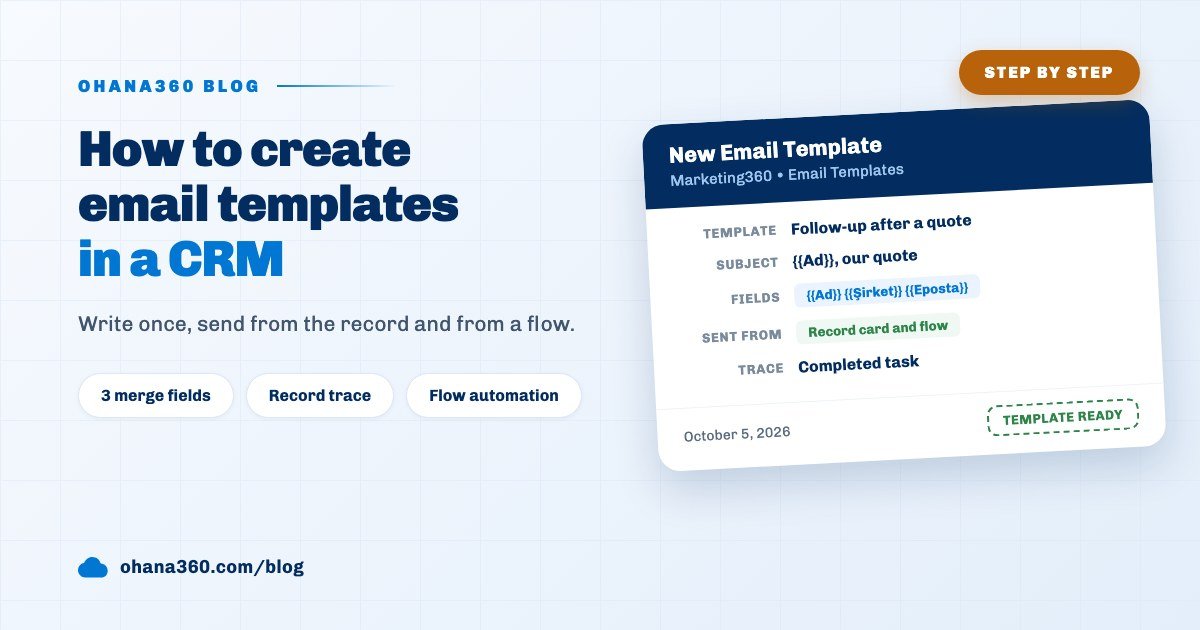
The order runs like this. On the Email Templates tab you write a template with a ready subject and body, dropping in the three merge tokens with one click: {{Ad}} for the person, {{Şirket}} for the company, {{Eposta}} for the address. A live preview on the right fills them from a real record, and send a test to yourself puts the result in your own inbox. That one is a real email, and it is the only way to see what actually arrives.
Then New Send on the Sends tab asks for four things: a name for the send, the template, the audience type (Segment or Campaign Members) and the target itself. Pick a segment and one more optional field appears: link the send to a campaign and the statistics collect there. At the foot of the dialog you get the audience size and the first five recipients by name.
Saving the send does three things. A row lands on the Sends list, any campaign members sitting at Added move to Sent, and the recipient count together with open and click rates is written onto the record. On the campaign page that send appears next to the member list and the budget bar, all on one screen.
One more detail on the campaign side: campaign members do not come from segments. The + Add Member dialog on a campaign record opens the lead and contact lists and you tick them one by one. A segment is the audience of a send, not the membership of a campaign, and the only bridge between them is running a send and adding the members separately.
Consent: the last gate before the send
Commercial email needs consent, and that is the legal rather than technical half of segmentation. With the consent add-on enabled, a consent card appears on contact and lead records. It covers three channels: call, message (SMS and WhatsApp) and email. Each channel is Unknown, Approved or Rejected, and next to the status sit the timestamp, the source, the person who entered it and, where it came from a form, the IP address.
That card acts directly on sends. The New Send dialog filters the audience and drops everyone whose email consent is not Approved. Unknown drops too, because someone with no consent record has not given consent. How many were dropped is shown as an amber line in the dialog, so "my segment had 64 people and 41 received it" is a sentence you read rather than guess.
Consent records arrive from three places: the card itself on contact and lead records, the consent checkbox on the web form you embed on your site, and newsletter subscribe or unsubscribe actions. When the form checkbox is ticked, the consent is written with its timestamp and IP address; when it is not, the record stays Unknown, because leaving a box empty is never quietly counted as a yes.
The consent management card on the Marketing360 home page does two jobs. It shows approved, rejected and unknown counts across all three channels, and its Export all (CSV) and Export changes buttons produce the consent file. That file matches the İYS bulk upload columns: phone numbers in +90 form, timestamped dates, and each recipient marked as an individual or a merchant. There is also a warning line: if a rejection is more than three business days old and has not been exported yet, the card says so in red.
What to do when the segment runs out of road
Sooner or later you will say "I want to reach everyone who ordered in the last ninety days". A segment cannot do that, because the conditions understand neither dates nor numbers and never see custom fields. There are two solid ways past that wall.
- List views and saved views. The list on the Contacts or Leads tab is fully equipped: filters on every field, column selection, sorting, saved views and export. Work out who you mean there, take the list out, and if it is worth keeping, write that conclusion into a field a segment can read.
- Scheduled flows. The flow canvas selects the Lead and Contact objects, builds conditions on any field, and runs Send Email as an action. That one is a real email: it uses one of the Marketing360 templates, fills the merge fields, and the message that goes out lands on the record's email card and activity timeline. The automated reminders guide walks through building a flow step by step.
There is a third answer: accept that what you need is a field rather than a segment. Add a picklist called "Sector" to the lead object in the Object Manager and a segment still cannot read it, but list views, reports and flows can, and those three cover most marketing decisions. If records, contacts and leads are new vocabulary, what is CRM is the place to start, and the sales tracking guide explains the lead pipeline that feeds every segment.
How Marketing360 works in Ohana360
Marketing360 is a core business app, enabled from the Marketplace in one click. Here is what it does, without inflation, and what it does not, without hiding it.
- Tabs: Home, Campaigns, Segments, Email Templates and Sends, alongside the shared tabs: Accounts, Contacts, Tasks, Calendar, Files, Reports and Dashboards.
- The home page: the Today Panel, the Object Inventory and a Campaigns Needing Attention list that surfaces campaigns over budget, past their end date, ending within a week, or still marked Planned after their start date has gone. Admins also see the App Settings card, and with the consent add-on on, the consent management card.
- Campaigns: two views, kanban and list. The kanban columns are Planned, In Progress, Completed and Cancelled, and a picker on each card moves the status. The list view is fully equipped with filters, column selection, sorting, saved views and export.
- The campaign record: a status badge and a four-step path in the header. The cards are Campaign Statistics (members, sends, opens, clicks, expected ROI), Details, a budget usage bar, Campaign Members, Sends, Files and Chatter. Member statuses are Added, Sent, Opened, Clicked and Responded. Pressing E opens the editor.
- Segments: shown as a grid of cards, each carrying the condition summary, the live member count and View Members, Edit and Delete buttons.
- Email templates: name, subject and body, with three merge fields inserted in a click, a live preview beside the editor and a test-to-yourself button underneath.
- Sends: a full list view. Columns are the send name, template, target, date, audience, open rate and click rate, and clicking a row opens the linked campaign.
- Meta ads sync: connect a Meta account from the App Settings card and every Meta campaign becomes a campaign record with Type = Advertising, carrying spend, sales, ROAS and the conversion funnel.
- Setup side: the Campaign and Segment objects appear in the Object Manager, so you can add your own fields. Both are listed in the profile and permission set matrix, so you decide who may build segments. In the REST API the object names are
campaign,segment,emailTemplateandemailSend.
Not included: what Marketing360 does not do
- A send does not deliver email. The button writes a send record with a recipient count and statistics and advances campaign members, but nothing arrives in an inbox. Real delivery comes from the template test, the email card on a record page, the Send Email flow action or Newsletter360.
- Conditions read a narrow set of fields. Five standard fields on a lead and three on a contact. Custom fields, the account link, phone numbers and date fields are all outside a condition, and there is no number or date comparison and no empty or filled check.
- Only two objects can be segmented. The target is Lead or Contact. Accounts, opportunities, cases, orders, patients and reservations have no segments at all.
- No OR logic. Conditions join with AND only, with no condition groups, brackets or custom filter logic. "Came from the web or from the trade show" cannot live in one segment; it needs two.
- Segments cannot be reported on. The Report Builder object list carries Campaigns and Email Sends but not Segments. The send report exposes only the name, audience and date, so open and click rates stay out of reporting.
- No automation on segments. Neither the flow canvas nor scheduled flows can select the segment object. A rule like "open a task when a record enters this segment" cannot be built; the same conditions have to be rewritten inside the flow.
- Segments do not create campaign members. Members are ticked one at a time in the Add Member dialog, and there is no button to push a whole segment into a campaign. List views carry no "add selected to campaign" bulk action either.
- No scheduling and no sequences. A send cannot be queued for a future date, there is no A/B test, and multi-step journeys such as a welcome series do not exist. The timed path on the flow canvas is what covers that ground.
- Consent export is one way and manual. Consents are downloaded as CSV and uploaded to the registry by hand. There is no service connection, no automatic upload and no read-back.
- Segment membership is not shown on the record. A contact record does not list the segments that person falls into; you read that from View Members on the Segments tab.
Want to see the flow in 89 seconds?
Getting segmentation standing in seven days
| Day | What to do | Time |
|---|---|---|
| 1 | Write the three messages you want to send this quarter as three sentences, and underline the qualifier in each one | 20 minutes |
| 2 | Enable Marketing360 from the Marketplace, then open the Contacts and Leads lists and find which field carries each qualifier | 30 minutes |
| 3 | Build the first three segments: one on lead source, one on status, one on a company contains rule. Review each with View Members | 40 minutes |
| 4 | Write an email template, insert the merge fields, and send the test to yourself so you can read what actually arrives | 45 minutes |
| 5 | Start filling in the consent card, add the consent checkbox to your web form, and export the first consent file | 50 minutes |
| 6 | Open a campaign, point a send at the segment and link it to that campaign, then read the member and send cards on the record | 30 minutes |
| 7 | Pick one need the segment could not cover and solve it with a list view or a scheduled flow instead | 40 minutes |
From week two there is one habit to hold: write the sentence before you build the audience. Keep that order and the number of segments stays sane on its own, instead of turning into an archive nobody opens. Current plans are on the pricing page, and you can request a demo to try it against your own records. To measure what the message earned you, the customer satisfaction survey guide covers a one-question survey.
Frequently asked questions
How do you segment customers in a CRM without overthinking it?
What is the difference between a segment and a list view filter?
Does segment membership freeze once the segment is saved?
Can I segment by city, last purchase date or lifetime spend?
Will a send go out to someone who never gave consent?
Does pressing send on a segment actually deliver email?
Send the right message to the right list
Define the audience with conditions, let it refresh itself as the records move, and keep anyone without consent out of the send entirely. Then read from the records who you aimed at and who you reached.