There is only one reason to build automated follow-up reminders: to win back the deals you lose not because the quote was bad, but because nobody chased it. This guide follows one scenario all the way through. Northgate Building Supplies received a 24,000 EUR facade panel quote on 1 September. Three days later, silence. (Demo data.) Instead of arguing about who should have remembered, we are going to make remembering the system's job.
In order: why human memory does not scale here, how far a manual rhythm built on a calendar and a spreadsheet takes you, how that same rhythm becomes a trigger, a condition, actions and a scheduled path in a flow engine, which ready-made templates you can load in one click, and the four mistakes that quietly break a reminder system.
Why "I will remember" is not a system
Arithmetic is more honest than statistics here. A team sending 6 quotes a week, with a simple 4-touch rhythm per quote, owes roughly 100 reminders a month. None of those hundred is hard on its own. What is hard is that none of them is written down anywhere, and all of them queue up in the same person's head.
Human follow-up has three structural problems:
- Remembering is invisible work. Nobody notices when it happens, and nobody notices when it does not. Invisible work loses every time it meets urgent work.
- There is no trigger. A meeting has a time. The third day after a quote does not. Unless you put it in a calendar by hand, that day never surfaces anywhere.
- It cannot be measured. "How many quotes got their second touch?" has no answer stored anywhere, so by the time the gap is noticed the quarter is over.
The conclusion is not that people lack discipline. It is that the reminder was never attached to the record. Attach it to the record instead of the person and the problem dissolves, because the record is already in the system.
The manual rhythm: how far a calendar and a sheet get you
It is worth building the best manual version first, because that is exactly what you will automate. These five points are the rhythm after a quote goes out:
By hand it works like this: the moment you send the quote you create two calendar entries (a call on day 2, a written touch on day 7), you add two columns to your tracking sheet (Last contact and Next contact), and every morning you sort the sheet by Next contact. This genuinely works, and while you have 10 to 15 open quotes it is the cheapest thing you can do.
Here is where it breaks, and it breaks in the same place for everyone:
- Date drift. You push one touch back and forget to update the sheet. Two weeks later the sheet is lying to you.
- The second person. Add one more salesperson and you have two calendars and two column conventions, and no shared answer to "who are we calling today".
- Lost context. The calendar reminder says "call Northgate". The quote number, the line items and the last conversation live in a different file.
Writing the quote itself is a separate job; we covered it section by section in the guide to writing a business quote. For the wider picture of moving tracking off spreadsheets, the sales tracking software guide is a good place to start.
Handing the rhythm to a flow engine
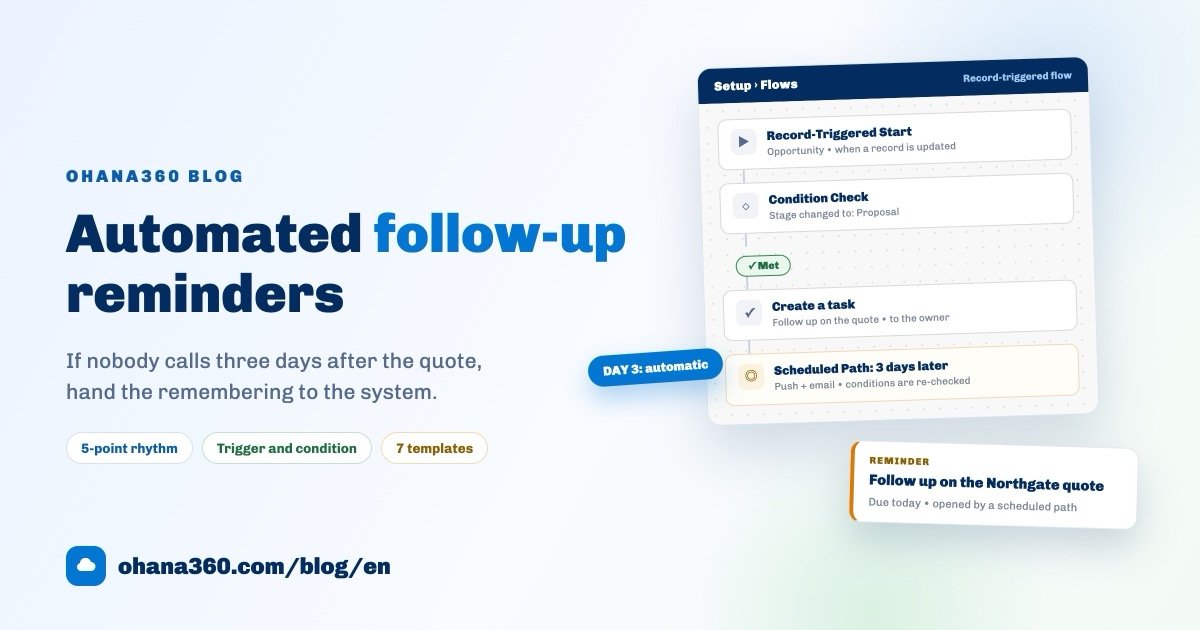
In Ohana360 this is built under Setup > Flows on a visual canvas. No code. The flow has four parts, and the order is always the same.
1. The trigger: when should it run
First you pick the object and the event. In our scenario the object is Opportunity and the event is when a record is updated. There are three kinds of flow: record-triggered (on create or update), scheduled (scans an object every day at the hour you choose) and screen flows (a step-by-step form your team fills in). Almost every reminder job is built with the first two.
One detail matters more than it sounds: the flow engine runs on the server. When a record arrives through the REST API, a web form or a store webhook, the same flow fires. Your reminders keep working when nobody has a browser open.
2. The condition: which records qualify
The Condition Check is the decision point on the canvas. Ours has two conditions: Stage changed to Proposal and Amount greater or equal 5,000, combined with All (AND). You can switch to Any (OR), or write your own expression across up to ten conditions.
The "changed to" operator is the important one. It fires at the moment the field actually changes, so touching the opportunity for some unrelated reason does not restart the reminder sequence. Numbers have greater than and less than, text has contains and starts with, dates have before and after. And any value box accepts a formula instead of a fixed value.
If you write no condition at all, the flow runs for every record. In reminder flows that is almost always the wrong outcome: a 500 EUR quote gets the same three-touch treatment, and within a fortnight someone switches the flow off to stop the noise.
3. The actions: what should it do
Actions that run when the conditions are met go on the Met branch. The Not met branch catches records that qualified once and then fell out; in a reminder flow it is usually left empty. Twelve actions are available on the canvas:
| Action | What it does | Where it runs |
|---|---|---|
| Create a task | A task for the owner, linked to the record, with type and due date | App + server |
| Push notification | Reaches phones and browsers, even when the app is closed | Server |
| In-app notification | A bell notification for everyone or for the record owner | App + server |
| Send email | Templated or free-text email to the record's address | Server |
| Update a field | Sets a field on the triggering record with a value, a placeholder or a formula | App + server |
| Update the related record | Changes the parent this record points to, such as the opportunity's account | App + server |
| Update child records | Updates every linked child at once, up to 200 | App + server |
| Create a record | Creates a record in another object and links it back through a lookup | App + server |
| Assign owner | Hands the record to a user or a queue | App + server |
| Post to the feed | A post on the record's timeline | App + server |
| Send a survey | Emails the survey, or opens a send task when there is no address | App + server |
| Call a webhook | Sends the record to an external system with a signed POST | Server |
Two things are deliberately absent from that list: there is no SMS action, and a flow does not send WhatsApp messages automatically. WhatsApp works as a one-click action instead. With the WhatsApp360 add-on installed, the button on the record page lets you pick a ready message, edit it, and open WhatsApp; the send is logged on the record as a completed WhatsApp activity. What the flow can do is create the task that reminds you to press that button. We went through that model in detail in the WhatsApp customer management guide.
4. The scheduled path: when should it run
This is the heart of a reminder. A scheduled path is a group of actions that runs a set time after the Met branch fires, or relative to a date field. Two ways to set it:
- Relative to the trigger: "3 days after", "7 days after". The first two touches in our flow are built this way.
- Relative to a date field: "3 days before the Close Date", "1 day before the check-in date". The final nudge before a quote expires is built this way.
The most valuable thing about a scheduled path is not the timing, it is that the conditions are re-checked before it runs. When day three arrives, the engine looks at the conditions again. If Northgate approved the quote on day two and the opportunity moved to Closed Won, nobody gets a reminder. The classic embarrassment of automated follow-up happens precisely in systems that skip this check.
Start from a template
The library under the canvas holds ready-made flows per object. Click one and it loads onto the canvas; change the condition and the message, then save. The seven closest to reminder work:
| Template | Trigger | Condition | Actions |
|---|---|---|---|
| Reminder 3 days before the close date | Opportunity created | None | Scheduled path: 3 days before Close Date, push to owner plus a call task |
| Lead untouched for 7 days → reminder | Lead created | Status equals New | Scheduled path: 7 days later, push to the record owner |
| Case open for 3 days → notify the manager | Case created | Status not equal to Closed | Scheduled path: 3 days later, notification to everyone plus push to owner |
| Overdue invoices → collection task | Scheduled, 09:00 daily | Due date in the past AND status not equal to Paid | Call task for the owner plus a notification (once per record) |
| Deals closing this week | Scheduled, 09:00 daily | Close date within the next 7 days AND stage not Closed Won or Closed Lost | Notification to the record owner |
| Web lead → call within 1 day | Lead created | Source equals Web | Call task due tomorrow plus a push to the owner |
| Overdue open tasks → push to owner | Scheduled, 09:00 daily | Due date in the past AND task not completed | Push to the record owner |
One thing to know about scheduled flows: the engine remembers which records it already handled and fires once per record. An overdue invoice does not collect a fresh task every morning; a record that stops matching and later matches again is picked up again. Before saving you can use Show matches to see how many records a flow will touch, and run it on demand once if you want to watch it work.
The Northgate scenario, end to end
Put the pieces together and one quote's story runs like this. (All names and figures are demo data.)
- 1 September, 14:20. The rep generates the quote document from the opportunity's line items, sends the PDF and moves the stage to Proposal. The flow fires at that moment; at 24,000 EUR the deal clears the 5,000 threshold.
- 1 September, 14:20. The Met branch runs: a task called "Follow up on the Northgate quote" is created for the owner, and an in-app notification appears. The task is linked to the opportunity, so one click gets you back to the line items and the expiry date.
- 4 September, morning. The 3-day scheduled path runs. The engine re-checks the conditions first; the stage is still Proposal, so a push goes to the owner's phone, a templated reminder email goes to the customer, and a "send the WhatsApp nudge" task is created.
- 4 September, 10:05. The rep opens the opportunity from the task, picks a template on the WhatsApp button and sends the message. The send is logged as a completed activity, so who wrote what and when stays on the record.
- 11 September. The second scheduled path produces the closing nudge as the expiry approaches: "This quote expires on 1 October, would you like me to extend it?"
- Every morning at 09:00. The scheduled flow scans open deals whose close date is near and notifies their owners. As long as Northgate is on that list, forgetting it is not an option.
None of this looks impressive on one quote. The value shows up when the same rhythm runs, without gaps, across the thirty quotes open at the same time. In Sales360 the opportunity, its tasks and its activities already live on the same record, so the only thing the flow engine adds is timing.
Four things that break a reminder system
| Mistake | What happens | Do this instead |
|---|---|---|
| A flow with no condition | Every record generates reminders and someone switches the flow off | Set at least one threshold: amount, stage, source or customer type |
| Sending every action to everyone | Notifications start getting dismissed unread | Target the record owner; escalate to managers only above a threshold |
| Three channels on the same day | Push, email and a phone call stacked together feel like pressure | Spread channels across scheduled paths: phone on day 3, written on day 7 |
| Never opening the run history | A changed template or an empty email field stops the flow silently | Check the run history once a month for error rows |
What Ohana360 does and does not do here
Drawing an honest line beats a disappointment later. The full picture is on the automation page; the part that matters for reminders:
- Included: record-triggered, scheduled and screen flows; twelve actions; scheduled paths; formulas in conditions (arithmetic, text and date functions with a live preview); up to ten conditions with AND, OR or custom logic; a template library; an action guide that explains each action in place; a run history; and once-per-record firing on scheduled flows.
- Not included: an SMS action and automatic WhatsApp sending. WhatsApp is sent from the record page in one click, from a template. There is also no tax-authority invoicing integration; the invoice document in the system is for information and record keeping.
The flow engine is part of every plan, not a paid add-on. You can see how opportunities, tasks and activities sit alongside it in the short tour:
Our advice for your first flow is deliberately small: build the three-day post-quote reminder, run it for a week, then read the run history. Only move to a second flow once the first one is genuinely working.
Frequently asked questions
How do I set up automated customer follow-up reminders?
What follow-up intervals actually work after a quote?
Will automated follow-up emails feel like spam?
Which CRM automation examples should I start with?
Does Ohana360 send automated SMS or WhatsApp reminders?
Let the system do the remembering
Record-triggered flows, scheduled paths and ready-made templates are in every plan. No credit card needed to set up.