A customer interaction is logged in a CRM as a task or an event on the Activity card of the record you spoke with. In Ohana360 a phone call is a task of type Call and a meeting is an event with a start and end time; the three task types are Call, Email and Meeting. Emails and WhatsApp messages sent from the record are logged automatically.
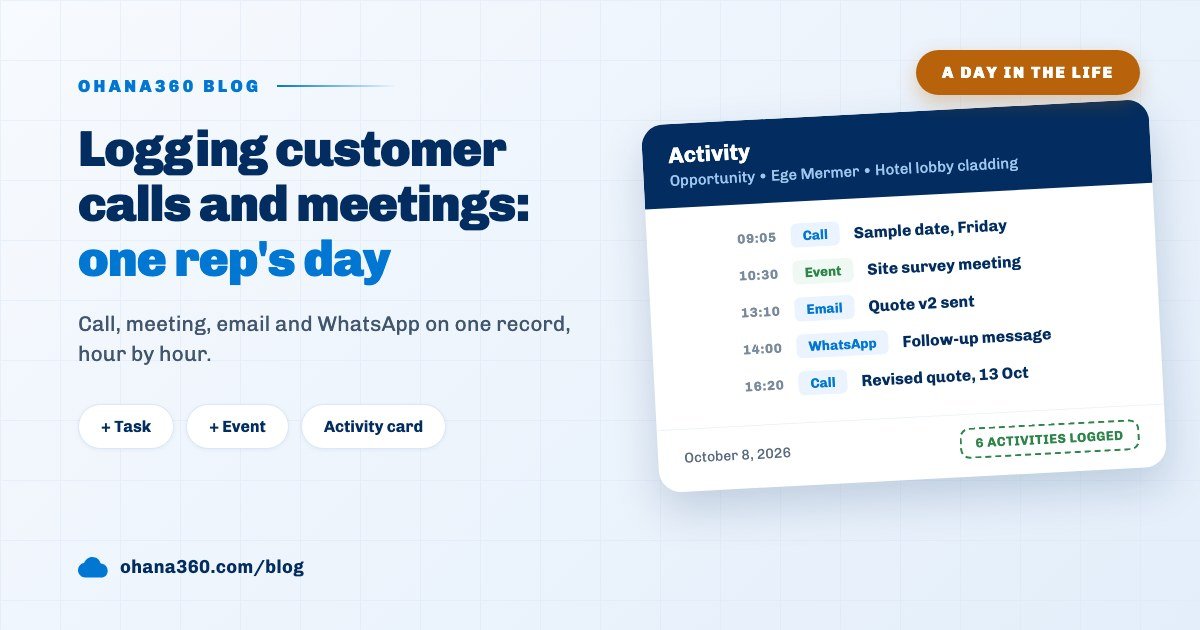
Ohana360 is a business cloud that keeps sales, service and marketing records in one database, and activity logging is part of its core: accounts, contacts, leads, opportunities, cases, the records of industry apps and the custom objects you build all carry the same Activity card. Below we follow a single opportunity record through one day. Sales rep Deniz Aksoy touches the customer six times on a Tuesday for Ege Mermer's hotel lobby cladding deal; the diagram below shows how each touch landed on the record, and the sections that follow walk through them hour by hour.
Why log customer interactions in a CRM?
You log a customer interaction so that the next touch can build on the previous one. If the summary of Deniz's Tuesday morning call is not on the record, the colleague who calls the same customer on Thursday does not know the sample delivery date was already discussed, and the customer hears the same question twice.
Logging pays off in three concrete ways. First, handover: when a rep goes on leave or leaves the company, the deal stays with the team together with its history. Second, prioritization: open deals with no touch in fifteen days show up in a list at a glance. Third, measurement: how many calls were made and how many meetings attended in a week can only be reported if they were logged. Conversation among the team itself is a separate topic covered in the collaboration guide; this article is about logging contact with the customer.
09:05: How do you log a phone call in a CRM?
A phone call is logged from the Activity card of the record you spoke with, using + Task and the Call type, and marked complete if the call is already over. Deniz calls Ege Mermer's purchasing manager in the morning; the customer asks when the sample slabs will be delivered and they agree on Friday. By the time she hangs up, the opportunity record is already open.
- Open the record and press + Task. The button is both in the record's top bar and in the Activity card header. The Related To field comes pre-filled with the open record.
- Write the summary in Subject. One line that says what was discussed and the outcome, such as "Asked for sample delivery date, Friday". The task form has no separate description field, so the subject line is the whole record of the call.
- Pick Call as the Type. There are three options: Call, Email, Meeting. The type sets the icon on the Activity card and the grouping in reports.
- Leave Due Date as today and save. Owner defaults to you. Tasks have no time field; the date is stored as a day.
- Tick the completion checkbox. The checkbox next to the row on the Activity card closes the task and shows the subject struck through. Call made, record done.
Five steps take thirty seconds. The Call button on the record opens the phone's dialer but does not create a record on its own; you log the call yourself. If a longer summary is needed, say a ten minute conversation in which the customer described a competitor's offer, it works better to keep the task short and write the detail in the record's Posts card, @mentioning the colleague who needs it.
10:30: How do you log a meeting or site visit as an event?
A meeting or site visit is logged with the + Event button on the Activity card as an event with a start and end time. At 10:30 Deniz is at the construction site in Ataşehir for a survey meeting; she created the event the day before, because an event also shows in the Calendar and a notification reaches her phone 15 minutes before it starts.
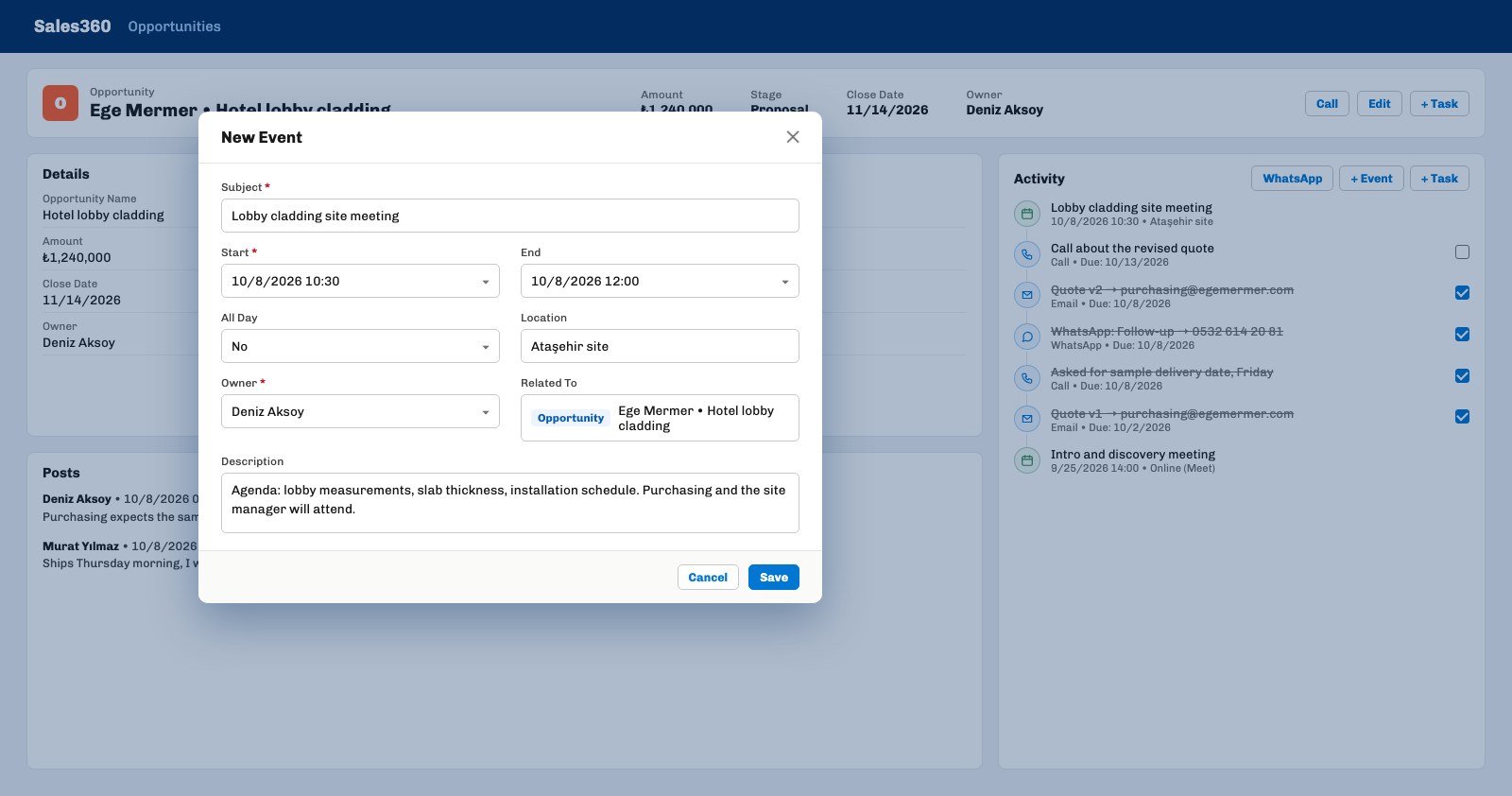
The event form has eight fields: Subject, Start, End, All Day, Location, Owner, Related To and Description. Subject and Start are required. Location is free text; a site address or a Meet link both fit. Description is for meeting notes: the agenda before the meeting, the decisions after it. An event has no completion checkbox; once its time passes it simply sits in the past and is listed on the Activity card with its start time.
On the Calendar page the + button above a day offers the same two choices: an Event or a Task for that day. Merging the calendar with the one on your phone is a separate setup; the Google Calendar sync guide explains what flows in which direction. If the task types do not fit your team, for example you want Site Visit instead of Call, you can edit the Type list of the Task object under Setup > Picklists.
13:10 and 14:00: How are emails and WhatsApp messages logged automatically?
Every email sent from the Email card on a record page lands on the record by itself as a completed Email task; with the WhatsApp360 add-on, the WhatsApp button on the Activity card logs the message as a completed WhatsApp task too. Deniz does two things in the afternoon and opens no task for either.
- 13:10, the quote email. In the Email card on the opportunity she types the recipient, subject and body, picks a template if she wants, and sends. The email goes out on behalf of the organization, the conversation accumulates in the Email card, and at the same moment a completed Email task with the subject "Quote v2 → purchasing@egemermer.com" lands on the Activity card. When the customer opens the email, an Opened badge appears in the card. Setting up templates is covered in the email template guide.
- 14:00, the WhatsApp follow-up. The WhatsApp button in the Activity card header appears only when WhatsApp360 is in the package and the record has a phone number. Deniz picks the Follow-up template, the text comes filled with the contact's first name and the company name, she presses Open in WhatsApp; the message opens in her own WhatsApp, a completed task titled "WhatsApp: Follow-up → 0532 ..." is logged on the record and the message text is stored with it. With the IYS add-on on, the button does not send to a contact who has refused messaging consent. Details on the WhatsApp360 page.
In organizations with the Instagram DM connection, the same logic applies: the messages exchanged with a contact that day land on the record as a single task of type Instagram. The common rule: every message that leaves from inside Ohana360 leaves a trail on the record; a conversation from your own phone or your inbox is not logged on its own, and you write it by hand as a Call or Email task.
16:20: How do you plan a follow-up task for the next conversation?
A follow-up task is opened with the same + Task button but with a future Due Date; at 09:00 that morning the task owner gets a push notification and the task lands in the Today column of the Tasks board. At the end of the day Deniz leaves an open Call task dated 13 October to discuss the revised quote with the customer.
- Assign the task to someone else. If you pick a colleague in the Owner field, they get an "assigned you a task" notification and a push; the task shows on their board.
- The Repeat field for recurring contact. With Daily, Weekly or Monthly selected, completing the task reopens the same task with the next period's due date. One record is enough for a monthly check-in call; details in the recurring tasks guide.
- The Tasks board. The Tasks tab in Sales360 has four columns: To Do, Today, Completed, Archived. Dragging a card moves its due date to today or closes it; the same tab also opens as a list.
Note that the reminder goes to you, not to the customer: in Ohana360 a task notification goes to the task owner. Automatic reminder emails and messages to the customer are a different mechanism, explained in the automated follow-up reminders guide.
17:45: Can a flow open the follow-up task by itself?
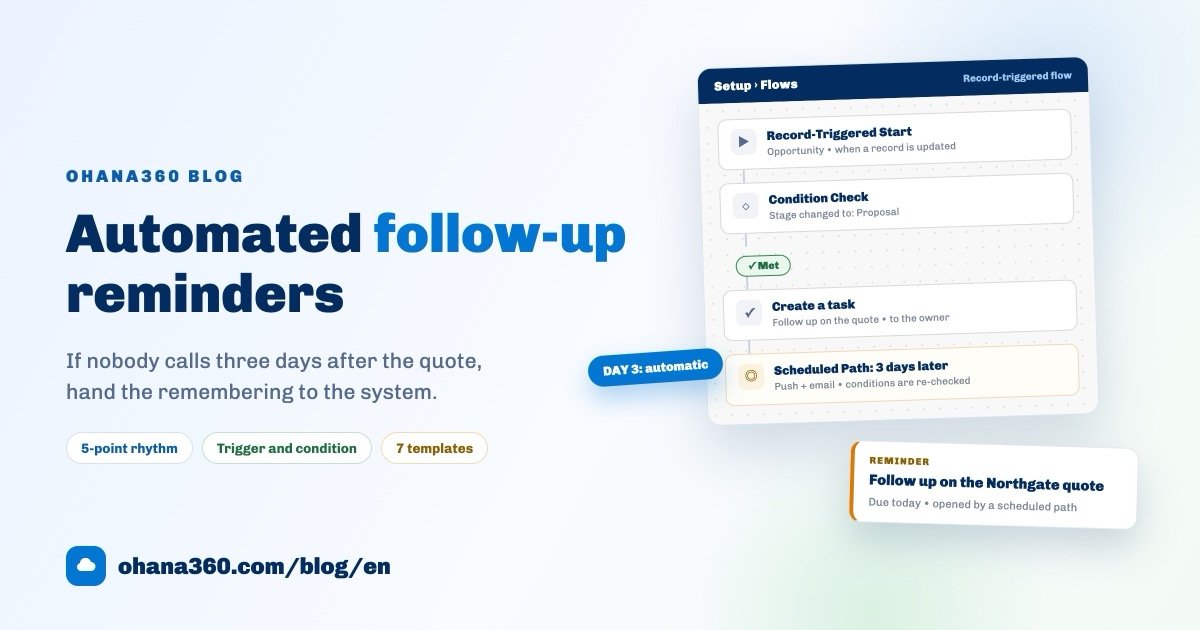
Yes. In Setup > Flows you add a Create Task action to a flow; the action takes a subject, a type and how many days later it is due, and opens the task for the record owner when the condition is met. At the end of the day Deniz moves the deal's stage to Proposal; the flow "when stage becomes Proposal, check-in call two days later" writes a Call task dated 15 October onto the record. All Deniz has to do is look at the notification that morning.
The Type list in the flow action is the same as the task types, with Call as the default. Values such as the record name can be merged into the subject with placeholders. The same flow can be combined with other actions, such as sending a thank-you email when the deal closes or posting to the record; setup is on the workflow automation page.
Where does the activity history show, and how is it reported?
Activity history shows in the Activity card in the right column of every record: every task and event tied to the record, in one stream, newest first. A row shows the type, the subject and the due date or start time; a task has its completion checkbox next to it, and clicking an event's title opens the event page.
- On the phone. In the Ohana360 mobile app the same stream is the Recent Activity drawer at the bottom of the record; pull it up and the + Task and + Event buttons are there. That is what makes logging a visit from the car practical. Details in the mobile CRM guide.
- As a table. A Tasks or Events related list view can be added to the record page; the columns are Subject, Type, Due Date, Owner, Completed, and Location for events. How to add one is in the record page layout guide.
- As a report. In the Report Builder the Tasks object offers Subject, Type, Owner, Due Date and Completed; the Events object offers Subject, Owner, Location, All Day, Start and End. A "completed calls per rep this week" report is a count grouped by Owner with Type = Call and Completed = Yes as filters. The ready-made reports include a Tasks by Type donut.
- On delete and merge. When two duplicate accounts are merged, activities move to the surviving record. When a record is deleted, its activities are not deleted but lose their link.
Not included: what activity logging does not do
- No phone system or CTI integration. The Call button opens the device's dialer; it does not create the call record or measure its length. You log the call yourself.
- No call outcome or duration field. There is no outcome list such as reached, busy or will call back, and no minutes field; the outcome goes in the subject line.
- Tasks have no time of day. The due date is stored as a day and the reminder comes at 09:00 that morning. Timed planning is done with events.
- The task form has no description field. Subject is a single line. For WhatsApp and Instagram entries the message text is stored in the background but not shown on the task page; the email body lives in the Email card.
- No call recording, transcript or automatic summary.
- No inbox sync. Conversations in Gmail or Outlook do not flow onto the record; only emails sent from the record's Email card, and replies to them, are logged. The BCC logging path shown on the setup screen is not active on the platform side as of this article's date.
- One activity links to one record. To attach the same call to both a contact and a deal you create two tasks.
- Activities do not move on lead conversion. Calls logged on a lead do not carry over to the new contact and deal; they stay on the converted lead record.
- No attendees or invitations on meetings. An event has a single owner; sending the customer a calendar invitation happens outside Ohana360.
- No page layout or conditional fields for activities. The task and event forms are fixed; only the Type list can be changed under Picklists.
How do you write a good interaction log?
A good interaction log lets someone reading it two weeks later understand in one line what was discussed and what comes next. Deniz's morning entry is the example: "Asked for sample delivery date, Friday". Topic, outcome and date in one line.
- Subject line formula: what + outcome + next step. "Called" is not a log. "Asked about price, wants 5% off, revised quote Thursday" is.
- Write it the same day. Half of the calls entered in a batch in the evening are forgotten. Thirty seconds right after hanging up.
- Attach it to the one right record. The deal if one is open, otherwise the contact. Because every activity links to a single record, the choice matters.
- Close every conversation with the next task. If the follow-up date is known, open the second task straight away; if a flow rule exists, let it open the task.
- Look at the report once a week. Completed calls per owner and the list of open deals with no activity for fifteen days also show whether the log is being kept.
The Activity card on deal, lead, account and contact records works the same way inside Sales360; managing tasks on a board and in the calendar is described on the ToDo360 page.