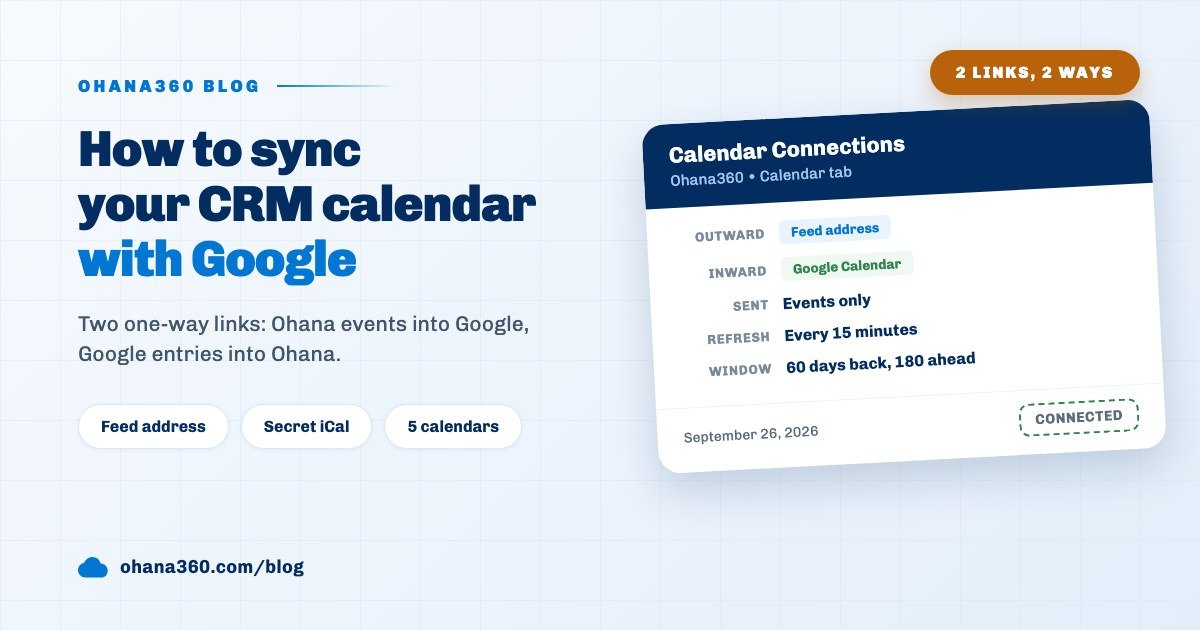
You sync the Ohana360 calendar with Google Calendar through two separate, one-way links. In the Calendar Connections panel of the Calendar tab you create a private feed address and subscribe to it in Google by URL; in the other direction you paste Google's secret iCal address into Ohana. There is no two-way editing, and the two links work independently.
Ohana360 is a business cloud that keeps sales, service, marketing and industry records in one database. The Calendar gathers the dated ones on one screen and is one of the shared tabs, next to Accounts, Contacts and Tasks, that are open in every app. This guide covers the difference between the two links first, then the setup steps, and finally the honest limits.
Which links exist between the Ohana360 calendar and Google Calendar?
There are two links between Ohana360 and Google Calendar, and each carries data in one direction only. The first sends Ohana events outside, the second brings an outside calendar into Ohana. Set up both and you see both calendars in both apps, but every entry is edited only in the app it belongs to.
- From Ohana outward: the "See your Ohana calendar in your external calendar" section of the Calendar Connections panel. It creates a private address; Google, Apple or Outlook subscribe to it.
- From outside into Ohana: the "See your existing calendar in Ohana" section of the same panel. You paste the secret ICS address of Google or another app, and its entries appear in the Calendar tab as a read-only source.
This method does not need account linking (OAuth). Your Google password and permissions are never given to Ohana; each side only reads the calendar file the other one publishes.
How do you add the Ohana360 calendar to Google Calendar?
Adding the Ohana360 calendar to Google Calendar takes four steps and is done once. The address is personal; every user on the team creates their own.
- Open the panel: go to the Calendar tab in Ohana360 and click Calendar Connections at the top.
- Create the address: in "See your Ohana calendar in your external calendar", click Create Feed Address. The address appears in a box and the Copy button puts it on the clipboard.
- Subscribe in Google: in Google Calendar follow Settings, Add calendar, From URL, and paste the address. In Apple Calendar use File, New Calendar Subscription; in Outlook the subscribe-from-web option when adding a calendar does the same job.
- Check it: a new calendar starting with "Ohana360" appears in Google Calendar's list on the left. Its name comes from the feed itself and carries your name.
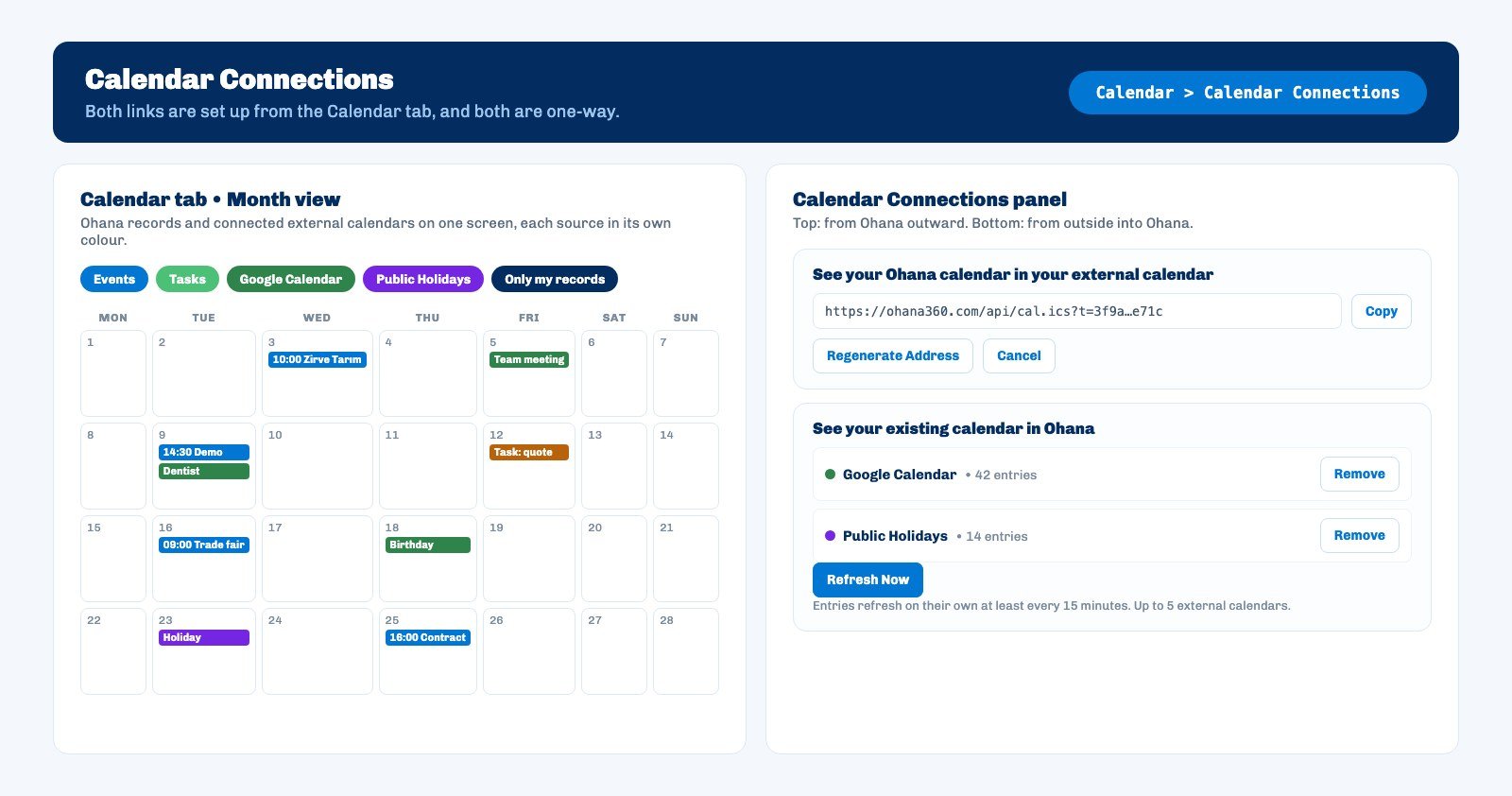
Every event in the feed travels with its subject, start, end, all-day flag, location and the first 800 characters of its note. All-day events stay all-day in Google, and a multi-day trade fair stretches as one bar from the first day to the last.
Which Ohana360 records go to Google Calendar?
Only Events go into the Google Calendar feed: events you own and events whose owner field is empty. Everything else you see in the Ohana Calendar tab stays in Ohana.
The Ohana Calendar tab grows with your licensed apps: Tasks by due date, Clinic360 appointments, Legal360 hearings, Estate360 showings, Booking360 check-ins and check-outs and the dated records of other apps join the same screen with coloured source buttons. These sources are only visible inside Ohana.
The practical conclusion: if there is a meeting you want on your phone's calendar, create it as an Event. The plus menu that appears when you click a day in the calendar creates an Event or a Task on that day with one click. We covered task reminders in the task management guide.
How does Google Calendar appear in Ohana360?
To see Google Calendar in Ohana360 you paste the calendar's secret iCal address into the Calendar Connections panel. Its entries appear in the Calendar tab as a separately coloured source, next to your Ohana records.
- Get the address from Google: open Settings in Google Calendar, pick your calendar on the left and copy the link in the "Secret address in iCal format" row. This is different from the public address and does not require you to share the calendar.
- Paste it into Ohana: in "See your existing calendar in Ohana" of the Calendar Connections panel, enter the address and a label (for example "Google Calendar") and click Connect.
- Look at the calendar: a new source button with your label appears at the top of the Calendar tab. Clicking it hides or shows that calendar; the choice is saved and stays the same next time you sign in.
Up to five external calendars can be connected per person. Ohana expects the address as https and converts addresses starting with webcal to https itself. If the calendar file is larger than 3 MB or does not answer within 8 seconds, the connection is not created and the panel tells you why.
How often are the calendars updated?
The two directions refresh at different speeds, because Ohana manages one and Google the other. External calendars connected to Ohana are re-read in the background at least every 15 minutes; the Ohana feed is read by Google on its own schedule.
| Direction | Who reads it | How often | To speed it up |
|---|---|---|---|
| Google into Ohana | Ohana360 | At least every 15 minutes | Refresh Now in the Calendar Connections panel |
| Ohana into Google | Google Calendar | Google's own schedule, can take several hours | No button on the Ohana side |
The Ohana feed suggests an hourly refresh to calendar apps and returns current data on every request. Apple and Outlook let you choose the refresh frequency in the subscription settings; Google does not offer that option. For anything that needs same-day certainty, the right screen is the Ohana calendar.
How are recurring events and time zones handled?
Recurring events from Google appear in Ohana as individual occurrences. Daily, weekly, monthly and yearly repeats are supported, as are intervals such as every two weeks, series that end after a number of occurrences or on a date, selected weekdays and single dates removed from a series.
Complex rules such as "the last Friday of every month" are a deliberate limit: for those series Ohana shows only the first occurrence. Entries from a calendar in another time zone are converted to Istanbul time, so a meeting abroad shows at your local time in Ohana. Entries older than 60 days or more than 180 days ahead are not shown in Ohana.
Is the feed address safe, and how do you revoke it?
The feed address works like a password: anyone who knows it can read the subject, time, location and note of your events. The address contains a random 48-character key and cannot be guessed, but where you paste it is up to you.
- Regenerate Address: creates a new address and the old one stops working immediately. You then set up the Google subscription again with the new address.
- Cancel: turns the feed off completely. The subscription in Google stays empty and can be removed.
- Remove: takes a connected external calendar out of Ohana; nothing changes on the Google side.
A rule for teams that put customer details in notes: do not keep sensitive data such as ID numbers, health information or passwords in an event note; keep it on the record itself. For personal data handling see the GDPR compliant CRM guide.
Not included: what the calendar links do not do
- No two-way sync. An Ohana event edited or deleted in Google does not change in Ohana.
- No account linking (OAuth). There is no connection set up by signing in to a Google, Microsoft or Apple account; the method is a secret address.
- Only Events in the feed. Tasks, appointments, hearings, showings and the dated records of other apps are not sent out.
- No attendees, invitations or alarms. The feed does not carry an event's attendees or reminder alarm; invitations cannot be sent from the copy in Google.
- Teammates' events are not in your feed. An event owned by someone else goes only to their address.
- External calendar entries are not records. They cannot be linked to an account or an opportunity, do not appear in reports or lists and cannot be edited in Ohana.
- External calendars are personal. The Google Calendar you connect appears only in your own Calendar tab; there is no shared external calendar for the whole team.
- Up to five external calendars. After the fifth you have to remove one first.
- Limited support for complex recurrence. Rules such as the last Friday of the month show only the first occurrence.
- Google's refresh speed is not in Ohana's hands. There is no button that shortens the time the Ohana feed takes to appear in Google.
How do you set up a calendar routine for the team?
Getting value from the calendar links is a habit, not a technical setting: every customer meeting is created as an Event in Ohana, and Google Calendar becomes a reading screen only. That way the event stays on the timeline of the related account and contact, appears in reports and does not disappear when a teammate goes on leave.
A routine that works: on day one each user adds their own feed address to Google and connects their personal Google calendar to Ohana. The team works with the "Only my records" filter on in the Calendar tab and plans the week in the Week view. An admin can turn off sources the team does not use for the whole organisation from the calendar header. The sales tracking guide explains how to tie the next step of a deal to the calendar, and the recurring tasks guide covers repeating work; the Calendar tab also works together with ToDo360.