A recurring task is a task that reopens with the next period's due date the moment you complete it. In Ohana360 you set the Repeat field to Daily, Weekly or Monthly; when you finish the work and tick it off, the same task comes back with a new date. The point is to move one job out of your memory and into the record itself.
These jobs share two traits: they are small, and finishing them leaves no trace. The weekly collections check, the monthly backup verification, clearing the inbox every morning. None of them blows up the day you forget; it blows up three weeks later, and by then nobody knows which week was missed.
The sections below cover where the Repeat field lives, what the four options do, when the reminder arrives, and how a recurring task works alongside the task list inside Sales360.
How do you set up a recurring task?
Repeat is not a separate module, it is a single field on the task record. You choose it when creating a task or editing an existing one.
| Field | What it does | Default |
|---|---|---|
| Subject | The task name. This is the text shown in the list and in the notification. | Required, cannot be empty |
| Owner | The person doing the work. When the task is reborn, the owner travels with it. | Defaults to you |
| Due Date | The base the repeat is calculated from. The new record takes one period past this date. | Counts from today if empty |
| Related Record | Links the task to an account, an opportunity or an invoice. | Can be left empty |
| Repeat | None, Daily, Weekly, Monthly. This is the field that starts the repeat. | None |
The default of None is deliberate. Nothing repeats unless you explicitly choose it, so no record ever starts multiplying by accident.
When does the repeat actually fire?
What creates the next task is not the calendar, it is your completion tick. This works differently from the reminders you are used to, and if you set it up without knowing the difference your expectation will be off.
The sequence is this: you mark the task completed, the record closes and the change is written to history, and at the same moment a new task opens with the same subject and the same owner. The new due date sits one day ahead for Daily, seven days for Weekly and one month for Monthly.
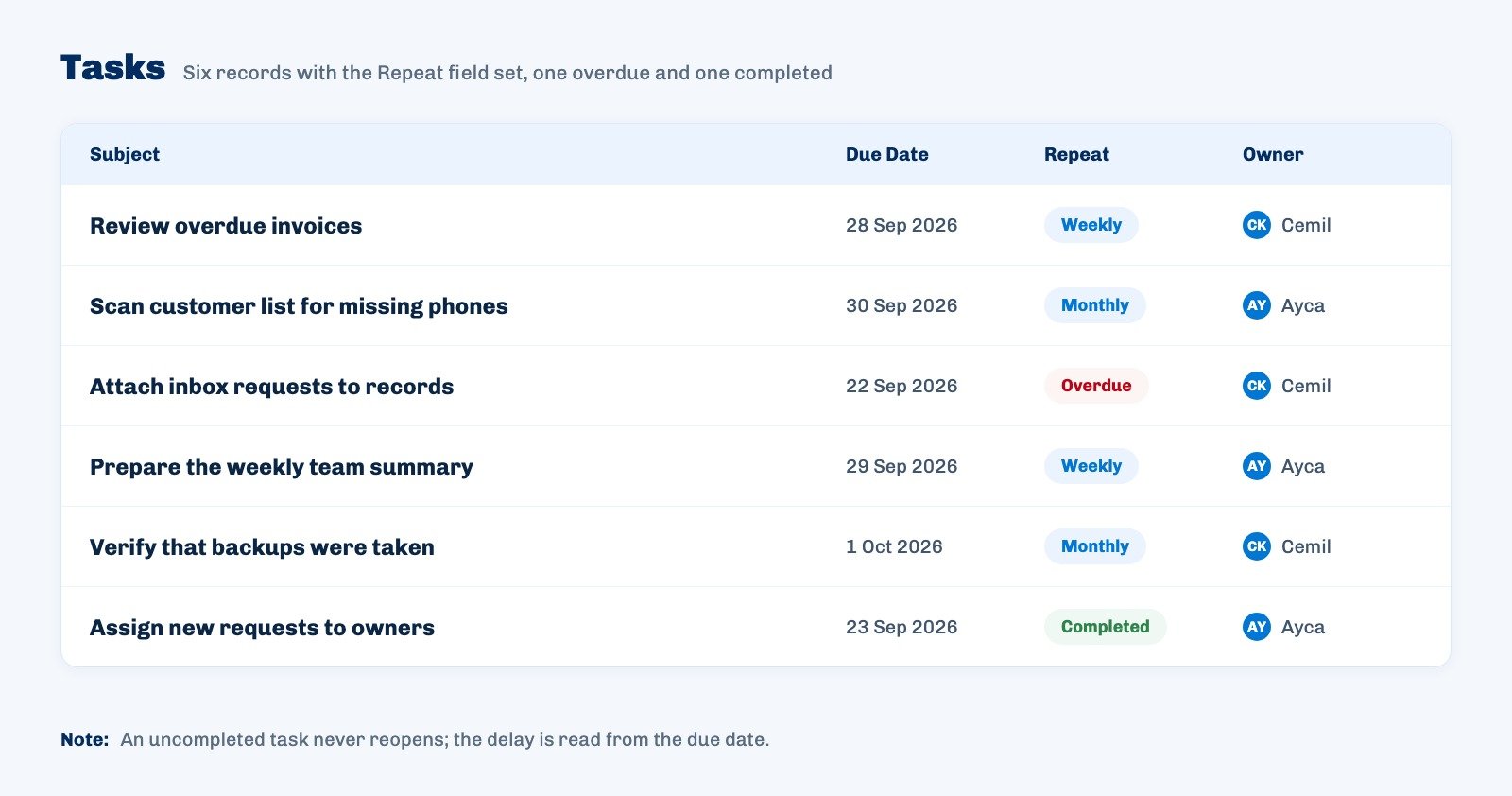
The practical consequence is this: skip the completion and nothing reopens. If you have not done the weekly check for three weeks, one record waits for you, not three. The list stays readable, but you cannot read the amount of missed work from the list itself; you read it from how far the due date has slipped.
When does the reminder notification arrive?
The notification setting lives in your account settings rather than on the task, and it handles two cases separately. You will find it under Home > Settings.
- For timed tasks you are notified the number of minutes before that you choose. You can optionally add a second notification right on time.
- For untimed tasks a single notification arrives at the hour you set for that day. Leave that field empty and untimed tasks send nothing.
- Where it lands: the in-app bell plus a phone or browser push. Both fire together.
Turning notifications off entirely is also a valid choice. With them off the task list keeps working exactly the same, you simply are not told. For anyone carrying more than fifteen tasks a day this is often the calmer setup.
Recurring task or recurring event?
They are different objects, and mixing them up means searching in the wrong place. The distinction is simple: work that finishes is a task, a meeting with a time is an event.
The event is the main object of the Calendar tab, and the common recurrence rules for events are supported. A weekly team meeting, a monthly review call with a client, the short daily stand up all belong there. Tasks are for work that ends, and they are part of the task tracking setup.
A quick test: does the job have an hour, and do people gather at that hour? If yes it is an event, if no it is a task.
Which jobs suit a recurring task?
Not every repeating job belongs in this field. The ones that fit share three traits: a clear interval, a clear finish, and a delay before anyone notices it was missed.
- The weekly collections check. Reviewing overdue invoices. Miss it once and nothing happens; miss it four times and you have a cash problem.
- Monthly data verification. Scanning the customer list for missing phone numbers and email addresses. One month goes unnoticed; six months and most of your campaign never arrives.
- Clearing the inbox daily. Attaching incoming requests to the right record. One day builds a pile, three days and nobody wants to sort it by hand.
Some jobs do not fit. Fixed hour meetings belong to events, one off jobs to ordinary tasks, and automatic messages to customers to Marketing360. A recurring task is an internal reminder; it never sends anything outward.
Not included: what recurring tasks do not do
Knowing the limits up front beats discovering them in week three.
- It does not message the customer. The task reminds you and nobody else. A reminder that reaches the customer is a separate job.
- It does not recover missed periods. Three weeks without completing does not produce three records, and nothing back fills those weeks.
- Custom intervals do not exist. There are four options: None, Daily, Weekly, Monthly. You cannot write "every other week" or "the third Tuesday".
- It does not know working days. A due date landing on a weekend is not pushed forward.
- It does not infer completion. Even if the invoice gets paid, the related task does not close itself; it has to be ticked.
These limits share one reason: recurring tasks were designed to stay simple. Jobs that need complex calendar rules belong to events, and conditional steps belong to approval processes.
Where to start
Start with one job and run it for a month. To pick the candidate, ask this: which job did you miss at least once in the past three months, and only notice days later? The answer is usually a weekly check.
Write it as a task, set Repeat to Weekly, leave yourself as the owner and turn notifications on. After a month look at the task history and count how many times you completed it on time. Four out of four means add a second job; two misses means the problem is not the task, it is who the work actually belongs to.