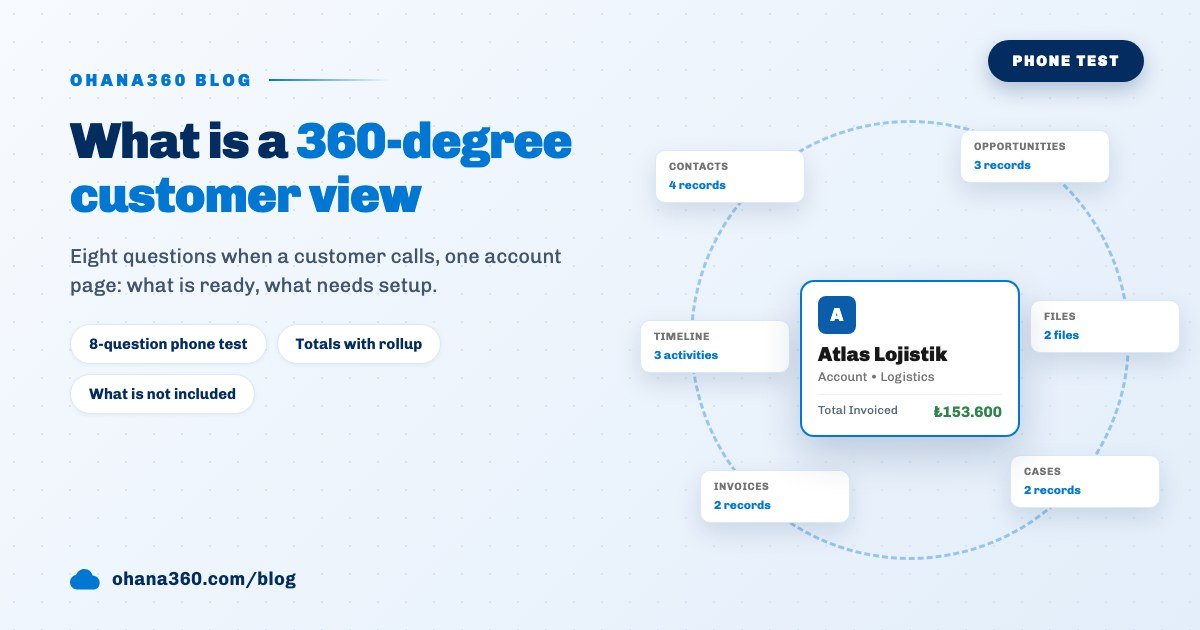
A 360-degree customer view brings a customer's contacts, opportunities, support cases, invoices, emails and past work together on one record page. In Ohana360 that page is the account record: a highlights panel on top, related lists on the left and the activity timeline on the right. Some parts ship with the product, others are set up once.
Ohana360 is a business cloud that keeps sales, service and finance records in the same database, and that shared database is what a 360 view rests on. Instead of stretching the definition, we ran a test. Pera Baskı is a fictional corporate print company in Istanbul. Its account manager, Deniz Kaya, gets a call from the purchasing manager of Atlas Lojistik, one of its biggest customers. The rule of the test is simple: Deniz must answer every question from the account page without opening another tab. Record counts and amounts are examples; screen names, fields and limits come from the Ohana360 code.
What is a 360-degree customer view, and why one page?
A 360-degree customer view means every record about a customer is linked to that customer's own page and can be read there. When the information sits on five screens, the rep says "let me call you back"; when it sits on one page, the rep answers on the spot. Two things must hold: records are created linked to the customer, and the page shows those linked records.
Ohana360 enforces the first on the form: the Account field is required on the Contact, Opportunity and Case forms, so every one of those records created by hand belongs to an account. The second is the account record page itself. When the customer is a person rather than a company, the same page opens as a person account by choosing "Person" as the Account Type.
Which questions should you answer in the first 30 seconds of a customer call?
The phone test checks whether eight questions a customer might ask in one call can be answered from the account page. Deniz's list and the result:
| # | The customer asks | Answer on the account page | Status |
|---|---|---|---|
| 1 | Who from our side is on file, who do you talk to? | Contacts list | Ships with it |
| 2 | Where is our catalogue quote? | Opportunities list: Stage, Amount, Close Date | Ships with it |
| 3 | Was our colour shift complaint resolved? | Cases list: Status, Priority | Ships with it |
| 4 | Does our October invoice show as paid? | Invoices related list | Set up once |
| 5 | How much business have we done with you so far? | Rollup Summary field in the highlights panel | Set up once |
| 6 | Who called last week, and what was said? | Activity Timeline | Partly |
| 7 | What did you write in the sample email? | Email card | Set up once |
| 8 | Can you resend the contract PDF? | Files card | Ships with it |
Four questions are answered from day one, three become answerable after a one-time setting, and one depends on logging habits. The sections below explain how each row works.
What is on the account record page in Ohana360?
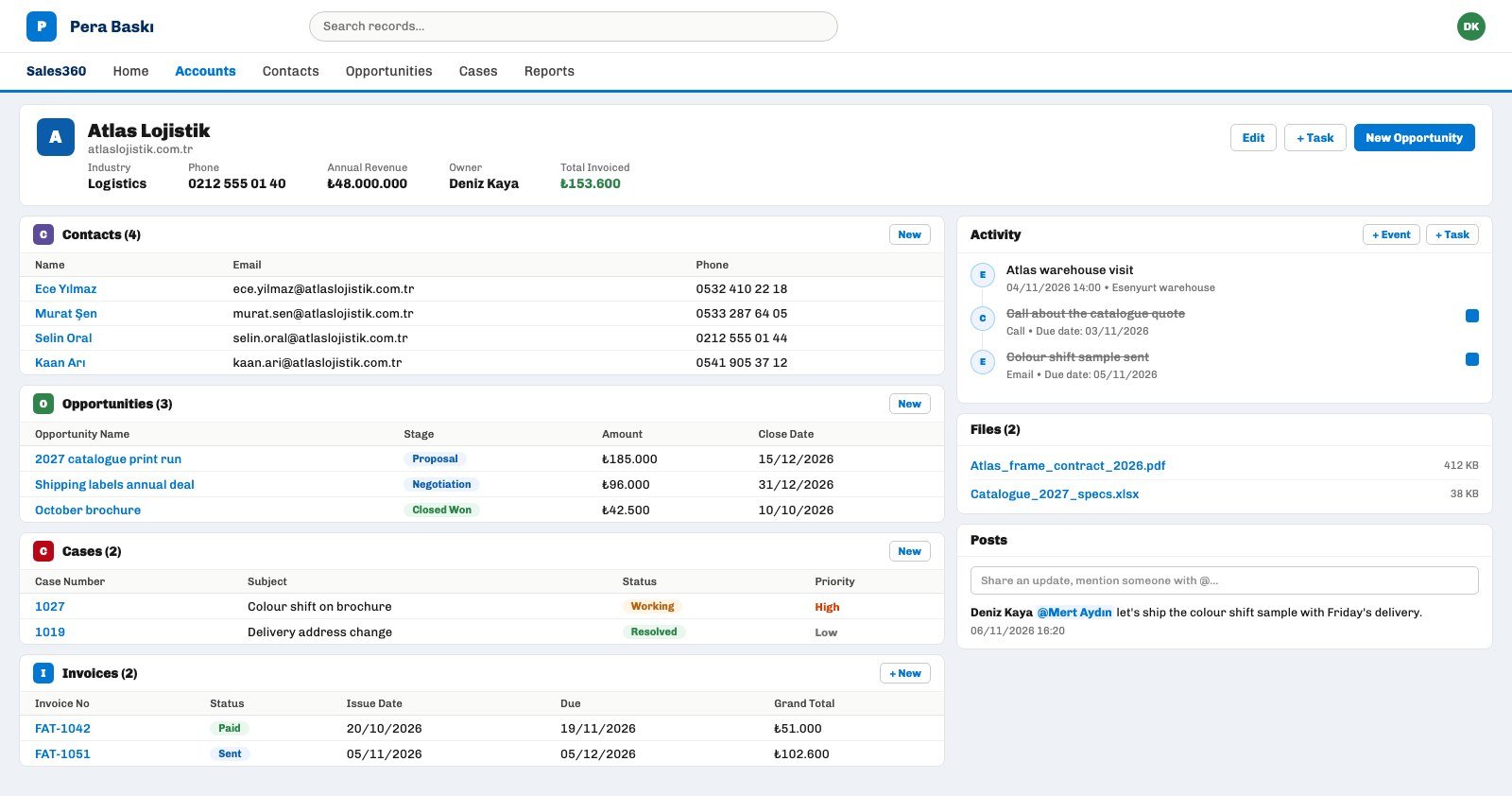
The account record page in Ohana360 has three areas: a highlights panel of up to six fields on top, Details and related lists on the left, and cards such as the timeline, files and posts on the right. The map, with the test's question numbers:
- Highlights panel. The four default fields are Industry, Phone, Annual Revenue and Owner. Next to them sit the Edit, + Task and New Opportunity buttons; the New Opportunity form opens with the account already filled.
- Related lists. Contacts comes with Name, Email and Phone; Opportunities with Opportunity Name, Stage, Amount and Close Date; Cases with Case Number, Subject, Status and Priority. The header shows the total count, the first six rows are visible and the rest open with Show all. Closed opportunities and resolved cases stay in the list; the stage and status badges tell them apart.
- Right column. The Activity Timeline, Files and Posts are on every account page. The My Notes card holds the user's personal notes, the team does not see them. How to use team posts is in the guide to collaborating on records.
How do you add order and invoice lists to the account page?
Order and invoice lists are added once from the Related List View group in the gear > Edit Page > Add Component menu on a record page, and from then on they show on every account page. For the fourth question, Deniz's manager did this:
- Open the Page Editor. On any account record, choose Edit Page from the gear in the top bar. The menu is shown to users with Setup access.
- Add the list. Under the Related List View heading in Add Component, "+ Invoices (Account)" was picked. The same group holds Orders, Tasks and Events linked to the account, and custom objects linked to the account by a lookup field. Order and invoice rows appear when the org has a Finance360 licence.
- Pick columns and a view. The list's Columns / View button set Invoice No, Status, Due and Grand Total. A saved list view can be attached as a filter if needed.
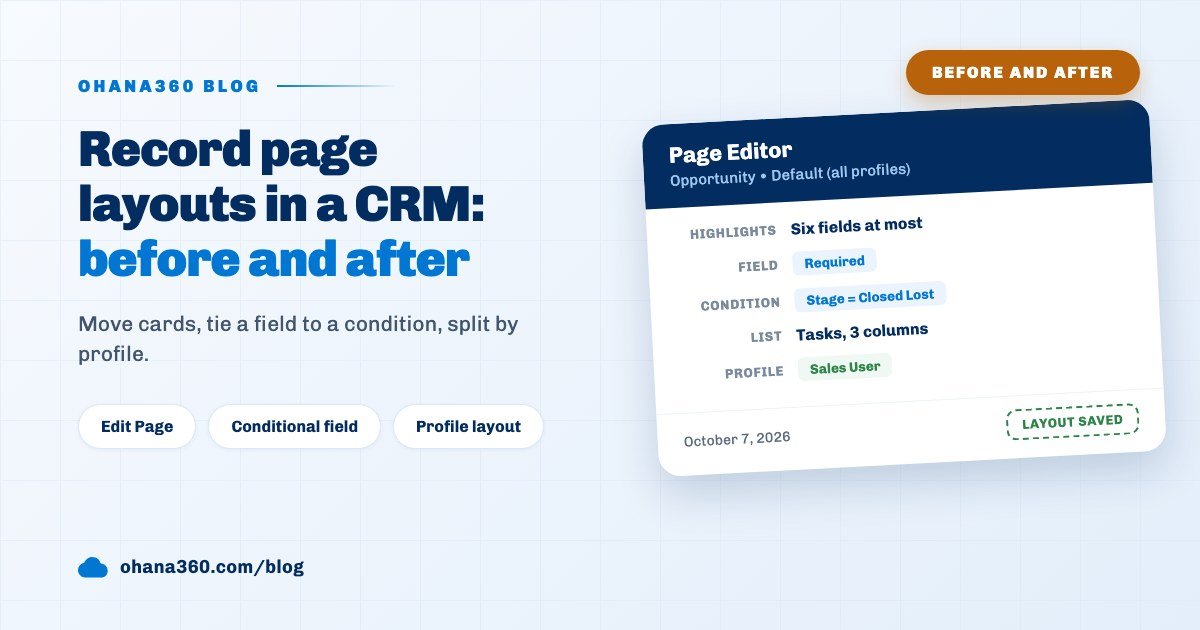
- Decide who sees it. The selector at the start of the editor applies the layout to everyone or to one profile only; accounting can get its own layout.
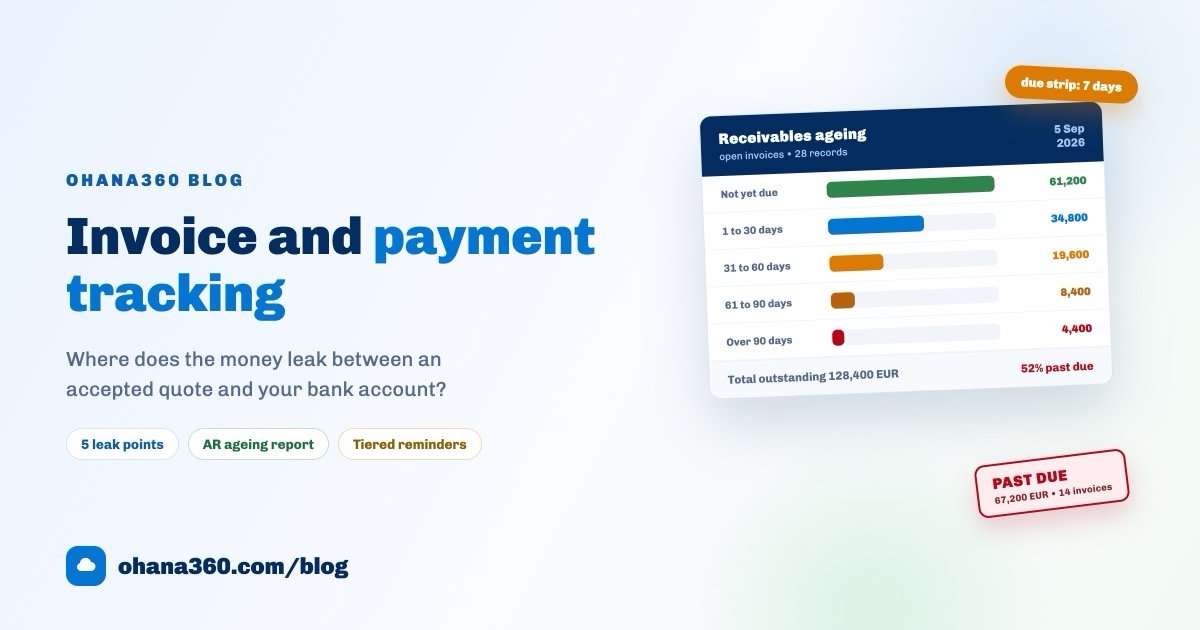
One caution: the Status column in this list shows the status stored on the invoice. A past-due invoice still marked "Sent" does not turn into "Overdue" here by itself; read the due date from the Due column of the same list. The invoice and payment process is in the invoice tracking guide, and the page editor's other jobs are in the record page layout guide.
How do you show a customer's totals in a single field?
A customer's total invoiced amount, opportunity count or case count comes down to one number through a Rollup Summary field on the Account object, which can then sit in the highlights panel. The field built for Deniz's fifth question:
- Add the field. Setup > Object Manager > Account > Fields > New Field; Rollup Summary was picked as the type and "Total Invoiced" as the label.
- Pick the source. Invoices as the related list, Total as the summary and Grand Total as the field.
- Move it to the panel. In Edit Page, Total Invoiced was added to the highlights panel; the panel holds up to six fields.
On the Account object a rollup draws on five child lists: Opportunities (Amount, Probability), Orders (Subtotal), Invoices (Grand Total, Subtotal), Cases and Contacts. The summary types are count, total, minimum, maximum and average. A formula field can refer to a rollup field, for example to divide total invoiced by the number of contacts. All field types are in the custom fields guide.
The limit of a rollup is clear: it takes no filter. "Total Invoiced" also adds cancelled invoices; a sum over Opportunities includes those at Closed Won and Closed Lost; "open case count" or "revenue this year" cannot be built as a rollup. For questions like these, use the Report Builder.
Does the activity timeline show who did what?
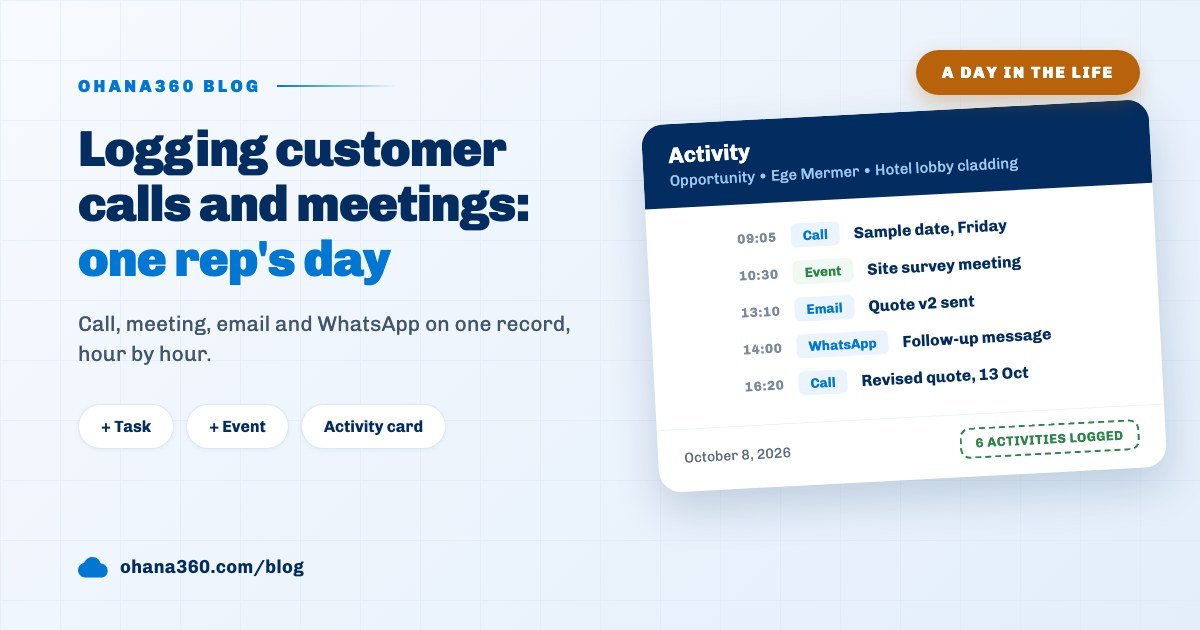
The Activity Timeline shows only tasks and events linked directly to that record; activities linked to a contact, an opportunity or a case are not rolled up to the account's timeline. That is why the sixth question came out as "partly". Deniz's timeline had two rows: "Call about the catalogue quote" (a call task) and "Atlas warehouse visit" (an event). The call with the purchasing manager a week earlier had been linked to the contact's record and did not show on the account page.
- What does a row say? A task row shows the subject, the type (call, email or meeting) and the due date; an event row shows the subject, date and location. Who created the task is not on the row; click the record to see it.
- Sent mail lands on the timeline. Every email sent from the Email card is logged on the timeline as a completed Email task.
- The team's rule. After the test, Pera Baskı set one rule: if a conversation is about the company, the task goes on the account; if it is about one deal, it goes on the opportunity. How to log calls in detail is in the activity logging guide.
The answer to "who last changed this record" lives in the Field History add-on: when it is on, the card in the right column lists every change with the person and the time. Details are in the change history guide.
Which information shows on the account page, and which does not?
In Ohana360 a piece of information shows on the account page when the record is linked to the account directly; when it is linked through another record, it does not. The full breakdown:
For the seventh question, the admin added Accounts to the objects with the Email card in Setup > Email Templates. The account record has no standard email field, so the recipient address is typed in the send window. The eighth question was ready from day one: the contract uploaded to the account record sits in the Files card. File organisation is in the file management guide, the whole sales side is on the Sales360 page and cases are on the Service360 page.
Not included: what the account page does not do
- No activity roll-up. Tasks and events linked to a contact, an opportunity or a case do not reach the account's timeline; each task has a single Related To field.
- No filtered rollups. A rollup counts or sums all child records; it cannot be filtered by status, stage or date.
- No hierarchy. Parent account and branch links are not kept; the totals of companies under one group cannot be seen on one page.
- Overdue does not reach the list. The Invoices related list shows the stored status and does not flag a past-due invoice on its own.
- No opportunity line items or leads. Product line items stay on the opportunity's page; leads that were never converted are not linked to the account.
- Industry lists match by name. Legal360 matters, Estate360 listings and Influencer360 collaborations reach the account page not through a record link but by matching the client, owner or brand name with the account name; accounts with similar names can show the wrong row.
- No ready-made customer summary. The page lists records; it does not produce an automatic summary or score such as "this customer is at risk".
Which five steps should you follow to build your own 360 view?
- Enforce the link. Contacts, opportunities and cases are created linked to an account; fill the Account column when importing too. Data migration is in the CRM migration guide.
- Add the missing lists. Place the order and invoice lists once with Add Component.
- Pick one total. Put a single rollup field in the highlights panel so the six-field panel does not turn into a pile of numbers.
- Write the activity rule. Agree as a team which tasks go on the account and which go on the opportunity.
- Repeat the test. Try the eight questions on three different customer pages; every question that sends you to another screen means a new setting or a new logging habit.