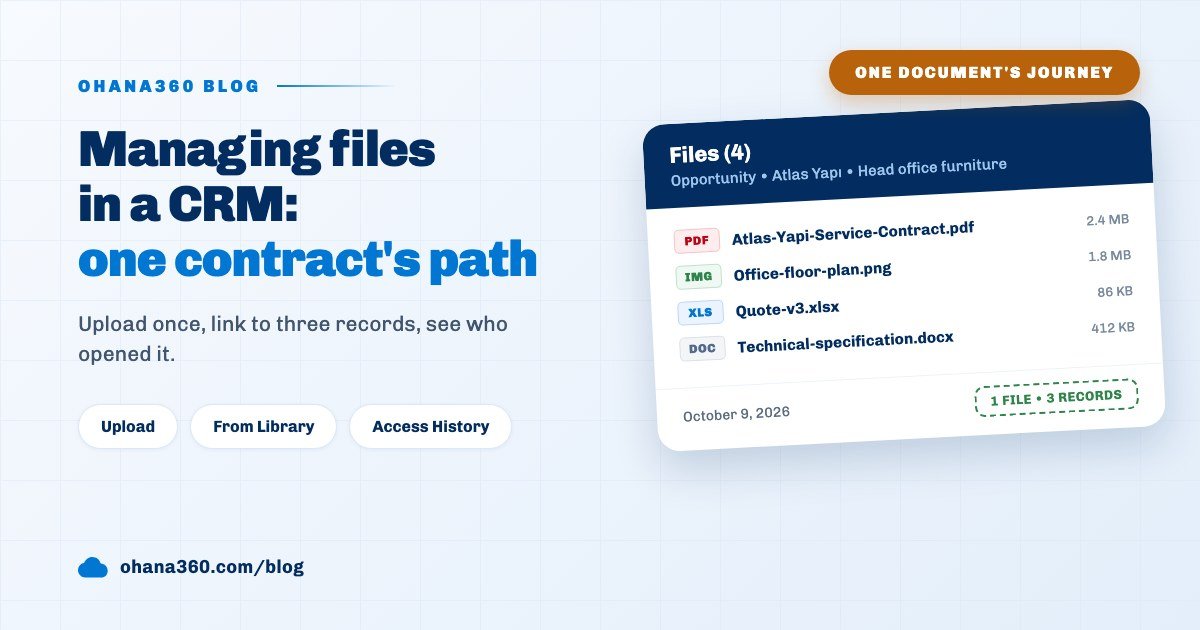
File management in a CRM means uploading a document from the Files card of the record it belongs to and linking the same file to any other record that needs it, without copies. In Ohana360 every record page has a Files card; the limit is 100 MB per file and 5 GB of total space per org. Files live in one shared library, and who viewed or downloaded them is written to an access history.
Ohana360 is a business cloud that keeps sales, service and marketing records in one database, and the file library is part of its core: accounts, contacts, leads, opportunities, cases, campaigns, orders, invoices, the records of industry apps and the custom objects you build all carry the same Files card. Below we follow the path of a single document: the service contract signed for Atlas Yapı's head office furniture deal. Selin Arı in sales uploads it, Emre Koç in finance uses it on his own record, and admin Cem Demir audits who looked at it. The diagram sums up six stops, and the sections that follow walk through each one.
Why should documents live on a CRM record instead of in email?
When a document lives on the record, everyone working with that customer finds it in the same place and in its latest form. Had the contract stayed in Selin's inbox, Emre would have had to ask for it and wait before issuing the invoice, or look at an old draft; and when Selin went on leave, the document would have gone with her.
A document attached to a record pays off in three concrete ways. First, context: the contract is read on the same screen as the deal's amount, stage and interaction history. Second, permissions: who can see the document follows who can see the record, with no separate sharing setting. Third, a trail: who looked at a document holding personal data can be asked later, and the answer is written on the record. The third is the file side of the accountability principle covered in the GDPR compliant CRM guide.
October 1: How do you attach a file to a record?
A file is attached with the upload link in the header of the Files card in the record's right column; every file you pick is uploaded to the org library and linked to that record at the same moment. Selin opens the opportunity on the day she receives the signed PDF from the customer and follows these steps.
- Open the opportunity and find the Files card. On desktop the card sits in the right column; in the Ohana360 mobile app it opens under the Files heading in the accordion at the bottom of the record.
- Press the upload link and pick your files. You can select several files at once; each one is uploaded in turn, and if one fails the others carry on. There is no type restriction: PDF, images, Excel, Word, slides, audio, video and archives can all be uploaded.
- Check the size. A single file can be up to 100 MB. A larger file is rejected before upload and a warning with the file's name appears on screen.
- Check the row. The card shows the file name, a download icon, the size and the uploader's name. Clicking the name opens the file's own record page.
The card header offers two more routes: From Library links a file that already sits in the org to this record, and Drive links a file picked from Google Drive as a reference. Attaching a file to a post in the record's Posts card has the same result: the file is uploaded to the library and shows on this card. The conversation itself is covered in the collaboration guide.
How do you link the same file to more than one record?
The same file is linked by choosing From Library on the second record's Files card; no copy is created, the file stays a single row in the library and its Link Count goes up by one. The contract matters to more than the deal; it matters to the Atlas Yapı account too, because when renewal comes up a year from now the deal will be closed and the account will still be there.
Selin opens the account, presses From Library and types "Atlas" in the search box. The list filters by name, shows at most eight results and leaves out files already linked to this record. She clicks the contract and a "Link added." notice appears. You can do the same from the file's own page: under Related Records you pick an object, then a record, and press Add Link. Objects you can link to are accounts, contacts, leads, opportunities, cases, tasks, campaigns, orders, invoices, knowledge articles, the main records of industry apps and custom objects.
October 2: What happens if the same document is uploaded twice?
If the same content is uploaded to the org a second time, Ohana360 does not create a new file; it recognizes the existing one and links it to the record being uploaded to. The next day Emre issues the invoice and uploads the contract to the invoice record from the copy on his own computer. The card says the file was already in the library and the existing file was linked to this record, and the contract's Link Count becomes three.
- Matching looks at content, not the name. Even if the file is called "Contract_final.pdf", same content and size mean the same file. A revised version with a single page changed is a new file.
- Storage is spent once. The 2.4 MB contract that shows on three records takes 2.4 MB of the quota, not 7.2 MB.
- Private files are never matched. If someone uploads content identical to another person's Private file, a separate copy is created so the existence of that file does not leak.
Preventing duplicate records themselves is a separate topic; the duplicate records guide covers the rules for accounts, contacts and leads.
Who can see documents in a CRM: what are General, Private and Company File scopes?
A file's scope decides who can see it: a General file follows the visibility of its linked records, a Private file is seen only by its uploader, and a Company File is open to everyone in the org. Uploads from a record start with the General scope; when uploading from the Files tab, you pick the scope from the drop-down in the toolbar.
Selin's contract has the General scope. That means anyone who can see the Atlas Yapı opportunity, account or invoice can see the file; a sales rep who can see none of those three records cannot see the file in the library and cannot download it through a direct link either. The check is done on the server. The profile and sharing settings that decide who sees a record are covered in the user permissions guide.
The scope can be changed later in the Scope box on the file's own page. There are two limits: only the person who uploaded a file can make it Private, and only an admin can give it the Company File scope. Documents everyone needs, such as the org's contract template, product catalog or price list, are what Company File is for.
How do you preview a document inside the CRM without downloading it?
The file record page, opened by clicking the file's name, shows images, PDFs, video, audio and plain text inside the page without downloading. While issuing the invoice, Emre wants to check the payment terms in the contract; he does not download the PDF, he clicks the contract's name on the invoice's Files card and the document opens in the page.
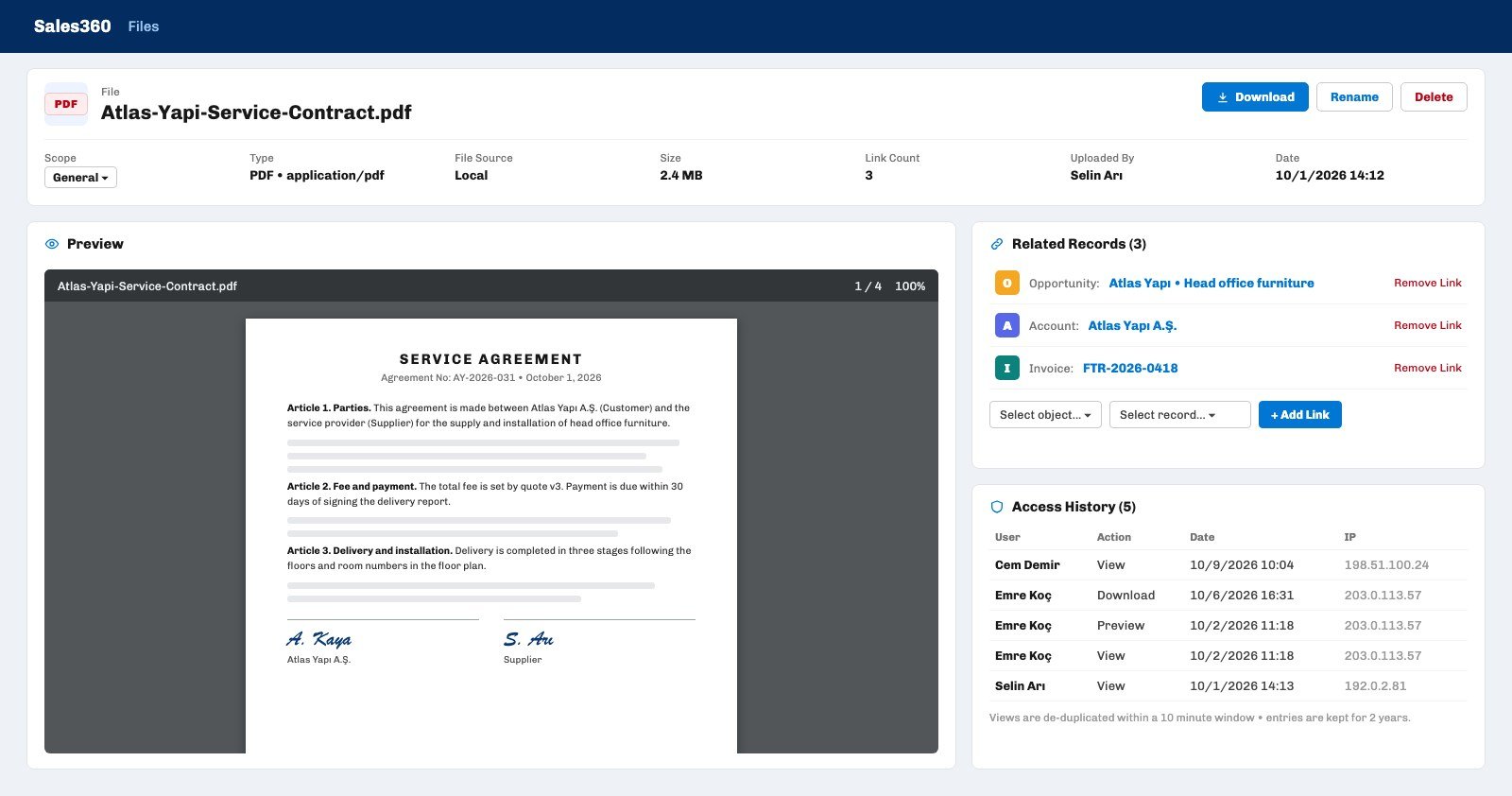
Seven facts about the file sit at the top of the page: Scope, Type, File Source, Size, Link Count, Uploaded By and Date. Type is derived from the file's format into one of ten categories: image, PDF, document, spreadsheet, presentation, video, audio, text, archive and other. Preview behavior depends on the type:
- Images. A click opens them full screen; the wheel, a double click or two fingers zoom up to eight times. That is why a receipt photographed on a phone or a hand-drawn measurement sketch stays readable. SVG images are not previewed, for security reasons.
- PDF, video and audio. They open inside the page in the browser's own player.
- Plain text, CSV and JSON. The content is shown in the page as text.
- Word, Excel, PowerPoint and archives. Not previewed; the page says there is no preview for this file type and the Download button downloads the file.
On desktop there is a shorter route too: hold the mouse over the name of an image or PDF on the Files card or in the Files tab for a quarter of a second and a small preview bubble opens beside it. The file's page also has its own Posts card at the bottom, so questions and notes about the document can be written on the file itself.
How do you track who opened a document?
Ohana360 writes every opening of a file's record page, every preview, every download and every deletion to an access history, with the user's name, the date and the IP address. On October 9 admin Cem wants to see who looked at the contract; he opens the Access Log link at the bottom of the Files card on the Atlas Yapı opportunity and sees Selin's and Emre's views, Emre's preview and his download in date order.
- Four action types are written: view, preview, download and delete.
- De-duplication. Views and previews of the same file by the same person count as one row within a 10 minute window, so refreshing the page does not bloat the log. Every download and every deletion is its own row.
- Retention. Entries are kept for 2 years. Even if the file is deleted, its name stays in the log.
- Who sees it. Only admins see the Access Log list on a record. The Access History table on the file's own page is visible to admins and to the person who uploaded the file. The complete org-wide record is under Setup > Audit Trail > File Access.
File contents are written to disk on the server encrypted with AES-256-GCM; the database holds only the name, type, size and links. The access history is the second layer next to that encryption: the answer to whose hands the document passed through.
How do you add Google Drive files and links to a CRM?
A Google Drive file is added through Google's own file picker, with the Drive button on a record's Files card or Pick from Drive in the Files tab; the content stays in Drive, Ohana360 keeps only a reference and no storage quota is used. The first time, you grant permission once with your Google account; later picks do not ask again.
- Add Link. This button in the Files tab adds a Dropbox, OneDrive or any https address to the library as if it were a file. The File Source column says Google Drive, Dropbox, OneDrive or Link. The added link is then linked to records with From Library.
- Preview. A Drive file opens on its file page with Drive's own preview; seeing it requires a Google session that has access to that file. Other links open on their own site with the Open at provider button.
- For files over 100 MB. Files beyond 100 MB, such as a site video or a high resolution drawing set, can stay in Drive and be linked as a reference.
If the same Drive address is added twice, no new entry is created; the same logic as upload de-duplication applies. You can disconnect Drive with Disconnect Drive on the Google Drive tab of the Files tab; references already added are not deleted.
What is the difference between Remove and Delete?
Remove breaks the link between a file and one record and leaves the file in the library; Delete removes the file for good from the library, from every record and from disk. Every row on the Files card ends with a Remove button; Delete is only on the file's own record page.
- Who can do it. Removing a link, renaming and deleting are open to the person who uploaded the file or to an admin. If Emre wanted to remove the contract Selin uploaded from the invoice record, the server would refuse.
- Deletion trail. A deletion is written to the access history and to the org's audit log.
- If a record is deleted. Deleting a record does not delete its files; the row stays in the file's Related Records list with a note that the record was deleted.
- If storage fills up. Once the files an org has uploaded reach 5 GB, new uploads stop with an "org file space is full" error. The Org storage bar in the Files tab shows the space used and the number of files and turns red past 85 percent. Sorting by the Size column and starting with the largest files is the fastest clean-up.
How are files searched and reported on?
All of the org's files sit in a single list view on the Files tab found in the navigation bar of every app; the tab opened in Sales360, Service360 or Legal360 shows the same library. The columns are File Name, Type, File Source, Scope, Related Object, Related Record, Size, Uploaded By and Date.
- Scope tabs. Above the list sit the All, General, My Private Files, Company Files and Google Drive tabs, each with its count.
- Filters. List view filters are built on Type, Scope, File Source, Related Object, Uploaded By, File Name and Date. "PDFs uploaded in October" or "spreadsheets Emre uploaded" can each be a saved view. A file name can be corrected in the list with a double click.
- Reports. In the Report Builder the Files (Shared) object offers File Name, Type, Scope, File Source, Linked Objects, Link Count, Size (MB), Uploaded By and Upload Date. "Total size by uploader" or "files linked to no record" come out of these fields; building the report itself is covered in the sales report guide.
Arranging where documents such as contracts, survey photos and specifications sit on each record page, for example moving the Files card to the top of the right column, is covered in the record page layout guide.
Not included: what file management does not do
- No version history. A revised document is a new file; it does not overwrite the old version and versions are not compared.
- No folders. The library is a flat list; order comes from scopes, filters, saved views and file names.
- No drag and drop upload. Files are added through the file picker.
- No preview for office documents, SVG or archives. They are downloaded and opened.
- No search inside files. PDF or Word content is not indexed, and the global search in the top bar does not cover files; a file is found by name in the Files tab.
- No public sharing link. No open address is generated to share a file with a customer. Emails sent from a record's Email card cannot carry attachments either.
- Merging records and converting leads do not move file links. Files on a merged duplicate or a converted lead stay on the old record and are linked to the new one by hand.
- No bulk download. The Setup > Data Export archive contains only the list of files, not their contents; files are downloaded one by one.
- No file picker for Dropbox or OneDrive. Files from those services are added as links with Add Link.
- No electronic signature. A signed document is uploaded after it is signed; the signing process runs outside Ohana360.
How do you set up a good file structure?
A good file structure lets someone looking for a document find it at first glance on the Files card of the right record. Selin's contract is the example: one file, a clear name, three records that everyone who needs it will open.
- File name formula: customer + document + status. "scan_0042.pdf" is not a name. "Atlas-Yapi-Service-Contract-signed.pdf" is. Fix a poor name with Rename on the file's page.
- Upload once, link as often as needed. If a document concerns both the deal and the account, link it to the second record with From Library.
- Choose the scope on purpose. Keep customer documents General so they follow the record's permissions; personal drafts Private, and templates everyone uses Company File.
- Keep large files in Drive. Link files over 100 MB, or files that change often, from Drive as references, and no quota is spent.
- Look at the Access Log once a month. An admin regularly checking who looked at documents holding personal data, such as ID copies, health reports or payslips, is the real point of keeping a trail.
The Files card works the same way on deal, lead, account and contact records in Sales360 and on cases in Service360; attaching petitions and rulings to a legal matter is described on the Legal360 page.