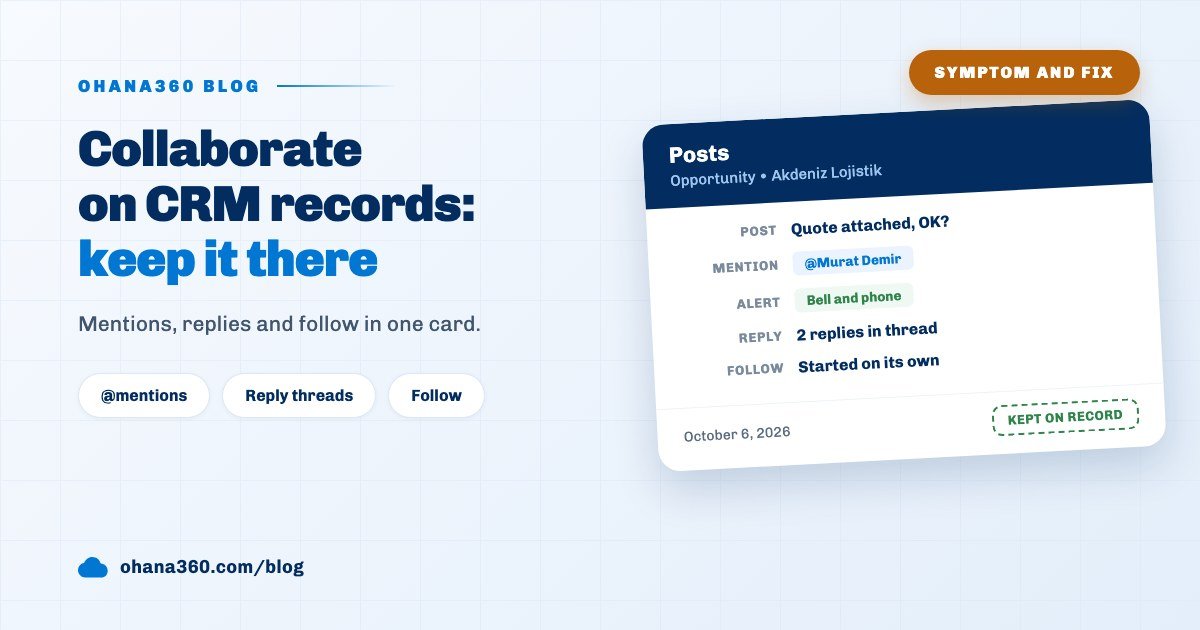
Team collaboration in a CRM means keeping the conversation about a customer on that customer's record. In Ohana360 every record page has a Posts card: you write an update, mention a colleague with @First Last, reply to a post and attach a file. The mentioned person gets a bell alert and a phone notification and starts following the record automatically.
Ohana360 is a business cloud that keeps sales, service and marketing records in one database, and the Posts card works the same way on all of them: on opportunities, cases, contacts, accounts, your own custom objects and file records. This post first lists five symptoms of broken team communication, then walks through the fix for each symptom on the record, and ends with an honest list of what the card does not do.
Why do conversations about customers get lost?
Conversations about customers get lost because they happen in a channel outside the customer record: email is private to a person, chat scrolls away, a phone call leaves no trace. Someone who opens the record three months later sees only the outcome, not how the decision was made.
Five symptoms are the typical face of this problem:
- The decision stayed in email. A discount rate was approved in an email between two people; the third person who takes over the opportunity does not know about it.
- The person asked never saw it. A question written in a general chat channel sank under other messages, and the answer came days later.
- The answer landed elsewhere. The answer went as a new message; nobody can tell which question or which customer it belongs to.
- Nobody knows the latest file. Three versions of the quote sit in three different places.
- Nobody noticed the change on the record. The opportunity stage was moved back or the amount changed, and nobody but the owner knew.
Each of the sections below covers the fix for one of these symptoms. What they share is moving the conversation onto the record page.
How do I post an update on a record page?
You post on a record page by writing an update in the box of the Posts card in the right column and pressing Share. The post is added to the top of the card with the author's name and time, and everyone who can see the record can read it.
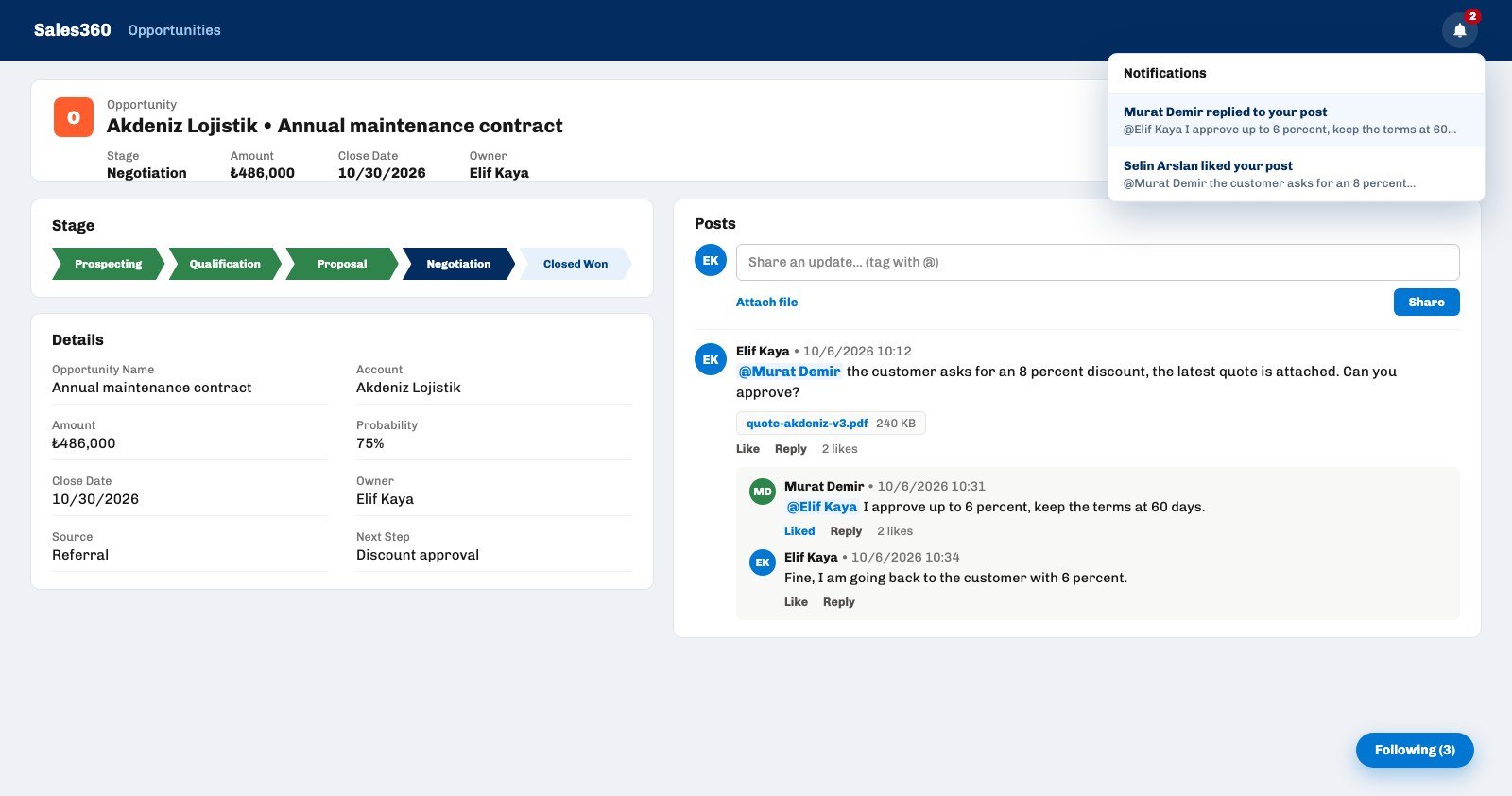
- Open the record. Opportunity, case, contact, account or custom object, it does not matter; the Posts card sits in the right column of the record page. On a phone the same card is among the lower cards of the record page.
- Write the update in the box. The box says "Share an update... (tag with @)". The text is plain text, and your line breaks are kept.
- Mention people if needed. Type @ and the first letters of a name to open the suggestion list; the next section explains how it works.
- Attach files if needed. Pick one or more files with the Attach file link; each file can be up to 100 MB.
- Press Share. The post is added to the top of the card, and you start following the record automatically, so you hear about the replies.
The card is one of the cards that can be switched off in the page layout. If you do not see Posts on your record page, an admin may have turned the card off; the record page cards are arranged in the page layout settings in Setup.
How do @mentions work in a CRM and who gets notified?
A mention means writing the full name of a colleague after @ in the post: Ohana360 sends a bell alert and a phone notification to every active user named as @First Last in the text, and makes that person a follower of the record. Mentioning once is enough, because the person also hears about later posts.
- Suggestion list. Up to six users whose names start with the letters you type after @ are listed with their name and title. Picking one adds @First Last and a space to the text. You can mention yourself too.
- How it looks in the post. Mentioned names are highlighted on a blue background, so it is clear who is being addressed.
- Bell alert. The bell of the mentioned person shows "First Last mentioned you in a post" with the first 120 characters of the post. Clicking it opens the record.
- Phone notification. If you allowed notifications in the Ohana360 mobile app or in the browser, the same alert lands on your phone or desktop. The mobile CRM guide covers working from the phone.
The key line in the matrix: a mention and a reply address a person, so they reach both the bell and the phone. A like only reaches the bell and does not ring the phone. A post written by a flow notifies nobody; to see it you check the record, or add a separate Show Notification or Push Notification step to the flow.
How do I use replies and likes on a post?
Every post has Like and Reply links under it: Reply adds the answer right under the post as a thread, and Like signals a short approval without writing a reply. The question and the answer stay together on the record.
- Reply thread. Replies are sorted from oldest to newest. If a thread has more than three replies, only the last two are visible and the earlier ones open with the more replies link.
- Reply to a reply. When you press Reply under a reply in the thread, your answer is written into the same thread and the name of the person you reply to is added with @ at the start, so they are notified.
- Reply notification. The author of the original post gets a bell alert and a phone notification titled "replied to your post".
- Shortcuts. In the reply box Ctrl+Enter (Cmd+Enter on a Mac) sends, and Escape closes the box.
- Like. The Like button toggles; the post shows "N likes", and hovering over it shows who liked it. The author gets only a bell alert, and the same unread alert is not written twice.
- Editing. An Edit link appears next to your own posts. An edited post shows an edited label.
The reply thread is the direct fix for the "answer landed elsewhere" symptom. When a quick approval question gets a yes or no on the record, there is no need for a separate screen unless the matter is formal enough for an approval process; for formal approvals see the approval workflow guide.
What does following a record do?
Following a record means watching it: when someone posts on a record you follow, you get a bell alert and a phone notification, and when a field on the record changes or the record is deleted, you get a bell alert. Your own changes are not reported to you.
- Follow the record. Press the floating Follow button at the bottom right of the record page. The button turns into Following and shows in brackets how many people follow the record.
- Know about automatic follow. The person who posts on a record and everyone mentioned in the post start following the record by themselves, without pressing the button.
- Check your list. The Following panel on the utility bar lists the records you follow and shows a count badge next to records with new posts since you last looked. The same list sits in the Records I Follow card on your profile page.
- Unfollow when done. The cross in the panel or the button on the record stops following. Following a closed opportunity only fills your bell.
Following fixes the "nobody noticed the change on the record" symptom. A sales manager follows large opportunities and a support lead follows critical cases to see every change in the bell; to watch opportunity stages on a board, the kanban view guide helps too.
How do I post to a record automatically with a flow?
To have a post written on a record by itself when something happens, add a Post to Feed step to a flow in Setup > Flows. The post is written under the name Otomasyon (Turkish for automation) and sits in the Posts card of the record with the other posts.
A ready template in the Flow Library shows how: the "Won opportunity → celebration + account type" template writes "{kayıt} kazanıldı! Tebrikler {sahip}." (Turkish for "{record} won! Congratulations {owner}.") on the record when the opportunity stage becomes Closed Won, shows a notification to everyone and sets the type of the linked account to Customer. Placeholders such as {kayıt} (record), {sahip} (owner) and {bugün} (today) are filled from the record; the tokens are Turkish and stay the same in the English interface. The step also runs on the server, so the post is written when the record comes from a web form or the API.
A flow post leaves a trace on the record and addresses nobody: even if you write a name after @, no mention alert is sent. If someone needs to know, add a Show Notification or Push Notification step to the same flow. The general flow setup is on the workflow automation page.
What is the difference between record posts and team chat?
Record posts are tied to a record and can be read by everyone who can see that record; team chat lives in the Chat panel on the utility bar, with a general channel, direct messages and groups, and is not tied to any record.
| Posts card | Team chat | |
|---|---|---|
| Where it lives | On the record page | In the Chat panel on the utility bar |
| Who reads it | Everyone who can see the record | Members of the channel or group |
| When the record is deleted | Posts go with the record | Not affected |
| Best for | Questions, decisions and files about a customer | Everyday talk that is not about a record |
One simple rule is enough: "Should someone who opens this customer's record in three months see this conversation?" If yes, write it as a post; if no, write it in chat. Record privacy applies to posts too: a user who cannot see a record cannot see the posts on it either. Who sees which record is covered in the user roles and permissions guide.
Not included: what the Posts card does not do
- Posts cannot be deleted. Posts and replies have no delete button; posts are removed only when the record they belong to is deleted.
- No edit history. An edited post shows an edited label, but the old text is not kept. A new mention added while editing is not notified.
- No formatting. No bold text, lists or headings; web addresses in the text do not turn into clickable links.
- No files on replies. Files can be attached only to the original post, each up to 100 MB.
- One reaction only. There is only Like; no other reaction types, and a like does not send a phone notification.
- No team or group mentions. A mention goes to one person; a whole team cannot be addressed with one tag.
- The mention list ignores record access. The suggestion list shows all active users. If you mention someone who cannot see the record, the alert and the first 120 characters of the post reach them, but they cannot open the record.
- Phone notifications have limits. A post sends phone notifications to at most ten mentioned people and at most thirty followers of the record; above sixty posts in ten minutes from one user, phone notifications pause.
- No email notification. Mention, reply and follow alerts go to the bell and the phone, not to email.
- The bell keeps the last 50 alerts. The bell list keeps the newest 50 alerts across the organization; on a busy day older alerts drop off the list.
- No organization wide feed page. Posts live on records; there is no page that shows all posts in one feed. The profile page shows a person's own posts, and the Following panel shows the count of new posts on followed records.
- A flow post addresses nobody. A post written by the Post to Feed step creates no alerts and makes nobody a follower.
How do you set up a posting routine for the team?
The Posts card works best when the team agrees on a few simple rules: every decision about a customer is written on the record, the person who should answer is mentioned, and the answer goes in the same thread. When the rules are few and clear, everyone follows them.
- Write the decision on the record. Even a discount approved on the phone deserves one line on the record: "Spoke with Murat, 6 percent discount approved." The person who opens the record in three months looks for that sentence.
- Mention the person you need an answer from. A question without a mention only reaches followers; always name the person who should answer with @.
- Use Reply instead of a new post. Keep the follow-up of a topic in the same thread; scattered posts move the old mess inside the record.
- Attach the file to the post. Attach the new version of the quote with one sentence; the file also shows in the Files card, which ends the latest version debate.
- Follow important records, unfollow when done. Let the bell fill only with records you really watch.
Tasks and reminders do not replace posts, they complete them: for a job like "call tomorrow", open a task rather than a post, and for jobs that come back every day or week see the recurring tasks guide. The Posts card and opportunity, lead and account records work together in Sales360.