Nobody noticed when Brightwell Lighting hired its ninth employee. They noticed at the twenty-fourth. An intern, in his first week, could open a list holding every customer, the value of every live deal and last year's discount percentages. No one had done anything wrong and no one had changed a setting. When the CRM went in there were five of them and it felt natural that everybody saw everything. The problem was that the setting never changed afterwards.
The Manchester company sells commercial lighting to contractors and facilities teams: 24 people, with eight on the sales side, a small technical team, a bookkeeper who comes in two days a month, one intern and an office manager who keeps the place running. (Demo data.) What they needed was not a security programme. It was three sentences: a rep sees their own accounts, the bookkeeper sees invoices but not the discount history, the intern works the incoming leads but cannot export the customer list.
This guide is about turning those three sentences into settings: the difference between a role and a permission, what least privilege means in daily use, practical answers to the who-sees-what question, and how the model actually behaves in Ohana360. The legal side of personal data is a separate subject, covered in the GDPR guide.
A role and a permission are not the same thing
Most teams collapse the two into one word: "I gave Sarah sales permissions." There are really two questions. A role says who somebody is. A permission says what they may do. Someone can be a sales manager and still have no business editing invoices; two people can do the same job while only one of them should see beyond their own records.
In Ohana360 the distinction is spread across four settings. They work together, and knowing which does what removes half of the later "why can't I see this record" questions.
| Setting | What it decides | Where it lives |
|---|---|---|
| Role | Admin, Standard or Portal. An Admin passes every restriction; a Portal user only reaches the portal and never the CRM itself. | Inline in the Users list |
| Profile | Which apps are open, and the read, create, edit and delete level on every object. This is the real permission shell. | Setup > Profiles |
| Permission set | Grants extra rights on top of a profile and never removes any. Assigned to a person or to a whole profile. | Setup > Permission Sets |
| Hierarchy role | Not a permission but a field of view: a level above sees records owned by the levels below it. | Setup > Role Hierarchy |
On top of those sits a sharing default for each object. The illustration walks through the five gates a record passes before it lands on somebody's screen.
You rarely need to touch three of those gates at once. In practice the setup runs in one direction: give everybody a profile first, tighten the sharing default on the sensitive objects next, and open the individual exceptions last with a sharing rule or a permission set.
Where does least privilege actually start?
Least privilege is one sentence: a person should hold the smallest access that lets them do their job. It sounds restrictive, but the point is not restriction. It is fewer accidents and less ambiguity. The record deleted by mistake, the price list forwarded to the wrong recipient and the argument about who changed a field usually come from unnecessarily wide access rather than bad intent.
Putting it in place takes three steps, and the first two happen on paper rather than in the CRM.
- Write roles as jobs, not job titles. "Sales manager" is a title. "Sees their own team's deals, approves discounts, never touches invoices" is a job, and only the second one can be turned into settings.
- Sort the data by sensitivity. Most teams end up with three groups: data nobody minds sharing (product catalogue, knowledge base), data shared inside the team (leads, cases) and data that should stay narrow (discount history, invoices, employee records).
- Close the gap, then open the exceptions. Starting closed and opening up is both safer and easier than starting open and closing down: opening means asking who needs what, closing means guessing what nobody should have seen.
Should a rep see their own records or all of them?
There is no single right answer, but there are two extremes and a middle. In an org where everyone sees every deal, reps call each other's customers, negotiation history gets muddled and whoever leaves walks out with the whole pipeline. In an org where everyone sees only their own record, the manager sees nothing, a customer goes dark while their rep is on holiday and the forecast never adds up.
The middle in Ohana360 is a combination of three settings. The first is the sharing default: the Sharing Settings screen in Setup gives every object one of three values.
| Default | What it means | Where it fits |
|---|---|---|
| Open to all | Everyone in the org reads and edits | Products, knowledge base, shared tasks |
| Read only for others | Everyone reads, only the owner and those above edit | Accounts, contacts, support cases |
| Private | Only the owner, people above them and admins see it | Deals, leads, invoices, employee records |
The second is the role hierarchy. The ladder that ships with a new org has five rungs and is meant to be renamed for your structure. The rule is short: somebody on a higher rung sees the records owned by everybody on the rungs below. Even with deals set to private, a sales manager keeps seeing the team's pipeline, because the rung is above theirs.
The third is sharing rules. A rule opens a closed door to a chosen target. The source can be ownership based (records owned by a role, by a role and everyone under it, by a public group or by a queue) or criteria based (records whose amount is above a figure). The target is a role, a public group or one named user, and the access is either read, or read and write. A common shape: deals are private, and one rule grants the support group read access to deals owned by the sales roles.
There is a fourth tool worth knowing: queues. A record's owner can be a queue rather than a person, and members of that queue treat its records as their own, picking them up when they take them on. For incoming work that lands in a pool before anyone claims it, that is far tidier than granting access person by person.
Separating the manager, the bookkeeper and the intern
The arrangement Brightwell settled on is in the table below. The detail worth noticing is that none of the five holds the Admin role. Because the Admin role skips profile limits and sharing rules altogether, even the person who needs Setup to keep the office running was given a permission set instead.
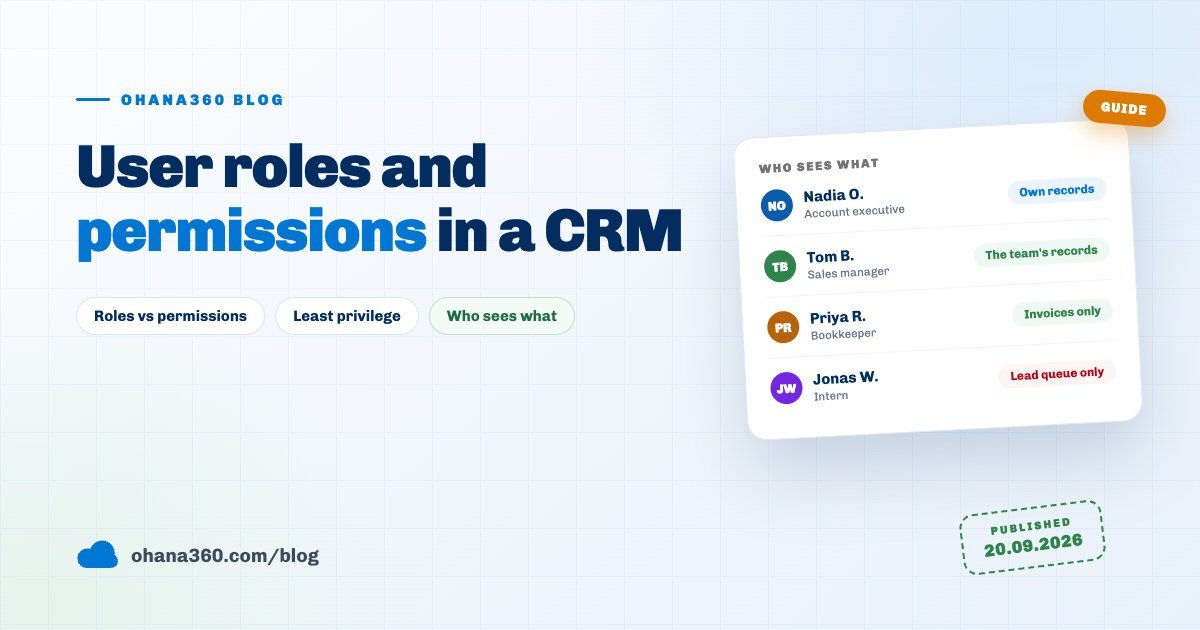
The account executive (Nadia). Read and edit at Own level on Leads and Deals. Invoices are closed off on her profile, so the object does not appear in the app at all. Team chat, the knowledge base and the shared product catalogue are fully open to her.
The sales manager (Tom). His profile could be identical to hers; the difference comes from the hierarchy. Sitting a rung above, he sees every lead and deal owned by the eight people below him. On invoices he has read but not edit: the profile sets that object's read to all and its edit to none.
The bookkeeper (Priya). A finance profile: full rights on Invoices, Orders and Payments, read only on Deals and Contacts, Leads closed. She can chase payment without reading how a discount was negotiated.
The intern (Jonas). The narrowest profile in the org. Deals and invoices are closed and only Leads are open, at Own level. Web form leads land in a queue; he picks up what he works on and sees nothing he has not claimed. He has no export rights at all, because exporting is not a profile setting but a separate permission set, and it is granted to nobody by default.
The office manager (Claire). She needs to create users, reset passwords and read the audit log, but not to change how the org is configured. Rather than the Admin role she was given the Manage Users permission set, which opens only the user and access sections of Setup and leaves company settings, billing and security closed. It carries one more boundary: that permission cannot grant the Admin role and cannot touch admin accounts.
Ready-made permission sets include Data Manager, Reporting and Export, Auditor, Support Specialist, API Integrator and Setup Assistant. They all follow one idea: add a single right without rewriting a profile.
Which route fits somebody outside the company?
A freelance designer, a bookkeeper who visits twice a month, a three-month intern. Three situations, three different answers.
- If they work inside your data, create a user on a narrow profile. The bookkeeper case. Access is easy to withdraw later, which is what makes this the most flexible route.
- If they only need their own records, create a portal user. With the Portal role, a supplier or customer company sees their own orders, cases and shared documents and never enters a CRM screen. The setup is in the customer portal guide.
- If they come in occasionally, deactivate between visits. A deactivated account cannot sign in, keeps its records and history exactly where they are, and comes back with one click. Priya's account is active on two days of the month and off for the rest.
One habit for interns: when the placement starts, put its end date in the calendar as a task. The most common reason expired access stays open is that nothing anywhere was due to remind anybody to close it.
Who deleted it, who changed it? Where the trail lives
However well the permission model is built, the "who did this" question arrives eventually. In Ohana360 the answer is not on one screen but in four separate trails.
| Trail | What it records | Its limit |
|---|---|---|
| Audit Log | Users added, roles changed, sessions ended, data exported, accounts entered with Login As | The most recent 1,000 entries per org; the screen shows the last 200 |
| Login History | Successful and failed sign-ins, the method (password, two-factor, invite, mobile) and the IP | Kept for two years |
| Record views | Who opened which record, when, and from which IP address | One line per person and record every ten minutes |
| Field History | Which field, the old value, the new value, by whom and when | A Marketplace add-on; only records changes made after it is enabled |
One detail matters more than it first appears: Login As, where an administrator enters somebody else's account, is written to both the audit log and login history with the names of both parties. That right also lives in its own permission set, and it refuses to enter admin accounts.
What to do the day somebody leaves
The leaving-day checklist has to be short, because long ones do not get done on the day. The order matters: hand the records over first, close the access second.
| Order | Step | Where |
|---|---|---|
| 1 | Hand over open records: select them in the list view and use Change Owner in bulk | Deals, Accounts and related lists |
| 2 | Deactivate the account: sign-in is blocked, records and history stay in place | Setup > Users, the status switch |
| 3 | Sign them out everywhere: browser and app sessions drop, the password is untouched | The menu on the user's row |
| 4 | Review device sessions and end anything still listed | Setup > Devices and Sessions |
| 5 | Read the last week of exports and record views on that account | Setup > Audit Log |
| 6 | Do not delete the account, and do not reuse the name: ownership is stored as a name | Setup > Users |
What it does not do
- No field-level security. Permissions are defined per object: you can close an object, make it read only or narrow it to Own, but you cannot lock a single field for one person. Page layouts can hide a field per profile, which is a display setting rather than a security boundary. Data that genuinely must stay hidden belongs on a separate object with that object closed.
- No manual record sharing. There is no "share this record with X" button. Share on a record page hands out the record's link, not access: without the right permission the recipient still cannot open it. One-off access is handled with a sharing rule, queue membership or a change of owner.
- The role hierarchy is a ladder, not a tree. The rungs run in a single line from bottom to top, with no parallel branches for separate departments. Someone on a manager rung sees the records of every rung below, whichever part of the business they sit in. Department-level separation is built with public groups and sharing rules instead.
- Closing an app does not close its data. Turning an app off on a profile removes it from the App Launcher. To hide its records as well, set read to none on the relevant objects on the same profile. The ready-made profiles do both together; it is the step people miss when writing their own.
- No IP or login-hour restrictions. There is a password policy, an org-wide two-factor requirement and a session length setting, but no rule for "office IP only" or "working hours only".
- The device list does not show browser sessions. Setup > Devices and Sessions lists only mobile and desktop app sessions. Browser sessions do not appear there; Sign out everywhere on the user's row is what drops them.
- The audit log is not unlimited. The most recent 1,000 administrative actions are kept per org. Field History is a separate add-on and only records what changes after it is switched on, so it produces no retrospective trail.
- Permission sets never subtract. By design they only add. Removing a right means removing the set or changing the profile.
Week one: a schedule for building the permission model
| Day | Task | Time |
|---|---|---|
| 1 | List the users: who does which job, and how many have no profile assigned | 20 minutes |
| 2 | Draft three profiles: field, back office, management. Copy a ready-made one and narrow it | 40 minutes |
| 3 | Set the sensitive objects to private in Sharing Settings: deals, leads, invoices, employees | 15 minutes |
| 4 | Rename the hierarchy rungs to match the company and give everyone a rung | 25 minutes |
| 5 | Write the exceptions as sharing rules, naming each one after the reason it exists | 30 minutes |
| 6 | Count the people on the Admin role. If it is more than two, move the extras to permission sets | 20 minutes |
| 7 | Use Login As to view the org from three different profiles: is what they see what you expected? | 20 minutes |
That last test is the valuable one. Whether a permission model is right is visible from the user's screen, not from the settings page. Brightwell's round turned up two things: the technical team could still open the price list, and the intern had in fact never been given a profile at all. Both took ten minutes to fix, and both would have stayed that way for months if nobody had looked.
Frequently asked questions
What is the difference between a role, a profile and a permission set?
What happens if I never assign a profile to a user?
I want a rep to see only their own records. Where is that set?
Can I give the bookkeeper every invoice but hide salary figures from them?
Where can I see who deleted or changed a record?
Someone has left. Should I delete the account or deactivate it?
Let everyone see what their job needs, and no more
Set the profile once, close the sensitive objects, open the exceptions with a rule. Close a leaver's access the same day and keep the change trail on the record.