Record change history in a CRM is an audit trail that keeps the old and new value of every field on a record, plus who made the change and when. In Ohana360 the trail shows on the Field History card of the record page and is kept for 2 years; deleted records go to the Recycle Bin, and sign-ins, Login As and record views are written to the Audit Trail.
Ohana360 is a business cloud that keeps sales, service and marketing records in one database; the change trail is part of the core and works the same way on accounts, contacts, leads, opportunities, cases, orders, invoices, industry app records and the custom objects you build yourself. The case below happens on a Thursday morning. Sales manager Cem Demir opens the weekly forecast and sees Kuzey Lojistik's warehouse automation deal at 48,000; the day before it was 480,000. The contact record of Elif Tan, the buyer on that deal, is gone as well. Cem sorts it out in forty minutes. The diagram sums up the six steps of the review, then we walk through each one.
Why keep record change history in a CRM?
Change history is kept so that the question of when, by whom and in which field a mistake appeared is answered with evidence instead of guesswork. Without it Cem has two options: ask everyone on the team who changed the amount, or find someone who remembers the right number.
A trail pays off in three concrete ways. First, correction: the old value is written on the record, so the right number is read rather than hunted for. Second, process: once you see who made the same mistake on which screen, training or a validation rule fixes it for good. Third, accountability: who opened and changed a record holding personal data is the record side of the principle covered in the GDPR compliant CRM guide.
08:55: Who last changed a record?
Who last changed a record is shown at the bottom of the Details card on the record page: Created By, Created Date, Last Modified By and Last Modified Date appear on every record with no setup at all. Cem opens the deal and scrolls down: Last Modified By is Burak Er, Last Modified Date 07/10/2026 17:42.
These four fields are the first clue, but their limit is clear. They only show the latest change; Burak's name is there because he saved the record that evening, but they do not say which field he changed, what the amount was before, or whether anyone else touched it. Had Burak saved the record once more the next morning, every trace of the evening change would be gone from these fields. The rest of the answer is on the Field History card.
09:05: What does the Field History card show?
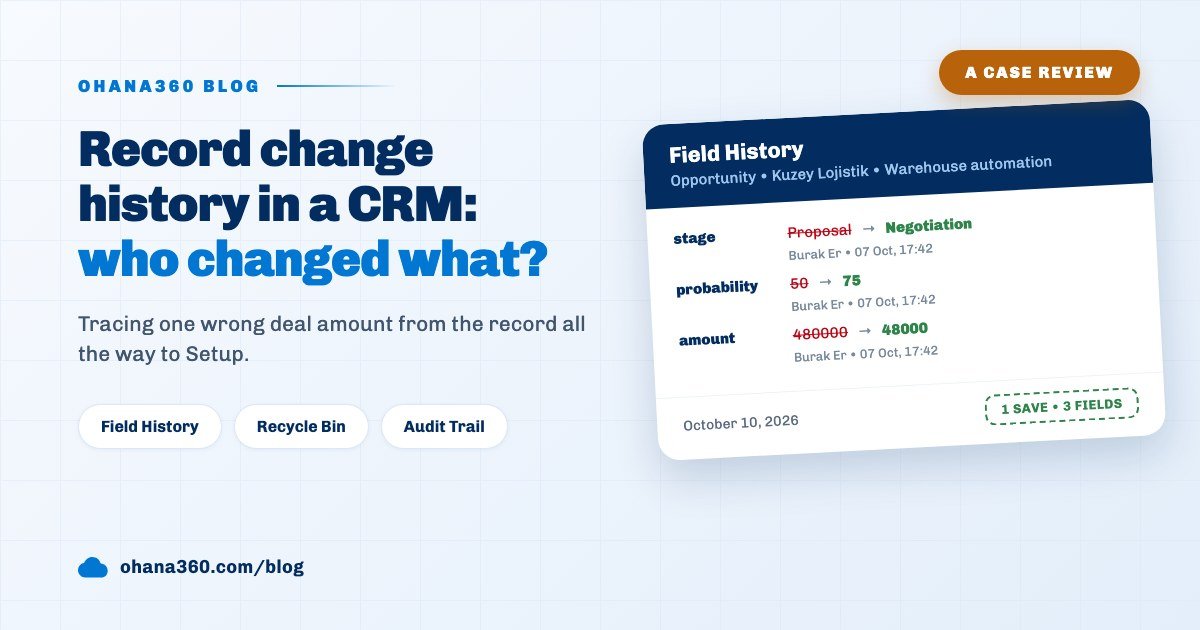
The Field History card shows every field that changed in each save of the record as a separate row: the field name, the old value struck through, the new value in green, and below them the person who made the change and the time. The card sits in the right column of the record page, newest change on top.
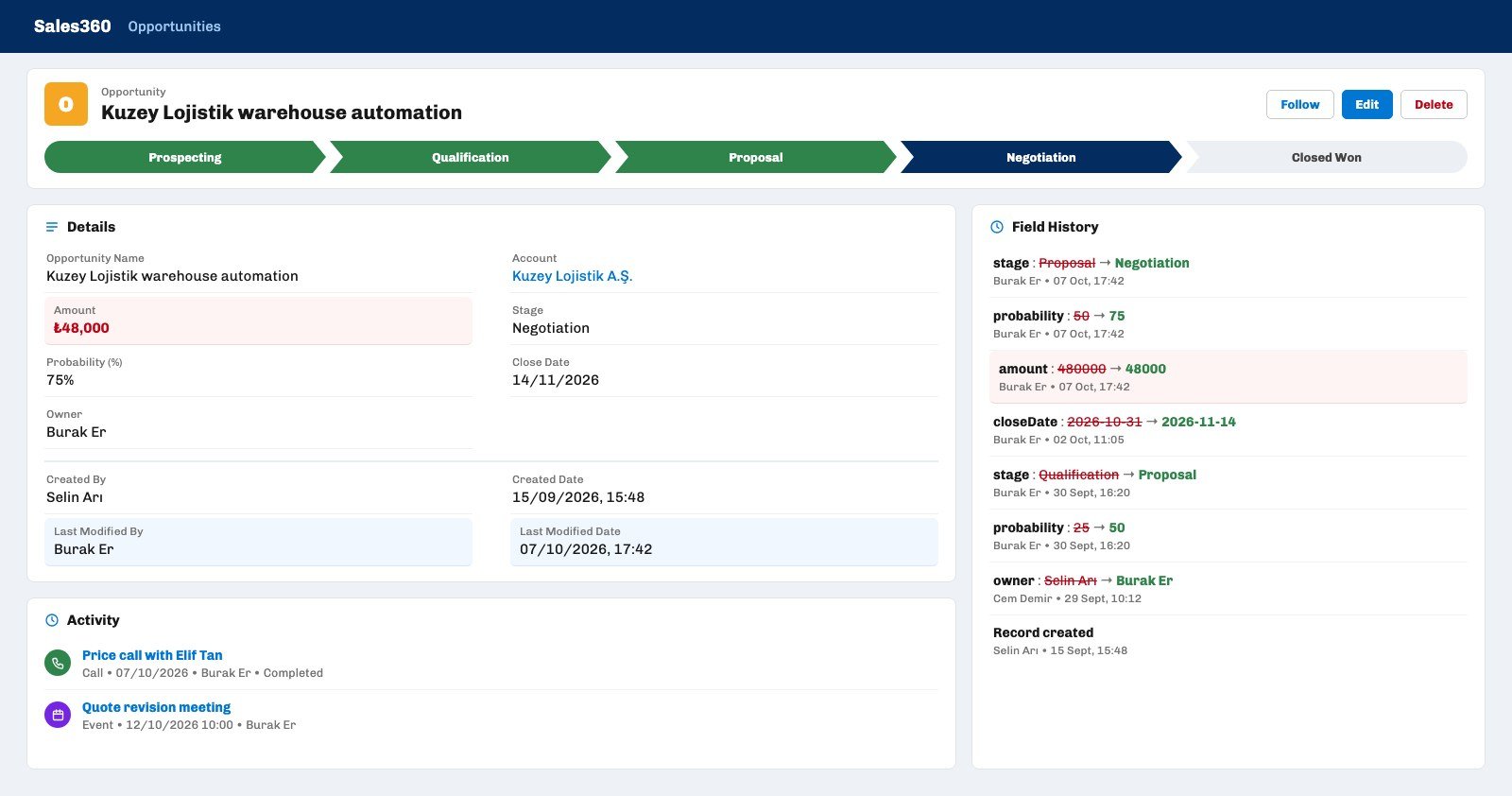
The first three rows Cem sees on the card carry the same minute, 07 Oct, 17:42, and all three say Burak Er:
- stage: Proposal → Negotiation. Burak moved the deal from Proposal to Negotiation. The customer had agreed to move into price talks that day; this change is correct.
- probability: 50 → 75. Probability is recalculated from the stage's default percentage whenever the stage changes. Burak never touched this field, but the row is written under his name because he made the save.
- amount: 480000 → 48000. The amount is missing a zero. While changing the stage on the same screen, the amount box was edited as well.
The card shows values as they are stored in the database, which is not the same as the label on screen. So reading the card comes with a small glossary:
| Shown on the card | On screen | Note |
|---|---|---|
| amount | Amount | No thousands separator or currency: 480000 |
| stage | Stage | Stored values: Prospecting, Qualification, Proposal, Negotiation, Closed Won, Closed Lost (the Turkish interface shows translated labels) |
| probability | Probability (%) | No percent sign: 75 |
| closeDate | Close Date | Year-month-day: 2026-11-14 |
| owner | Owner | The user's name |
| accountId | Account | The system ID, not the account name |
| names starting with cf_ | Custom fields | The technical name of a field you added |
At the bottom of the card there is usually a "Record created" row with the name of the person who created it. The card shows the 15 most recent rows and scrolls; if a record has no history at all, the card does not appear.
How do you turn on Field History, and what does it track?
Field History is a free add-on listed in the Ohana360 Marketplace as a System Add-on; once an admin adds and confirms it, tracking starts on every record in the org. You do not pick fields one by one, and there is no per-object setting.
- Tracked: every single-value field such as text, numbers, dates, picklists and checkboxes, on core objects, industry apps and custom objects. Creating and deleting a record are written as rows too.
- Not tracked: the record ID, the created and last modified stamps, and nested data. List-shaped data such as an opportunity's product line items or a contact's consent records does not land on this card.
- Whatever the path: the change may come from the record page, inline editing in a list view or the mobile app; the row is written on the server at the moment of the save.
- Who sees it: anyone who can see the record. A user without access to the record cannot read its history either; the check runs on the server. The profile and sharing settings that decide who sees a record are covered in the user roles and permissions guide.
- Retention: rows are kept for 2 years and older ones are removed automatically. For very long text, the first 400 characters are stored.
One important detail: history is not created after the fact. If the add-on was turned on Thursday, a change made on Wednesday is not on the card. That is why it belongs in the setup of a new org, not in the response to something going wrong.
09:12: How do you fix a value that was entered wrong?
A wrong value is fixed by typing the old value from the card back into the record; Field History offers no undo button. Cem edits the record, types 480000 into the Amount field and saves. A new row lands at the top of the card: amount: 48000 → 480000, Cem Demir, 08 Oct, 09:12.
The fix does not erase the trail, it adds to it. Someone looking at the deal a month later sees both the mistake and the correction, and the reason for a one-day dip in the forecast stays written on the record. Cem leaves the stage alone, because the move to Negotiation is correct, and the probability stays correct with it.
Stopping the same mistake from happening again is a separate job. A validation rule can, for example, stop a deal in Negotiation from being saved with an amount under 100,000; the rule does not know the previous value, it checks against a fixed limit. How to write one is covered in the validation rules guide.
09:20: How do you restore a deleted record in a CRM?
A deleted record is brought back with Restore on the Recycle Bin tab at the top of Setup; it returns with the same ID and still linked to its account. Cem opens the bin, types "Elif" into the search box and finds the row: Deleted Record Elif Tan, Object Contact, Deleted By Deniz Aksoy, Deleted At 07 Oct, 16:55.
Deniz works in operations and deleted Elif Tan thinking it was a duplicate. Cem presses Restore on the row, a confirmation appears and the contact shows up again under the Kuzey Lojistik account. Why duplicates should be merged rather than deleted is covered in the duplicate records guide; the losing record in a merge lands in this bin too.
- What was deleted together comes back together. Deleting an account sends its contacts, opportunities and cases into the bin; deleting an opportunity takes its product line items with it. The Deleted Together column shows how many contacts, opportunities, cases and line items went with it, and Restore brings them all back.
- The bin keeps the last 100 deletions. There is no time limit but there is a count limit: on the 101st deletion the oldest row drops out.
- Admins only. The bin's contents are never sent from the server to users who are not admins.
- Delete Permanently and Empty Bin cannot be undone. After those two buttons a record does not come back from the bin.
- Bulk actions. The bin is a full list view: search plus Object, Deleted By and Deleted At filters, and you can select several rows and apply Restore or Delete Permanently in one go.
If Field History is on, a new "Record created" row is added above the deletion row on the restored record's card, so the period when the record was missing shows in the trail as well.
09:28: Who signed in, and who looked at which record?
Sign-ins, uses of Login As and who opened which record are kept under Setup > Users & Access > Audit Trail. To find out whether the change was deliberate, Cem checks two tabs.
- Record Views. Each time a record page is opened, the user, record, time and IP address are written; the same person opening the same record again within 10 minutes counts as one row. Cem filters the list for "Kuzey": Deniz opened the deal at 16:50 and Burak at 17:40.
- Login History. Successful and failed sign-ins are written with the method: password, two-factor authentication, mobile or Login As. Burak's sign-in that evening was routine.
- Admin Actions. Adding and updating users, Login As, turning two-factor authentication on or off, adding products from the Marketplace, creating API keys, data exports and file deletions are here. The list shows the last 200 actions.
- File Access and Client Errors. Who opened or downloaded which file, and which errors occurred in users' browsers.
There is one trap here. If an admin uses Login As to browse as another user and changes a record, Field History writes that row under the target user's name. Whether the change really came from Burak is settled by checking Admin Actions for a row saying someone switched into Burak Er's account at that time. In Cem's case there is no such row.
The Audit Trail is visible to admins and to users whose profile has the Audit Trail system permission. Record view and login rows are kept for 2 years, and the lists show the last 500 rows.
Which screen answers which question?
The trail of a change is not kept on one screen but in five places, and each answers a different question. The matrix generalizes the order Cem followed that morning: first the two layers on the record, then the bin and the log in Setup, and backups last.
How do you undo a bulk mistake?
A mistake that touches hundreds of records is undone by returning the org to an earlier point with Backups and Restore under Setup > Data Export. The Recycle Bin is limited to 100 deletions and Field History does not undo anything, so fixing a bad import or bulk update record by record is not practical.
- Nightly backup. A backup is taken automatically for every org each night and kept for 7 days.
- Manual backup. The Take backup button saves the org as it is right now, with an optional note; the last 10 manual backups are kept. Taking one before a large import is the cheapest insurance there is.
- Restore to this point. All of the org's records and configuration return to the moment of the backup; every record change made after that is lost. Users, file contents and chat are not part of the backup and are not affected. Only an admin can do it; a "before restore" backup is taken automatically first, so you can go back to it if you change your mind.
A backup restore does not bring back one record; it rewinds the whole org. For a single field or a single deletion like Cem's, the right tools are always Field History and the Recycle Bin. The order to follow when moving data in from an old system is covered in the CRM migration guide.
Not included: what change history does not do
- No undo button. Field History shows a change; the old value is typed back in by hand.
- No history after the fact. Changes made before the add-on was turned on are not on the card.
- The card shows the last 15 changes. The server keeps rows for 2 years, but older ones cannot be reached from the interface; there is no see-all page.
- Field names and values appear raw. The card shows the field's technical name (amount, stage) instead of its label, the stored value for picklists such as stage, and the system ID instead of the record name for lookup fields. Dates show day, month and time, without the year.
- Nested data is not tracked. List-shaped data such as an opportunity's product line items or a contact's consent records does not land on the card.
- No field selection. Tracking is all or nothing; specific fields cannot be left out.
- No org-wide change report. You cannot pull a list of who changed what yesterday; the Report Builder has no field history object, and history is not included in the Data Export archive.
- Very large bulk operations may leave gaps. A single save writes at most 200 rows; for an operation that changes hundreds of records at once, only the first 200 field changes appear in the trail.
- The Recycle Bin has a count limit. The last 100 deletions per org are kept; a permanently deleted record comes back only through a backup restore.
How do you read the change trail on a regular basis?
The change trail creates value when it is read as a weekly habit, not opened as an archive once something has gone wrong. Five rules from Cem's case:
- Turn on Field History on day one. It is free and does not work retroactively; every day it is off goes by without a trail.
- Keep the card in sight on big deals. Move the Field History card near the top of the right column in the record page layout; how to change the layout is covered in the record page layout guide.
- Narrow who can delete. Limit who can delete records through profiles; merging or changing a status is often the right step instead of deleting.
- Take a backup before bulk work. Pressing Take backup before an import, a bulk update or a big cleanup takes a minute.
- Look at the Audit Trail once a month. Failed sign-ins, an unexpected Login As or a data export at midnight are signals to notice before a record change ever happens.
The Field History card works the same way on opportunity, lead, account and contact records in Sales360 and on cases in Service360.