A deleted record in Ohana360 comes back with one click from Setup > Recycle Bin. The bin keeps the newest 100 rows and has no time limit. For deletes that do not fit and for bad bulk changes, you return the whole organization to a nightly backup; backups are kept for 7 days and you cannot pick a single record.
Ohana360 is a business cloud that keeps sales, service and finance records in one database, so recovery depends on the kind of problem rather than the kind of record. Instead of listing features one by one, we wrote up a drill. Kaya Soğutma is a fictional company selling commercial refrigeration equipment in Konya. Admin Elif Aksoy did not wait for a real accident and tried six scenarios in a test organization; sales rep Can Yıldız did the deleting. Record counts are examples, and every limit comes from the Ohana360 code.
Where does a deleted record go in Ohana360?
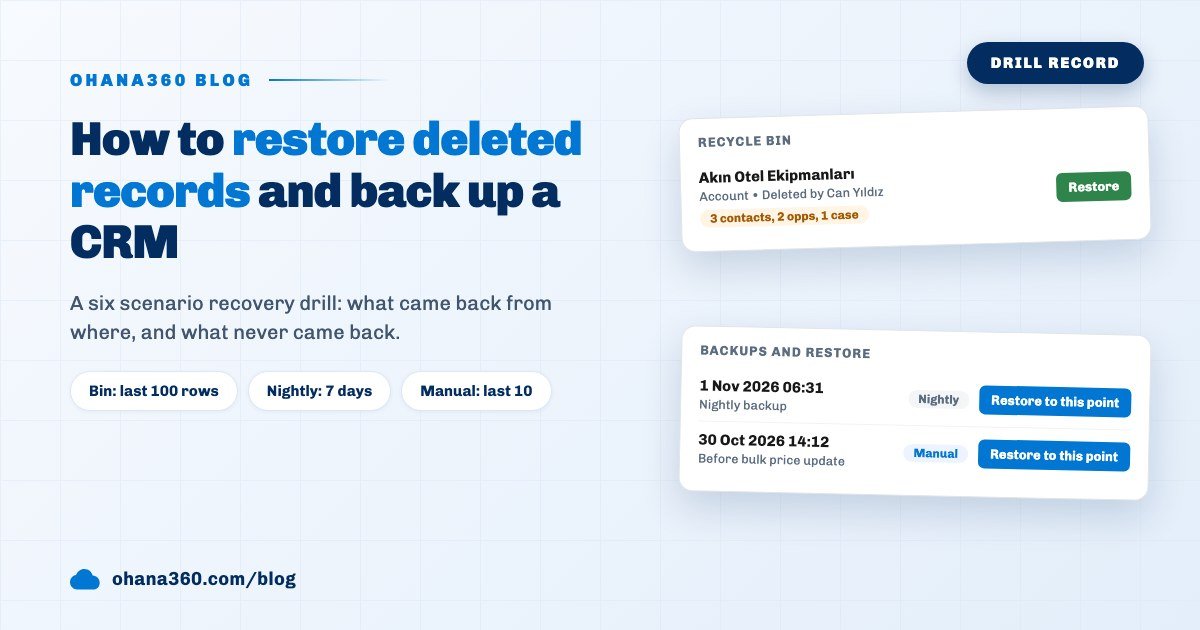
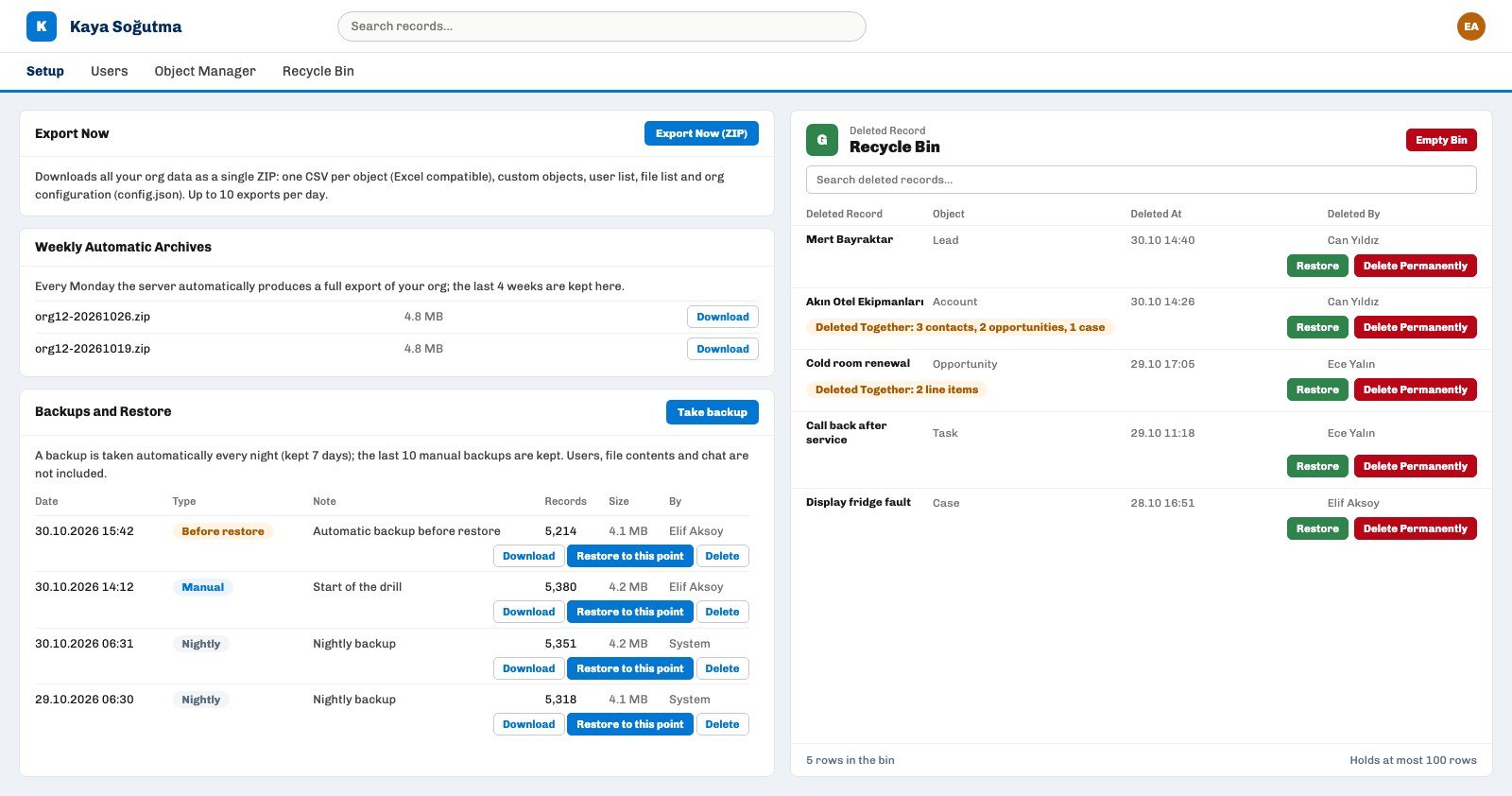
Deleted records in Ohana360 go to the Recycle Bin, a separate tab at the top of Setup, listed with Deleted Record, Object, Deleted At, Deleted By and Deleted Together columns. It is a full list view, so search, filters and bulk selection all work. Accounts, contacts, leads, opportunities, cases, tasks, events, custom object records and sector app records (such as legal cases, patients, reservations, Commerce360 orders and products, and newsletters) land there.
Only the Admin role sees the rows. A user with Customize Application or Modify All Data can open the tab but sees an empty list. Deletes made through the REST API land in the same bin.
What came back in the six recovery scenarios, and what did not?
In the Kaya Soğutma drill four of the six scenarios came back from a layer, the invoice was entered again by hand and the file never came back; only the account delete closed without leaving a mark. The record shows where each scenario was recovered from:
- One lead. Can pressed Delete on the wrong row and accepted the confirmation. Elif filtered Deleted By to Can in the bin and pressed Restore. The record returned with the same ID. But at the moment of deletion the link on its task had been emptied and its feed posts deleted; the task still exists without a link to the record, and the posts do not return.
- One account. When deleting the account, a confirmation warned that 3 contacts, 2 opportunities and 1 case would go too. One row appeared in the bin, with those related records in the Deleted Together column. Restore brought them all back, including opportunity line items.
- 140 leads. The bulk delete left 100 rows in the bin; the other 40 leads and two rows already in the bin dropped without warning. Elif selected the 100 and restored them in bulk. For the remaining 40 she downloaded the weekly archive from Monday, separated those rows out of
data/leads.csvand loaded them through Data Import. The records arrived with new IDs and new creation dates, and leads opened after Monday were not in the archive. - 260 opportunities, a bad bulk update. The Stage field was set to Closed Lost through a bulk action. Nothing was deleted, so the bin was empty; change history shows the old values but does not undo them. On the Backups and Restore card Elif picked that morning's Nightly backup and pressed Restore to this point. The opportunities came back, and everything anyone had entered since the nightly backup went.
- One invoice. When the invoice was deleted the screen did not say it moved to the bin, because it did not. Rolling back the whole organization for one invoice seemed out of proportion, so Elif entered it again by hand from the downloaded JSON file of a backup.
- One file. A quote PDF on a record was deleted. Its row, its link and its content on disk were removed together. No layer in the interface could recover it; the Audit Trail only showed who deleted it.
How many records does the recycle bin hold, and when does it empty?
The Ohana360 Recycle Bin keeps the newest 100 rows and does not empty on a timer; a row leaves only when new deletes push it past 100 or when someone uses Delete Permanently or Empty Bin. That has three consequences:
- Rows drop silently. When a 101st row arrives, the oldest row disappears and no message appears on screen. After deleting 140 records the screen still reports that 140 records moved to the Recycle Bin, so do not rely on that message; open the bin and count.
- A bulk delete also clears the bin. Deleting more than 100 records at once drops the ones that do not fit and every older row already in the bin. Always take a backup before a delete larger than 100 records.
- Merging also writes to the bin. When you merge duplicate records, the eliminated records land in the bin. If restored, the record returns, but tasks and cases moved to the master record stay there.
How do you back up a CRM, and how long are backups kept?
A backup in Ohana360 is a point-in-time copy of all of an organization's records and configuration; one is taken automatically every night and kept for 7 days, and the last 10 manual ones are kept. The screen is the Backups and Restore card in Setup > Data Model > Data Export.
- Take backup. Press the button and add an optional note ("before the bulk price update", for example). The screen confirms the backup with a record count. Up to 20 manual backups are allowed per hour.
- Read the list. The columns are Date, Type, Note, Records, Size and By. Type has three values: Manual, Nightly and Before restore. The list shows the newest 40 rows.
- Download. The Download button gives the backup as one JSON file, and the Data Export permission (exportZip) is enough. That file is for reading: no screen loads it back, and you can only return to a backup held on the server.
- Restore. The Restore to this point and Delete buttons appear only for an Admin. The system first takes a Before restore backup (the last 5 are kept), then returns the organization to that state and sends the organization a notification; open tabs reload. The action is written to the Audit Trail. Up to 5 restores are allowed per hour, and a restore through an API key or an app session is refused.
One detail to watch: a restore brings back the configuration in the backup as well as the records. A custom field, flow or report added after the backup goes too. Change history, which keeps the record of changes, answers who changed what but does not undo anything.
What is the difference between the four protection layers?
Ohana360 has four separate protection layers and each does a different job: the bin covers a single delete, a backup covers a bulk mistake, the ZIP covers a copy you take outside, and the server backup covers disaster recovery. What each one leaves out matters just as much:
The server backup is a copy of the whole database taken every night at 03:30 UTC, with the last 7 copies kept and an off-site copy as well. That layer is for the infrastructure, and there is no screen where an organization user can pick and restore it. So an everyday recovery plan is built on the first three layers. Nightly backups and full data export are included in every plan; the plans are on the pricing page.
How do you export CRM data to Excel?
All data in Ohana360 downloads as one archive with the Export Now (ZIP) button in Setup > Data Model > Data Export; each object is a separate CSV file and Excel reads the Turkish characters correctly. The server also produces the same archive by itself every Monday, and the last 4 weeks stay on the same page.
| File in the archive | What it holds |
|---|---|
data/leads.csv, data/accounts.csv and so on | One CSV per object; nested fields are written as JSON |
data/custom_*.csv | Custom object records |
data/recycleBin.csv | Rows in the bin, if it is not empty |
config.json | Organization configuration |
users.csv | User ID, name, email, role, title, created date; no passwords |
files.csv | The file list; contents are not in the archive |
Up to 10 exports are allowed per day. Backup and weekly archive downloads count toward that number, because all of them are written to the Audit Trail with the same action. Column headers in the archive's CSV files are internal field names, and Data Import recognizes them. Import details are in the CRM migration guide, and personal data requests in the GDPR compliant CRM article.
Not included: what the bin and backups do not do
- Not every delete goes to the bin. Marketing campaigns, email templates, segments, Finance orders, invoices, knowledge base articles, reports and dashboards are deleted directly. For products, employees and surveys the screen decides: deleted from the list they skip the bin, deleted from the record page they go to it. Expenses, leave requests and job applicants are deleted from the record page and go to the bin.
- No file recovery. A deleted file's content is removed from disk; details are in the file management guide.
- No partial restore. You cannot pick one record, one object or one field from a backup; a restore is organization-wide.
- Links are not rebuilt. A record restored from the bin keeps its task and event links empty, and feed posts do not return.
- A downloaded backup cannot be uploaded. No screen loads the JSON file or the ZIP archive back in one move. CSV rows enter through Data Import as new records.
- Users, chat and the audit trail are not in backups. A restore does not touch them.
- Retention cannot be changed. The 7 days of nightly backups, the 10 manual backups and the 100 rows of the bin are not configurable per organization.
- No sending to outside storage. The weekly archive is not copied automatically to your own Google Drive, Dropbox or S3; it is downloaded by hand.
- Bin actions are not logged separately. Restore, Delete Permanently and Empty Bin do not write their own row to the Audit Trail.
- This article is not legal advice. Backups can contain deleted personal data: a manual backup drops by count rather than by time, so check older manual backups after an erasure request.
Which five decisions should you make for a recovery plan?
After the drill Elif sent the team a five point note:
- Take a backup before bulk work. Before any action that deletes or changes more than 100 records, take a manual backup with a note.
- Check the bin often. No time limit does not mean safe; a limit of 100 rows fills quickly in a busy week.
- Narrow the right to delete. Use profiles to leave the delete permission to the people who need it; roles and permissions are in the user permissions guide.
- Take the weekly archive outside. Once a month download the latest archive and store it inside the company. Only the last 4 weeks stay in the system.
- Keep a copy of key documents outside. Keep the source of contracts and quote PDFs outside the CRM as well. The sales team's records are on the Sales360 page, and service cases on the Service360 page.