To prevent duplicate records in a CRM you set a matching rule, and to fix existing ones you merge them. In Ohana360 you open Setup > Object Manager > Duplicate Check, pick fields per object and turn on warn or block mode; the rule runs on the record form and on import. Records that slip through are reduced to one by selecting 2 or 3 of them in a list and pressing Merge.
Ohana360 is a business cloud that keeps sales, service and marketing records in one database; duplicate rules and merging are shared tools of that database. Below is a scenario first, then setting up the rule, import, merging and the paths the rule deliberately leaves open.
Why are duplicate records a problem?
A duplicate record splits one customer's history across two or three records and inflates every count in your reports. The repetition looks harmless one record at a time, but as the team grows it turns into a state where nobody knows which record is the right one.
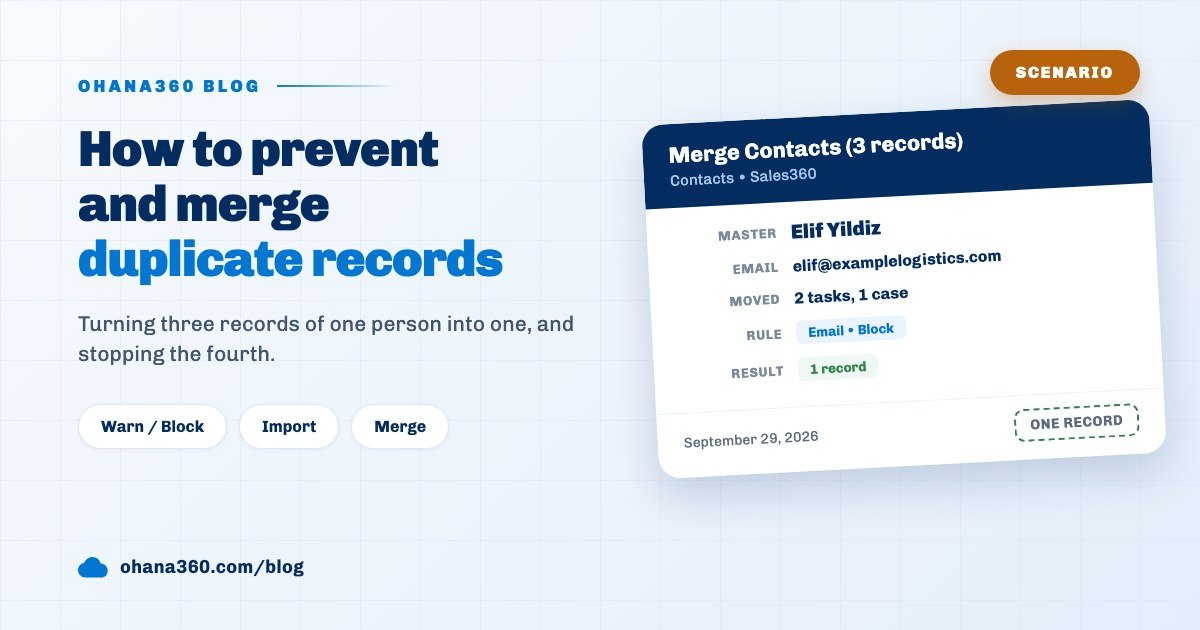
A scenario: Elif Yildiz runs purchasing at a logistics firm. On Monday she filled in the form on your website and arrived as a lead. On Tuesday a rep typed her in by hand as a contact from a business card collected at a trade fair. On Wednesday the month end spreadsheet was imported and Elif was added a third time, this time as "E. Yildiz". Now two of her tasks sit on one record, her open case on another, and her phone number only on the third.
- Reports mislead. "How many new contacts came in this month?" counts Elif three times.
- Work gets split. The rep looking at the record with the tasks does not see the open case.
- Marketing goes out twice. A person added to a campaign through two records receives the same email twice.
How do I set up a duplicate rule?
A duplicate rule is set up in Setup > Object Manager by picking the object and opening the Duplicate Check tab: tick Active, choose the matching fields and set the mode. Each object has one rule and changes take effect at once.
- Pick the object. Open Contact, Account, Lead or another object from the list on the left of Object Manager.
- Open the Duplicate Check tab. When the rule is on, an On badge appears next to the tab name.
- Choose the fields. Field buttons turn blue as you click them. Calculated fields such as formula and roll up fields, and date fields, are not in the list.
- Choose the mode. Warn (the record can still be saved) or Block.
Every new org starts with three active rules: Name for accounts, Email for contacts, Email for leads. All three are in warn mode. Matching follows two rules:
- All selected fields must match. If you pick Name and Phone, a record counts as a duplicate only when both are the same; the same name alone is not enough.
- An empty field never matches. If one of the rule fields is empty on the new record, the check returns nothing for it. A contact without an email passes an email rule.
Before comparing, spaces at the start and end of the value are removed and the text is lowercased; "ELIF@EXAMPLE.COM " and "elif@example.com" count as the same. Differences inside the value break the match: 0532 000 00 00 and +90 532 000 00 00 are two different numbers. If you match on phone, agree on one way of writing numbers. The field types from the custom fields guide can be selected here as well.
Warn or block: which mode should I choose?
Warn mode shows the similar record and leaves the decision to the user, block mode does not create the record at all. The right choice depends on whether the matching field is truly unique.
| Situation | Suggested mode | Why |
|---|---|---|
| Email on contacts and leads | Block | Two different people rarely share one email; a second record is almost always a repeat |
| Name on accounts | Warn | Two branches or two different firms can share a name; the user decides |
| Name on contacts | No rule | Many different people share a name; warnings pile up and the team learns to click past them |
| Name and phone together | Warn | When both match a repeat is likely, but phone formatting can differ |
In warn mode the form shows the names of up to three matching records and asks whether to save anyway. In block mode a duplicate blocked message appears and the form stays open; the user finds the existing record and continues there.
On which paths does the duplicate check run?
The duplicate check runs on two paths only: the record form and import. The other ways a record arrives, quick add, inline edit, web forms, custom object forms and the API, do not read the rule.
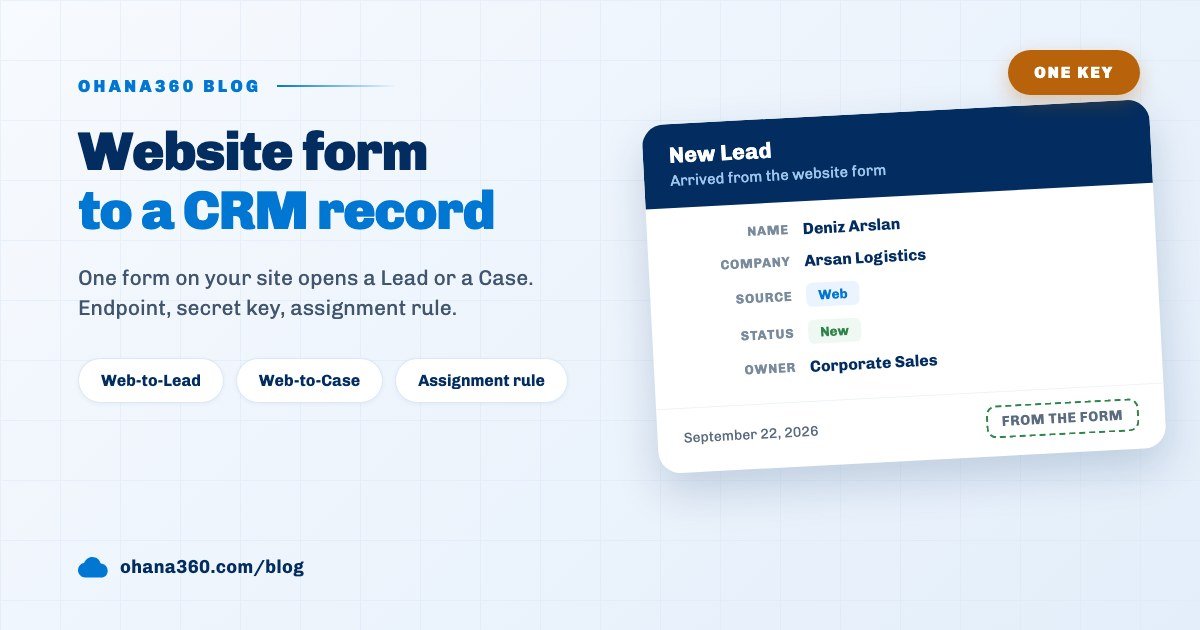
In practice this means Elif's web form record opens without meeting the rule. If you rely on web forms, collect form records in one list as described in the Web-to-Lead guide, sort that list by email once a week and merge the repeats. When converting a lead, check for an existing contact as well; the lead conversion guide covers that step in detail.
How are duplicate rows caught on import?
On import every row is compared with existing records in the review step, and a matching row is flagged as Duplicate. Rows that repeat inside the same file are caught as well, so a person listed twice in one spreadsheet is imported once.
- Match with existing records: the object's duplicate rule is used. If the rule is off, this comparison is skipped.
- Repeats inside the file: checked on the required fields, or on the first mapped column when there are none; when the same value appears again, the later row is flagged Duplicate.
- Your call: duplicate rows are left out by default. Ticking Import duplicates too adds them as new records as well.
If you are moving from an older system, turning the rules on before the import is the cheapest clean up; we covered the order of a move in the CRM migration guide.
How do I merge duplicate records?
Duplicate records are merged by selecting 2 or 3 records in a list view and pressing the Merge button. The Merge button appears in the Leads, Accounts and Contacts lists, and only while 2 or 3 records are selected.
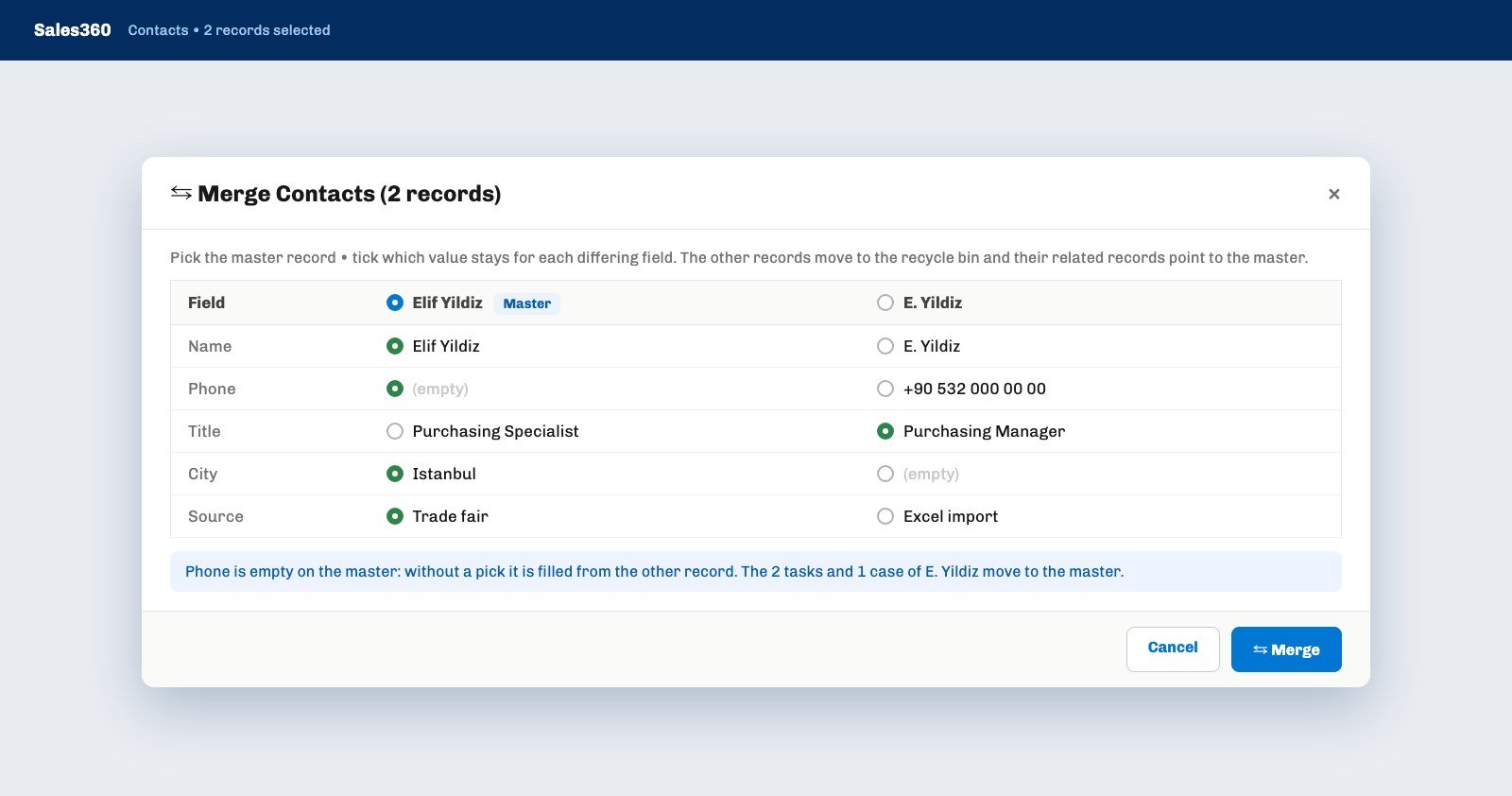
- Pick the master. Each record is a column at the top of the window; the one with the Master badge stays.
- Tick the differing fields. The window lists only the fields whose values differ between the records. In each row you pick the value that stays; empty values show as a grey "(empty)".
- Gaps fill themselves. A field that is empty on the master and that you did not pick is filled with a non empty value from the other records.
- Confirm. A records merged notice appears and the other records move to the recycle bin.
Related records are not lost, they move to the master. A contact merge moves cases, campaign memberships, tasks, events and feed posts. An account merge adds contacts, opportunities, orders and invoices to that list, and the window states how many related records will move before you merge. For Elif in the scenario the result is one record: her phone number, both tasks and the open case on the same page.
Not included: what the duplicate check does not do
- No fuzzy matching. Comparison is exact; "Elif Yildiz" and "E. Yildiz", or "Example Logistics" and "Example Logistics Ltd.", do not match.
- Phone numbers and addresses are not normalised. Only leading and trailing spaces and letter case are ignored; inner spaces, country codes and punctuation make a difference.
- One rule per object. Alternative rules such as "email or phone" cannot be built; all selected fields must match.
- Date and calculated fields cannot be chosen. Formula, roll up and date fields cannot be matching fields.
- Skipped on five entry paths. Quick add, inline edit, web forms, custom object forms and the API do not apply the rule.
- No bulk scan. There is no report or job that lists repeats among existing records; you sort a list view and spot them.
- Merging is limited to 3 records and three objects. It exists only in the Lead, Account and Contact lists; opportunities, cases and custom object records cannot be merged.
- A merge cannot be undone. A record restored from the recycle bin returns without its related records. For contacts, opportunities and files are not among the records that move.
How do you keep duplicates low over time?
The way to keep duplicates low is to put the rule on the most unique field and close the paths the rule does not cover with a regular clean up routine. A rule alone is not enough, because a large share of records arrives through web forms and imports rather than the form.
A routine that works: set the email rule for contacts and leads to block, leave the account name rule on warn. Every Friday sort the Contacts list by email and merge addresses that sit next to each other; tying this to a recurring task keeps it from being forgotten. All sales records live in Sales360, and team permissions decide who may merge; to leave merging to one data owner, see the user permissions guide.