A validation rule in a CRM is a condition that stops a faulty record from being saved. In Ohana360 you open Setup > Object Manager, pick the object, press New Rule on the Validation Rules tab and enter a name, an error message and up to 10 conditions. When they are met, the save is blocked and your message is shown.
The rule runs on forms, lists, import and the API. Ohana360 is a business cloud that keeps sales, service and marketing records in one database; validation rules are set up from the same screen for every object in that database. This post is a recipe collection: first the logic of a rule, then six rules you can copy into your own org, and at the end the paths where a rule does not run.
What is a validation rule and when do you need one?
A validation rule is a set of conditions that describes when a record must not be saved, and shows the user a message in that case. Instead of cleaning up data that already broke a report, it stops the data at entry.
Three signs tell you a rule is needed:
- Reports and reality disagree. Opportunities in a won stage with a zero amount pull the revenue report down.
- You keep making the same correction. If you fill in the same missing fields by hand every month end, a rule should do it.
- A field is required only in a certain situation. A description when a case is closed, contact details when a lead is qualified.
The last point is an important distinction. If a field must be filled on every record you do not need a validation rule: open a record, choose Edit Page from the gear and tick the field as Required. A validation rule is for requirements that depend on a condition. If the field itself does not exist yet, add it first with the steps in the custom fields guide.
How do I set up a validation rule in Ohana360?
A validation rule is created in Setup > Object Manager by picking the object and pressing New Rule on the Validation Rules tab, and it is active as soon as it is saved. You can add as many rules to an object as you need; the number next to the tab name is the rule count for that object.
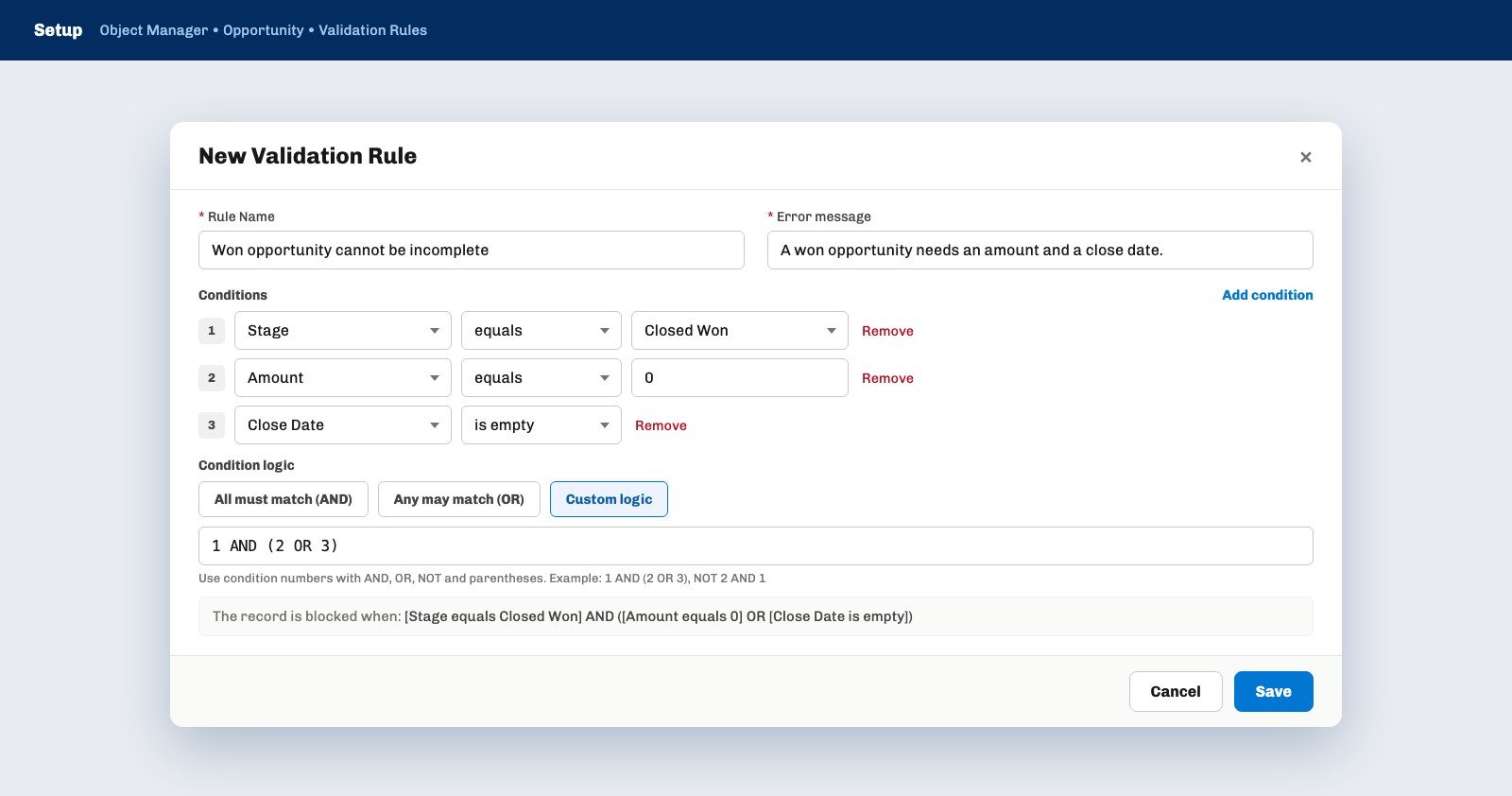
- Pick the object. Open Opportunity, Lead, Case or another object from the list on the left of Object Manager and go to the Validation Rules tab.
- Press New Rule. The New Validation Rule window opens.
- Type a rule name and an error message. Both are required. The user sees them together: the rule name, a colon, then the message.
- Add the conditions. Each condition is a field, an operator and a value. The Add condition link takes you up to 10 conditions.
- Choose the condition logic. All must match (AND), Any may match (OR) or Custom logic.
- Read the summary and save. The line "The record is blocked when" at the bottom of the window writes the rule as a plain sentence. If the sentence describes the state you want to block, press Save.
Each row in the rule list starts with an Active box. Unticking it gives the rule an Inactive badge and switches it off without deleting it; this is how you pause a rule briefly during a bulk data fix. Every new org ships with one sample rule on the Opportunity object: it blocks an opportunity whose stage is Closed Won and whose amount is zero or less.
Which operators can a condition use?
Condition operators depend on the field type: a text field has 7 operators, a picklist 4, a number field 8 and a date field 5. The value is always a fixed value that you type.
| Field type | Operators | Note |
|---|---|---|
| Text | contains, does not contain, equals, not equal, starts with, is filled, is empty | contains, does not contain and starts with ignore letter case; equals compares exactly |
| Picklist | equals, not equal, is filled, is empty | The value is chosen from the options of the field |
| Number | equals, not equal, greater than, greater or equal, less than, less or equal, is filled, is empty | An empty number field counts as 0 in a comparison |
| Date | after this date, before this date, on this date, is filled, is empty | After and before include the day you type |
The is filled and is empty operators take no value. Condition logic has three options. All must match (AND) is the default and blocks when every condition is true at once. Any may match (OR) blocks when a single condition is true. With Custom logic you combine the condition numbers with AND, OR, NOT and parentheses, for example 1 AND (2 OR 3). The window checks the expression: with an unused condition number or a broken parenthesis the Save button does nothing.
Which validation rules are worth having: six ready recipes
The validation rules that pay off most are the ones that catch missing information at the moment a stage or status changes. The six recipes below use field and operator names as they exist in Ohana360; each takes about two minutes to build.
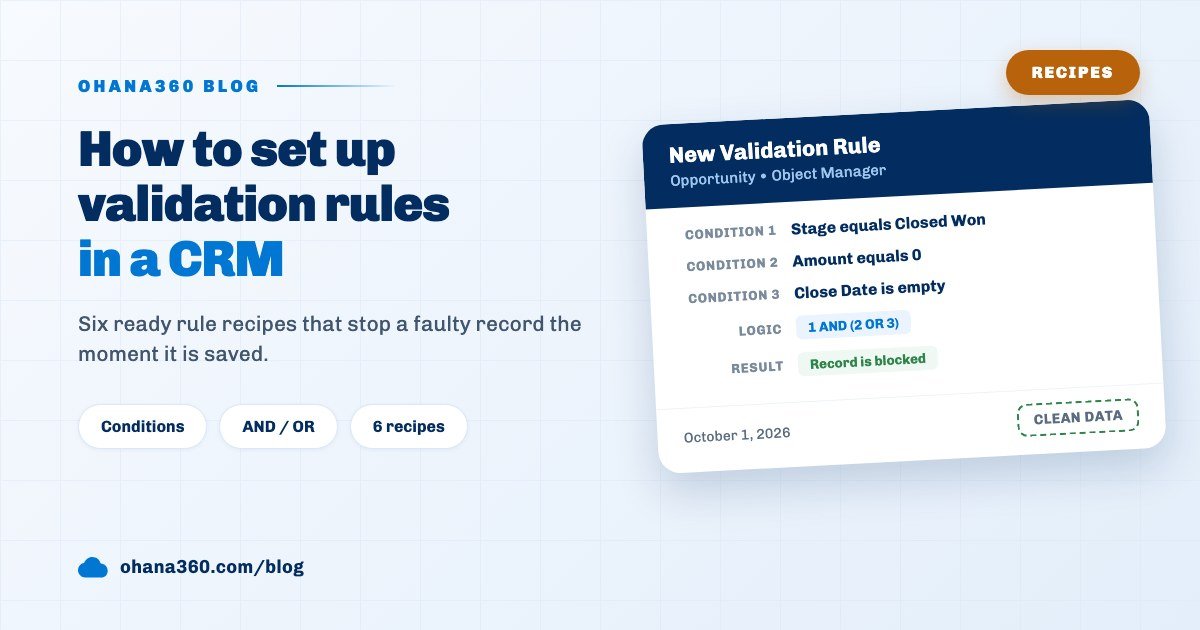
1. A won opportunity needs an amount and a close date
- Object: Opportunity
- Conditions: (1) Stage equals Closed Won, (2) Amount equals 0, (3) Close Date is empty
- Logic: Custom logic, 1 AND (2 OR 3)
- Error message: A won opportunity needs an amount and a close date.
If you renamed your stages as described in the sales pipeline stages guide, pick your own stage name in the first condition.
2. A qualified lead must have contact details
- Object: Lead
- Conditions: (1) Status equals the qualified status, (2) Email is empty, (3) Phone is empty
- Logic: All must match (AND)
- Error message: A qualified lead needs at least an email or a phone number.
3. An email address must contain an @ sign
- Object: Contact (the same rule works for Lead)
- Conditions: (1) Email is filled, (2) Email does not contain @
- Logic: All must match (AND)
- Error message: The email address has no @ sign, please check it.
Without the first condition the rule would also block every contact with an empty email, because an empty value does not contain @ either. This rule is not a format check, it only catches the most common typing slip.
4. A case cannot be closed without a description
- Object: Case
- Conditions: (1) Status equals the resolved status, (2) Status equals the closed status, (3) Description is empty
- Logic: Custom logic, (1 OR 2) AND 3
- Error message: Write the resolution in the description before closing the case.
5. Probability stays between 0 and 100
- Object: Opportunity
- Conditions: (1) Probability greater than 100, (2) Probability less than 0
- Logic: Any may match (OR)
- Error message: Probability must be a number between 0 and 100.
6. An account cannot have both industry and phone empty
- Object: Account
- Conditions: (1) Industry is empty, (2) Phone is empty
- Logic: All must match (AND)
- Error message: Enter at least an industry or a phone number on the account.
Pick up one habit while building these: read the "The record is blocked when" summary out loud before saving. If the sentence describes how things should be, the condition is written the wrong way round. If you would rather ask a manager than block the record on large deals, the tool you want is not a rule but an approval workflow.
On which paths does a validation rule run?
A validation rule runs on every create and edit made on screen, on import and on the API; it does not run on records that arrive from web forms or on values written by automation flows. A rule applies in the same way to every user, admins included.
Three practical consequences follow from this table:
- One record is enough to stop a bulk update. When you select 40 opportunities in a list and change the stage, none of the 40 changes if a single one breaks a rule. Fix that record first, then repeat the action.
- On import the row is skipped, the file goes on. A row that breaks a rule is flagged with the rule name in the review step and left out; you can download the skipped rows as a spreadsheet and correct them. We covered the order of a move in the CRM migration guide.
- An old record is caught when edited. On the day a rule is created it does not touch existing faulty records. But a user who opens one of them to change a different field sees the error message as well.
Since leads from web forms do not meet the rule, reviewing form records once a week is a good habit; in the same review you can merge repeats as described in the duplicate records guide.
How do you write a good error message?
A good error message tells the user what to do, not just what went wrong. In Ohana360 the message appears in red in the notification area of the screen, together with the rule name, and the form stays open.
- Name the field. Write "Fill in the Close Date field" rather than "Invalid record". The message shows in a notice and not next to the field, so the sentence has to say which field is meant.
- Keep the rule name short. The user reads a single line such as "Won opportunity: an amount and a close date are needed"; a long rule name buries the message.
- One rule, one message. If you pack three different gaps into one rule, the message cannot say which one is missing. Separate rules give separate messages.
Not included: what validation rules do not do
- Two fields cannot be compared with each other. The value is always fixed; rules such as "end date cannot be before start date" or "discount cannot exceed the total" cannot be built.
- No formulas and no relative dates. A condition cannot say today, last 30 days or a calculation; a date condition works against a fixed day. Formula and roll up fields are not in the condition list; do not use Link and Lookup custom fields in a condition either, no operators are defined for those types.
- No format checks. Phone length, tax number digits or regular expressions cannot be checked; only operators such as contains and starts with exist.
- No warning mode and no exceptions. A rule either blocks or is switched off; there is no "warn but save" option and no exemption per profile.
- Web forms and flows do not meet the rule. Web-to-Lead and Web-to-Case records, fields written by automation flows and the records created by lead conversion are not checked.
- Custom logic is not read on the API path. A record written through the API is blocked when all conditions are met together; OR and parenthesised expressions are not evaluated as they are on screen. If an integration writes data through the API, build your rules with All must match (AND).
- Number comparison is not available on every object. Greater than and less than exist on the number fields of Account, Contact, Lead, Opportunity and Case and on custom fields of type Number. Standard fields of other objects such as Invoice or Campaign are compared as text.
- No look back scan. There is no report or job that lists existing records breaking a rule; you find them yourself with a list view filter.
- Some labels stay in Turkish in the English interface. The error message field label, two number operators, two date operators and stored status values such as lead and case statuses appear as they are stored.
How do you manage validation rules without wearing the team out?
Validation rules do not wear a team out when they are few and tied to a transition in the work process. Putting a rule on every field leads users to abandon the record half way or to fill the field with a meaningless value.
A routine that works: start with two or three rules per object and tie each one to a stage or status change. Before switching a rule on, build a list view with the same conditions and see how many existing records would be caught; if the number is high, fix those records first. In the week you add a rule, tell the team in one sentence what the error message means. All sales records live in Sales360, and the profiles in the user permissions guide decide who may open Object Manager.