Nine stages. Ninety-four open deals. Eleven columns on the kanban board. And one question nobody could answer on a Monday morning: of the thirty-three deals sitting in "Quote Sent", how many are still alive?
Larkfield Metering in Leeds sells water metering hardware to facilities teams and housing associations. Twenty-six people, four sales reps. When the head of sales counted, eleven of those thirty-three deals were older than six months. Six of the nine stage names described something her team had done: Quote Sent, Sample Shipped, Demo Delivered, Price Given, Following Up. None of them were wrong. Each had been true once, and none of them would ever become false again. That is why the pipeline kept swelling. (Demo data.)
This guide is about the stages themselves: how many to run, the exit criterion each one needs, how to name them, what the probability percentage is for, and what you can automate the moment a stage changes. If the opportunity record and its fields are new ground, start with the sales tracking software guide instead.
Start with your own numbers
Before arguing about stages, count. This is the audit Larkfield ran on day one, and it is the whole brief for rewriting a stage list:
| Measure | Larkfield, day one | What it tells you |
|---|---|---|
| Open stages | 9 | Eleven kanban columns: the board scrolls and nobody sees the end |
| Deals in one stage | 33 of 94 | A third in one bucket: that stage is really a waiting room |
| Untouched over 30 days | 29 deals | Almost a third of the pipeline is a ghost, and the forecast follows it |
| Stages named after an action | 6 of 9 | The name can never become false, so records never move themselves |
| Stage pairs that change together | 2 pairs | Each pair collapses into one: nine stages become seven |
That last row does more work than it looks. If two stages nearly always change on the same day, there is no real decision between them, and they are one stage wearing two labels.
How many stages?
The practical answer is four to six open stages. The better question is not how many stages but how many decisions. A stage is the name of a genuine threshold: crossing it requires something to be proven, and once it is crossed the deal is worth a different amount. Any step in between that proves nothing is just another click.
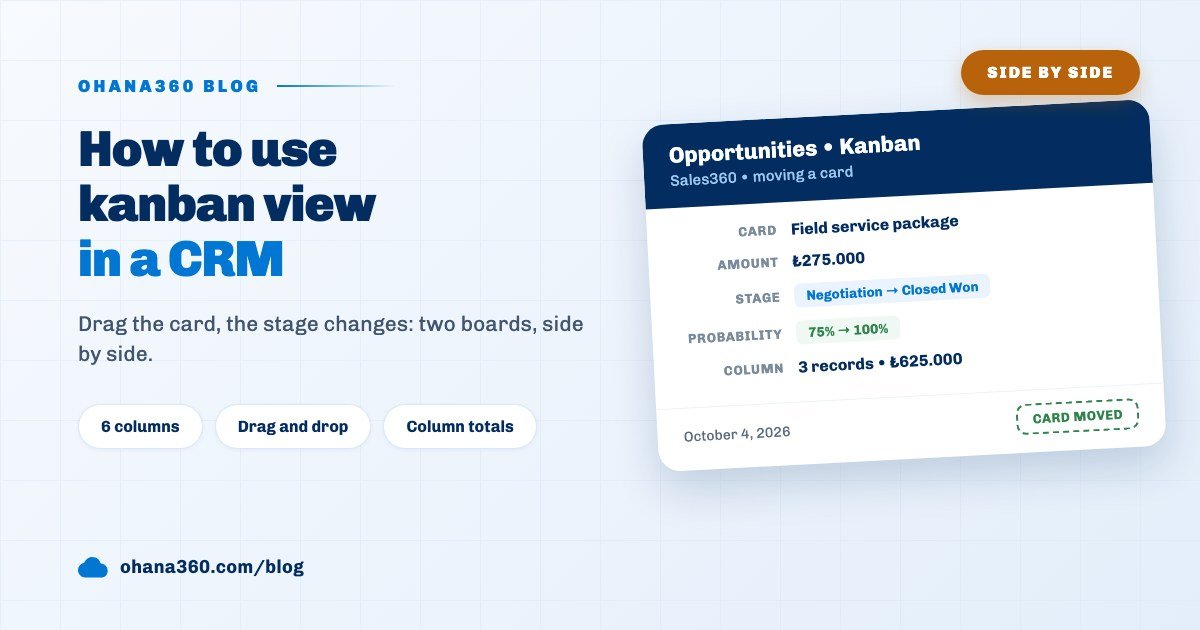
A crowded list bills you straight away in Ohana360. The kanban view gives every stage its own column and adds Closed Won and Closed Lost next to the open ones, so six open stages means eight columns. The stage bar across the top of a record page starts scrolling sideways as the list grows, which means people decide without seeing the last steps. Each column header carries the total amount of the deals underneath it, and a total spread across eleven columns is a total nobody remembers.
Every stage needs an exit criterion
This is the part teams skip. A stage is not defined by what happens inside it but by what has to be true before a deal can leave it. A stage without a written exit criterion is a box each rep fills to their own taste, and two months later the number in that box means nothing.
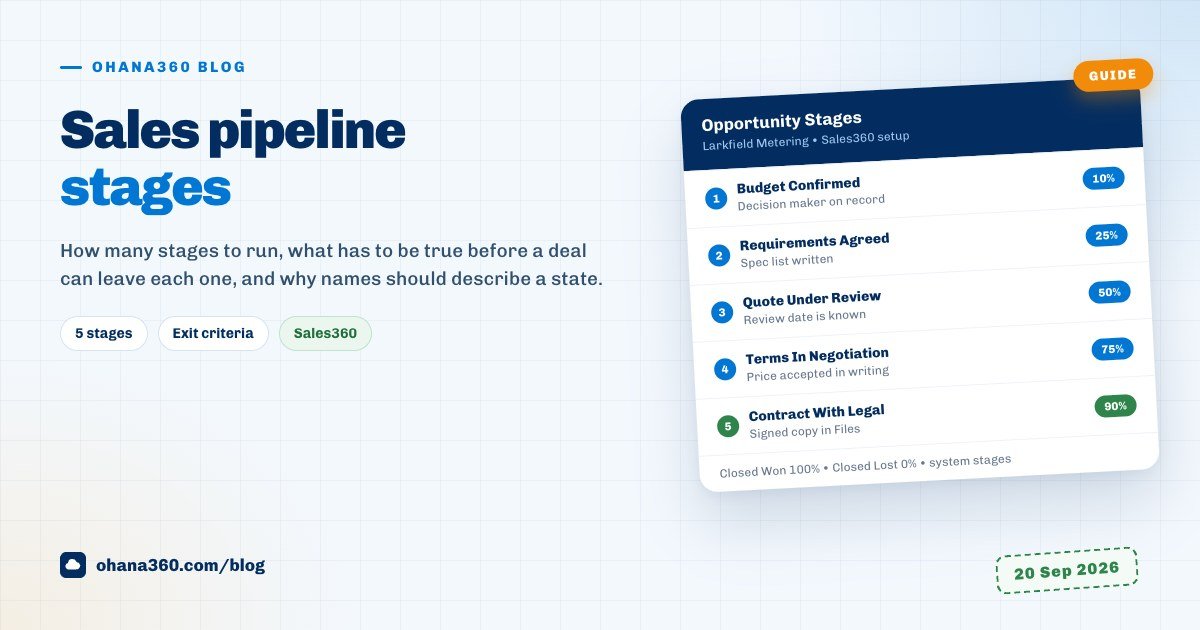
A good criterion has three properties. You check it by looking at a field or a file on the record. It rests on a fact, not on how the call felt. And it describes something the buyer did, not something you did. Here is where Larkfield landed after cutting nine stages down to five:
Notice that every criterion maps to a trace on the record. "Decision maker on record" means a related contact or a filled field. "Signed contract in Files" means there is a document on the record's Files card. Written that way, a stage becomes auditable: in the Monday review, the answer to "why is this still in negotiation?" stops being a debate and becomes an empty box on a screen.
Enforcing the criterion in Ohana360
Writing a criterion is one thing; making it stick is another. Two ways, neither of which needs code.
- A validation rule. Under Setup > Object Manager > Opportunity > Validation Rules you write conditions and a message: when the conditions hold, the save is blocked and your message is shown. A rule takes up to ten conditions, combined with all, any, or an expression such as "1 AND (2 OR 3)". Depending on the field type the operators include equals, not equal to, greater than, is filled and is empty. The pattern for an exit criterion is ready-made: "Stage equals Terms In Negotiation AND Decision Maker is empty" stops anyone parking a deal there without naming the person who signs. Ohana360 ships one rule of this kind already: a Closed Won deal must have an amount above zero.
- A conditional field. On the record page, open the gear menu, choose Edit Page, hover a field and press Condition: "Show if [Stage] [equals] [Closed Lost]". The same row makes a field Required. A field hidden by its condition is not counted as required, so a Loss Reason field appears only on lost deals and is mandatory only there. One trap worth knowing: the value in the condition is the stored value, not the label you see in a translated interface.
If the threshold really needs a person's sign-off, say a discount above a certain level, an approval process is the right tool rather than a stage rule; the approval workflow guide draws that line. The content of the quote itself is covered in the business quote guide.
Stage names: a state, not an action
Larkfield's real problem was never the count. It was the names. "Quote Sent" describes your own work. It becomes true the second you press send and it never becomes false. The buyer can decide, go to a competitor or go out of business, and the deal still sits in the same column, because nothing about that sentence ever needs revising. "Quote Under Review" describes the buyer, and the day a decision lands it is simply wrong, so somebody has to move the record. That is how a pipeline cleans itself.
Teach the team one test: put the name at the end of "This deal is currently ...". "This deal is currently under review" is a sentence. "This deal is currently quote sent" is not. When the sentence refuses to form, what you are holding is an activity: sending the quote is an email or a task on the record, not a position in the pipeline.
Two practical notes. Names like Following Up come off the list, because every rep reads them differently and deals that land there never leave. And Closed Lost stays a single stage while the reason becomes a field: do not open three losing stages for No Budget, Lost To Competitor and Wrong Timing. Add one picklist field and make it required in that stage only, using the conditional field trick above.
Probability and forecasting: what the percentage does and does not do
In Ohana360 every open stage carries a probability, and the number lives on the stage rather than on the deal. The mechanics:
- A new opportunity picks up the probability of the first stage on the list.
- When the stage changes, whether you drag the kanban card or tap the stage bar on the record, the probability is rewritten from the new stage.
- Closed Won is always 100% and Closed Lost always 0%. Both are system stages: last on the list, not editable.
- Probability is an editable number field on the record, so a rep can type over it, but the next stage change resets it to the stage value.
- Editing a stage's probability in setup leaves existing records alone. The new number applies to new stage assignments only, so a deal moved yesterday keeps the old percentage.
Do not invent the percentages. Read them off your own history: of the deals that reached negotiation last year, what share was won? If the answer is sixty per cent, negotiation is sixty, not seventy-five. The number on its own proves nothing; what makes it useful is that the whole team means the same thing by the same stage. If win rates differ wildly between customer types, the right fix is usually to split the segment rather than tune the percentage, which is the subject of the customer segmentation guide.
On the reporting side, Ohana360 ships a ready-made Pipeline by Stage report: opportunities grouped by stage with the total amount per group drawn as a bar chart. In the report builder you can copy it with your own filters, or group by owner or by close month instead.
Seeing the deals that are stuck
The real job of a stage list is to make a stalled deal visible. Two places do that work.
The Deals Needing Attention list on the Sales360 home page. It scans open deals and ranks anything matching one of four reasons: the close date has passed, it closes within seven days, it has had no activity for thirty days, or the amount is large. The reason is printed on the row, so you read "close date 12 days ago" or "no activity for 41 days" rather than guessing. Treat it as a health check on the stage list itself: if the same stage keeps topping that list, its exit criterion is written wrong.
A scheduled flow. One ships switched on: every morning, owners are notified about open deals closing within the next seven days that are neither won nor lost. Among the ready templates under Setup > Flows there is also one that fires three days before the close date with a push notification and a call task for the owner. To build the whole reminder chain deliberately, the automated follow-up reminders guide shows which reminder comes from which record.
If you want to filter for inactivity yourself, know the boundary: saved list views on Opportunities filter on stage, owner, amount, close date and name. You can add Last Modified to the list as a column, but you cannot build a filter on it and save that as a view. The thirty-day rule is computed by the home page panel.
What a stage change can trigger
Stage is the most valuable trigger on the record: it changes often enough to be useful and rarely enough to mean something. In the flow canvas, pick the Opportunity object with the update event and two extra operators appear in the condition list: changed and changed to. The second is what you want, because the rule runs once at the moment the stage lands on that value rather than on every later save.
| Stage change | What you can automate | Where |
|---|---|---|
| Moves to Closed Won | Ready template: a celebration post on the record's timeline, a notification for the team, and the linked account's Type set to Customer | Setup > Flows > Templates |
| Moves to Closed Won | The shipped validation rule blocks a zero amount; a Create Order button appears on the record and carries the line items across | Opportunity record page |
| Moves to negotiation | A push notification for the sales manager; flow actions include Push Notification, Send Email and Create Task | Flow canvas |
| Moves to Closed Lost | A Loss Reason field becomes visible and required by condition; the Lost button on the record moves a deal there in one click | Edit Page |
| Any stage change | With the Field History add-on enabled, who moved it, when, and from which stage to which is kept on the record | Record page > Field History |
The canvas also gives you a not met branch beside the one that runs when the condition is satisfied, so you can act when a condition newly breaks, for example when a deal written off as lost is reopened.
Where stages are configured in Ohana360
- The screen: the Opportunity Stages tab in the App Settings card at the bottom of the Sales360 home page, or Setup > Opportunity Stages. The card is visible to admins only.
- Adding: type the stage name and a probability at the bottom of the list and press Add Stage. A duplicate name is refused.
- Ordering: the up and down arrows on each row. That order is both the kanban column order and the order of the stage bar on the record page.
- Probability: a number between zero and one hundred in the row's box. It applies to new stage assignments only.
- Deleting: the Delete link on the row. A stage still holding open opportunities cannot be deleted, so move the records first, and at least one open stage must remain.
- Moving records: select rows in the Opportunities list and use the Change Stage bulk action, or drag cards on the kanban board one by one. In the list view you can also double-click the stage cell and edit it inline.
The same work happens on a phone: in the mobile app the Opportunities list switches to the kanban view and a card is dragged between stages with a finger. The details are in the mobile CRM app guide.
What it does not do
- Stages cannot be renamed. The name cell in the setup list is plain text: you can add, delete, reorder and edit probabilities, but there is no rename. To change wording, add the new stage, move records with the Change Stage bulk action, then delete the old one.
- There is no per-stage required-field screen. Nothing says "these fields must be filled to enter this stage"; you build the criterion yourself with a validation rule or a conditional required field. Validation rules also cannot see the previous value, so a rule like "a stage can never go backwards" or "only one step forward at a time" cannot be written.
- Time in stage is not measured. With the Field History add-on on, stage changes are recorded with who and when, but there is no field, report or chart for "how many days this deal sat in Proposal". History is capped at the last five hundred changes.
- There is no weighted forecast. Probability shows on the record and on the kanban card, but no screen, card or report metric multiplies amount by probability and totals it. The report builder gives amounts by stage.
- Inactivity cannot be saved as a list view. Opportunity list filters are stage, owner, amount, close date and name. Last Modified can be added as a column but not filtered; the thirty-day rule lives only in the Sales360 home page panel.
- Stage names you add are not translated. The six built-in stages are translated in the Turkish interface; a stage you create shows the wording you typed in both languages, which is worth planning for in a bilingual team.
The tour walks the whole path, from a lead to an opportunity, across the kanban board and into pipeline by stage:
Week one: from nine stages to five
| Day | Task | Time |
|---|---|---|
| 1 | Run the count: how many stages, how many deals in each, how many untouched for over 30 days, and which names describe an action | 30 minutes |
| 2 | Take the last ten deals you won and write down the steps they actually passed through, described by what the buyer did rather than what you did | 45 minutes |
| 3 | Agree on five stages and write one sentence of exit criterion for each; every criterion must be checkable against a field or a file | 40 minutes |
| 4 | Build them under App Settings > Opportunity Stages, order them with the arrows, and set probabilities from your own historical win rates | 20 minutes |
| 5 | Move the open deals: select them in the Opportunities list, apply Change Stage in bulk, then delete the stages you emptied | 45 minutes |
| 6 | Make the criteria bite: one validation rule on the stage that clogs most, and a conditional required Loss Reason field for Closed Lost | 25 minutes |
| 7 | Wire the automation: enable the Closed Won template, save the Pipeline by Stage report, and read the attention list on the home page | 20 minutes |
At the end of week two, repeat the day-one count. Larkfield's target was a single line: bring deals untouched for more than thirty days from 29 down to under 10. A stage list changed without measuring drifts back to nine within a few months, because opening one more column is always the easiest way to describe an awkward deal. To look at the sales module itself, see Sales360.
Frequently asked questions
How many stages should a sales pipeline have?
What makes a good exit criterion for a stage?
Why should stage names describe a state rather than an action?
Can I rename a stage later in Ohana360?
What is the probability for, and is the forecast calculated automatically?
How do I find deals that are stuck in a stage?
Let the stage say where the deal is
Five stages, five exit criteria and a pipeline that cleans itself. Stalled deals surface on the home page, and a stage change starts the next piece of work on its own.