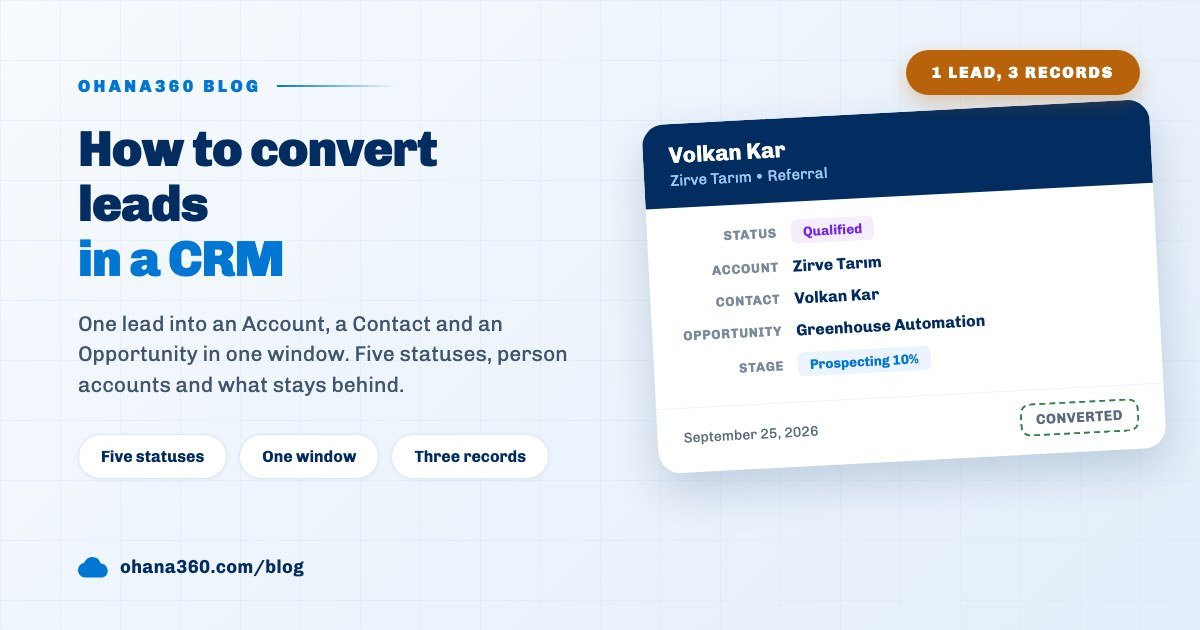
In Ohana360 you convert a lead with the Convert button on the lead record, and it takes one window: pick an opportunity name, an amount, an industry and an owner, then click Convert. Ohana360 creates an Account, a Contact and an Opportunity from the lead's fields and sets the lead's status to Converted. A lead with an empty Company field converts as a Person Account.
Ohana360 is a business cloud that keeps sales, marketing, service and finance records in one database. Leads are the first tab of Sales360 and represent the step of the sales pipeline that comes before an opportunity.
There is a common mistake: saving every new acquaintance as a Contact straight away. This guide starts with why that mistake is expensive, then walks through the five lead statuses, what the convert window does and what it does not do.
Why should new acquaintances not be saved as contacts right away?
Because a Contact needs an Account, and your Account records are your customer database. Enter the hundred people who left a card at a trade fair as Contacts and you get a hundred Accounts, eighty of which you will never call again, and the Accounts list stops showing your real customers.
That is why a lead is a separate record. It can be created with a single Name field, without a company, even without a phone number. Unverified interest waits on the lead; once verified it converts into an Account, a Contact and an Opportunity with one click; if it never verifies it closes as Lost and never touches the customer list.
The rule is simple: nobody you have not decided to do business with is a Contact. The moment of that decision is the moment of conversion.
How is a lead created and which fields does it have?
The New Lead form has six fields and two of them are required: Name and Source. The Status field defaults to New. A lead can be created in four ways: this form, the Quick Lead Entry screen flow, the form embedded on your website, and the Data Import tool under Setup (Excel or CSV).
| Field | Required | Values and notes |
|---|---|---|
| Name | Yes | One field; on conversion the first word becomes the first name, the rest the last name |
| Company | No | Leave it empty and the lead converts as a Person Account |
| Source | Yes | Web, Referans (referral), Telefon (phone), Etkinlik (event); the list is extended in Object Manager |
| Status | Yes | New, Working - Contacted, Qualified, Converted, Lost; defaults to New |
| No | Needed for the Pitch Email button | |
| Phone | No | Copied to the Account and the Contact on conversion |
Quick Lead Entry is a two-step screen flow: Personal Details (name and company) first, then Contact (email, phone, source). It is the shortest way to enter a lead from a phone at a trade fair stand. A lead from the website form arrives with source Web and status New; the setup is covered in the Web-to-Lead guide.
What do the five lead statuses mean?
A lead has five statuses: New, Working - Contacted, Qualified, Converted and Lost. The first three are picked with one click on the path bar at the top of the record; Converted only comes from the convert window, and Lost has its own button.
- New: the lead exists, nobody has called. The Sales360 home page counts these leads.
- Working - Contacted: first contact made. When you send a pitch email from the record, a New lead moves here on its own; after a phone call you pick it by hand.
- Qualified: budget, authority and need confirmed. It is the last step before conversion and the team needs a shared definition of it.
- Converted: Account, Contact and Opportunity created. Inline editing and bulk status changes on the list do not offer this value, so it cannot be picked by accident.
- Lost: no deal. The lead stays in the list, the Convert and Pitch Email buttons disappear, and it keeps counting in source reports.
The Pitch Email button depends on one setting: an email template mapped to leads in the email settings under Setup, plus a filled-in email address on the lead. The sent email lands on the lead's Email card and its timeline as a completed task, and the template can be chosen by the lead's source.
Which questions does the Convert window ask?
The Convert button opens a window with four fields: Opportunity Name, Opportunity Amount, Account Industry and Owner. They arrive pre-filled with New Opportunity, 100,000, Technology and the first user in the list; all four can be changed.
- Opportunity Name: Ohana360 prefixes what you type with the company name. Type New Opportunity for Zirve Tarım and the opportunity is named "Zirve Tarım - New Opportunity". Typing the subject of the quote ("Greenhouse Automation") makes later reports readable.
- Opportunity Amount: the estimated deal size. Leave it at 0 if you do not know; once line items are added the amount is recalculated from them.
- Account Industry: shown only for leads with a company. The options come from the industry list under Setup.
- Owner: the Account and the Opportunity are written to this user. Change it here if the person who created the lead is not the one who will run the deal.
The box at the top of the window tells you in advance what will happen: the lead's name, its company and the icons of the three records to be created. If the company is empty the same box shows a Person Account notice and the industry question disappears.
Which three records does conversion create?
When you click Convert, Ohana360 creates one Account, one Contact and one Opportunity, links the three together and sets the lead's status to Converted. The lead is not deleted; on the record page the Convert button is replaced by a Go to Account button.
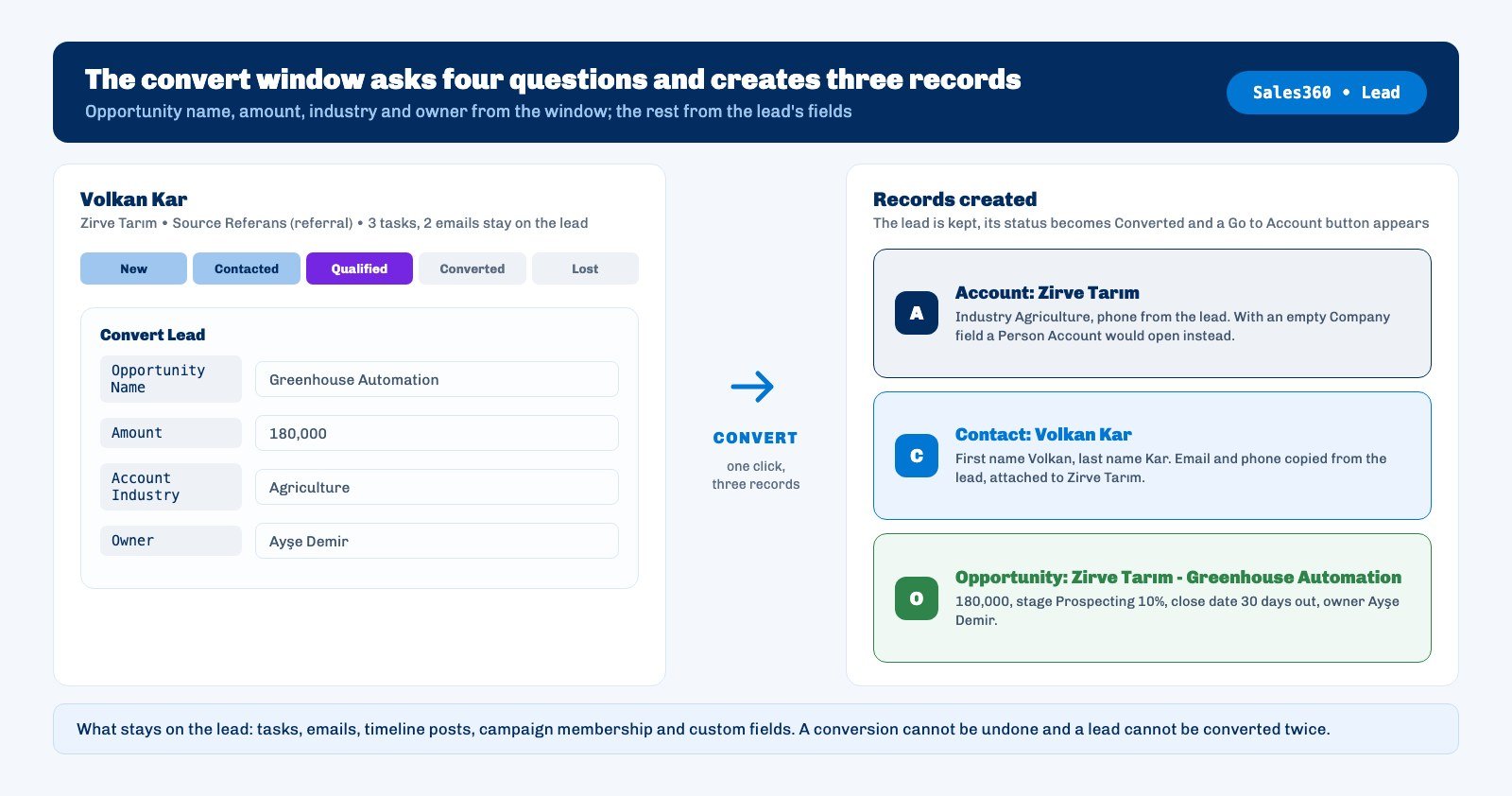
- Account: the name comes from the lead's Company field, the phone from the lead, the industry from the window. Revenue starts at 0 and the website is empty.
- Contact: the lead's Name field is split at the first space: first word as first name, the rest as last name. A single-word name gets a dash as last name. Email and phone are copied and the contact is attached to the new account.
- Opportunity: name and amount from the window, account from the new record. The stage is the first opportunity stage under Setup (Prospecting at 10% in the default setup) and the close date is 30 days from today.
Close date and stage are not asked in the window; you open the Opportunity right after conversion and correct them. The opportunity's path from here is covered in the pipeline stages guide, and building the quote in the quote guide.
What is a Person Account and when is it created?
A Person Account is an Account record created for a person who has no company: its name is the person's name and its kind is Person. Ohana360 does this on its own whenever the lead's Company field is empty; there is no separate button or setting.
It is the right path for freelancers, individual clients and businesses that sell to consumers. In the Accounts list these records show the Person kind and can be filtered by kind in reports. If the person later needs to belong to a company, changing the Account field on the Contact record is enough.
What stays on the lead after conversion?
The lead's tasks, sent emails, timeline posts, campaign membership and custom fields do not move to the new records; all of them stay on the lead. They are not lost, because the lead is not deleted, but a salesperson opening the Contact or the Opportunity will not see them.
The practical rule: look at the open tasks on the lead page before you convert. If a task represents the next step, recreate it on the Opportunity after conversion and complete the copy on the lead. The email history stays readable on the lead record, and the Go to Account button gets you between the lead and the account in two clicks.
Custom fields follow a separate path: a field such as a Win Score added to the lead does not disappear on conversion, it stays on the lead. If the same information is needed on the Opportunity, add the field to both objects and carry the value over by hand after converting.
How are duplicate leads merged?
Conversion does not check for duplicates: convert a second lead for the same company and a second Account is created. That is why merging comes before converting, and its place is the Leads list.
- Tick two or more leads in the list and click the Merge button that appears at the top.
- In the window, mark the record that will survive as the master and choose, field by field, which value stays.
- Merge. The other records' tasks, events, posts and campaign memberships move to the master; the records themselves go to the recycle bin.
If the company already exists in the Accounts list, conversion still creates a new record. In that case, after converting, select the two records in the Accounts list and apply the same Merge step; contacts, opportunities, cases, orders and invoices are re-attached to the master account.
How are leads reported and how do you measure the conversion rate?
In the Report Builder the Leads object comes with six fields: Name, Company, Source, Status, Email and Created. Among the built-in reports, Leads by Source draws a donut chart and Leads by Status a bar chart.
- Conversion rate: there is no built-in tile. In the Leads by Status report, divide the Converted count by the total number of leads; for a breakdown by channel, filter the report by Source and repeat the calculation.
- Source quality: save the Leads by Source report with the filter Status = Converted. Which channel brings real customers shows in a single chart.
- Lead score: add a Win Score field with the API name cf_puan to the Lead object in Object Manager and the list screen gains a separate column; 75 and above shows a green badge, 50 and above an orange one. The score is entered by the salesperson.
Turning the report into a dashboard tile and emailing it weekly is covered step by step in the sales reports guide.
Not included: what lead conversion does not do
The items below are the product's known limits today. Some are worked around with the merge and custom field paths above, others need a decision before you convert.
- No picking an existing account. Conversion always creates a new Account; to attach to an existing one, merge in the Accounts list after converting.
- No skipping the opportunity. The three records are created together; there is no conversion without an opportunity.
- No duplicate warning. Creating a second lead with the same email or company name raises no warning; the check is done by hand with Merge.
- Tasks, emails, posts and campaign membership do not move. All of them stay on the lead record.
- Custom fields are not copied. cf_ fields added to the lead do not carry over to the Account, Contact or Opportunity.
- No undo. There is no button to reverse a conversion; the three created records are deleted by hand.
- Close date and stage are not asked. The opportunity always opens in the first stage with a close date 30 days out; edit it afterwards.
- No lost reason field. The Lost button only changes the status; for a reason, add a picklist in Object Manager.
- No automatic scoring or assignment. The Win Score is entered by hand and leads are not distributed round-robin.
- Name is a single field. It is split at the first space on conversion; two-word first names can land in the last name and are corrected on the Contact.
These limits share one cause, the simplicity of the design: conversion is a single four-question window and takes ten seconds. Complex cases need a merge before the window and an edit after it.
How do you set a conversion rule for the team?
What makes conversion useful is not the window but a shared definition of the Qualified status. If the team does not mean the same thing by "qualified", the opportunity list fills with leads nobody has spoken to and the first pipeline stage loses its meaning.
Do this: write a three-question qualification definition (is there a budget, is this person the decision maker, is the need in this quarter), let nobody pick Qualified before all three are confirmed, and convert a Qualified lead the same day. Put the subject of the quote in the opportunity name and move the close date to a realistic date right after converting.
Once a month, look at the Leads by Status report. Leads sitting in New for a month are not the ones the team could not reach, they are the ones it forgot; the automated follow-up flow brings them back into view.