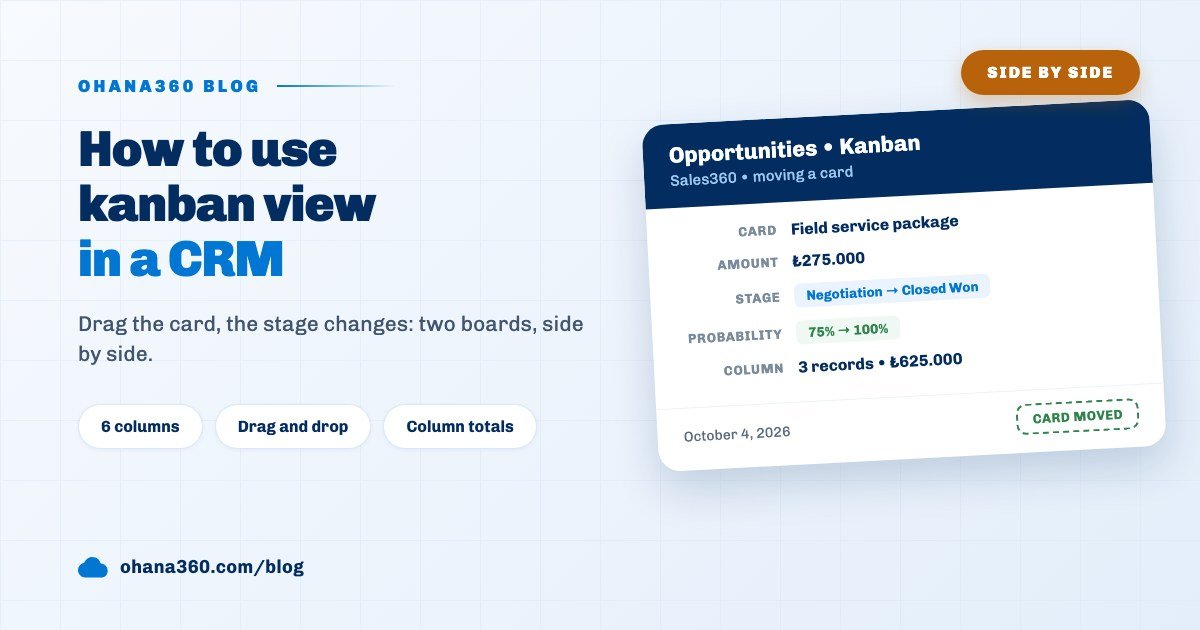
A kanban view in a CRM shows records as cards arranged in stage or status columns; dragging a card to another column changes the stage of the record. In Ohana360 the Kanban button in the header of the Opportunities tab opens a six column board whose column headers show a record count and an amount total. On lists such as Leads, the third layout button in the toolbar turns the same list into a board.
Ohana360 is a business cloud that keeps sales, service and marketing records in one database, and it holds not one kanban but two separate board types. One opens from the header of the tab and shows every record of the object; the other opens inside the list and shows whatever filter is active at that moment. They look as if they do the same job, yet they answer different questions. This post puts them side by side: first the comparison, then the screen of each, and at the end what the kanban view does not do.
What is a kanban view in a CRM and when should you use it instead of a list?
A kanban view is a board that splits the records of an object into columns by the values of a single picklist field and shows each record as a card. A list answers "which records", a kanban answers "where in the process are they".
Three situations where the board does better than the list:
- You want to see the distribution at a glance. If the Proposal column is full and the Negotiation column is empty, you have to count that in a table and you simply see it on a board.
- You move records along one by one. When the weekly sales meeting walks through the deals, dragging a card is faster than opening the record and changing the stage field.
- You want to know the weight of a column. The Opportunities board writes how many records and how much amount sit in each column.
The reverse also holds: if you want to sort, select many records for a bulk change or download to Excel, the tool is the list view; records cannot be selected on a board.
How do I open the kanban view in Ohana360?
The kanban view opens from two places: the List / Kanban switch in the header of the Opportunities and Cases tabs, and the third button of the card, table and kanban toggle in the toolbar of other lists. The first opens a separate board screen, the second turns the same list into a board in place.
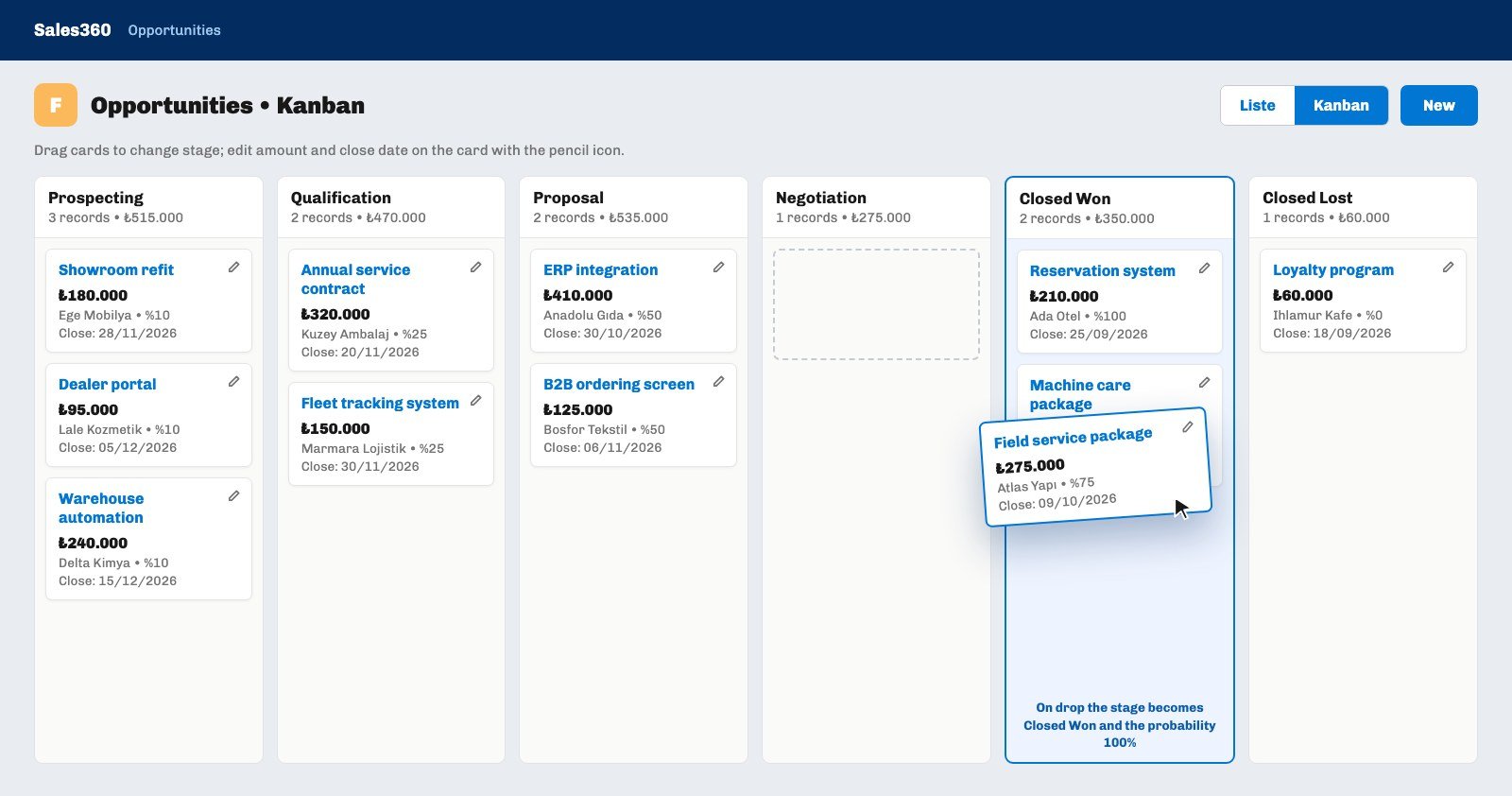
- For the header board, open the Opportunities tab. The header carries a two way switch for list and kanban; press Kanban. The screen is titled "Opportunities • Kanban" and every stage lines up as a column.
- Grab a card and drop it on the target column. The column you hover over gets a blue frame. An empty column reads "Drag here".
- Press the list side of the switch to go back. The board choice is not stored; after a page reload the tab opens as a list again.
- For the in list kanban, open any list. Leads, for example. The last button of the three way toggle next to the search box is the kanban icon; its tooltip names the field it will group by.
- Pick the view first, then switch to the board. The in list kanban uses the filter of the active list view and the search box. If you switch while "Leads from the web" is active, only those leads sit on the board.
The in list kanban button does not appear on every list. It shows when the list has a status, stage or priority column that can be edited inline; the Accounts and Contacts lists have no such column, so they have no button. Your choice of card, table or kanban is stored as a user preference and is shared by all lists; if kanban is selected and you move to a list without a board, that list opens as a table.
What changes on the record when I drag a card?
Dropping a card on another column updates the field that builds the columns to the value of that column; it is the same operation as changing the field by hand on the record page. An opportunity adds one more thing: the probability is rewritten with the percentage of the new stage.
- Opportunity. The default stages carry 10% for Prospecting, 25% for Qualification, 50% for Proposal and 75% for Negotiation; Closed Won writes 100% and Closed Lost 0%. When you drop a Negotiation card on Closed Won, stage and probability change together and the record count and amount total of both columns update at once.
- Case. If you drop a card on Resolved or Closed and the case has no resolution note, the card does not move straight away; a close case window opens first and asks for the note. Once you type it and save, the card settles in.
- Lead. A card moves between New, Working - Contacted, Qualified and Lost. There is no Converted column, because lead conversion is not a field change but a separate action that creates an account, a contact and an opportunity.
- Rules still apply. Validation rules and the required fields of the page layout are read on a drag too. A move that breaks a rule is not saved and the card stays in its old column.
Because a drag is an ordinary record update, the automations you tied to a stage change run in the same way; what a stage change can trigger is covered in the sales pipeline stages guide.
How do I read the column totals and the card on the Opportunities board?
On the Opportunities board every column header says two things: the number of records in the column and the summed amount of those records. In the example above the Proposal column reads "2 records • ₺535.000", which is the plain sum of the two cards.
| Line on the card | What it shows | What you can do on the card |
|---|---|---|
| Opportunity name | The name of the record, as a link | A click opens the record page |
| Amount | The amount of the opportunity | Edited on the card with the pencil icon |
| Account and probability | The name of the linked account and the percentage of the stage | The probability changes with the stage |
| Close | The close date | Edited on the card with the pencil icon |
The pencil icon at the top right of a card turns it into a small form: amount and close date change without opening the record page. If the opportunity has product lines, the amount box is locked, because the amount is calculated from the lines. A card cannot be dragged while it is being edited.
Keep two points in mind when reading a total. First, the header board takes no filter: every opportunity is there, including the ones won and lost last year. So the totals of the Closed Won and Closed Lost columns cover all of history, not a period. Second, the total is not multiplied by probability; the figure on the Prospecting column is the full amount of those deals. To see a given period or a weighted forecast you use a report.
The columns themselves are your list in Setup > Opportunity Stages. Every open stage you add there becomes a column, and Closed Won and Closed Lost sit at the end as system stages. With six open stages you get eight columns and the screen scrolls sideways.
Which lists offer the in list kanban and what does its card show?
The in list kanban appears on lists that have an inline editable status, stage or priority column and builds its columns from the options of that field. You do not choose the field; the list uses the first suitable one in its column order.
| List | Column field | Columns |
|---|---|---|
| Leads | Status | New, Working - Contacted, Qualified, Lost |
| Opportunities | Stage | Your open stages, Closed Won, Closed Lost |
| Cases | Priority | Critical, High, Medium, Low |
| ToDo360 Board | Status | To Do, In Progress, Done and the columns you add |
| Booking360 Reservations | Status | Six reservation statuses, from pending to cancelled |
The Cases row deserves attention: on the case list the Priority column comes before the Status column, so the in list kanban groups cases by priority. For a status board you use the Kanban button in the header. That gives you two different boards on one tab: one looks at "which case is in which status", the other at "which case is how urgent".
- The card. The title of a card is the first column of the list, with two more fields under it. On Leads that is the name of the lead plus Company and Lead Source.
- Changing the card fields. While the board is open, an admin uses Kanban Card Fields (org) in the List View Controls menu to decide which fields a card shows. The choice is not personal; it applies to the whole organization.
- The column header. Next to the column name there is only a record count; there is no amount total.
- 100 cards per column. If a column holds more than 100 records, the first 100 cards are drawn and the remaining number is written below them. That is why narrowing the list with a view pays off.
- A value that is not a column. If the value of the field is not one of the columns, the record does not appear on the board. Converted leads are absent from the lead board for this reason.
The last two rows of the chart follow a different pattern: the Campaigns screen of Marketing360 and the Job Applications screen of HR360 open as a board, but cards are not dragged; you choose the new status from a picker on the card. The Board on the Tasks tab builds its columns from the date, not from a field: tasks due today or earlier sit in Today, later ones in To Do. Drag a card to Today and its due date becomes today; drag it to Done and the task is completed.
How are board columns added, renamed and reordered?
Managing columns from inside the board is possible only on the ToDo360 board and only for an admin. On the other boards the columns either come from Setup or are a fixed list of the product.
- ToDo360 Board. Click a column name to rename it; the tasks in that column move to the new name. Click the color dot to pick a color, and drag a column header to change the order. While the Edit button in the toolbar is on, an Add column box appears at the end of the board. An empty column is removed with the cross in its header; a column that holds tasks cannot be removed.
- Collapsing a column. On the ToDo360 board every user can shrink a column to a narrow strip; the preference is personal and a card can still be dropped on a collapsed column.
- Quick add in a column. On the ToDo360 board an Add task row sits at the bottom of every column; the task you type and confirm with Enter opens with the status of that column. Details are in the task management guide.
- Opportunity columns. Adding, renaming and ordering stages and their probabilities live in Setup > Opportunity Stages. A column header cannot be dragged on this board.
- Case, lead and campaign columns. These status lists are fixed lists of the product; no column is added from the board or from Setup.
How does the kanban view work on a phone?
The in list kanban works by long press on a touch screen: hold a card for about a third of a second and it sticks to your finger, then carry it to the target column and let go. A short tap opens the record, and swiping without holding scrolls the board.
If your finger nears the left or right edge of the board during a drag, the board scrolls that way; this is how you reach columns that do not fit the screen. The header boards of Opportunities and Cases behave differently on a narrow screen: instead of dragging, a column picker appears under each card and you choose the new stage there. The rest of phone use is in the mobile CRM app post.
Not included: what the kanban view does not do
- Amount totals only on the Opportunities board. The Cases board and the in list kanban show only a record count in the column header. No board has a probability weighted total.
- The header board takes no filter and no search. Opportunities • Kanban shows every record of the object; no list view, owner or period filter applies. For a filtered board use the in list kanban.
- You cannot choose the column field. The in list kanban decides the field itself; a board "by owner" or "by lead source" cannot be built.
- No kanban on custom objects or custom fields. Picklist fields added in Object Manager do not become board columns, and the list of an object you built yourself has no kanban button.
- No in list kanban on objects above 2,000 records. At that size the list arrives from the server page by page and the kanban button disappears.
- A card limit per column, but no work limit. The in list kanban draws at most 100 cards in a column. A work in progress (WIP) limit that caps a column does not exist on any board.
- No swimlanes. A board is split into columns only; it is not divided into rows by owner or team.
- Cards are not ordered by hand inside a column. Dragging does not change the position of a card within its column; the in list kanban follows the sort of the list.
- No multi select and no bulk move on a board. Cards move one at a time. To change the stage of many records together, select them in the table and use the bulk stage change.
- No dragging on the campaign and job application boards. On those two screens the status changes through the picker on the card.
- The header board choice is not stored. The Opportunities and Cases tabs open as a list after a page reload.
- Some labels stay in Turkish in the English interface. The two labels of the list and kanban switch in the header, the title of the Cases board and the stage names on the job application board appear in Turkish.
How does a team keep a kanban board useful?
A kanban board earns its place when cards really move; a board full of cards that have sat in the same column for weeks is only a crowded list. The key to keeping it tidy is to agree up front when the board is looked at and with which question.
A routine that works: run the weekly sales meeting on Opportunities • Kanban, read the column totals from left to right and either move each card or update its close date on the card. Do personal daily tracking on the in list kanban: open a list view whose Owner filter is set to your own name first, then switch to the board, so only your own cards remain. Keep the number of columns low; as the stage list grows the board scrolls sideways and the last columns go unseen. All sales records live in Sales360, and the same board logic works in the same way for service cases and tasks.