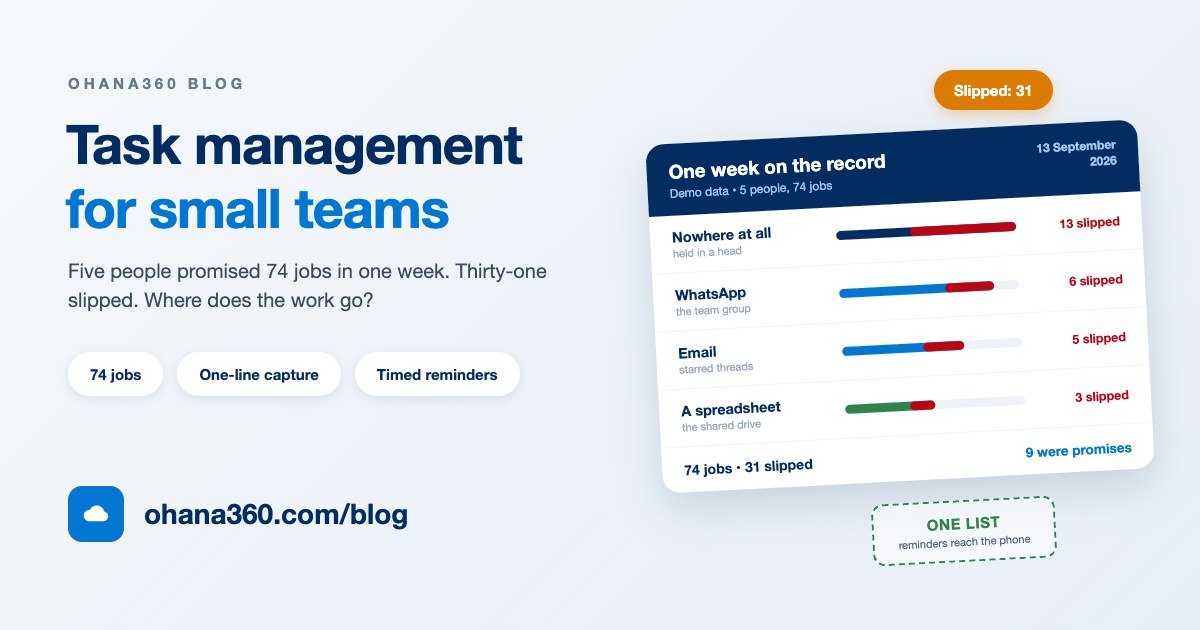
Five people, one week, 74 jobs promised out loud. By Friday, 31 of them were late or had never happened at all. Nine were promises made to a customer: a revised quote, two callbacks, a sample to post, two site measurements. Our example is Marlow Joinery, a five-person workshop that fits out shops and offices. (Demo data, taken from one week of records.)
What is striking is that nobody was slacking. Most of the work had been written down somewhere: in WhatsApp, in an email to nobody, on the pad beside the saw. The trouble is that a list written in five places is a list that exists nowhere. That is the real problem task management software for small teams is bought to solve: not writing the work down, but collecting it in one place and having it come back when it is due.
This guide goes in order: where work disappears, what a task record actually needs, why one-line capture decides everything, when a reminder should fire, where personal and team work part company, and how the whole thing is set up in Ohana360.
One week on the record: where the work went
The chart below is that week. Each row is a place the work was written; the red part of the bar is what slipped or never happened.
The worst row is the most familiar one. Of the 22 jobs held in someone's head, 13 were lost, so more than half of remembered work does not survive the week. WhatsApp comes second, and it is worth being precise about why: those jobs really were written down, but a busy afternoon pushes them off the screen and nothing brings them back. The spreadsheet scores best not because spreadsheets are good at this, but because only a handful of important jobs ever get typed into one.
The rule underneath the numbers is simple. The more places a team writes work down, the more work it loses, and choosing one place matters more than choosing a sophisticated one.
What a task record actually needs
Adding fields to a task form is the quickest way to make sure nobody fills it in. In practice five fields are enough, and the sixth fills itself.
| Field | Why it earns its place | What happens without it |
|---|---|---|
| What to do | One sentence starting with a verb: call, send, measure, order | A task called "Baltic" is a word nobody can decode three days later |
| Date | The day it lands on; it is the only thing separating Today from Upcoming | An undated task sinks to the bottom of the list and lives there for months |
| Time | For anything tied to a moment: calls, appointments, handovers. It is what fires the reminder | No alert during the day, only a morning summary |
| Priority | P1 to P4; it decides what gets dropped when the day runs short | Everything looks equal, so the easiest job gets done first |
| Status | The board column; it separates not started from half finished | Half-finished work disappears into the same pile as untouched work |
| Owner | Filled in automatically with whoever created the record | On a shared list nobody is quite sure whose job it is |
The one-line rule: if it takes four seconds, it gets written
Most task tools die at the same point. Adding a job means opening a form, filling five fields and pressing save, and nobody does that while a message is still on the screen. So the centre of ToDo360 is not a form but a single line: you type the sentence, and the date, time and priority are pulled out of it.
What the parser understands is deliberately small: today, tomorrow, a full date such as 2026-09-18, a time written as 14:00, and a priority flag from p1 to p4. Everything else becomes the name of the task, and the order you type them in does not matter. Two practical notes: times are read in 24-hour form, so 2pm will not be picked up, and phrases such as "next Monday" are chosen from the date button beside the box, where Today, Tomorrow, Next week and a calendar are waiting.
The lower half of the drawing is the board. The columns are your own statuses, renamed and recoloured either in settings or directly on the board. Dragging a card to another column updates the status; on a phone, where dragging is awkward, the card's menu has Move to column instead. The Add task line under each column creates the task straight into that column's status.
When does a reminder fire, and where does it land?
This is the real test of a task tool. An alert that lives inside the app is only seen when you open the app, by which point the alert was not needed. In Ohana360 the reminder is sent by the server, so it works with the laptop closed.
| Kind of task | When the notification goes out | Where it lands |
|---|---|---|
| Task with a time | 30 minutes early by default; settings offer 5, 10, 15, 60 or 120 minutes | The in-app bell and your phone |
| Task with a time (second alert) | With "notify at the exact time" on, a second alert at the hour itself | The bell and your phone |
| Task with a date but no time | One reminder that morning at 09:00; the hour is configurable, and blank means none | The bell and your phone |
| Task with no date | No notification at all; it sits in the No date section of the list | On screen only |
| CRM task due today | Around 09:00, one summary to the owner: "You have 4 tasks today" | Phone notification |
| Calendar event | 15 minutes before it starts | Phone notification |
A postponed task is reminded again under its new date and time, so moving something a day later never costs you the alert. For notifications to reach the phone you grant permission once on the device; until you do, a yellow Turn on notifications bar sits on the ToDo360 home page and handles it in one click. The in-app bell rings either way.
One honest constraint: reminder times are calculated on the server in Turkish time, and there is no per-user time zone setting. If a colleague works from another country, write the times with that in mind.
Personal to-do or team task? Two lists, two jobs
The most common setup mistake in a small team is piling everything into one list. There are really two kinds of work, and they have different readers: the work that organises your day, and the work that has to live on a customer record.
| ToDo360 to-dos | CRM tasks | |
|---|---|---|
| Where it lives | The ToDo360 app: Home, Board, Calendar | The Tasks tab in Sales360 and the other apps, plus the activity card on the record |
| Who sees it | Only the owner; the scope setting widens it to the team | The team; anyone who opens the record |
| Attached to a record | No, it is a personal list | Yes: account, contact, lead, opportunity, case |
| Time of day | Yes, and it is what timed reminders run on | No, the day only |
| Repeat, labels, priority | All three | None; there is a type instead (call, email, meeting) |
| What it is for | Today's work, personal follow-through, routines | Promises to customers, handed-over work, anything that needs a trail |
The decision rule fits in one question: should somebody else see this in six months when they open that customer's record? If yes it is a CRM task, if no it belongs on your personal list. To read both in one screen, the List scope tab in ToDo360 settings brings CRM tasks and calendar events onto the home page. That is a display merge; each record still lives where it belongs.
How a promise lives on a customer record is covered in what is CRM, and if you want to see where tasks hang off a sales pipeline, the sales tracking software guide is the next step. For the version where the task creates itself when a condition is met, see automated customer follow-up reminders.
Setting up ToDo360 in Ohana360
ToDo360 is an add-on, enabled from the Marketplace in one click: open its card, press Enable, and there is no install and no waiting. The order below finishes the setup in an afternoon.
- Tabs: Home, Board, Calendar. By design the shared tabs, Files and the report tabs are not added to this app.
- The home page: a Today panel and an object inventory at the top, then the Quick Add box, then a single Tasks card holding Overdue, Today, Upcoming (7 days), No date and a collapsed Completed section.
- Search and filters: the thin bar above the Tasks card searches task text, filters by label and priority, and sorts by time, priority or name. While a search is active the seven-day window is lifted, so matches further out are listed too.
- Mine and Everyone: the button on the same bar switches the list between your own tasks and the whole team's, and your choice is remembered.
- Add-on Settings > Columns: the kanban columns are managed here. Pick a colour, rename a column, add up to eight, and mark one as the completed column. Renaming a column also moves the existing records in it to the new name.
- Add-on Settings > Labels: up to twelve coloured labels. They show as chips in the quick add box and as coloured dots on cards, and they are assigned or removed without opening the record.
- Add-on Settings > List scope: whether CRM tasks and calendar events appear on the home page.
- Add-on Settings > Notifications: reminders on or off, how many minutes before a timed task fires, whether to add a second alert at the exact time, and what hour undated-but-dated tasks are reminded at. These are organisation-wide settings, edited by administrators.
- The board: a full list screen. Kanban, list and card views, filters, column selection, saved views and export. Click a column heading to rename it in place, drag a heading to reorder the columns, drag a card to change its status, and collapse a column you are not using into a narrow strip.
- The card menu: every card's menu carries Edit, Complete, date with time and repeat, Labels, Move to column, the priority flags and Delete.
- Recurrence: daily, weekly, monthly and yearly. Completing a recurring task never closes it; the due date jumps to the next period.
- Calendar: to-dos appear as their own source, timed ones sit at their hour and completed ones are dimmed. Turn the source off from the calendar heading if you would rather not see them.
- The setup side: in the Object Manager you add your own fields and picklists to the To-Do object. Under Setup > Page Layouts you can hide or reorder the sections of the ToDo360 home page, and under Setup > Apps and Tabs you can rename the app to something that suits your trade.
- Reports and flows: the To-Do object joins the object list in the report builder, and record-triggered and scheduled flows can select it.
- Not included: subtasks, dependencies between tasks, Gantt charts, time tracking, file attachments and comments on a task, assigning a task to another user, ordering cards by hand inside a column, attaching a to-do to a customer or opportunity record, parsing phrases such as "next Monday" from typed text, repeat rules beyond the four intervals, email reminders, per-user time zones, a flow that creates a to-do on its own, and a report tab inside the app itself. Where you need these, CRM tasks or your existing setup carry on doing the job.
Want to see the flow in 84 seconds?
What to do in the first seven days
The hard part of adopting a task tool is never the software, it is the habit. This order makes the list trustworthy inside a week.
| Day | What to do | Time |
|---|---|---|
| 1 | Enable ToDo360 from the Marketplace and rename the columns in your own words (Waiting, In progress, Done, for instance) | 20 minutes |
| 2 | Empty your head and your notebook into it: one line each, with a date and a priority. Type them all in one sitting and sort them out afterwards | 30 minutes |
| 3 | Define three or four labels and no more (Customer, Workshop, Site, Personal works well) | 10 minutes |
| 4 | Set the notification options and grant permission on your phone; put a test task ten minutes into the future and wait for it | 10 minutes |
| 5 | Turn the routines into recurring tasks: the weekly backup, the monthly filing, the annual renewals | 20 minutes |
| 6 | Give the team one rule: every promise made in the group becomes a task within a minute | 10 minutes |
| 7 | Open the Overdue section and decide on every record still sitting there: a new date, or delete it | 15 minutes |
Day seven is the habit that matters. An overdue section nobody clears turns the list into a liar, and a team stops looking at a list that lies within a fortnight. Current plans are on the pricing page, and you can request a demo to try it with your own work.
Frequently asked questions
What is task management software for a small team?
How should a to-do list with reminders actually work?
Should personal to-dos and team tasks live in the same list?
How do I add a task in one line?
Can I assign a task to someone else?
How do recurring tasks work?
Is this a project management tool?
Keep the work on a list, not in your head
Add a task in one line, move it across a kanban board, and get the reminder on your phone at the minute it matters. Your personal list stays yours; the promises made to customers live on the record.