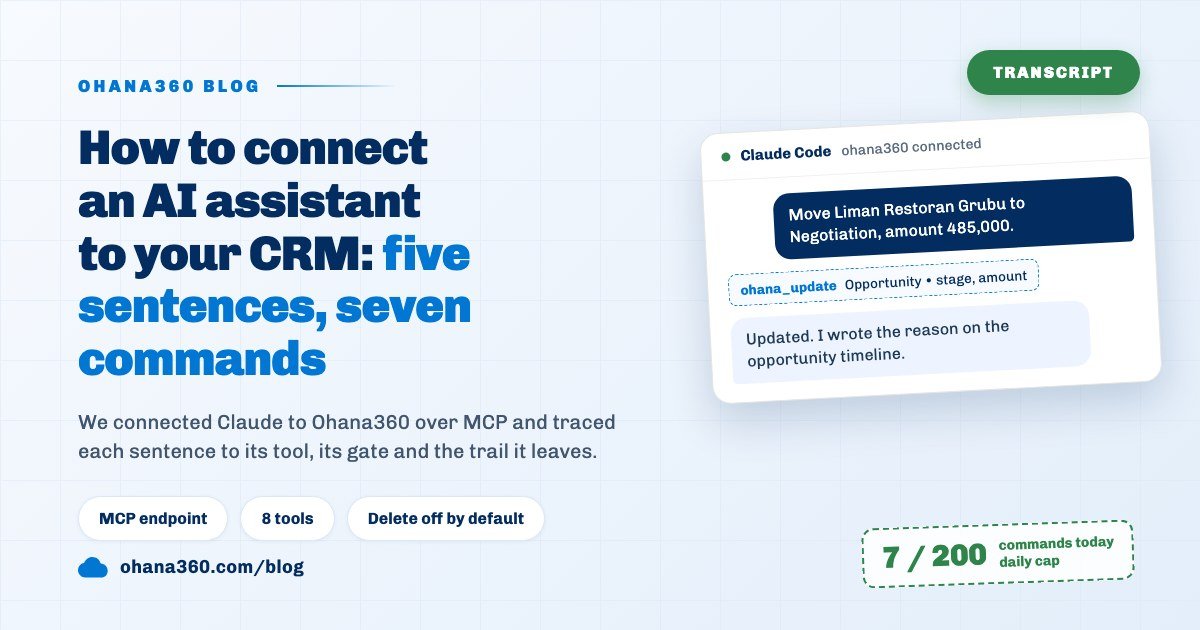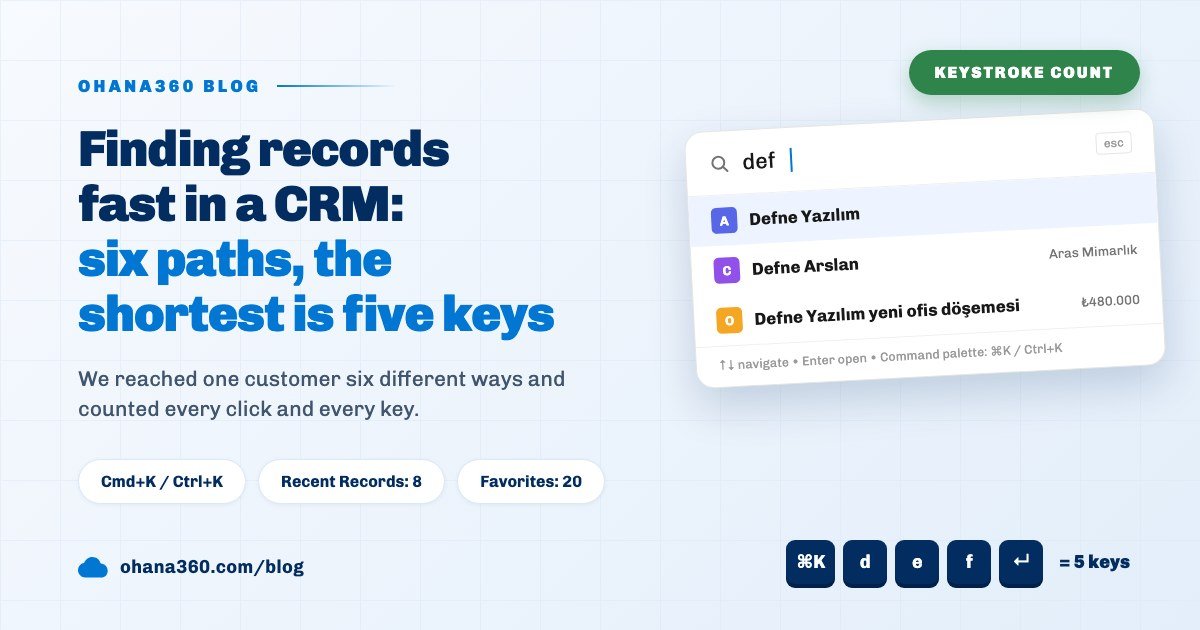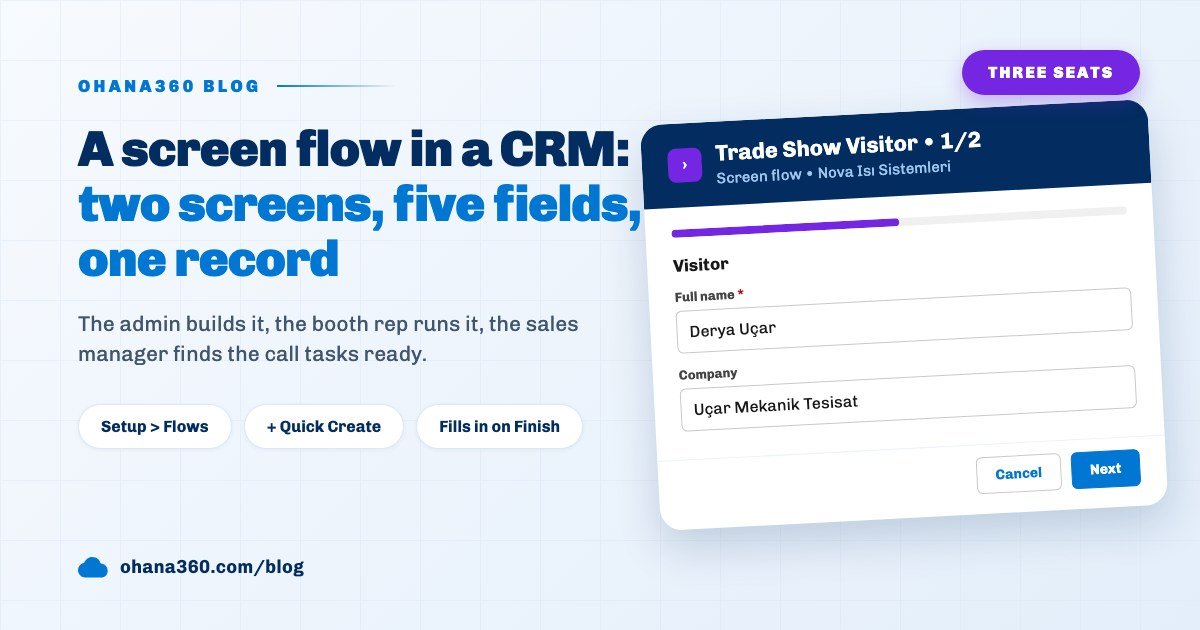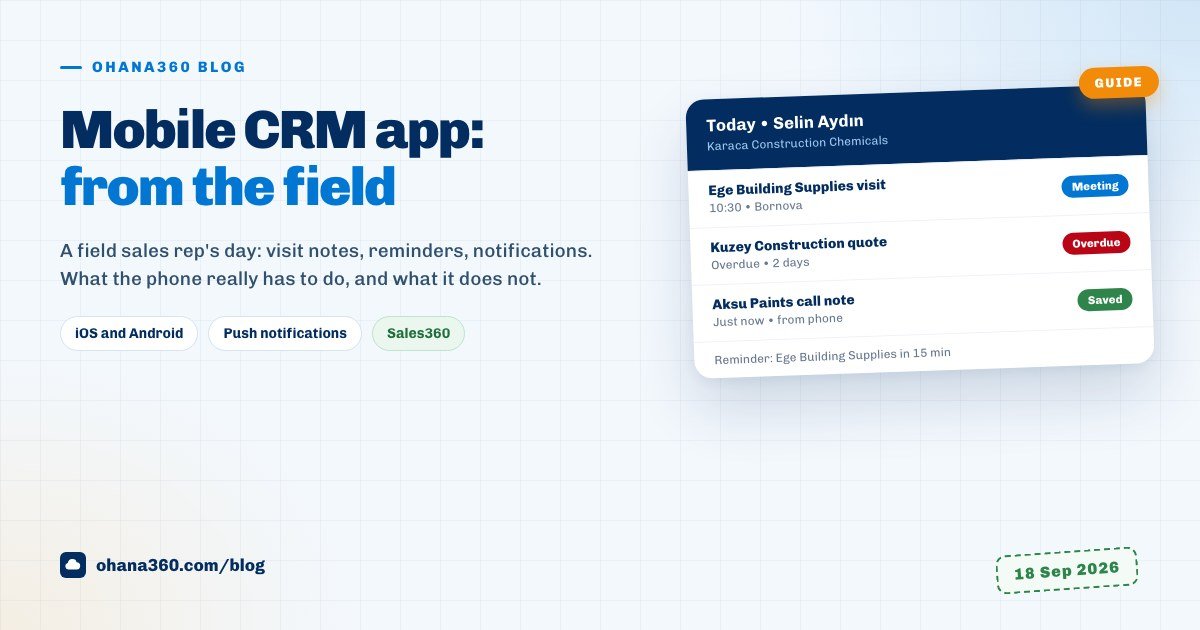
Selin Aydın's phone buzzes a few minutes after nine: "You have 5 tasks today." Driving to a building site in Bornova, she needs to know who the first visit is with, which price came up last month and where the proposal stands. Without going back to her desk. A mobile CRM app exists for exactly that moment: customer information is needed at the site gate, in the courthouse corridor or outside the flat being shown, not in the office.
Selin is one of six field reps at Karaca Construction Chemicals in Izmir, Turkey. The company has thirty-one people and sells waterproofing and grout to 280 dealers and site customers. Last month they counted the six reps' 132 visits: 47 were logged the next day or later, and 14 were never logged at all. Visit notes were scattered across the phone's notes app, WhatsApp threads and a spreadsheet filled in each evening. The sales manager walked into the Monday meeting with data three days stale. (Demo data.)
This guide follows Selin through one day to show what to expect from a mobile CRM app, and what the Ohana360 iOS and Android app actually does on the phone, and does not do.
A day in the field: six moments
The illustration puts six moments from the same day side by side. The tag under each card names the part of the app doing the work at that moment.
09:00, the daily digest. Every morning between 09:00 and 09:15, Ohana360 sends each owner one notification summarising their open tasks due that day. The title carries the count and the body the subjects of the first two; tapping it opens the Tasks list. Selin sees the day's plan before she gets in the car, and if a visit has to move, she knows in the morning.
10:15, fifteen minutes before the visit. For a timed calendar event, the owner gets a notification no later than fifteen minutes before it starts: the time, the subject and whatever was typed in the event's Location field. All-day events do not trigger this reminder. Because Selin's 10:30 visit is on the calendar as an event, the phone warns her before she reaches the gate.
10:30, at the door. Selin taps the floating Search button on the tab bar. Search opens full screen with the input at the bottom, where the thumb reaches, and recently opened records above. The Kuzey Yapı Construction record is two taps away: details and related lists in one column, emails, files, posts and field history in cards that expand, and the latest activity in a drawer pulled up from the bottom of the screen. The record holds a phone number, so the header has a Call button, and she reaches the site manager from the gate.
11:40, the deal stage. The meeting went well and the price was discussed. Selin switches the Opportunities list to the kanban view, drags the card from Qualification to Proposal with her finger, then updates the amount and close date. The change is written to the cloud in about a second.
14:20, no signal in the car park. At a dealer in a shopping centre basement, the phone has no connection. When the app is reopened it shows the last successful sync, with an "Offline, read only" banner at the top. Selin can read the customer's address and open order but cannot write a note, because changes are not saved in this mode. We come back to this limit below, because it is the most important thing to know before you buy.
16:50, a new lead. Someone fills in the web form on the company site and a "new lead" notification lands on the phone. Tapping it opens the Leads list. The lead gets a call before Selin is home.
At six in the evening the sales manager sits down and sees the same records: the morning visit note, the deal now at Proposal, the afternoon lead. There is no separate "mobile data" and no file to import at night.
What to check in a mobile CRM app: five questions
App store screenshots look alike for every CRM. These five questions show the difference; test each one on your own phone during the trial.
- Same data, or a separate mobile copy? How long does a change on the phone take to reach the screen at the office, and by what route? If someone has to press "sync" in the evening, the problem has only been postponed.
- What happens without a connection? Can you read, can you write, is what you write queued? Get this answer from airplane mode, not from the vendor.
- Can notifications be tuned? Can a person mute chat and keep reminders? Notifications that cannot be tuned get switched off entirely within days.
- Can you call from the record in one tap? Going to the phone's contacts while the number sits on the record is a wasted step.
- If a phone is lost, where is the session ended? An admin should be able to close one device's session without changing the person's password.
What does the Ohana360 mobile app show on the phone?
On the phone, Ohana360 is not a shrunken copy of the desktop but a shell laid out for a narrow screen: avatar, page title and bell at the top, a tab bar at the bottom. The illustration shows Selin's Opportunities list beside what the phone has and what it does not.
| Screen | What is there |
|---|---|
| Bottom tab bar | The first three tabs of the open app, Menu and a floating Search button. You choose which three tabs appear by dragging them by the handle in the Menu's tab list. |
| Menu | The App Launcher, every tab of the open app, Chat with an unread badge, Setup and Marketplace for admins, and account actions at the bottom. |
| Search | Full screen; input at the bottom, recently opened records at the top. |
| Lists | Single-column cards; Filter, Sort, New and More buttons; card, table or kanban view; pull down at the top of the page to refresh. |
| Record page | A Details & Related section, Email, Files, Posts and Field History cards, a Recent Activity drawer that slides up, Call and Email buttons, and Share for the record's link. |
| Profile sheet | Opens from the avatar: Favorites, Change Password, Push Notifications, Notification Preferences, Switch Account, Help Center and Log Out. |
Switch Account is for people who work in more than one org: saved accounts swap in one tap, and the unread notification count of the other accounts shows as a badge on the row. Share hands the record's link to the phone's share menu, so sending an appointment or a customer to a teammate on WhatsApp takes them straight to the right record.
Is the data on the phone the same as on the web?
Yes. There is no separate mobile database; the app signs in to the same org with the same user and reads from the same cloud. A change you make on the phone is written to the cloud in about a second. A colleague's open screen at the office refreshes itself once a minute, and immediately when they come back to the tab. On the phone, pull the list down to see what others changed.
Personal preferences are shared as well. The tab order you drag in the Menu is the same record as the desktop tab order, and your favorites are the same on both. If the fields and stages behind a deal are new ground, the sales tracking software guide walks through the skeleton of an opportunity record.
What happens without a connection?
The honest answer: you can read, you cannot write. On every successful sync the app saves a snapshot on that device. If the app opens without a connection, it starts from that snapshot in read-only mode, and the banner at the top gives the last sync time. In this mode you cannot create records, changes are not saved and they are not queued; when the connection returns, the app refreshes itself. If that device has never synced, there is no snapshot to show.
Notifications: what reaches the phone, and what does not?
Much of a mobile CRM app's value sits in its notifications, but notifications that cannot be tuned get switched off within days. In Ohana360 they fall into four categories, and each user can switch each category off separately under Notification Preferences in the profile sheet.
| Category | Examples |
|---|---|
| Reminders | An alert 15 minutes before a timed event; the 09:00 digest of tasks due that day; with ToDo360 enabled, a reminder before a timed to-do, 30 minutes ahead by default |
| Chat messages | Direct messages to you in team chat and messages in groups you belong to |
| Record events | A new lead or support case from a web form, a new survey response, a new order when the commerce app is enabled |
| General notifications | Announcements that fit none of the three above |
The Push Notifications switch itself is per device, so it can stay on for the work phone and off on the tablet. Tapping a notification opens the related screen, and the red badge on the app icon shows unread chat plus unread notifications. Admins can add rules of their own: automation flows have a Push Notification action, so a rule like "tell the sales manager when a large deal opens" takes no code. To build the reminder chain from scratch, the automated follow-up reminders guide shows which reminder comes from which record.
Beyond sales: the courthouse, the viewing, the clinic
Selin's day is a sales day, but the same question comes up in every job done away from a desk. Ohana360 has no separate mobile app for its industry editions: every app in your package, Legal360, Estate360 and Clinic360 included, opens from the App Launcher of the same app. A lawyer checks tomorrow's hearings from the courthouse corridor and an agent checks the listing and the buyer at the property door, on the same screen.
If WhatsApp360 is in your package, the WhatsApp button on a record opens the WhatsApp app directly on the phone, and the message is logged on the record as a completed task. The details are in the WhatsApp customer management guide.
How to set up the Ohana360 mobile app
- Download: search for Ohana360 on the App Store or Google Play. The apps are included in every plan, with no separate mobile licence.
- Sign in: use the same email and password as on the web. If your org enforces two-factor authentication, the code sent to your email is asked for on the phone too. The session is kept in the device's secure storage, so there is no fresh sign-in on every launch.
- Notifications: tap the avatar, turn Push Notifications on and accept the phone's permission prompt. Then switch off the categories you do not want under Notification Preferences.
- Layout: drag the tab list in the Menu to choose the three tabs on the bottom bar; mark the app that should open at sign-in from the App Launcher.
- Admin side: Setup > Devices and Sessions lists the org's mobile sessions by user, device type (iOS, Android) and last use. End session on a row closes one device; sessions unused for more than 90 days are marked with an Inactive badge.
What it does not do
- No offline editing. Without a connection you cannot create records, and changes are neither saved nor queued. If the app opens offline, only the last synced snapshot on that device is shown, read only.
- No location, check-in or routes. The app does not read the phone's location. The visit place is the text in the event's Location field; there is no map of visits, no location-stamped check-in and no route planning.
- Calls are not logged automatically. The Call button opens the phone's dialler; the length or outcome of the call is not written to the record, so you log the activity yourself.
- No page layout changes from the phone. Edit Page works on the desktop only. The phone lays out the desktop layout in one column.
- No paid package purchases in the app. Prices and purchase buttons for paid Marketplace apps are hidden in the mobile apps, replaced by a note that package management lives in the web version. Free apps can still be enabled from the phone.
The last part of the Sales360 tour shows the same deal moving from the desktop to the phone:
Week one: moving a field team onto the phone
| Day | Task | Time |
|---|---|---|
| 1 | Count last month's visits: how many were logged the same day, how many later, how many never | 20 minutes |
| 2 | Every rep installs the app, signs in and turns Push Notifications on | 10 minutes |
| 3 | Put visits on the calendar as timed events, with the address in the Location field | 30 minutes |
| 4 | Every rep sets their own three tabs on the bottom bar; for a field team, Home, Opportunities and Accounts is a good start | 5 minutes |
| 5 | Set the rule: the visit note is logged on leaving the door, before getting in the car, or at the first connection if there is no signal | 10 minutes |
| 6 | Run a test in airplane mode, so the team sees read-only mode at the office rather than on site | 10 minutes |
| 7 | Check Devices and Sessions: is every rep's phone listed, and was it last used today? | 5 minutes |
At the end of week two, repeat the day-one count. Karaca's target was simple: from 47 late entries to fewer than 10. A mobile routine set up without measuring drifts back to the old notebook within weeks. To look at the sales side, see Sales360; for screenshots of the app itself, see the mobile apps page.
Frequently asked questions
Does the Ohana360 mobile CRM app cost extra or need a separate licence?
Does the mobile app work without an internet connection?
When does a change made on the phone show up on the desktop?
Which notifications reach the phone, and can I turn them off?
What should I do if a phone is lost or someone leaves?
Is there a separate mobile app for the legal, real estate or clinic editions?
Log the visit at the door, not in the evening
Open the customer record at the site gate, update the deal in the car, see the new lead from a notification. And let the team at the office see the same data in the same minute.