In Ohana360 you create a custom object in Setup > Object Manager > New Object: you type a singular and a plural name, and the system adds a required name field and a navigation tab itself. Then you add fields of six types. A Lookup field links the object to an account or another custom object, and the related list appears on the target record by itself.
Ohana360 is a business cloud that keeps sales, service and operations records in one database; a company whose needs go beyond the built-in objects adds its own record types without writing code. Instead of listing settings, we followed a data model sketch step by step. Kuzey Klima is a fictional commercial air conditioning maintenance company in Izmir. Its service manager, Selin Arslan, wants to move the "Units" sheet from Excel and the technicians' visit forms into the CRM. Record counts are examples; screen names, field types and limits come from the Ohana360 code.
Custom field or custom object: how do you decide?
If a piece of information has one value per record, you need a custom field; if many rows hang off one record, you need a custom object. Selin's first draft added fields called "Unit 1" and "Unit 2" to the account; it collapsed when one customer turned out to have fourteen units. The decision table looked like this:
| Need | Per record | Decision |
|---|---|---|
| Customer's tax office | One value | Custom field on Account |
| Air conditioning units at the customer | Many rows | Custom object: Unit |
| Maintenance visits per unit | Many rows | Custom object: Maintenance Visit |
| Fault report | Built-in object exists | Case (Service360), no new object |
| Technician appointment | Built-in object exists | Event, so it shows on the calendar |
The last two rows matter: check the built-in objects first. Case and Event already come with behaviour such as SLAs, the calendar and notifications; a custom object doing the same job does not carry any of that.
How do you create a custom object in Ohana360?
In Ohana360 a custom object is created from the New Object button in Setup > Object Manager through a single window with four inputs, and it can be used the moment you press Create. The steps Selin took for the Unit object:
- Open Object Manager. Switch to Object Manager in the top tabs of Setup. The left list shows Standard objects and Custom objects as two groups, each row with its record count.
- Press New Object. In the New Custom Object window she entered "Unit" as the singular name and "Units" as the plural (tab) name. These two are required. If the icon letter is left empty, the first letter of the name is used; the colour is picked from eight tones.
- Press Create. The object joins the Custom objects group. Its API name starts with
cobj_and is assigned by the system. A required name field is added to the object and cannot be deleted. A tab with the plural name is added to the navigation. - Choose its app. A new object sits in the Platform360 app by default. The App selector in the header moves it, for example to Service360, and the Also show in list displays it in more than one app.
Every custom object also has an Owner field, added by the product. If Owner is left empty when a record is created, the person creating it becomes the owner. This is what lets the permission and sharing rules described below work.
Which field types can a custom object have?
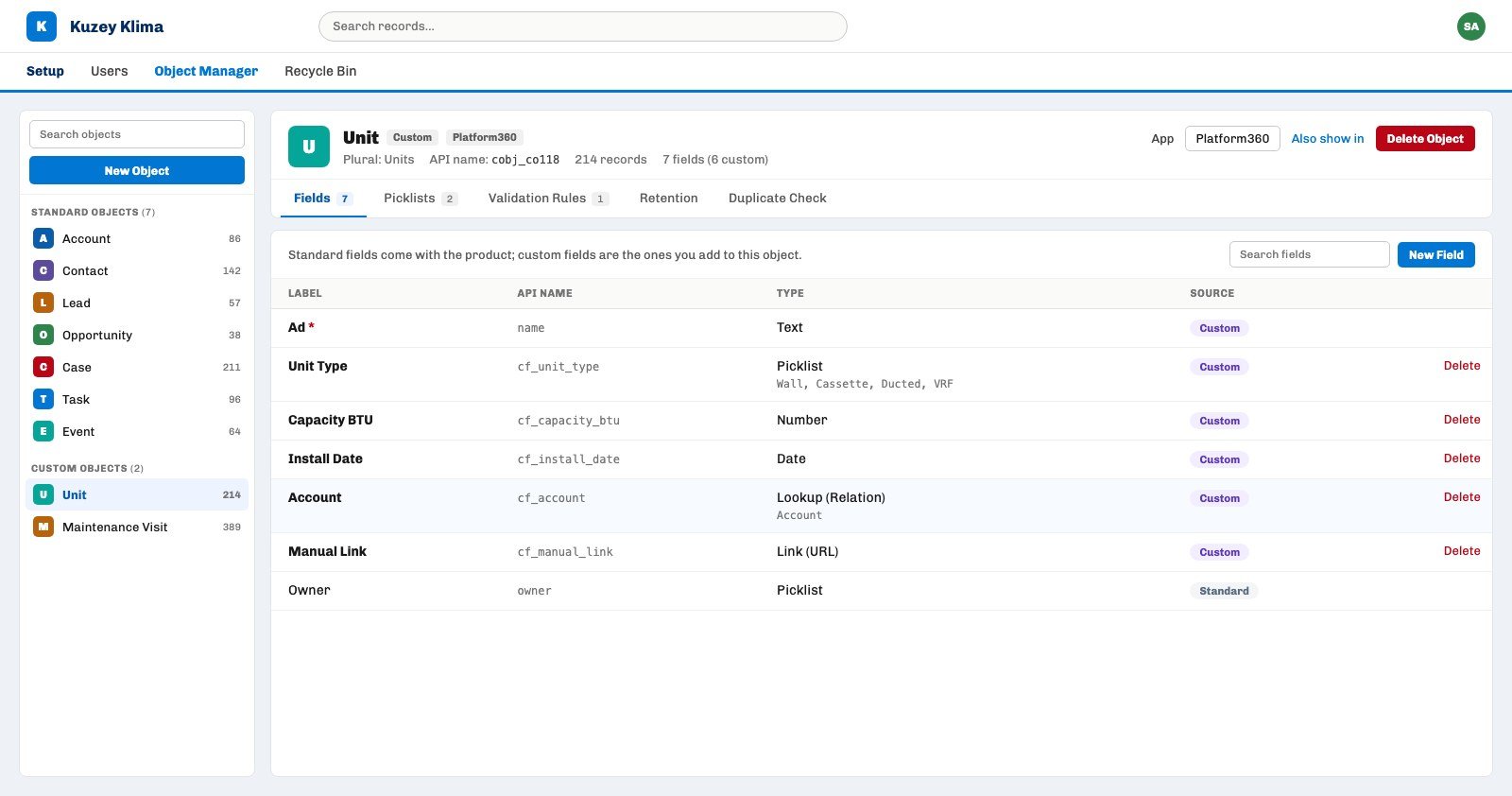
A custom object in Ohana360 takes six field types: Text, Number, Date, Picklist, Lookup (Relation) and Link (URL). Formula and Roll-up Summary exist only on standard objects. You add a field with the New Field button on the object's Fields tab; Type, Field Label, an optional Help text and a Required box sit on one line.
- The API name comes from the label. It starts with
cf_, accented characters are simplified and the first 24 characters are kept: an "Install Date" field becomescf_install_date. The name is shown under the line before you add the field. - Picklist values are typed with commas. For Unit Type she entered "Wall, Cassette, Ducted, VRF". Values can be edited later on the object's Picklists tab.
- A field cannot be changed later. An added field's row only has Delete; its type or label cannot be corrected. A field used in a validation rule cannot be removed until the rule is deleted. That is why Selin settled the labels on paper first.
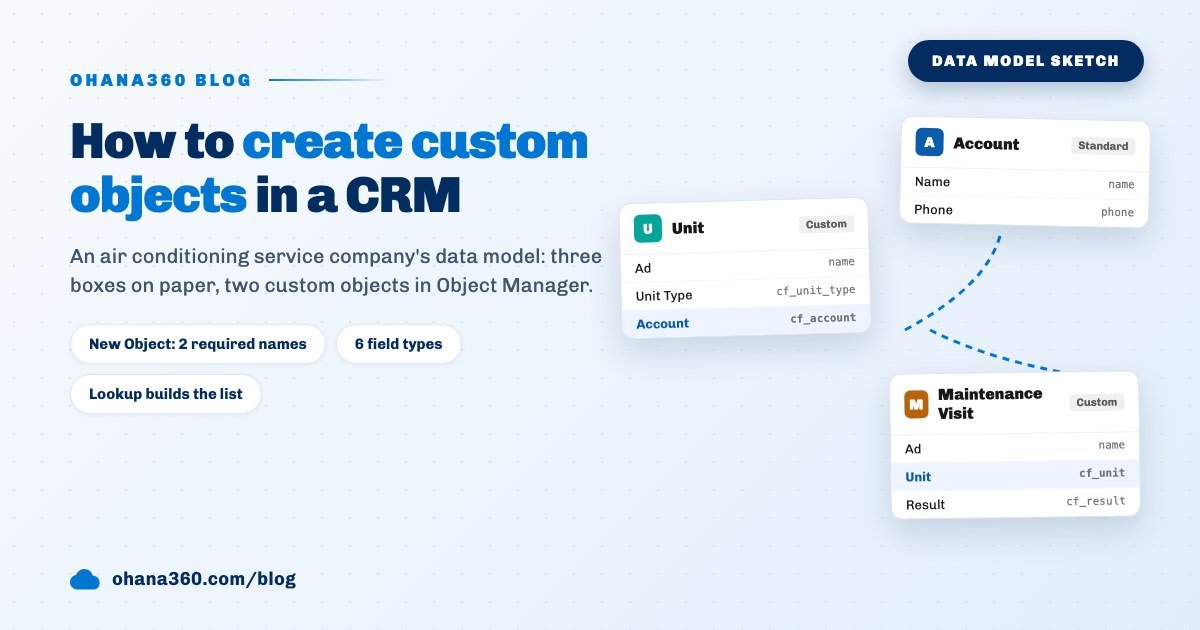
Selin added five fields to Unit: Unit Type, Capacity BTU, Install Date, Account (Lookup) and Manual Link. Maintenance Visit got four: Unit (Lookup), Visit Date, Result (No issue, Part needed, Fault) and Technician Note.
How does a lookup field link two objects?
A Lookup field links each record of the custom object to one record of the chosen target object and adds an automatic related list card to the target record's page. The targets are the other custom objects plus Account, Contact, Lead, Opportunity, Case and Matter (Legal360). The Kuzey Klima model has two arrows:
- Unit → Account. On the Unit form the Account field is a dropdown filled from existing account records. On the account page a "Units (14)" card appears by itself.
- Maintenance Visit → Unit. The target of a lookup can be another custom object too. A "Maintenance Visits (6)" card appears on the unit page; its + New button opens a visit form with the Unit field filled and locked.
Field order decides how the card looks: the first line is the name field and links to the record, the second line is the first field added after it, and the small line below holds the next three fields. That is why Selin added Visit Date right after the Lookup field on the visit object. You can move and reorder the cards from the gear > Edit Page on the record page; see the record page layout guide.
Do custom objects work in flows, reports and the API?
Yes: in Ohana360 a custom object behaves like a standard object at record level; list views, validation rules, flows, reports, data import, the REST API and permissions all cover it. The difference is at field level. The full breakdown:
- List and form. The Units tab is a full list view: filters, saved views, double-click inline editing and bulk delete work. A deleted record goes to the Recycle Bin.
- Rules and automation. Selin wrote the rule "if Result is Fault, Technician Note is required" on the object's Validation Rules tab; it applies on the form, in inline editing and through the API. Rule writing is covered in the validation rules guide. A record-triggered flow that opens a task for the owner when a fault visit is logged also runs on custom objects; the tools are on the Automation page, and the wizard format in the screen flow guide.
- Reports and data. In the Report Builder you can pick Maintenance Visit as the source object and group by Result; the steps are in the reports guide. The old unit list from Excel is loaded with Data Import; column mapping is in the CRM migration guide.
- Access. Permission sets have a Custom Objects group that grants read, edit, create and delete separately; sharing rules list custom objects too. Roles are in the user permissions guide. External systems read and write through the
/api/objects/cobj_...endpoint.
How do you delete a custom object?
A custom object is deleted with one confirmation using the Delete Object button in its Object Manager header; the object definition, its tab and its validation rules are removed, and the object does not go to the Recycle Bin. The confirmation shows how many records the object holds. The bin keeps records deleted one by one, not object definitions. So before deleting an object that has records, take a ZIP from Setup > Data Model > Data Export; custom object records sit in the data/custom_*.csv files of the archive. The recovery layers are in the deleted records guide.
Not included: what custom objects do not do
- No Formula or Roll-up. A custom object cannot have calculated fields, and summaries such as "last service date" or "number of visits" cannot be rolled up from custom object records onto a standard object such as Account either.
- Six field types. There is no checkbox, currency, percent, email, phone or long text type; use Text or Number instead.
- Fields cannot be edited. Type and label do not change later; a wrong field is deleted and added again, and old values do not move to the new field.
- No kanban. A custom object's list cannot be switched to a board view.
- Duplicate check only on import. The Duplicate Check tab can be turned on, but the rule does not warn on the record form; it only marks a row as duplicate during Data Import.
- Fixed lookup targets. Product, Order, Invoice, Campaign, Task and Event cannot be chosen as lookup targets.
- Related lists come only from custom objects. A Lookup field added to a standard object does not create a card on the target record.
- No Page Layout tab. The Page Layout tab in Object Manager appears only on standard objects; a custom object's record page is laid out from the record page itself.
- Object deletes cannot be undone. A deleted object does not go to the bin; the way back is a backup taken before the delete.
Which four questions should you ask before building a custom object?
After the setup Selin left the team a four question checklist:
- Is there a built-in object? If Case, Event, Task or an industry app already does the job, do not create a new object. See Service360 for service records and Sales360 for sales records.
- How many rows per record? One value means a custom field, a list means a custom object.
- What will it link to? Pick the lookup target and the field that will show on the card's second line up front; fields appear on the card in the order they were added, and Object Manager cannot reorder them.
- Do you need calculations? If totals, counts or formulas are a must, keep the data on a standard object; custom objects have no calculated fields.