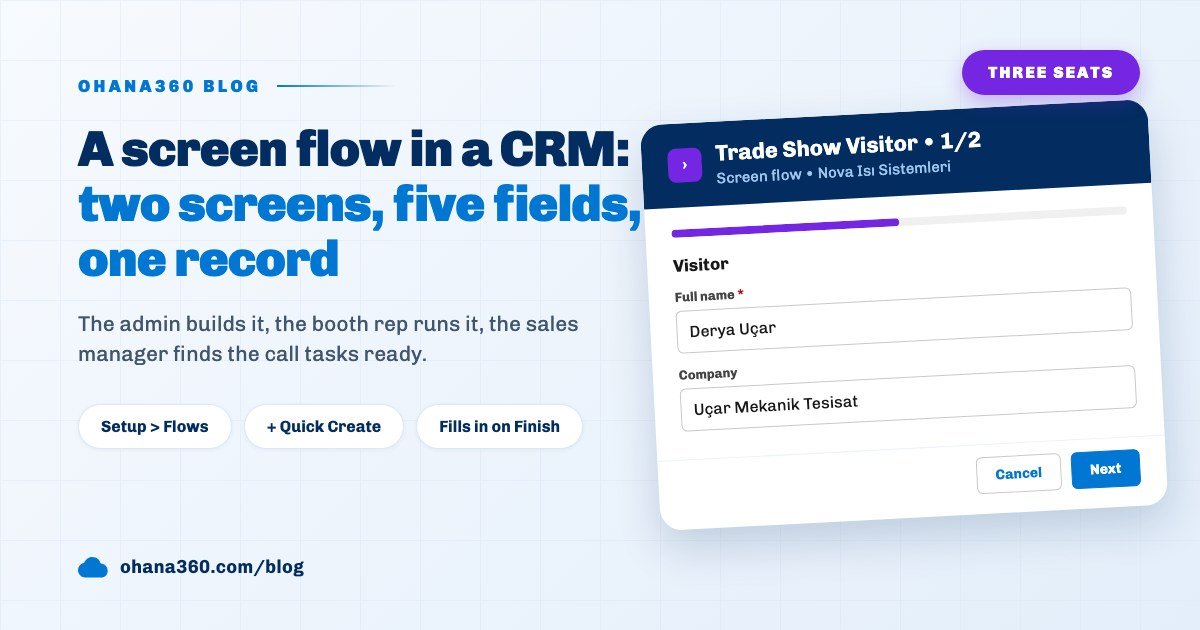
A screen flow is a step-by-step form that asks the user only the selected fields across a few screens and creates the record itself at the end. In Ohana360 it is built under Setup > Flows in three boxes: the target record, the screens and their fields, the finish message. The saved flow appears in the + Quick Create menu; on Finish, fields such as status, source and owner fill in by themselves.
Ohana360 is a business cloud that keeps sales, service and finance records in one database; the screen flow is its tool for getting the right record opened with the right fields. Instead of a feature list we look at one flow from three seats. Nova Isı Sistemleri, a heat pump and boiler dealer in Bursa, took a booth at a three-day HVAC trade show in Istanbul. Sales operations lead Selin Aydın built the flow, sales rep Mert Kaya ran it at the booth, sales manager Hakan Demir read the result after the show. The standard New Lead form has six fields plus any custom fields added; nobody fills that in standing at a booth with a phone in one hand. The trade show flow asks five fields on two screens and the system writes the rest.
What is a screen flow, and how is it different from a record form?
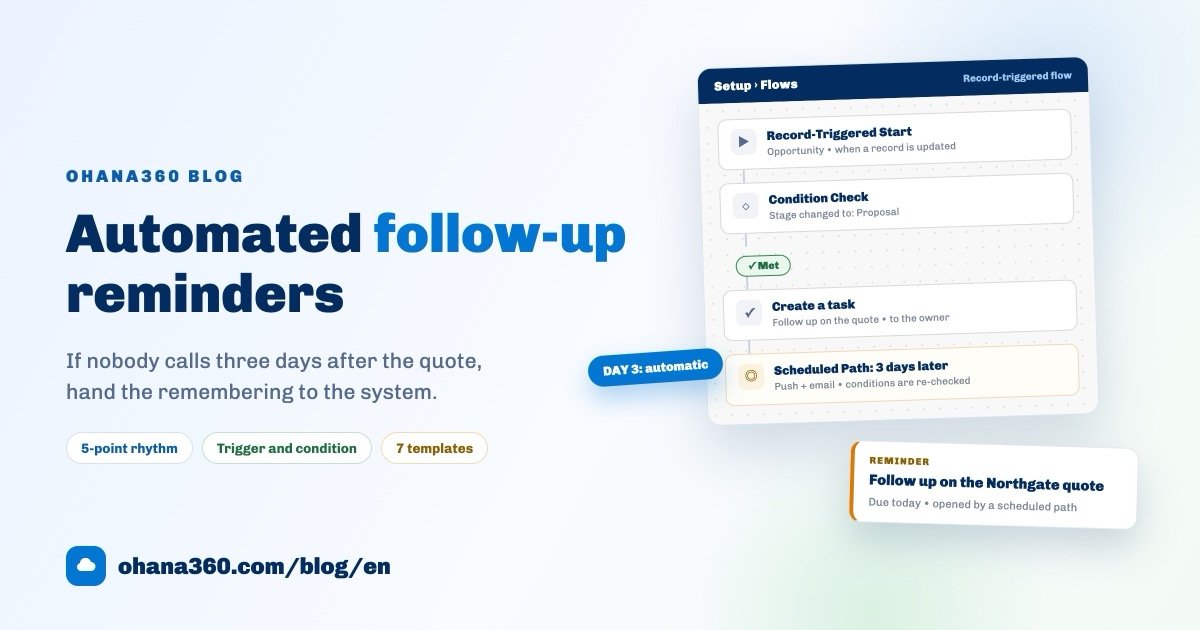
A screen flow is the flow type that turns an object's form into a narrowed wizard split into screens; a record form shows all of the object's fields in one window. Ohana360 has three flow types, and pressing + New Flow in Setup offers all three as cards: a Record-Triggered Flow checks conditions and runs actions when a record is created or updated, a Scheduled Flow scans on the server every day at a chosen hour, and a Screen Flow shows the user a step-by-step form and creates a record at the end. The first two are covered in the automated reminders guide; this article is about the third.
From Selin's seat the difference is this: the lead form also asks for Status, Source and the custom fields, and the rep has to think about which value to pick. The screen flow does not ask for Status, it writes New; Source is one pick; the owner comes from an assignment rule. The rep does not think "which record do I open", they pick the flow by name from the menu. The wizard's name and finish message are written in the language of the job too: "Trade Show Visitor" and "Visitor saved. We will call within two days after the show."
How do you create a screen flow?
A screen flow is created from Setup > Processes & Automation > Flows by pressing + New Flow, choosing Screen Flow (the third card) in the type picker and filling one window with three boxes. The boxes Selin filled for the trade show flow:
- Target. The "Record to Create" list has four standard targets: Lead, Case, Task, Opportunity; custom objects defined in Object Manager are added to the list. Selin picked Lead. If the target is changed later the screens are reset, because the field catalog belongs to the object.
- Screens. The first screen arrives with the placeholder title "Adım 1" (Step 1); you type over it and pick fields from the "+ Add field" list. The Lead catalog has five fields: Full name (required, starred), Company, Email, Phone, Source. A field can sit on only one screen; once added it drops out of the other screens' lists. "+ Add Screen" opens a new screen, "Delete step" appears once there is more than one. Selin built two screens: "Visitor" (Full name, Company) and "Contact and source" (Email, Phone, Source).
- Finish. The message shown once the record exists; the default text is "Kayıt oluşturuldu." (Record created), so it is worth overwriting in an English org. Selin wrote the trade show sentence.
Save asks for two things: a flow name and at least one field on at least one screen. The saved flow lands in the Flows list with "Screen" in the Type column, "Lead" in the Object column, "2 screens • + Quick Create" in the Trigger column and "Creates a record" in the Actions column. The Active checkbox on the left removes the flow from the menu or puts it back instantly; when the show ended Selin unticked it, the flow was not deleted. The other objects' catalogs are fixed too: Case has Subject (required), Priority, Channel, Description; Task has Subject (required), Type, Due Date; Opportunity has Opportunity Name and Account (both required), Amount, Close Date. When the target is a custom object the catalog comes from its Object Manager fields, except Lookup, Formula and Rollup; picklist fields take their options from the same definition. Picklists themselves are covered in the custom fields guide. Field labels on the screens come from the catalog and currently appear in Turkish (Ad Soyad, Şirket) even in the English interface, as do the Screen Flow card in the type picker (Ekran Akışı) and the Screens box title (Ekranlar).
Where do you start a screen flow?
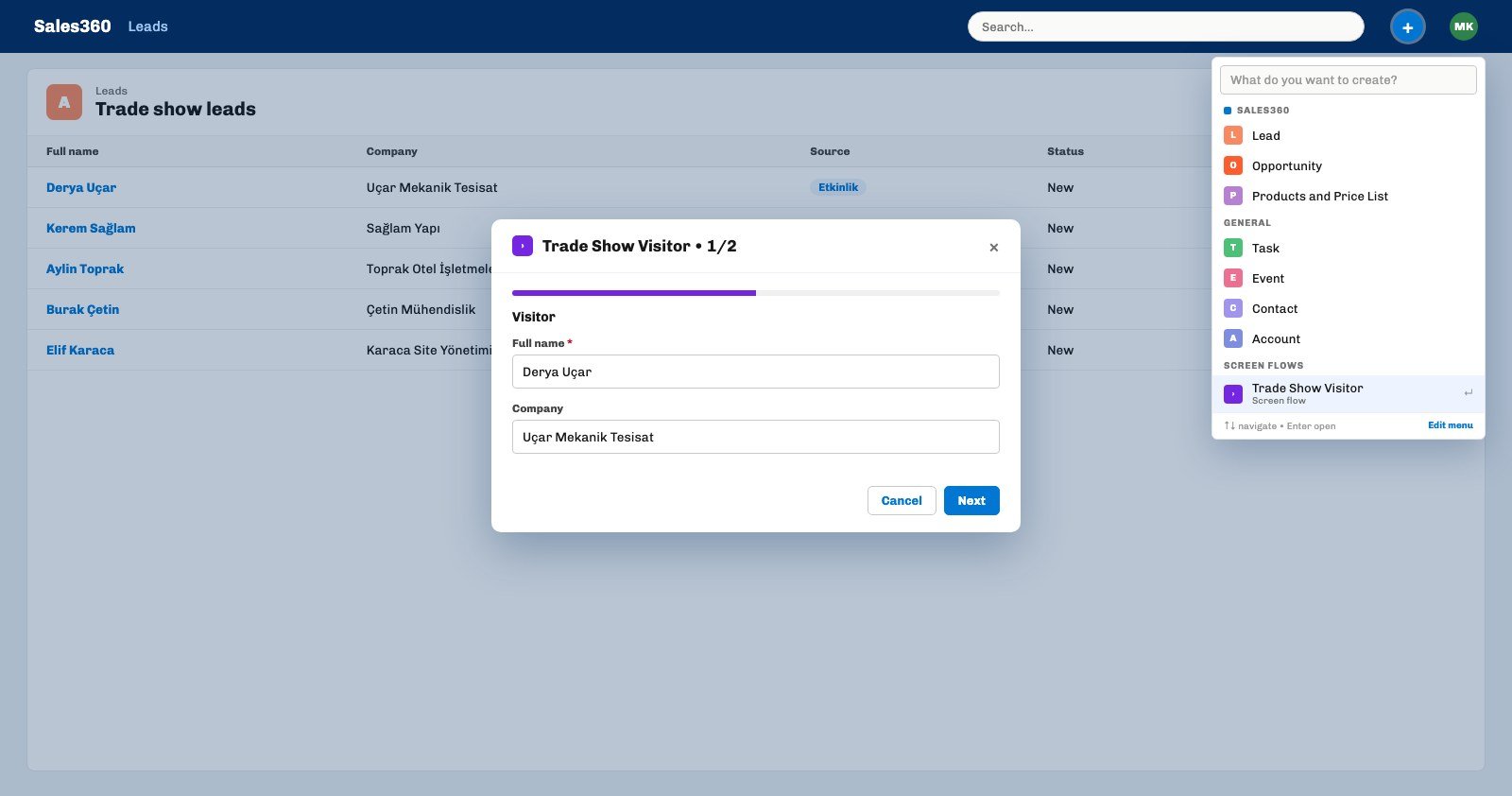
The shortest way to start a screen flow is the + button at the top right: the flow is listed by name in the Screen Flows group at the bottom of the Quick Create menu and selecting it opens the wizard. On the first morning of the show Mert opened Sales360 on his laptop, pressed +, typed "trade" into the search box and pressed Enter; the menu can also be walked with the arrow keys. The same menu has two more surfaces and all three use one list: the Quick Create panel in the bottom utility bar and the Cmd/Ctrl+K command palette. The flow is shown only while the target object's app is open: Lead and Opportunity flows in Sales360, Case flows in Service360, Task flows in every app. The full record structure of Sales360 is on the Sales360 page.
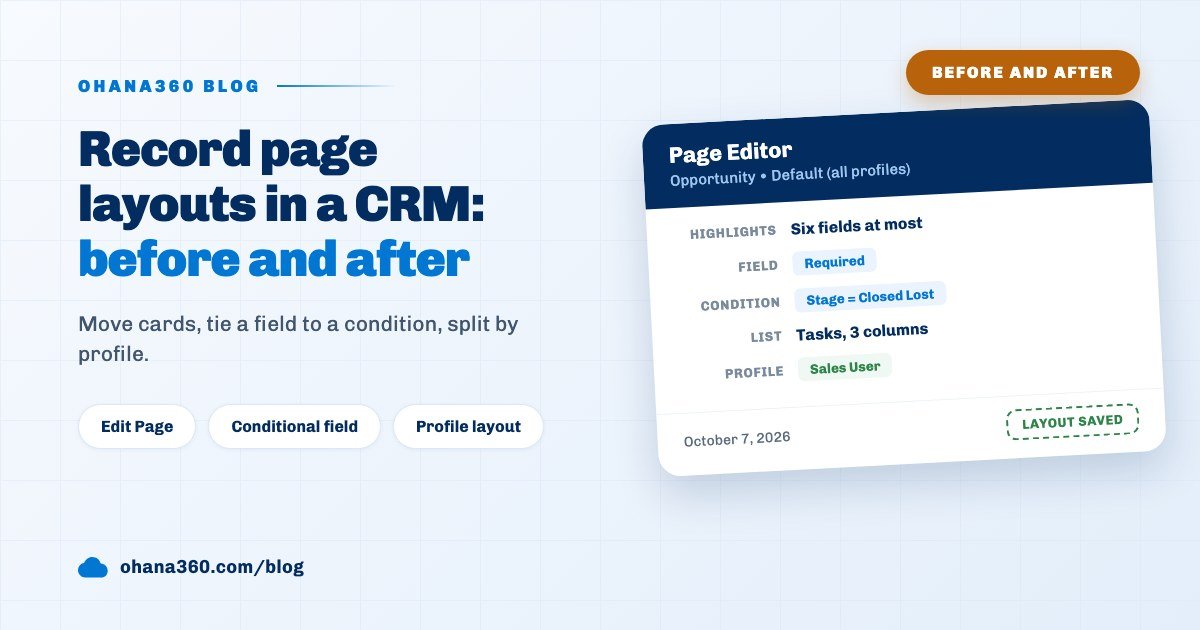
Selin prepared two more places. The first is the record page card: on any record page an admin uses gear > Edit Page > Add Component > Screen Flows to add each active flow to the right column as a card; the card carries a "Steps: 2 • Target: Lead" line and a Start button and is hidden by default. A flow started from a record page pre-fills the link field: an opportunity flow added to an account page arrives with Account filled, and on a custom object target the Lookup field pointing at that record is filled, so the new record shows up in the related list. The whole page editor is in the record page layouts guide. The second is the Home page: the gear at the top right opens Edit Page, the Add Component menu offers "Screen flow card", and the same card sits on the home page.
The wizard window's title is the flow name and a step counter in the form "1/2"; below it sit a purple progress bar, the screen title and the fields. Text, number, date and long text are plain boxes; Source, Priority, Channel and Type are picklists showing the values from Setup > Picklists (for Source: Web, Referans, Telefon, Etkinlik, stored as typed); the Account field on an Opportunity is a selector listing every account. The bottom row holds Back, Cancel and Next, and Finish on the last screen (Back and Finish still appear in Turkish, Geri and Bitir, in the English interface). Over three days Mert made the same four moves for every visitor: +, "trade", Enter, two screens.
What happens on Finish, and which fields fill in by themselves?
When Finish is pressed the wizard first checks the required fields on every screen, then writes the object's defaults and creates the record the normal way; that is why validation rules, assignment rules and record-triggered flows run exactly as they would from a form. The order:
- Required field check. If a starred field is empty, a warning naming the field appears (in Turkish, for example "Ad Soyad" zorunlu.) and no record is created; the check covers every screen, not just the last one.
- Defaults. On a Lead, Status becomes New and Source, if left blank, becomes the first option in the list. On a Case, Status New, Priority Medium and the next eight-digit case number. On a Task, not completed, Type the first type and Due Date tomorrow. On an Opportunity, Amount is converted to a number, Stage becomes the first stage (Prospecting) with its probability, and Close Date is 30 days from today.
- Validation rule. The validation rules in Setup check the record; on a violation no record is created and the rule's message appears. The wizard still closes and shows its finish message too, so a "must not be empty" check is safer as a star on the screen than as a rule.
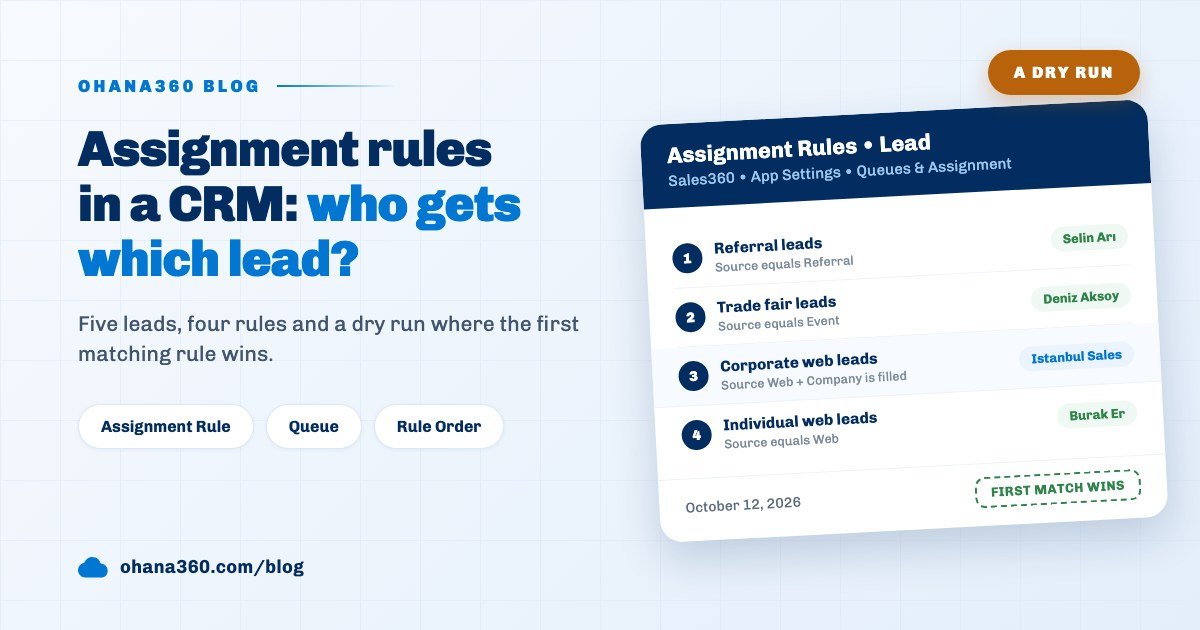
- Assignment rule. On Leads and Cases the first matching assignment rule writes the owner. Selin's rule was "Source equals Etkinlik (Event), then owner Hakan Demir"; every trade show lead landed with Hakan.
- Record-triggered flows. The new record fires that object's flows with the on-create event. Selin's second flow was "if Source is Etkinlik, create a 'Call trade show visitor' task due in two days"; the task opened by itself for every visitor.
- Finish message and tab. The message shows as a notification and the app moves to the target object's tab, here Leads. A flow targeting a custom object stays on the page; if it was started from a record page the related list refreshes.
How are the records handled after the show?
Trade show leads are gathered in one list view as leads whose Source is Etkinlik (Event) and that were created during the show days; Hakan Demir opened that view on Monday morning. The view was saved with the filters Source equals Etkinlik and created date within the show dates; the column and sorting settings from the list views guide apply here too. The assignment rule had written Hakan as the owner of every lead; since the lead screen does not show an Owner field, Hakan saw it in his task list: the task the flow creates goes to the lead's owner, and a call task due in two days was there for every visitor; the only things Mert typed at the booth were name, company, email, phone and source.
Two jobs stayed manual. First, duplicates: a screen flow does not call the duplicate rule, so a visitor who stopped by on two days and was saved twice is two leads; Hakan selected them in the list and used Merge, the method is in the duplicate records guide. Second, conversion: leads with a good follow-up call were converted into Account, Contact and Opportunity. Hakan had one more question: "How many records did Mert create?" A screen flow leaves no trace in the run history; the answer is in the Created By field on each lead's Details card.
Not included: what a screen flow does not do
- The field catalog on standard objects is fixed. Lead 5, Case 4, Task 3, Opportunity 4 fields. Custom fields added in Object Manager, Status, Stage and Owner cannot be placed on a screen; on a custom object every field except Lookup, Formula and Rollup can be.
- It only creates records. It does not open and update an existing record, and it does not create two records (say Account and Contact) in one run.
- No conditional screens. It does not show a different screen depending on an answer and does not skip screens; everyone sees the same screens in the same order.
- No field defaults. A field on a screen cannot carry a preset value; only a flow started from a record page arrives with its link field filled.
- No field checks beyond required. Email format or phone length is not checked; that takes a validation rule, and on a violation the wizard still closes.
- The duplicate rule does not run. A second visitor with the same email is saved without a warning; the clean-up is done later with Merge.
- It does not enter the run history. The "Last run" column in the Flows list stays empty for screen flows; who ran it and when is in the record's Created By and created date fields.
- It starts only from the interface. The API, a web form or another flow cannot call a screen flow; there is no screen flow on the server side.
- Fields are not reordered by dragging. Fields appear in the order they were added and cannot be moved between screens; to change the order, remove a field and add it again.
- Owner is not visible on leads and cases. The assignment rule writes the owner, but the lead and case details and list columns have no Owner field; the owner's work is followed through the task list.
- The Channel pick does not show on cases. The screen flow's Channel field is not written to the case record's Channel field; on a case flow, Channel is edited after the record opens.
- Only the Account link on an Opportunity. Contact, campaign or owner cannot be picked; the Account selector is a full list rather than a search box, which gets long with thousands of accounts.
What should you check when building your first screen flow?
A five-minute checklist prevents a nameless record and a wrong owner on the first run. Selin's list:
- Is the required field on a screen? Save also accepts a flow without its required field; if Full name or Subject is missing from the screens, the record is created without a name.
- Is Source on a screen, or left to the default? If Source is not on a screen, the first option in the list (Web) is written; the trade show lead shows up as Web and the assignment rule does not match.
- Is the assignment rule in place before the flow? A rule added later does not change the owner of earlier records.
- Is the target object's app open? A Lead flow is not listed outside Sales360; the person at the booth has to be in the right app.
- What does the finish message promise? If it says "we will call within two days", the two-day task flow has to exist as well.
- Was the Active box unticked after the show? An inactive flow leaves the menu, its definition stays, and it is switched on again for the next show.