The technical answer to how to set up a customer portal takes about three minutes: enable the add-on, send the invitation, let the customer choose a password. The hard part comes before that, and it is six questions. If you cannot answer them, do not open the portal yet, because a portal creates no new data. It moves the data you already have onto your customer's screen.
- Who is coming in? Which customers, and how many people from each? Starting with three accounts rather than twenty means you see the first week's questions while you can still change your mind.
- Which Account record does each person belong to? Everything the portal shows is filtered by that single link. Attach someone to the wrong account and they see the wrong orders.
- Are three tabs enough? The portal has My Orders (with My Invoices underneath), My Cases and Knowledge Base. A fourth tab cannot be added.
- Is your data right today? If order statuses have not been touched for weeks, the portal does not hide that. It announces it.
- Who picks up a case from the portal? Portal cases do not get an owner on their own.
- How will you revoke access? When the contract ends or the person leaves, which screen does that happen on, and whose job is it?
Our example is Thornbury Supply, an eighteen-person catering equipment distributor in Bristol serving fifty-two trade accounts. Last month they counted the customer emails in the shared inbox: 131 asked where an order had got to, 88 asked for an invoice to be resent, 54 asked what was owed this month, and 41 reported something broken. That is 314 emails, a serious slice of three people's week. (Demo data.)
This guide is about which of those 314 a portal can absorb, which one it cannot, and what the portal actually shows.
What does a portal user see after signing in?
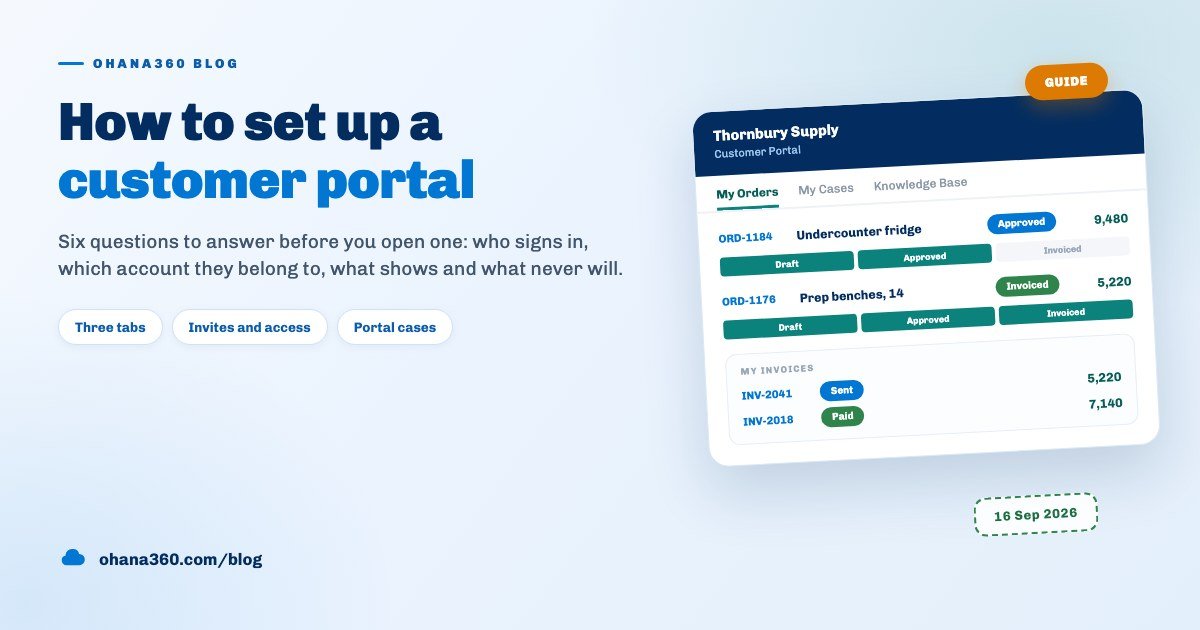
The most useful thing you can do before opening a portal is look at one yourself. The drawing below puts a Thornbury customer's screen next to the boundary of what the portal will and will not show.
The three tabs are fixed, and so is their order.
| Tab | What it lists | What the customer can do |
|---|---|---|
| My Orders | Orders on their account: number, name, amount, a status badge, a progress strip for Draft, Approved and Invoiced, with line items underneath | Read it; the lines, the address and the amount are untouchable |
| My Invoices | A separate list on the same tab: invoice number, status, due date and amount | Read it; there is no download, no PDF and no statement |
| My Cases | Only the cases this person opened, their status and the resolution note if there is one | Open a case with New Case: a subject and a description |
| Knowledge Base | Every Knowledge360 article in Published status, with a search box | Search and read; the article opens as plain text |
Back to Thornbury's four groups. The order status question (131 emails) and the resend-the-invoice question (88) are answered in the portal. The fault reports (41) turn into cases, which means they get recorded instead of buried. The money question (54) is not answered, because there is no summed balance anywhere in the portal. The honest arithmetic: roughly 260 of those 314 emails can move, and 54 stay with you.
How does the portal filter what it shows?
The security of the portal rests on one field: the Account record the portal user is attached to. The filtering happens on the server, not in the browser, so another customer's data never reaches the portal user's machine at all. There are three rules, and all three are different.
| What | The filter | What it means in practice |
|---|---|---|
| Orders and invoices | The Account record the user is attached to | Invite two people from one company and both see the same orders |
| Cases | The portal user who opened the case | A colleague's case is invisible; purchasing and accounts do not see each other's |
| Articles | Article status: published ones only | You cannot pick article by article what reaches the portal |
Nothing outside those three ever leaves the CRM: contacts, opportunities, notes, the file library, reports and dashboards all stay behind. Portal users sit on the Partner (Portal) profile, which has no access to CRM tabs, and portal accounts are excluded from the team chat.
The second rule has a consequence worth saying out loud when you invite people. Give three people at one customer their own accounts and all three see the same orders, but each of them tracks only their own cases. For a customer who wants a shared case inbox, one account creates less friction than one account per person.
From invitation to sign-in
Invitations go out from one place: the Invite Portal User button on Portal360 > Home, which is visible to admins only. The same job can be done from Setup > Users, where the role is set to Portal and the field is called Portal Company.
The invitation dialog has three fields: email, Company and Type. Type only changes titles and wording; pick Customer and the portal is called Customer Portal, pick Supplier and it becomes Partner Portal. The data is filtered by the same rule either way, so the type is a language setting rather than a permission setting. You can change it later from the list on the Portal360 home page.
Sent invitations sit on the same page as Pending Invites, with two links: Resend and Cancel. Expired ones are flagged. Invite the same address twice and the earlier invitation is deleted, so there is only ever one live link per person.
A portal user does not go to a separate address. They sign in on the same page with their email and password, and because their role is Partner the portal opens instead of the CRM. The practical result is that there is one address to give your customers, and your logo and company name appear in the portal header.
How do you revoke access?
Turning the add-on off does not revoke anything. Someone who already has a portal account can still sign in with the add-on disabled. The way to actually end access is the Active switch on that person's row in Setup > Users: a deactivated account is told the account has been deactivated and cannot get in, while records, past cases and links stay where they are. If you want to see who signed in and when, Setup > Audit Log > Login History keeps both successful and failed attempts.
Where does a portal case land in the CRM?
When a portal user presses New Case, a case record appears in Service360. It opens with status New, priority Medium, the account taken from the portal user's company, and the description the customer typed. Your team gets a "new case from the portal" notification at the same moment, and clicking it opens the record.
Two things do not happen by themselves, and both belong in your setup plan.
- No owner is assigned. Assignment rules do not run on portal cases. They do run on a case that arrives through a web form, which makes the difference easy to miss. Either hand the unowned cases out by hand from the home page, or set the owner with a record-triggered flow. Record-triggered flows do run on a portal case; that part is confirmed.
- The Channel field stays empty. The portal marks its cases as coming from the portal, but the Channel picklist on a case carries Phone, Email, Web and Social Media. If you want to report on how many cases the portal brings in, add your own value to the Channel picklist and set it on first touch.
From there the case follows the normal service path: priority, SLA, resolution note, close. For that chain in detail from the service side, the complaint tracking guide covers how a report gets logged and closed.
How much does the Knowledge Base tab earn its place?
The cheapest improvement you can make before opening a portal is writing articles for your five most frequent questions. With the Knowledge360 add-on enabled, every article in Published status becomes searchable on the portal's Knowledge Base tab, and the customer finds the answer before opening a case.
The limit belongs here too: you cannot pick which articles reach the portal. Every published one does. So internal procedure, discount authority and exception notes have to live in separate articles kept in Draft or Archived. For a way to build that writing habit, the knowledge base guide lays out the steps.
How Portal360 works in Ohana360
Portal360 is an add-on, enabled from the Marketplace in one click. Here is what it does, without inflation, and what it does not do, without hiding it.
- The tab inside the CRM: the Portal360 app has exactly one tab, Home. Reports, Dashboards and Files are not added to it, because add-on apps are kept deliberately plain. Custom objects you create do appear here as tabs.
- The home page: the portal user count and the number of pending invitations sit at the top, next to a three-step "How it works" card. Below them are the portal user list and the pending invitation list.
- Inviting: Invite Portal User opens a dialog with email, Company and Type. The invitation email goes out, the link is valid for seven days, and the user sets their own name and password.
- The user row: each portal user carries a type selector (Customer portal or Supplier portal) and a View portal button that opens the portal through that person's eyes.
- Pending invitations: who invited them, when it was sent and when it expires, with Resend and Cancel links; expired ones are flagged.
- The Setup side: portal users appear in Setup > Users with a Portal badge. Choosing the Portal role reveals the Portal Company and Portal type fields. The Active switch is what opens and closes access.
- The portal side: the customer signs in on the same page, sees your logo and company name in the header, and gets three tabs: My Orders, My Cases, Knowledge Base.
- With Service360: a case opened in the portal appears with status New, your team is notified, and your record-triggered flows run on it.
- With Finance360: the orders and invoices in the portal are Finance360 records. Without that app in your package, the My Orders tab stays empty.
- With Knowledge360: published articles become searchable on the portal's Knowledge Base tab.
- Packaging: the add-on covers ten portal users; every additional ten adds one more package, shown as its own line in the Package Summary. Portal users do not count towards your team user total. Current plans are on the pricing page.
Not included: what Portal360 does not do
- No balance, statement or invoice download. Invoices appear as a list: number, status, due date, amount. There is no summed balance line, no ageing table and no downloadable invoice file.
- No payment in the portal. A customer cannot pay, register a card, notify a bank transfer or be given a payment link.
- No record editing and no file upload. The only write action is opening a case, and it has two fields, subject and description. No approving quotes, no amending orders, no signing contracts.
- No choice of tabs. The three tabs are fixed. Nothing can be hidden, nothing added, no record component can be placed on a portal page, and the colours and layout cannot be changed; the header carries only your logo and name.
- No portal on your own domain. The portal is not published as a separate site; the customer signs in at the same address and the role sends them to the portal.
- No invitation from a record. There is no "invite to portal" button on a Contact or Account record; invitations come from the Portal360 home page or the Users screen in Setup.
- No owner on a portal case. Assignment rules cover leads and cases arriving from a web form; a portal case opens unowned.
- No portal reporting. Portal users, invitations and portal sign-ins are not reportable objects. To see who has been signing in, read Login History in the Audit Log rather than the Report Builder.
- Disabling the add-on does not cut access. Switching Portal360 off in the Marketplace does not stop an existing portal user signing in; access is revoked on the user's Active switch.
Want to see the flow in 69 seconds?
Getting a portal standing in seven days
| Day | What to do | Time |
|---|---|---|
| 1 | Count a week of customer emails under four headings: order status, invoice copy, money owed, fault report | 15 minutes |
| 2 | Enable Portal360 from the Marketplace, choose the first three accounts and fix their order and invoice statuses | 60 minutes |
| 3 | Write Knowledge360 articles for your five most frequent questions and publish them; leave internal notes in Draft | 90 minutes |
| 4 | Send the three invitations: email, Company, Type. Then open all three screens yourself with View portal | 30 minutes |
| 5 | Build a record-triggered flow that sets an owner on portal cases, then open a test case and confirm it fired | 40 minutes |
| 6 | Write your customers one paragraph: where to sign in, what they will see, what they will not (say the money question still comes to you) | 20 minutes |
| 7 | Give the revoke procedure to one person and write it down: Setup, Users, the Active switch | 15 minutes |
From week two there is one habit to hold: invite two more accounts a week and watch the first response time on portal cases. If the order and invoice side is new ground, the invoice and payment tracking guide is the place to start, and if records, contacts and cases are new vocabulary, what is CRM covers the basics. You can request a demo to try it with one of your own customers.
Frequently asked questions
How do you set up a customer portal, and how many steps is it?
Can a portal user see another customer's data?
Does the portal show a running balance or a statement?
Do portal users count towards my user licences?
Who picks up a case opened from the portal?
Can a customer edit their own records or upload files in the portal?
If I turn the add-on off, do my customers lose access?
Close the same three questions in your inbox
Let your customer read the order stage, the invoice number and the due date on their own screen. And let the fault arrive as a record instead of an email.