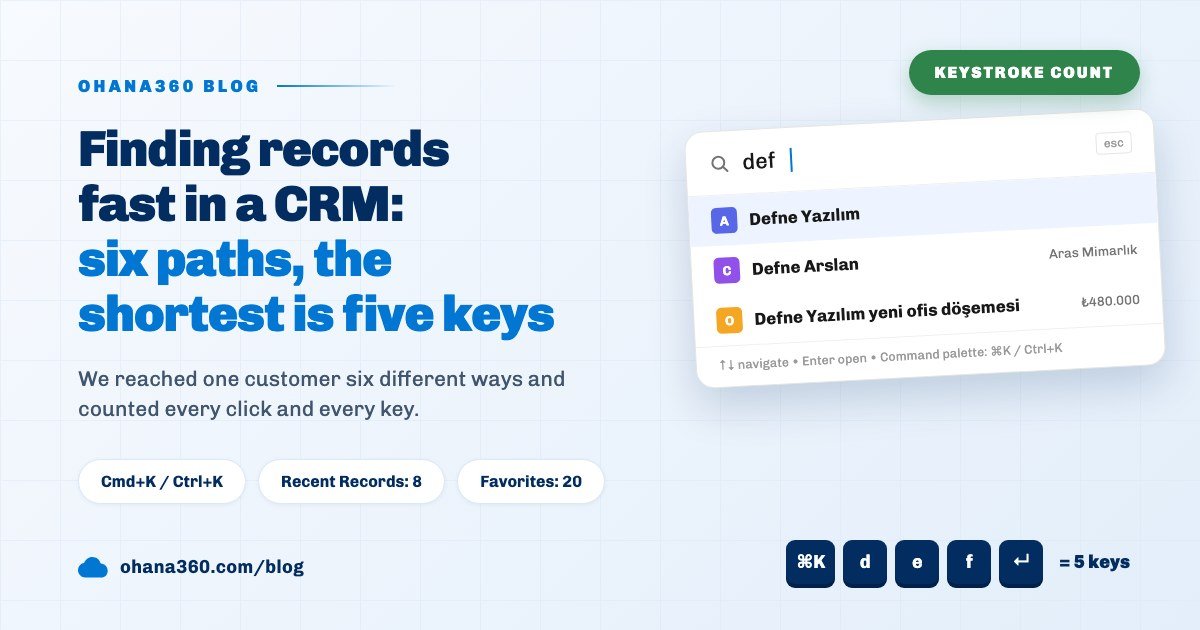
The fastest way to a record in a CRM, if you remember its name, is the Cmd+K (Ctrl+K on Windows) command palette: the shortcut, two or three letters and Enter, five key presses without touching the mouse. In Ohana360 the same record can be reached six ways: list view, the global search box, the command palette, Recent Records, Favorites and open console tabs.
Ohana360 is a business cloud that keeps sales, service and finance records in one database, and its search looks across every app from a single box. Instead of a feature list, we counted the paths key by key. At Lima Ofis Mobilyaları, an office furniture supplier in Ankara, sales rep Ece Yıldız's busiest customer is Defne Yazılım: a new office fit-out opportunity is open, there is a case about a late delivery, and the project's architect, Defne Arslan from Aras Mimarlık, calls often. Ece comes back to this account many times a day, and every return costs whatever her chosen path costs.
What is the fastest way to reach a record in a CRM?
In Ohana360 the shortest keyboard path to a record is the Cmd+K command palette and the shortest mouse path is a console tab that is already open; the four paths in between depend on how recently you opened the record and whether you starred it. The count for Ece's six paths to the Defne Yazılım account:
| Path | What you do, in order | Clicks | Keys | Condition |
|---|---|---|---|---|
| List view | Accounts tab, "Search this list..." box, "def", row | 3 | 3 | An app with an Accounts tab must be open |
| Global search | "Search..." box, "def", result row | 2 | 3 | At least two letters |
| Command palette | Cmd+K, "def", Enter | 0 | 5 | The first row must be the target; if not, arrow down |
| Recent Records | G then R, row | 1 | 2 | One of the last 8 records opened |
| Favorites | G then F, row | 1 | 2 | Starred with ★, up to 20 favorites |
| Console tab | The tab under the menu bar | 1 | 0 | One of up to 12 open tabs on desktop |
Cmd+K counts as one press and every letter as one press. The number of letters depends on the name: search needs at least two letters and matches any part of a word, which is why "def" finds both Defne Yazılım and the architect Defne Arslan. Enter in the command palette goes straight to the account because of ordering: results are ordered by object, not by relevance, and Accounts always come first. To reach the contact, Ece would press the down arrow once. The full structure of sales records is on the Sales360 page.
What does the global search box search, and what does it not?
Ohana360's global search box in the top bar looks at specific fields on each object: the account name on Accounts, full name and email on Contacts, full name and company name on Leads, and only the opportunity name on Opportunities. Cases are searched by subject and the eight-digit case number, Events by subject and location, Invoices by invoice number and account name. Users are found by name, email and title, and the result opens their profile page. Every other record, such as tasks, HR records and custom objects, is searched by the name shown on screen.
Four rules shape how search behaves. The first is the two-letter minimum; a single letter opens nothing. The second is Turkish casing: "DEFNE" and "defne" are the same, İ matches i and I matches ı; but ş and s, ı and i are different letters, so typing "sirket" will not find "Şirket". The third is the limit: global search shows up to 15 rows and the command palette up to 12; if the letters are very common, type a few more. The fourth is licensing: records from an app that is not in the org's plan do not appear. On objects with more than 2,000 records, search also asks the server after a short pause and brings back 25 matches per object; those are listed with the same field rules.
The day Ece hit a wall, it was a phone number. Reception passed on a note: "a number starting with 0312 is calling, someone from Defne". She typed the number into the top bar and got nothing. Global search does not look at phone numbers on Accounts, Contacts or Leads. The way to search by number is list search: the "Search this list..." box on the Contacts tab searches every column shown in the list, and with a Phone column in the view, part of the number is enough. Adding a column and saving the view is covered in the list view guide.
How do you use the Cmd+K command palette?
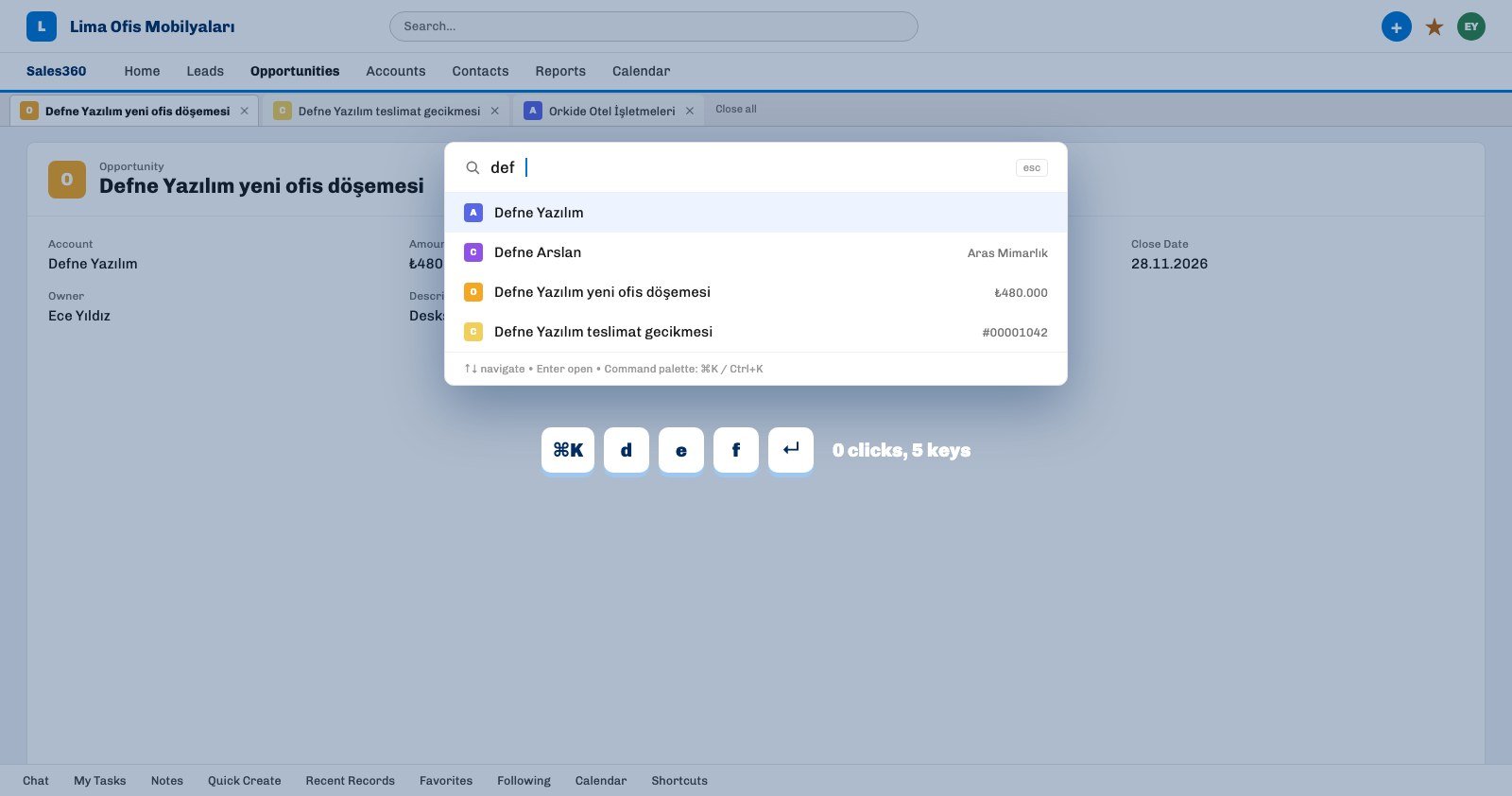
The command palette is a window opened from any screen with Cmd+K on a Mac or Ctrl+K on Windows that puts record search, app switching and record creation in one box. The shortcut works even inside a form field. What you type is matched against four lists at once, and the results come in this order:
- Records. The same engine and the same fields as global search.
- Apps. Typing "serv" shows Service360 and "fin" shows Finance360; Enter opens the app. A user with Setup access types "setup" to go to Setup, or a section name such as "profiles", "flows" or "security" to go straight to that page; a user allowed to customize apps finds Sales360 and Service360 Settings by typing "settings" or "sla".
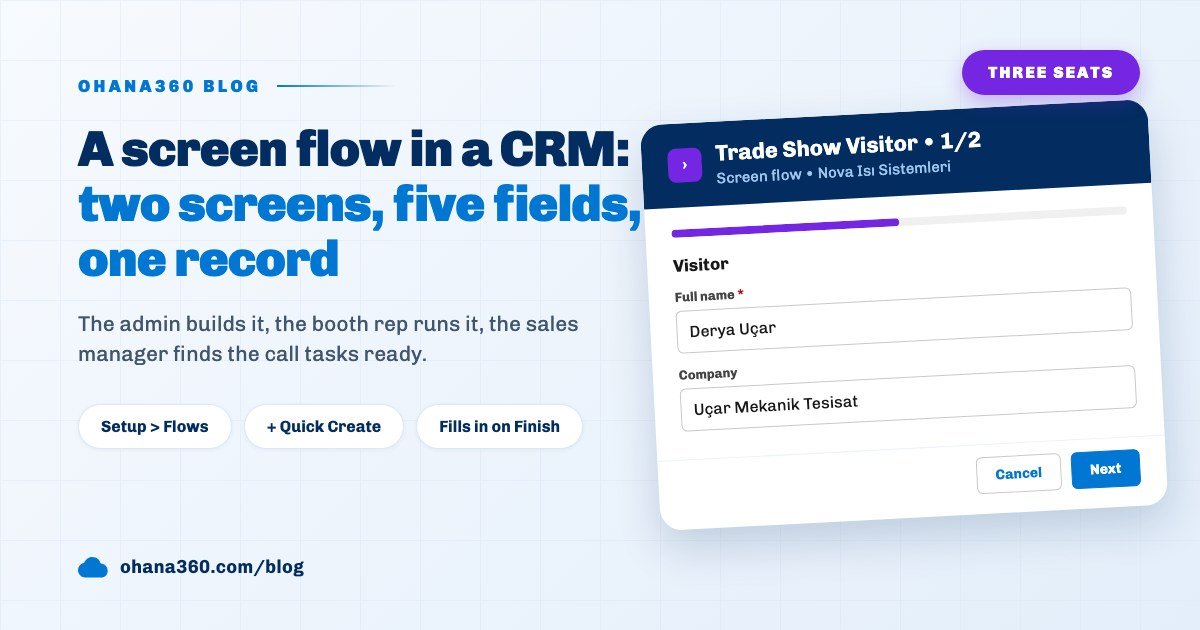
- Quick create. Items such as "New Opportunity" and "New Task" plus the screen flows an admin has built; this is the same list as the + menu at the top right, covered in the screen flow guide.
- Empty box. With nothing typed, the palette lists apps and quick create items; it is the shortest way to switch apps from the keyboard.
The first row is preselected, the arrow keys move the selection, Enter opens and Esc closes; the footer spells it out as "↑↓ navigate • Enter open • Command palette: ⌘K / Ctrl+K". This is where the top bar box differs: arrow keys and Enter do not work there, and results are clicked with the mouse. So Ece made a habit of "⌘K, def, Enter" for the account and "⌘K, döşe, Enter" for the opportunity first thing every morning.
What are Recent Records, Favorites and console tabs for?
Recent Records, Favorites and console tabs are three separate memories for records you return to without typing a name: one keeps what you opened last, one keeps what you starred, one keeps what you hold open on screen. They differ in capacity and in where they are stored:
- Recent Records. The last 8 records you opened, newest first. Open it from the Recent Records panel of the utility bar at the bottom or with G then R. The list is personal and saved to your account, so the same list appears when you sign in on another computer. User profiles do not enter this list.
- Favorites. With a record open, use the ★ button in the top bar to add it to favorites; the same menu lists your favorites with a remove button on each row. In the English interface two lines of this menu, the add option and the "Favorilerim" heading, still appear in Turkish. The Favorites panel in the utility bar and G then F open the same list. Each person keeps up to 20 favorites; when a twenty-first is added, the oldest drops off without a warning.
- Console tabs. Every record you open becomes a tab under the menu bar; up to 12 tabs stay, and opening a thirteenth closes the oldest. Each tab has its own close button, and "Close all" appears when two or more tabs are open. Tabs show only at desktop width and are stored in that browser; they do not follow you to another device.
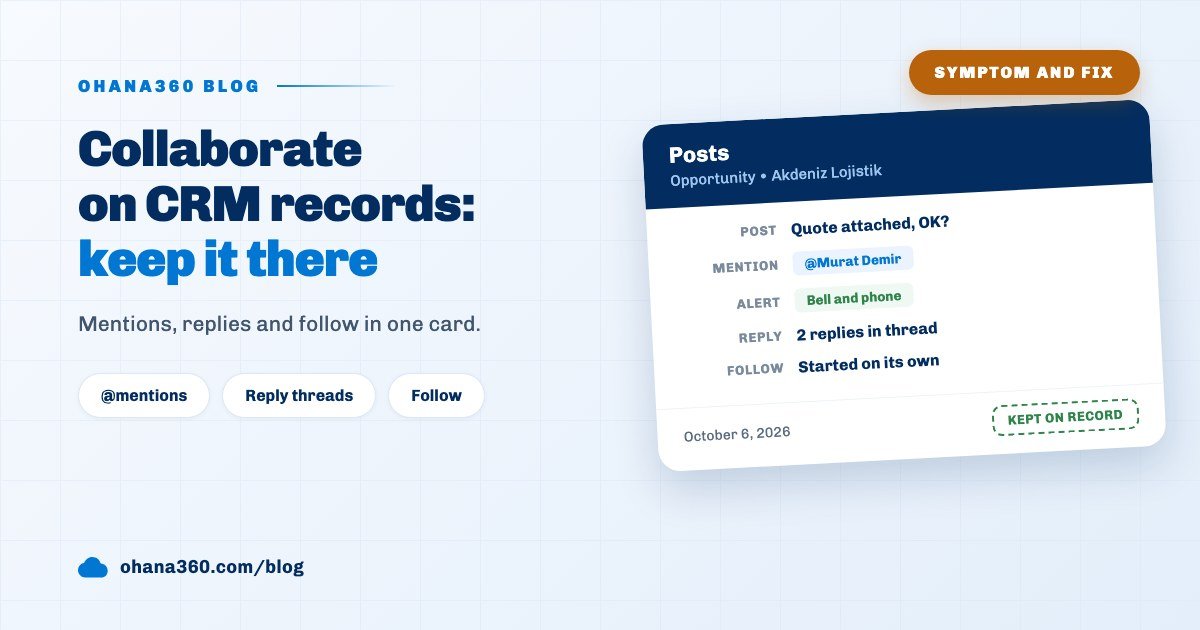
Ece's setup: Defne Yazılım and two other large customers are favorites, the opportunity and case she works on during the day stay open as console tabs, and everything else goes through Cmd+K. Staying informed about changes to a record is a separate job: the "Follow" button at the bottom right of a record drops a bell notification when someone else changes it, and followed records are listed in the Following panel opened with G then W. Following and record conversations are covered in the team collaboration guide.
Which keyboard shortcuts does Ohana360 have?
Ohana360's keyboard shortcuts are listed in the Keyboard Shortcuts panel opened with the ? key; most are two-key sequences that start with G and open a panel of the utility bar.
| Where | Key | What it does |
|---|---|---|
| Anywhere | ⌘K / Ctrl+K | Command palette |
| Anywhere | G then T | My Tasks |
| Anywhere | G then N | Notes |
| Anywhere | G then R | Recent Records |
| Anywhere | G then F | Favorites |
| Anywhere | G then W | Following |
| Anywhere | G then K | Calendar |
| Anywhere | G then S | Chat |
| Anywhere | ? | Toggles the shortcuts panel |
| Anywhere | Esc | Closes the open panel or dialog |
| Record page | E | Edits the record; Esc closes editing |
| List view | Double-click | Inline edit; Esc leaves it |
The G sequence has two rules: the second letter must be pressed within 0.9 seconds of G, and the sequence does not fire inside a text field, so typing "Gary" never opens a panel. Cmd+K ignores this rule and opens the palette from inside a form field too. In the English interface the panel joins the two keys with the word "after" ("G after T"); read it as "G, then T". On a record page, E is the shortest way to edit fields; which fields the page shows is covered in the record page layout guide.
How do you search for a record on your phone?
In the Ohana360 mobile app, search opens from the round magnifier button at the right end of the bottom tab bar and uses the same engine and the same fields as desktop. The box reads "Search Ohana360"; until two letters are typed the screen shows the last 8 records under Recent Items, and after the second letter the Results list appears. Favorites are in the Favorites row of the profile menu and match the desktop list. Console tabs do not exist on mobile. The rest of the mobile app is on the mobile page and in the mobile CRM guide.
Not included: what search does not do
- No global search by phone. Phone numbers are not searched on Accounts, Contacts or Leads; phone is searched only on store orders, Clinic360 patients and Booking360 guests. Use list search for numbers.
- Leads are not found by email. Leads match on full name and company only; Contacts do match on email.
- Opportunities match on name only. Amount, stage or the linked account name do not bring an opportunity up; find the account and open the opportunity from its related list.
- Content is not searched. Notes, record posts, email bodies and file contents are not part of global search; notes have their own search in the Notes panel of the utility bar.
- No typo tolerance. Missing or wrong letters are not corrected, and ş and s, ı and i, ç and c are different letters.
- No relevance ranking. Results come in object order and are cut at 15 rows in global search and 12 in the palette; with very common letters, the record you want may not make the list.
- The top bar box has no keyboard navigation. Arrow keys and Enter work only in the command palette.
- No search history or saved searches. Past searches are not kept; for a repeated search, save a list view.
- The memories are capped. Recent Records holds 8, Favorites 20 and console tabs 12, and the oldest drops off silently; console tabs are stored only in that browser.
- Shortcuts cannot be changed. Key bindings are fixed, and the G sequence does not work inside a text field.
- Part of the favorites menu is Turkish in English. The add option and the "Favorilerim" heading in the top bar ★ menu are not translated yet; the utility bar Favorites panel is.
Which five habits do you teach a new teammate?
Fast access is a habit more than a feature; at Lima Ofis every new rep is shown five things on day one:
- Make Cmd+K a reflex. Record, app or new record, all from one box; the first row is preselected.
- Two or three letters are enough. Do not type the full name; any part of a word matches, but type Turkish letters correctly.
- Star the week's key customers with ★. When you approach the limit of twenty, remove the finished ones.
- Use the list for phone numbers. Add a Phone column to the Contacts list and save the view.
- Open the ? panel once. Every shortcut is in one panel; start the day from your task list with G then T.