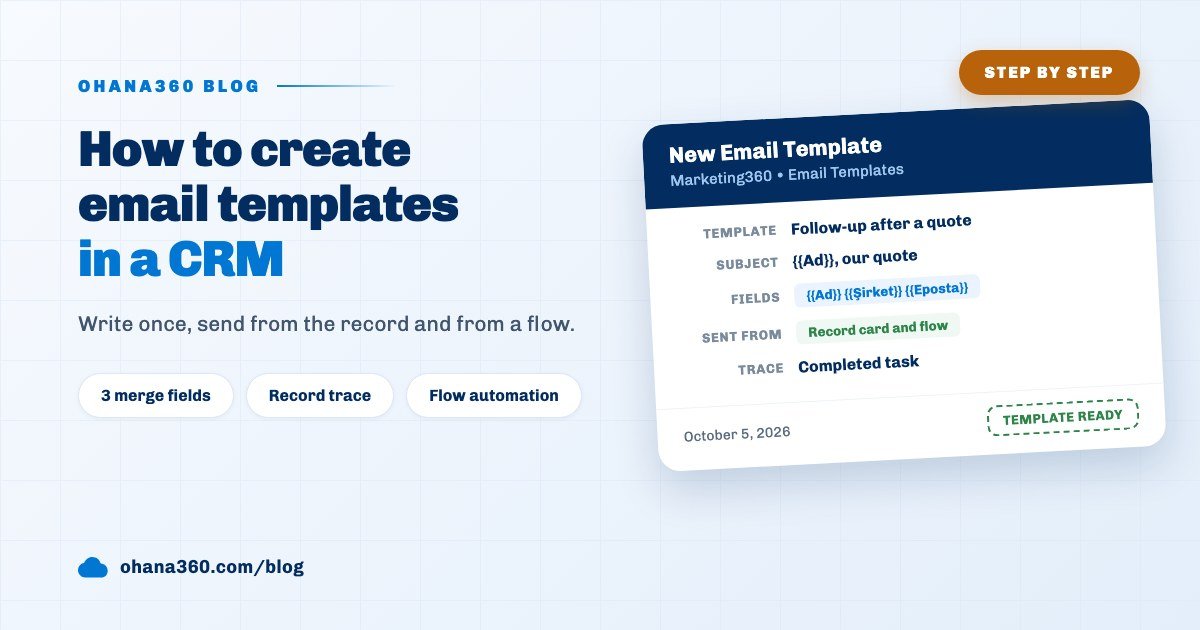
An email template in a CRM is a ready message with a prewritten subject and body and placeholders that fill per person. In Ohana360 you create one in Marketing360 > Email Templates with the New Template button: Template Name and Subject are required, and the body takes the merge fields {{Ad}}, {{Şirket}} and {{Eposta}}. The template is used from the Email card of a record page and from the Send Email step of a flow.
Ohana360 is a business cloud that keeps sales, service and marketing records in one database, and its email templates exist for personal mails tied to those records. A follow-up after a quote, an appointment reminder or a case closing note, written with the same sentences every week, are natural candidates. This post builds a template step by step, then shows how the same template behaves in three different places, and ends with what it does not do. A bulk mail to a whole list at once is a separate job, covered in the email newsletter guide.
What is an email template in a CRM and when should you use one?
An email template is a ready text that lets you save the subject and body of a mail you write again and again, then fill only the part that changes for each person. The changing part is marked with placeholders: where you type {{Ad}}, the name of the recipient appears.
Three situations where a template pays off:
- The same mail goes out several times a week. The follow-up written three days after a quote, or the notice sent when a case is resolved, carries the same skeleton every time.
- Everyone on the team should use the same wording. Templates are one list for the whole organization; a new member of the sales team writes with the same text from day one.
- The mail should go out by itself after an event. For an introduction mail sent when a lead moves to Qualified, the template becomes a step of a flow and nobody presses a button.
How do I create an email template in Ohana360?
An email template is created in the Email Templates tab of the Marketing360 app, with the New Template button at the top right. The window shows the template fields on the left and a live preview filled with your first lead on the right.
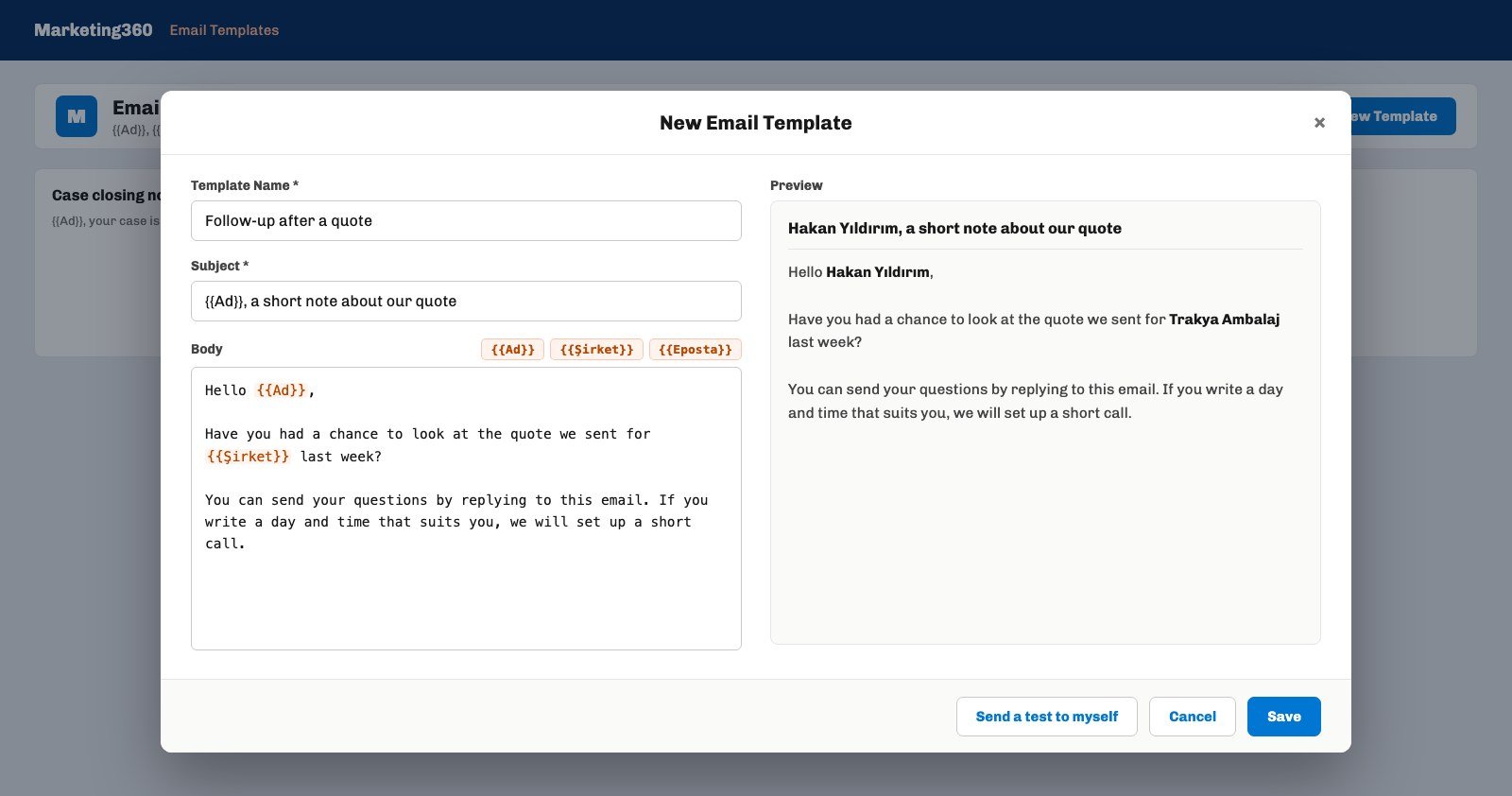
- Open Marketing360 and go to the Email Templates tab. Under the tab title a note says the merge fields {{Ad}}, {{Şirket}} and {{Eposta}} are supported; existing templates line up as cards.
- Press New Template and type a Template Name. The name shows only in your list; the recipient never sees it. Pick a name that describes the job, such as "Follow-up after a quote", because you will pick the template by this name on the record page.
- Type a Subject. The subject is required too and can hold placeholders, for example "{{Ad}}, a short note about our quote".
- Write the body and add placeholders with the buttons. The {{Ad}}, {{Şirket}} and {{Eposta}} buttons at the top right of the body box insert the token at the cursor. The tokens are Turkish words for name, company and email, and they stay the same in the English interface. Typing them by hand works too, but the buttons prevent typos.
- Check the preview. The box on the right fills the subject and body with the first lead in your list.
- Use Send a test to myself to see the real mail. The button sends the previewed mail to the address of the signed in user. Seeing line breaks and links once in your own inbox is a good habit.
- Press Save. The template appears as a card in the list; Edit on the card changes it, and Delete removes it after a confirmation.
The body is plain text: your line breaks are kept and addresses that start with http become clickable links, but bold text, images or buttons cannot be added. A signature is appended to the mail separately; the signature can be HTML and is not written into the template, for a reason explained below.
What values do the merge fields fill in?
The three merge fields of the template window take three facts from the record: {{Ad}} takes the first and last name on a contact and the name field on a lead, {{Şirket}} takes the Company field of the record, and {{Eposta}} takes the email address. If the value is empty, a fixed phrase is written instead.
| Placeholder | Where the value comes from | If the value is empty |
|---|---|---|
| {{Ad}} (name) | First and last name on a contact, the name field on a lead | "Değerli Müşterimiz" (Dear Customer, in Turkish) |
| {{Şirket}} (company) | The Company field of the record (present on leads) | "şirketiniz" (your company, in Turkish) |
| {{Eposta}} (email) | The email address of the record | Left empty |
This table holds for the preview and the test in the template window. When the same template is picked somewhere else, not every placeholder is filled; which screen fills which one is in the matrix below.
The key column of the matrix is the middle one: when you pick a template in the Email card of a record page, the subject and body are copied into the boxes as they are, and the {{Ad}} text stays in the message. So when you use a template in the card, replace every curly brace token by hand before sending. A flow step knows the record, so it fills {{Ad}} and {{Şirket}} itself; it also understands {{Hitap}}, which addresses a lead with a Turkish salutation built from the full name.
How do I send a templated email from a record page?
The Email card on a record page lets you pick a template and write straight to the address on the record; the mail goes out under the name of the signed in user and replies return to that user. By default the card is on only for Cases, and other objects are switched on in Setup.
- Choose the objects that get the card. The "Email from Records: Which Objects" box on the Setup > Email Templates page lists Cases, Contacts, Leads and Accounts plus the custom objects you built. The record page of each object you tick shows the Email card.
- Open the record and press Compose Email. The recipient box fills by itself: from the email field on a contact, lead or account, and from the contact linked to a case.
- Pick the template in "Pick a template (optional)". The subject and body come from the template.
- Replace the placeholders by hand. Type the name of the recipient over {{Ad}} and the company name over {{Şirket}}; the card does not fill them.
- Check the signature and press Send. The signature that will be appended shows under the card; if none is defined, a short default is added.
Two safeguards run on sending. If the IYS360 add on is on and the recipient has refused commercial email, the mail does not go out. If Send is pressed a second time within ten minutes for the same record, recipient and subject, the mail is not sent again, so a double click on a slow connection does not create a duplicate. For custom objects you pick in the same box which field holds the address; a custom object without an email field first needs a custom field.
How is a sent email logged on the customer record?
Every templated mail sent from a record page or from a flow is written to two places: the conversation in the Email card of the record, and the activity timeline as a completed Email task. The task carries the subject of the mail and the recipient address, dated on the day it was sent.
- Conversation. The Email card shows outgoing and incoming mails in date order; the last four are visible and the rest open with the show whole conversation link. Every mail has a Reply link under it.
- Activity. The completed Email task counts with the other tasks in the activity list of the record and in reports. A question like "how many follow-up mails went out this month" is answered by a task report.
- Opens. The mail carries an invisible open pixel. When the recipient opens it, the card shows an opened label, the time of opening and the count if it was opened more than once.
- Open stamp. If you choose a date field and an optional number field per object in Setup > Email Templates, the first open date and the total open count are written to fields on the record itself. With that field you can build a "leads who opened the mail" list view or run the Flow Library flow that turns an opened mail into a call task; the general logic of follow-up tasks is in the automated reminders guide.
How do I send a template automatically with a flow?
To make a template go out by itself, add a Send Email step to a flow in Setup > Flows and pick the template in that step. The step runs on the server, so it also works while the browser is closed and for records that arrive from a web form or the API.
- Open a flow or build a new one. A record triggered flow takes a condition such as "when the status of a lead becomes Qualified"; a scheduled flow scans certain records every morning.
- Add the Send Email step. The recipient field box lists the fields of the object that hold an email; usually the Email field is the right pick.
- Choose the sender. The default is the org address. If you choose a user, the mail goes out with that name and address and their signature is added.
- Pick the template. When you pick it in "Template (optional)", the Subject and Body boxes hide and the text comes from the template. Without a template you type the subject and body into the step itself.
- Save the flow and try it on a record. Run it first on a test record that carries your own address; a record with an empty or invalid recipient address skips the mail.
The flow step fills {{Ad}}, {{Şirket}}, {{Hitap}} and {{AdSoyad}} in the template from the record, and the flow's own single brace placeholders {kayıt} (record), {sahip} (owner) and {bugün} (today) work as well. The mail lands in the conversation and activity of the record just like a manual one; the conversation names the user you chose, or the automation, as the sender. The general setup of flows is on the workflow automation page.
What is the difference between an email template and a newsletter?
An email template is for a personal mail that goes to one record and leaves a trace on it; a newsletter is a bulk mail sent to a subscriber list at once, and in Ohana360 it is sent with Newsletter360.
Next to the templates, Marketing360 has a Sends tab, where a template is "sent" to a segment or to campaign members; that screen does not send real mail, it simulates the send and generates the statistics itself. Segments are still useful for understanding an audience, and how to build them is in the customer segmentation guide. For real bulk sending use Newsletter360, and for a real send to one record use the Email card or a flow.
Not included: what email templates do not do
- The Email card on a record page does not fill placeholders. After picking a template, {{Ad}} and {{Şirket}} stay in the text as typed and are replaced by hand before sending.
- No HTML templates. The body is plain text: no images, buttons, colors, tables or attachments. HTML can be used only in the signature.
- The template window has only three placeholders. Any other field, such as your custom fields, cannot be added or previewed from the window.
- On a contact, {{Şirket}} does not take the name of the linked account. A contact record has no company name field, so the preview shows the Turkish fallback and a flow leaves it empty.
- {{Eposta}} is not filled in a flow. The flow step does not know this token; it stays in the text as typed.
- In a flow, {{Ad}} becomes "there" when a lead name looks like a company. On leads whose name field holds a company name, a greeting such as "Hi there" appears; {{Hitap}} is the safer choice for those leads.
- No record can be picked for the preview. The preview and the test always use the first lead in your list; without a lead the Turkish fallback is shown.
- No folders, cloning, versions or personal templates. Templates are one list for the whole organization; you cannot duplicate a template, roll it back or keep one only for yourself.
- No Email card on opportunities. The card can be switched on for Cases, Contacts, Leads, Accounts and custom objects; opportunities are not on that list.
- No scheduled send from the record card. The card sends at once; a mail that must go out at a set time needs a scheduled flow.
- Marketing360 Sends does not send real mail. That screen simulates the send; bulk sending goes through Newsletter360.
- Some text stays in Turkish in the English interface. The merge tokens, their empty value fallbacks and the sample name note next to the preview title appear in Turkish.
How does a team keep its template list tidy?
A template list works best with a few templates whose names describe the job; in a list of twenty similar templates nobody finds the right one. The key is to decide up front at which moment and from which record each template is used.
A routine that works: start template names with the stage, such as "Follow-up after a quote", "Case closing note" or "Reminder before a meeting". For templates sent by hand, a marker that catches the eye such as "[name]" works better than a placeholder, because the Email card does not fill placeholders and a square bracket is noticed before sending. For templates tied to a flow, use {{Ad}} and {{Hitap}}, which are filled on the server. After changing a template, send it to yourself once with Send a test to myself. Templates, segments and campaigns live together in Marketing360.