Marketing campaign tracking in Ohana360 runs on the Campaign record in Marketing360: type, status, dates, budget, actual cost and expected revenue sit on one record, and members are added as leads or contacts. The record calculates ROI by itself, but from expected revenue; for the real return you record won revenue in a field of its own.
Ohana360 is a business cloud that keeps sales, marketing, service and finance records in one database. Marketing360 is its app for campaigns, segments and email templates, and the members of a campaign are the very same lead records you work in Sales360.
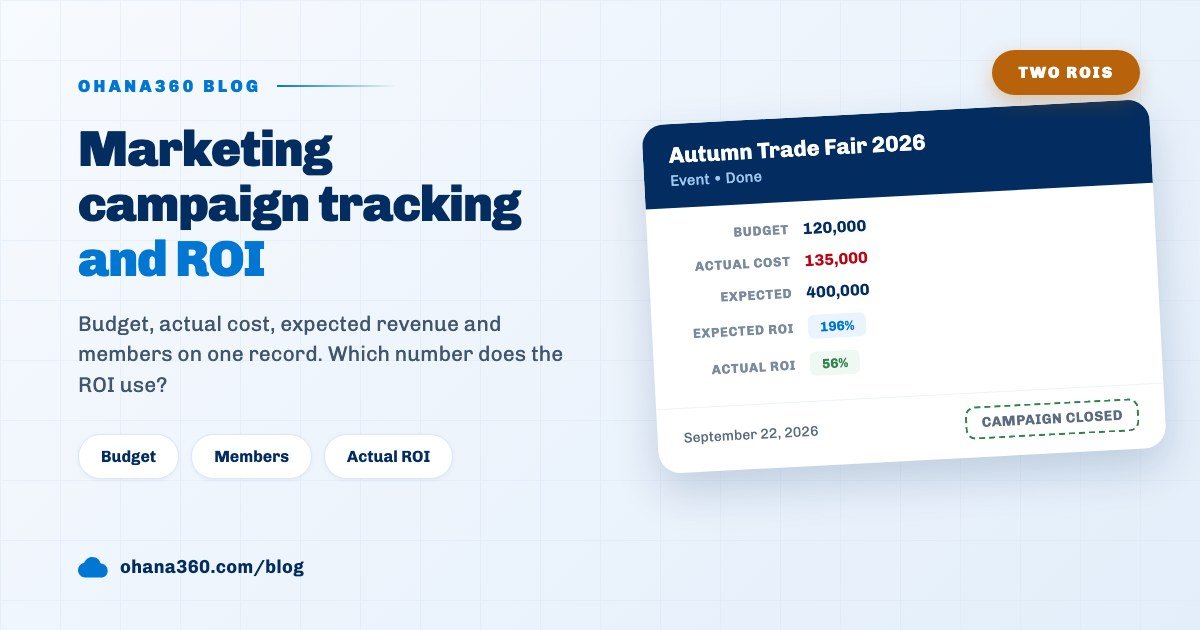
This guide starts with numbers: a trade fair campaign that went over budget, an ROI of 196% on the screen, and the actual return of that same campaign, 56%. A team that understands where the gap comes from will not misread its campaign report.
Why does the same campaign show two different ROIs?
Because the built-in ROI tile in Ohana360 uses the expected revenue you typed in when you opened the campaign, not the sales you won. The formula lives in the code and fits on one line: subtract actual cost from expected revenue, divide by actual cost, multiply by a hundred, round to a whole number.
The sample fair campaign has a budget of 120,000, an actual cost of 135,000 and an expected revenue of 400,000. The tile works out (400,000 - 135,000) / 135,000 and shows 196%. The opportunities won from leads met at the fair add up to 210,000, and the same formula with that figure gives 56%.
Both numbers are right; they answer different questions. Expected ROI is the plan before the campaign, actual ROI is the account after it. That is why the tile is labelled as expected ROI on screen, and with an actual cost of zero it does no maths at all and shows a dash.
Which fields does the campaign record hold?
The New Campaign window has nine fields and only Campaign Name is required. A new campaign opens as an email campaign in Planned status, starting today and ending thirty days later, and you can change all of that before saving.
| Field | What it holds | Values |
|---|---|---|
| Campaign Name | The name of the campaign, required | Free text |
| Type | The channel of the campaign | Six fixed types, see the table below |
| Status | The life cycle | Planned, Working, Done, Aborted |
| Start / End | The campaign calendar | Date |
| Budget | What you plan to spend | Number |
| Actual Cost | What has been spent so far | Number, one total |
| Expected Revenue | The revenue you hope for | Number |
| Description | Goal, message, notes | Free text |
The type values are stored in Turkish and are shown that way in the type picker, so the list below pairs each stored value with its meaning.
| Stored value | Meaning |
|---|---|
| E-posta | Email campaign, the default for a new record |
| Webinar | Webinar |
| Etkinlik | Event or trade fair |
| Sosyal Medya | Social media |
| Reklam | Advertising; switches the record to the ad panel |
| Diğer | Other |
The owner field is filled with the user who created the campaign. The Campaigns tab opens in two views: a Kanban with one column per status and a List with selectable columns. A Kanban card shows type, member count, budget and end date, and the status changes from the picker at the bottom of the card.
How do campaign statuses and the attention list work?
A campaign has four statuses and they change with one click on the path bar at the top of the record page. The Marketing360 home page scans open campaigns against five rules and ranks the problem ones in the Campaigns Needing Attention list.
- What counts as open: every campaign that is not Done or Aborted. A closed campaign never enters the list, even if it went over budget.
- Order: when several reasons fit one campaign, only the first one is shown. A campaign that is over budget and past its end date appears as budget exceeded.
- Calendar box: the same home page lists campaigns ending in the next seven days separately and flags the ones with two days or fewer left as urgent.
This list is a ready agenda for the weekly marketing meeting. Update the actual cost of your campaigns before the meeting and the list pushes the right campaign to the top by itself.
How do you compare budget with actual cost?
The Budget Usage card on the record divides actual cost by budget and shows the result as a percentage bar. The bar stops at 100%: a 120,000 budget with 135,000 spent reads 100%, not 113%.
There are two ways to see how large the overrun is. The first is the Campaigns Needing Attention list, which names the overrun as its reason. The second is a report: put the Budget and Actual fields next to each other in the Report Builder and the gap is on one line.
Actual cost is one total typed in by hand; it is not summed from invoice or expense lines. The campaign owner updates the field as spend comes in, and the one exception is the advertising type described further down.
How do you add campaign members and what do their statuses mean?
A campaign member is a lead or a contact the campaign reached, and it is added with the Add Member button on the record page. The window switches between Leads and Contacts, searches by name, company or email and selects with checkboxes.
| Stored member status | Meaning and when it is set |
|---|---|
| Eklendi | Added: every member starts with this value |
| Gönderildi | Sent: set automatically for Added members when a send linked to the campaign is saved |
| Açıldı | Opened: picked by hand |
| Tıkladı | Clicked: picked by hand |
| Yanıtladı | Responded: picked by hand; feeds the responded count on the statistics card |
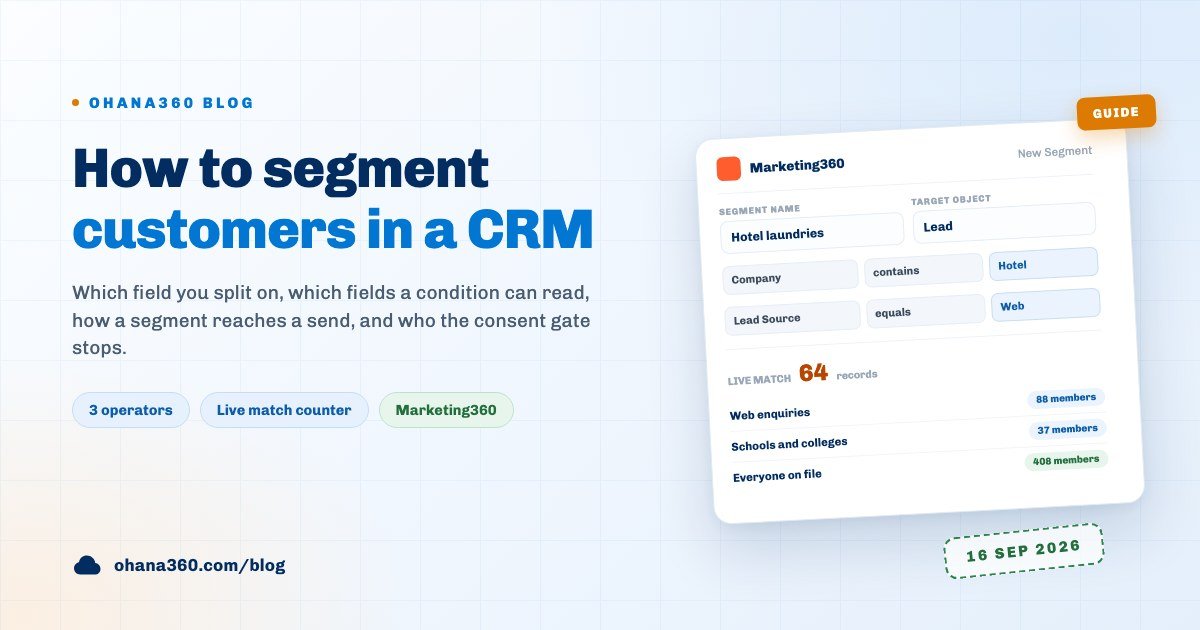
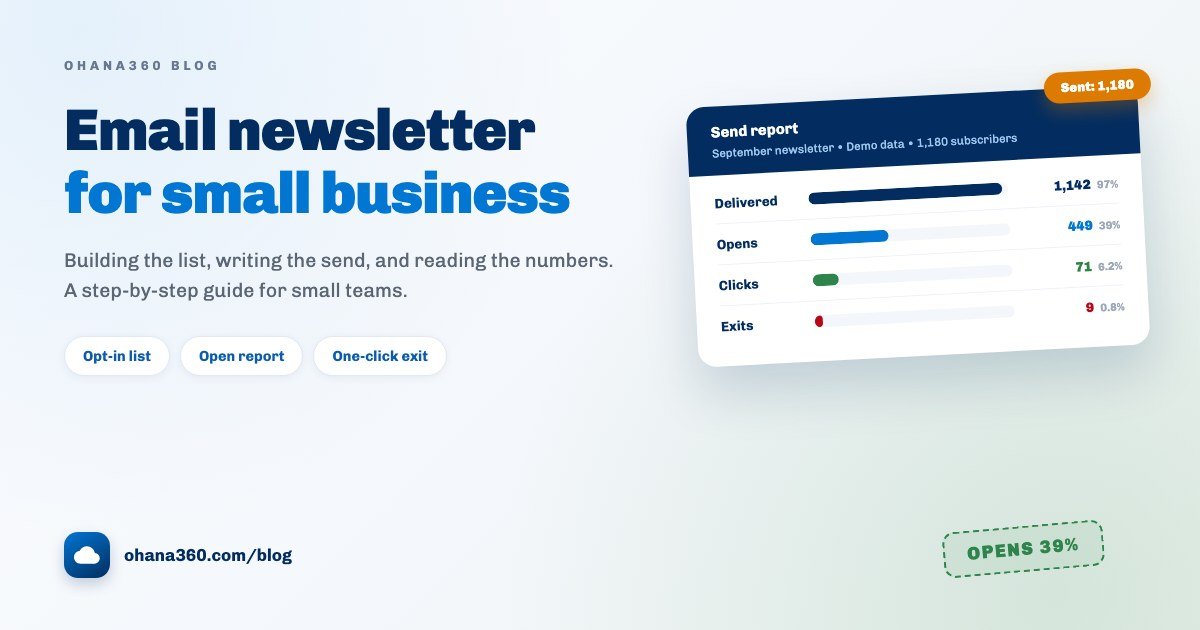
The Campaign Statistics card holds five tiles: Member (with the responded count under it), Send, Opens, Clicks and expected ROI. Open and click rates come from Marketing360 Sends records, and our customer segmentation guide explains how those records are created. For real newsletter delivery and measurement, see the email newsletter guide.
How do leads and opportunities connect to a campaign?
A lead connects to a campaign through membership; an opportunity has no built-in connection. The opportunity record carries no campaign field, and the lookup field in Object Manager does not offer Campaign as a target: the targets are Account, Contact, Lead, Opportunity, Case, Legal Case and custom objects.
- Lead source: the Source field on a lead ships with the values Web, Referans, Telefon and Etkinlik (web, referral, phone and event) and can be edited in Object Manager. Adding a source value of its own for a big campaign turns the ready report that groups leads by source into a campaign report.
- Opportunity field: add a picklist field called Campaign to the Opportunity object and fill it with your campaign names. The rep who opens the opportunity picks it, and you group won amounts by that field.
- Conversion: when a lead is converted into an Account, Contact and Opportunity, its campaign membership does not move to the new contact. The member row stays on the lead, and the campaign field on the opportunity has to be set by hand during conversion.
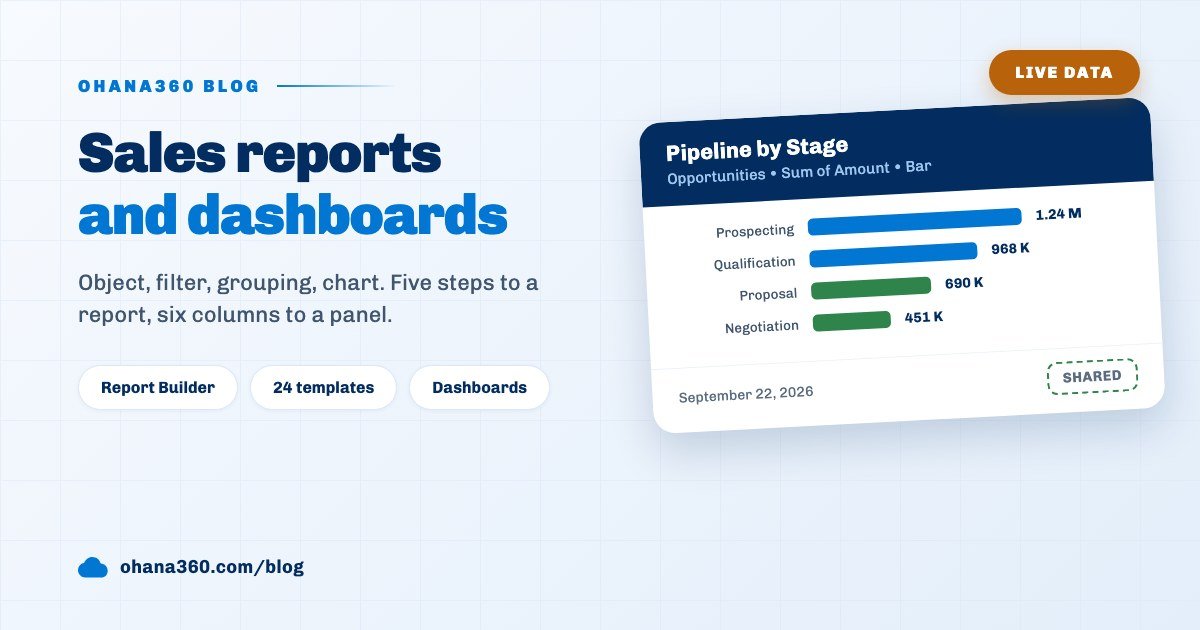
Summing won opportunities by campaign follows the Report Builder steps in our sales reports guide: object Opportunities, filter stage Closed Won, group by the Campaign field, metric sum of Amount.
Which fields do you need for actual ROI?
Two custom fields on the campaign object are enough for actual ROI: a number field holding won revenue and a formula field that turns it into ROI. Both are added to the Campaign object in Object Manager under Setup, with no code.
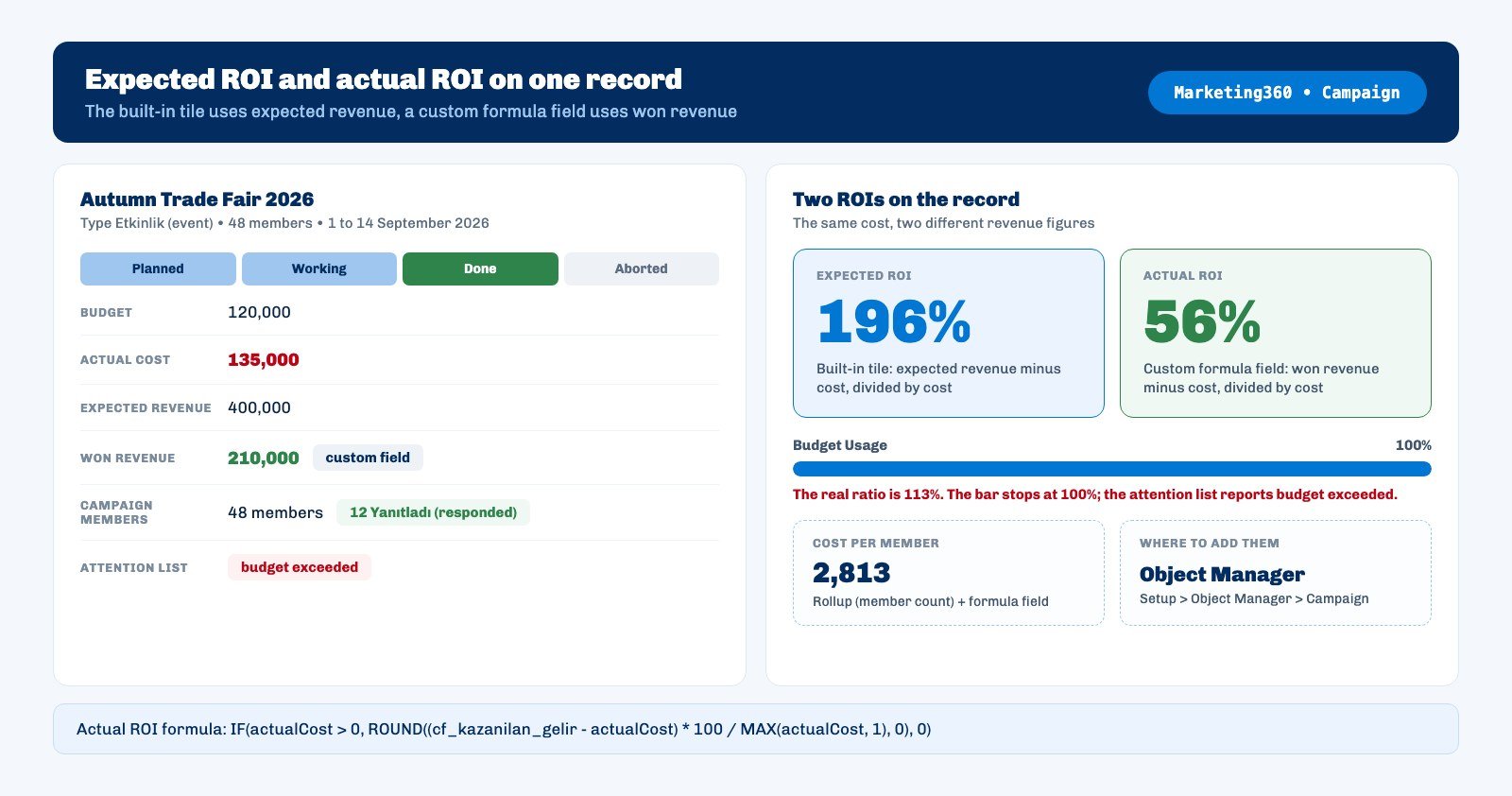
- Add a Number field named Kazanılan Gelir (won revenue). Ohana360 generates the API name cf_kazanilan_gelir from the label; an English label would give a different API name, so adjust the formula to match.
- Add a Formula field named Actual ROI and enter this formula:
IF(actualCost > 0, ROUND((cf_kazanilan_gelir - actualCost) * 100 / MAX(actualCost, 1), 0), 0)The formula returns zero while cost is zero and never divides by zero. If the won revenue field has never been filled, the formula field shows #HATA (error); typing 0 when you open the campaign prevents it. When the campaign closes, you enter the total of won opportunities whose campaign field points to it.
A third field helps too: a Rollup Summary field counting the Campaign Members relationship. Because a formula can refer to a rollup, ROUND(actualCost / MAX(cf_uye_sayisi, 1), 0) gives cost per member, where cf_uye_sayisi is the API name produced by the label Üye Sayısı; for the 48 member sample campaign that comes to 2,813.
How do you report on campaigns?
In the Report Builder the Campaigns object comes with seven fields: Campaign, Type, Status, Budget, Actual, Expected Revenue and Start. The ready templates include a campaign budget by type report that shows the budget total per type as a bar chart.
- Custom fields are reportable: fields added to the Campaign object in Object Manager, formula and rollup included, join the report field list on their own. Actual ROI and member count can be grouped and summed this way.
- The built-in ROI tile is not in reports: expected ROI is only calculated on the record screen. To see it in a report, add a second formula field doing the same maths with expected revenue.
- Dashboards: a saved campaign report can become a dashboard tile and can be emailed weekly through a subscription.
Are advertising campaigns tracked differently?
Yes. A campaign whose type is advertising (stored as Reklam) shows an ad panel instead of email statistics and the member list: Spend, Sales, ROAS, Impressions and Clicks cards plus a conversion funnel from click to sale.
In an org with a Meta or Google Ads account connected, the sync creates an advertising campaign record for each campaign on the ad platform or updates the existing one. Spend goes into actual cost and the conversion value measured by the platform goes into expected revenue, so for this type the expected ROI tile runs on measured revenue. The default break-even ROAS is 3.0.
What it does not do: the limits of campaign tracking
The items below are known limits of the product today and none of them can be switched on in settings. Some can be worked around with the custom fields above.
- The built-in ROI is not based on won sales. The tile uses expected revenue; actual ROI needs a custom field.
- Opportunities do not link to campaigns. There is no campaign field on the opportunity and the lookup type does not target Campaign; the fix is a picklist field.
- Membership does not survive conversion. When a lead becomes a contact, the campaign membership stays on the lead.
- Members are leads or contacts only. Accounts and opportunities cannot be members, and there is no bulk transfer from a segment; members are picked in the window.
- Member status does not advance on its own. A send only moves Added members to Sent; Opened, Clicked and Responded are picked by hand.
- Cost is not itemised. Actual cost is one number and is not summed from invoices or expenses (except the ad sync on the advertising type).
- The overrun percentage is not shown. The Budget Usage bar stops at 100%; the overrun appears as a reason in the attention list.
- No multi-touch attribution. There is no model that splits the revenue of one opportunity across several campaigns.
- No parent campaigns. Campaigns do not form a hierarchy, so there is no record rolling up the child campaigns of a yearly programme.
- Type and member status values appear in Turkish. Statuses are translated in the English interface; type and member status values are not.
- The currency is Turkish lira. Budget, cost and revenue fields display in lira; no other currency can be picked per campaign.
Most of these limits share a root: the campaign record was designed as a marketing plan, while revenue accounting lives on the sales side, on the opportunity. The bridge between the two today is the pair of custom fields you add.
How should you set up your first campaign?
The right candidate for a first campaign is a single campaign that is running now and has a known budget. Trying to enter past campaigns after the fact usually stalls, because the cost figures are incomplete.
Do this: open the campaign in Marketing360 with its type, dates, budget and expected revenue, add the won revenue and Actual ROI fields in Object Manager, put a Campaign picklist on the Opportunity object and select the leads the campaign reached with Add Member. Update actual cost as spend comes in.
When the campaign ends, ask one question: how far apart are expected ROI and actual ROI? A wide gap may point at the revenue estimate rather than the campaign. To follow how leads move after the campaign, use our guide to sales pipeline stages.