Two-factor authentication in a CRM adds a one-time code sent by email on top of the password. In Ohana360 each user can switch it on from the avatar menu, and an admin can make it mandatory for the whole organization with one checkbox in Setup > Security. With it on, a correct password alone opens nothing: no one gets in without a 6-digit code that is valid for 10 minutes.
Ohana360 is a business cloud that keeps sales, service and finance records in one database, so the customer list, quotes and invoices all sit behind the same password. Instead of walking through settings one by one, we give you the timeline of one morning. At Ada Ev Tekstili, which sells home textiles to hotels and shops in Bursa, admin Zeynep Kara had turned on mandatory two-factor authentication a week earlier. On Monday 26 October the password of sales rep Mert Aydın leaked, and we followed what happened minute by minute.
What is two-factor authentication (2FA) and what does it protect in a CRM?
Two-factor authentication (2FA) is a sign-in method that asks for a second thing the person holds on top of the password; in Ohana360 that is a 6-digit code sent to their inbox. What it protects in a CRM is the idea that a password alone is not enough: even if the password leaks through a fake form, a reused password or a sticky note on a screen, someone who cannot see the code cannot reach the customer records.
In Ohana360 a fresh code is generated at every password sign-in, only a hashed copy is stored on the server, it expires after 10 minutes and it is deleted the moment it is entered correctly. An account allows at most 6 code attempts in 15 minutes, so someone guessing at random stops after the sixth miss. The web app, iOS, Android and the desktop app all use the same sign-in gate, so the rule is the same everywhere; the apps are on the mobile app page.
How do you turn on two-factor authentication in Ohana360?
There are two ways to turn on two-factor authentication in Ohana360: as a personal setting or as an organization-wide requirement. When the requirement is on, the personal setting no longer matters and everyone enters a code.
- Personal: the avatar menu. Click the avatar at the top right, press the Two-Factor Authentication row and accept the confirmation. The badge on the row turns from KAPALI to AÇIK (off to on; the badge itself is shown in Turkish in the English interface). The same setting appears in the user profile as the "Two-step verification" checkbox. Everyone can switch it only for their own account.
- Organization-wide: Setup > Security. The first card on Setup > Users & Access > Security is Sign-in security. When "Mandatory two-factor authentication (2FA)" is ticked, everyone in the organization enters the code emailed to them at every password sign-in, whatever their personal setting. The same checkbox also sits in Setup > KVKK / Compliance > Security & Data Preferences; both change the same setting.
- Who can change it. The Security page and Devices and Sessions are open to the Admin role only. Permission sets such as User Manager do not reach these two pages; roles and permissions are covered in the user permissions guide.
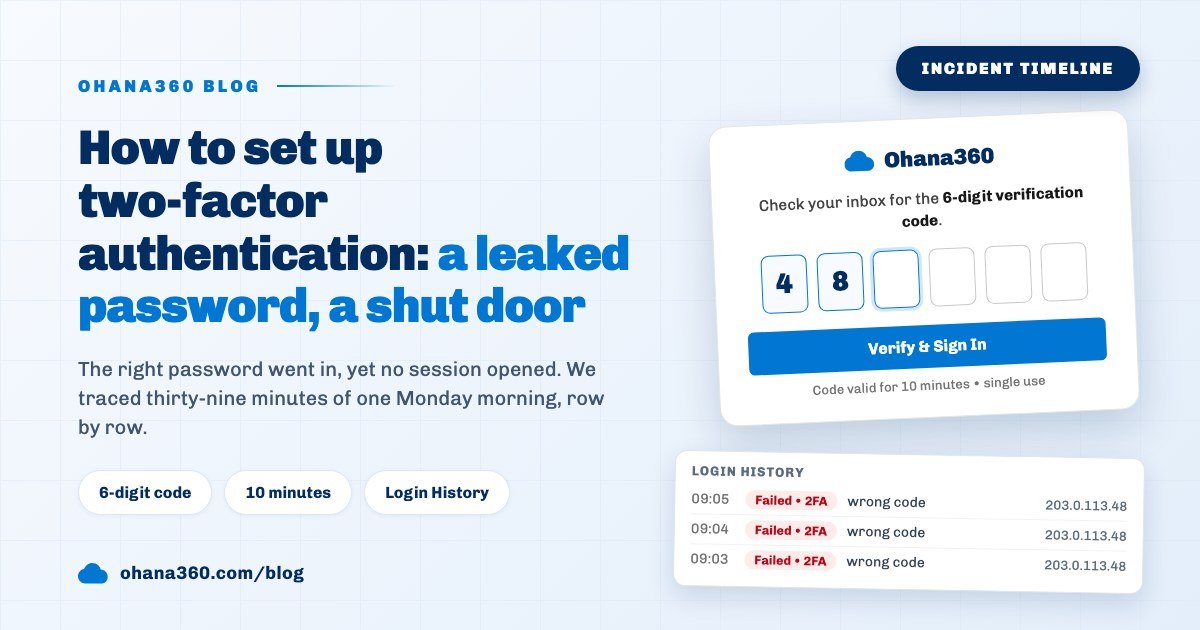
- What the first sign-in looks like. After the correct password the screen asks for the 6-digit verification code from the inbox, and the box accepts digits only. The email arrives with the subject "Your Ohana360 sign-in code" and carries the line "If this was not you, change your password."
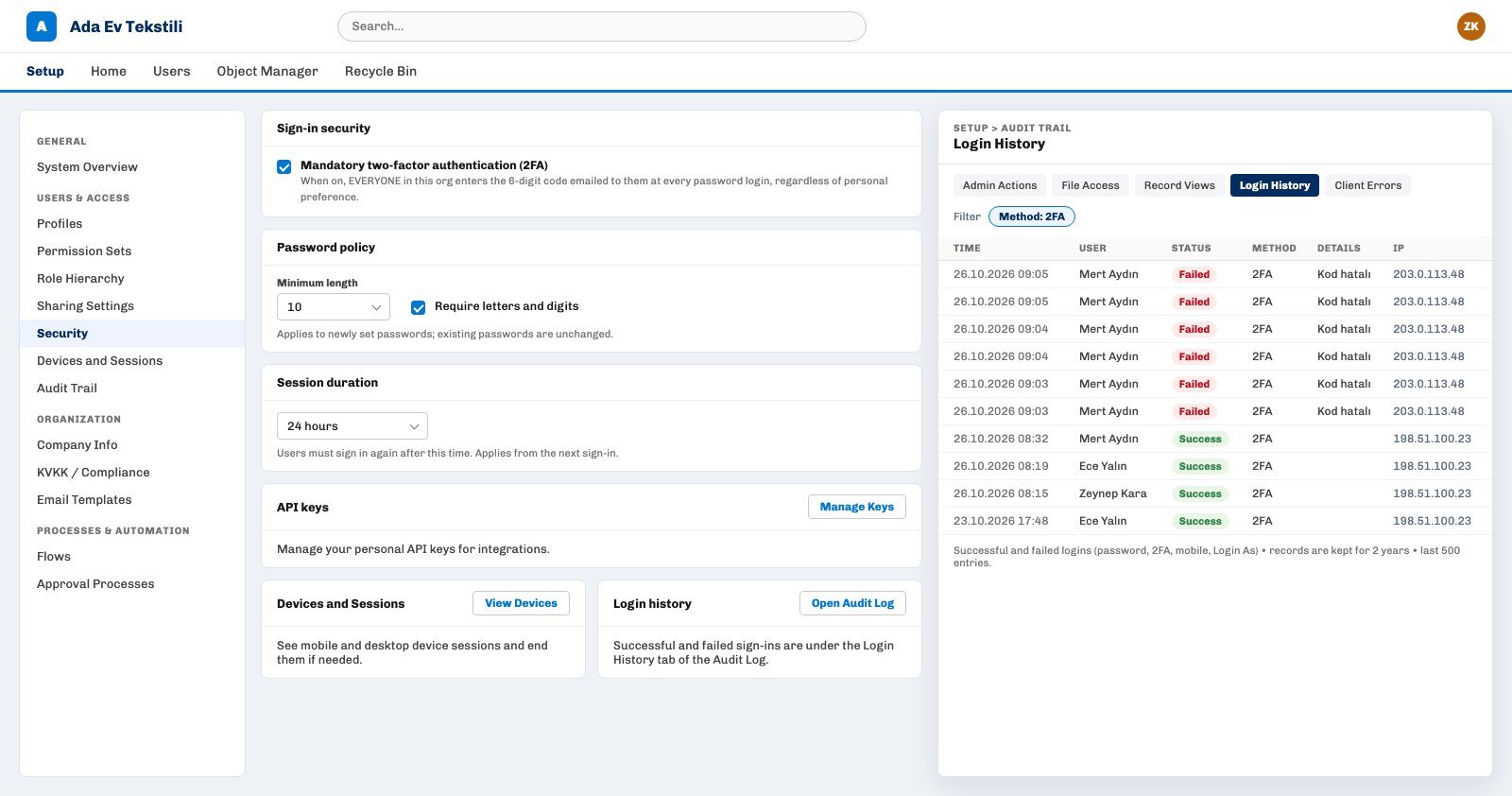
One Monday morning: where did the leaked password stop?
Mert's password leaked at 08:41 and was changed at 09:11; in the thirty minutes between, nobody got into the account, because in Ohana360 the correct password only opened the code screen. The timeline shows which row each moment left in Login History:
- 08:41, the fake form. A link in an email titled "Your parcel could not be delivered" opened a form that looked like the Ohana360 sign-in page, and Mert typed his email and password. This step happens outside Ohana360, so no record shows it.
- 09:02, right password, closed door. Someone signed in on ohana360.com with Mert's details. The password was correct; because mandatory 2FA was on, the server opened no session and emailed a code to Mert. A sign-in that passes the password and waits at the code screen is not written to Login History at this point.
- 09:03 to 09:05, six guesses. Unable to see the code, the person tried six random codes. Each became a "Failed • 2FA" row in Login History, with the request's IP address next to it. The Detail column reads "Kod hatalı" (wrong code); detail text is stored and shown in Turkish even in the English interface.
- 09:06, the wall. The seventh try stopped with a "Too many requests" error. Code attempts are capped at 6 per account in a 15 minute window.
- 09:11, password changed. Mert saw a code email on his phone that he never asked for and opened Change Password from the avatar menu: current password, new password, repeat. Zeynep's policy asked for at least 10 characters with letters and digits. With the change, Ohana360 ended all of Mert's other browser sessions and deleted his mobile and desktop app sessions; the session he changed the password from stayed open.
- 09:20, the check. In Setup > Audit Trail > Login History, Zeynep chose 2FA in the Method filter: six red rows, one IP, different from Mert's own sign-ins. The code sent at 09:02 had already expired at 09:12.
Without mandatory 2FA the same morning would have gone very differently: a session would have opened at 09:02, leaving a single, ordinary looking "Success • Password" row in Login History. Had Mert changed his password anyway, that session would also have dropped, but the customer list would have been open for nine minutes in between.
How do you set a password policy and session duration?
In Ohana360 the password policy and session duration are set on two cards right below the 2FA card on Setup > Security, and they apply to everyone in the organization. The options for each setting and when they take effect:
| Setting | Options | When it applies |
|---|---|---|
| Mandatory two-factor authentication (2FA) | On or off | For everyone, from the next password sign-in |
| Password policy: Minimum length | 6, 8, 10, 12, 16 | To newly set passwords; existing passwords are unchanged |
| Password policy: Require letters and digits | On or off | To newly set passwords |
| Session duration | Unlimited, 8 hours, 24 hours, 3 days, 7 days, 30 days | From the next sign-in, web browser sessions only |
The policy is checked when someone sets up an account from an invitation, when an admin adds a user, and when a password is reset or changed. The change and reset screens also require at least 8 characters regardless of the policy. At Ada Ev Tekstili, after raising the policy to 10 characters, Zeynep asked everyone to change their password once, because the policy does not invalidate old passwords on its own. A password reset link is valid for 1 hour.
How do you end a session that may have been taken over?
In Ohana360 the sessions of a possibly compromised account are ended in one of three ways: the user changes their own password, an admin chooses Sign out everywhere, or a single device is ended from Devices and Sessions. Each action touches different sessions:
- Sign out everywhere. It sits in the user's ⋯ menu in Setup > Users and needs the Manage Users permission. Without changing the password it ends every browser session and deletes the app sessions, and the Audit Trail records that all sessions were closed.
- Devices and Sessions. Setup > Devices and Sessions lists the organization's mobile and desktop app sessions: user, device (iOS, Android, Desktop, Web account book), last used and created dates. A row unused for more than 90 days carries the "Idle (90+ days)" badge. The End session button closes only that device. Web browser sessions live in cookies, so they do not appear in this list.
- Deactivating the account. For someone leaving the company this is the surest route: once the Status switch in the Setup > Users list is turned off, browser and app sessions drop on the next request, the inactive account cannot sign in again and no new code is sent to it. The leaver steps are in the last section of the user permissions guide.
What should you look for in Login History?
Ohana360's Login History is a tab of Setup > Audit Trail, and it shows every successful and failed sign-in in the organization with time, user, status, method, detail and IP columns. Method takes four values: Password, 2FA, Mobile and Login As. On a failed row the Detail column gives the reason: wrong password, wrong code or inactive account, stored in Turkish as "Şifre hatalı", "Kod hatalı" and "Pasif hesap".
The screen lists the last 500 rows and records are kept for 2 years. Admins and users with the audit log permission can open the tab; the ready-made Auditor and Support Specialist permission sets include that permission. Attempts made with an email that does not exist in the system cannot be tied to an organization, so they do not appear here. Field changes on records and admin actions are in the other tabs of the same page; the details are in the change history guide, and personal data obligations in the GDPR compliant CRM article.
Not included: what sign-in security does not do
- Email code is the only method. There is no authenticator app (TOTP), SMS code, hardware key or backup codes. If the inbox itself is taken over, 2FA offers no protection.
- No "remember this device". With 2FA on, every password sign-in asks for a new code; no trusted device list is kept.
- Another user's personal 2FA cannot be changed. An admin cannot switch a user's personal setting on or off; the only tool is the organization-wide requirement.
- No sign-in alerts. No separate email or notification goes to the user or the admin for a new device or for failed attempts. The only sign is a code email nobody asked for.
- Session duration does not apply to the apps. Mobile and desktop app sessions are not affected by the Session duration setting; they drop after 90 days without use.
- A pending code survives a password change. Changing the password and Sign out everywhere do not delete a 2FA code that is pending at that moment; it expires on its own after 10 minutes.
- No password ageing. There is no forced change at set intervals and no ban on reusing an old password; the policy does not force existing passwords to change.
- No IP or time restrictions. Sign-in cannot be limited to a network, a country or working hours.
- No single sign-on (SSO). Sign-in with a Google or Microsoft account and SAML connections are not supported; sign-in is by email and password.
- Browser sessions are not listed one by one. Devices and Sessions lists only app sessions; a single browser session cannot be closed on its own, Sign out everywhere closes them all.
- Parts of the screens stay in Turkish. In the English interface the AÇIK/KAPALI badge in the avatar menu, its confirmation text and the Detail column of Login History are shown in Turkish.
Which five decisions should you make before turning on mandatory 2FA?
The five point note Zeynep sent to the team before ticking the box turned that Monday morning into an ordinary day:
- Do not leave it to personal choice. Unless the mandatory box is on, 2FA protects only the people who switched it on, and the password that leaks is usually someone else's.
- Check the email addresses. The code goes to the registered address; shared inboxes and addresses nobody reads any more get fixed first.
- Tighten the policy, then have everyone change their password. At least 10 characters with letters and digits is a good start; because the policy does not change old passwords, one round of changes is needed.
- Shorten sessions on shared computers. On a shop or warehouse computer, 8 or 24 hours makes the sign-in close itself by the end of the day.
- Look at Login History once a week. 2FA in the Method filter and red Failed badges are the earliest sign of an account whose password has leaked. The sales team's daily work is on the Sales360 page.