You connect an AI assistant to a CRM with MCP (Model Context Protocol). In Ohana360 an admin turns on the switch in Setup > Integrations > Assistant, the user creates an API key with Read + write scope and adds it to Claude with one command. The assistant reads and writes records, adds notes and opens tasks with eight tools; every command runs with the user's own permissions and leaves a trail.
Ohana360 is a business cloud that keeps sales, service and finance records in one database; the assistant reaches those records through a chat instead of the screens. Rather than listing features, we give you the transcript of one conversation. At Körfez Mutfak Ekipmanları, which sells commercial kitchen equipment to hotels and restaurants in İzmir, admin Selin Aksoy turned the assistant on, and sales manager Burak Tunç opened Claude Code at 09:12 on a Tuesday and typed five sentences. We followed each sentence to its tool, its gate and what it left behind.
What is MCP and what does it bring to a CRM?
MCP is an open protocol that lets an AI assistant call tools in an outside system in a standard way; for a CRM it means the assistant reads and writes records directly, without copy and paste. The Ohana360 MCP server runs at https://ohana360.com/api/mcp, speaks JSON-RPC over streamable HTTP and asks for the user's API key on every request. Once connected, the assistant sees these eight tools:
| Tool | What it does | Ability it depends on |
|---|---|---|
| ohana_meta | Org name, user, open abilities, objects (label, record count, field names, custom fields and their options), team members and today's date | Read records |
| ohana_list | Lists records: field=value equality filter, text search (q), 50 rows by default, 200 at most, selected fields | Read records |
| ohana_get | Fetches one record by id | Read records |
| ohana_create | Creates a record; the reason note lands on the timeline | Create records |
| ohana_update | Writes only the changed fields; the reason note lands on the timeline | Update records |
| ohana_note | Adds a note to a record; it shows on the timeline as a completed task | Notes and tasks |
| ohana_task | Opens a task linked to a record: Call, Email or Meeting; today if no date is given, the requester if no owner is given | Create records (on the Tasks object) |
| ohana_delete | Moves a record to the recycle bin | Delete records (off by default) |
The first time an assistant connects, Ohana360 adds a row named "Ohana Asistan (MCP)" to Setup > Automations & Integrations with the name of the connecting app, so no assistant stays connected to the org unseen. The other connections are on the integrations page.
How do you connect an AI assistant to Ohana360?
Connecting an AI assistant to Ohana360 takes six steps: the first two are done once per organization, the other four are each user's own. At Körfez it went like this:
- API access must be on for the org. API access is a per-organization license that Ohana360 turns on; new orgs start with it off. While it is off, no key can be created and existing keys stop working.
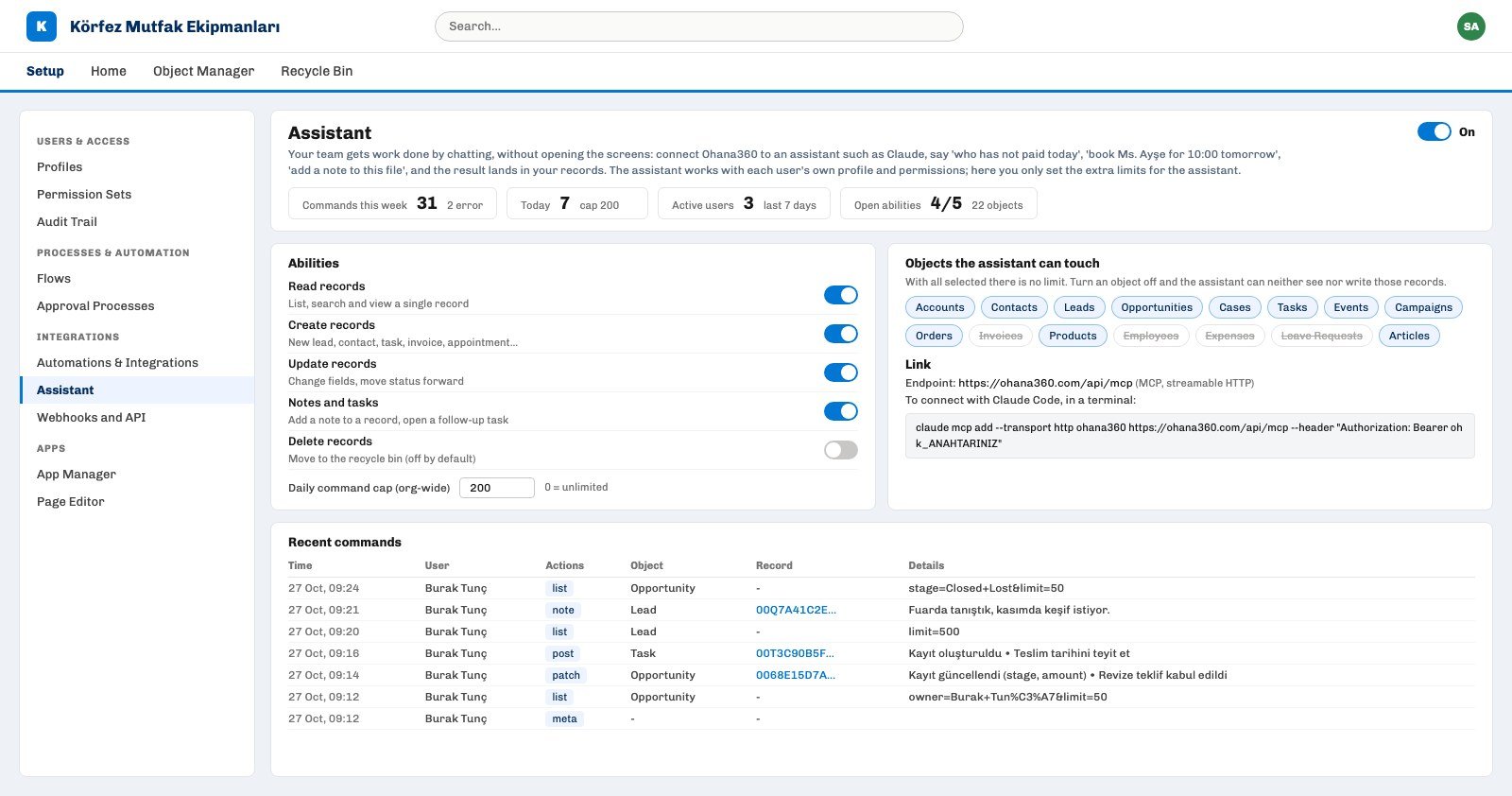
- An admin opens the Assistant page. Setup > Integrations > Assistant. The switch is off by default. Selin turned it on, left the four abilities other than Delete records on, turned off Invoices and three HR objects (Employees, Expenses, Leave Requests) and lowered the daily cap from 500 to 200.
- The user gets permission to create keys. A user who is not an admin needs the "API Access" system permission from Permission Sets; the ready template is called API Integrator. Permissions and profiles are covered in the user permissions guide.
- The user creates a Read + write key. Avatar menu > API Keys, scope "Okuma + yazma (readwrite)". The key is shown only once, and each person keeps up to 10 keys. Burak named his key "Claude Code".
- The key is added to the assistant. The Link card on the Assistant page holds a ready command:
claude mcp add --transport http ohana360 https://ohana360.com/api/mcp --header "Authorization: Bearer ohk_ANAHTARINIZ". Replace ohk_ANAHTARINIZ with the key. Other MCP clients that can send an Authorization header use the same endpoint. - The first command is ohana_meta. This is where the assistant learns the org, the objects, the field names and the team; it does not guess lead and opportunity field names.
One Tuesday morning: which commands did five sentences become?
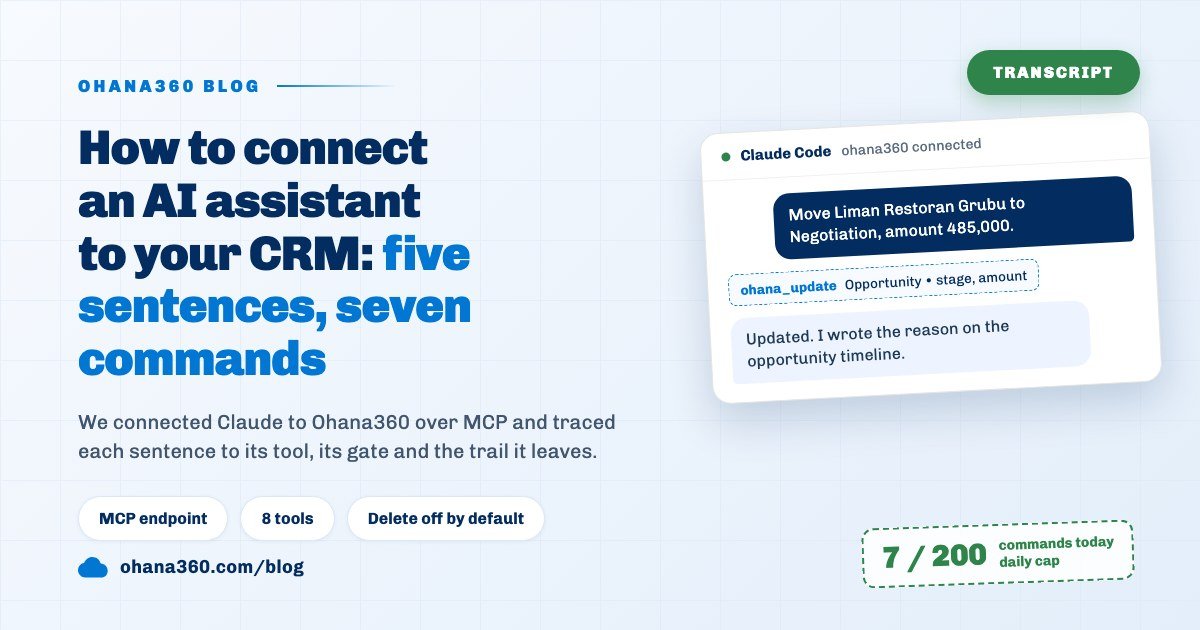
Burak's five sentences became seven commands in the assistant: four reads and three writes, while the delete request in the fifth sentence bounced off a gate and never reached the counter. The transcript shows which tool Claude called for each sentence, with which values:
- "Show my open opportunities whose close date has passed." The assistant first took today's date and the opportunity fields from ohana_meta, then pulled opportunities with ohana_list filtered on owner = Burak Tunç. The filter only knows equality; the assistant worked out "past due" and "open" itself by comparing closeDate with today and the stage with Closed Won and Closed Lost. Three opportunities came back; one was Liman Restoran Grubu's kitchen renovation, at the Proposal stage.
- "Move Liman Restoran Grubu to Negotiation, amount 485,000. Revised quote accepted." The opportunity id was already in the previous list, so no search was needed; one ohana_update call wrote stage = Negotiation and amount = 485000. The last sentence became the reason note.
- "Open a task for Elif to call Liman on Thursday." ohana_task opened a Call task linked to the opportunity: date 2026-10-29, owner Elif Kaya. Because the task was assigned to someone else, Elif got a bell notification and a push notification.
- "Add a note to the Ege Otel Mutfakları lead: met at the fair, wants a site visit in November." The lead id was not at hand; ohana_list searched the Lead object with q = "Ege Otel", then ohana_note wrote the note. Two commands.
- "Delete last year's lost opportunities." The assistant pulled the list with stage = Closed Lost and got a 403 on the first ohana_delete call: the delete ability is off for the assistant. It told Burak that deleting is switched off and that he can delete the records himself on screen.
Reads count as commands too: four of the morning's seven commands were reads only. When you set the daily cap, look at how many lists the assistant pulls per question, not at the number of writes.
How do you limit what the assistant can do?
In Ohana360 every command to the assistant passes eight gates in order; six are extra limits for the assistant, and the last two are rules the user also meets on screen. The assistant can never do what the key owner cannot: an opportunity Burak cannot see is invisible to the assistant too.
- API access and key scope. If the license is off or the key is read-only, the request returns 403 before it even reaches the assistant gates. A read-only key does not work over MCP even for reading, because MCP makes every call with POST.
- Switch, ability, object. The admin turns five abilities on and off separately: Read records, Create records, Update records, Notes and tasks, Delete records. If you want an assistant that only reads, the key is still Read + write and the write abilities are turned off on this page. The settings apply to the whole org, not per user.
- Daily cap. 500 by default, 200 at Körfez. The counter is kept org-wide; once it is full, the assistant gets 429 for the rest of the day.
- Profile, sharing and rules. The rights to see, edit and delete come from the user's profile. Validation rules and lead and case assignment rules run on assistant writes too; when a rule is broken, the record is not written and the assistant receives the rule's error message. Building rules is covered in the validation rules guide.
Where does every action of the assistant show up?
In Ohana360 every assistant write leaves a trail on the record timeline and in the Setup > Assistant > Recent commands table; creates, updates and deletes also land in the Audit Trail as API actions, while reads are written to Recent commands only. The Liman opportunity timeline now holds a completed task titled "Asistan: Kayıt güncellendi (stage, amount)", with Burak's reason, "Revize teklif kabul edildi", in its description. The note sits on the lead timeline the same way, titled "Asistan: Not". These titles are written by the server in Turkish, also when the interface is in English.
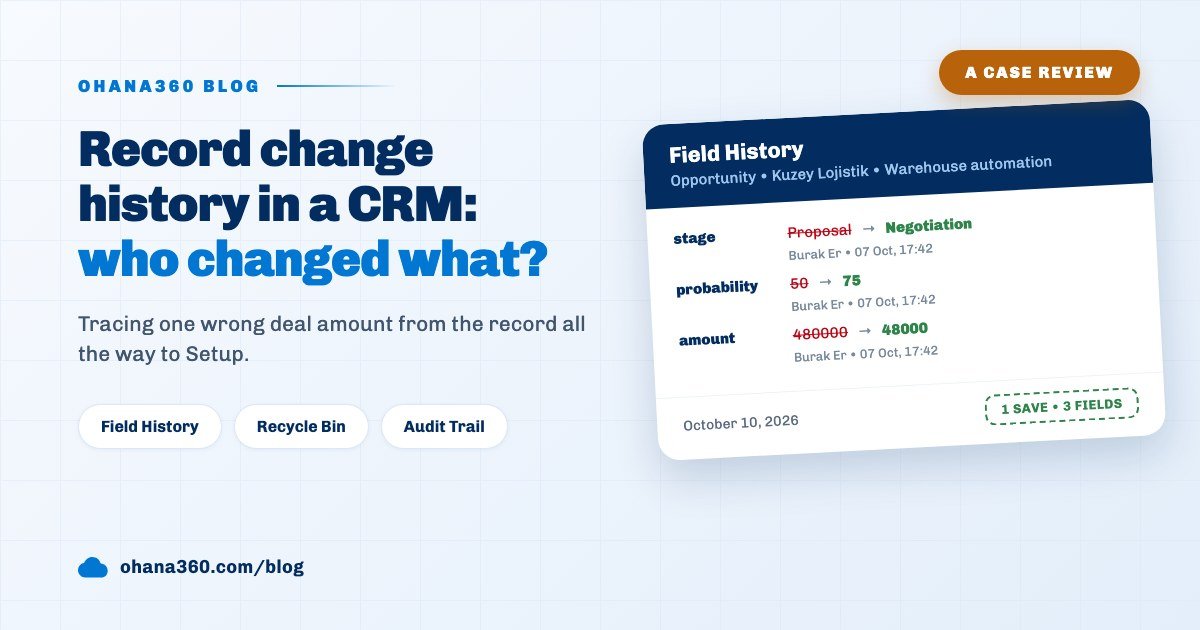
The Recent commands table shows the newest 40 rows: time, user, action (meta, list, get, post, patch, delete, note), object, record link and details. A write refused by a profile or a validation rule shows as a red row. Rows are kept for 90 days; the four counters at the top show this week's commands and errors, today, the number of people who used the assistant in the last 7 days and the open abilities. Admins and users with the Audit Trail permission can see the table. Fields the assistant changes do not reach the Field History card, though; that card, described in the change history guide, only shows changes made on screen.
Can the assistant be used from WhatsApp?
Yes: WhatsApp is the second channel of the Ohana360 assistant and it uses the same tools, except that this channel has no delete tool at all. An admin connects a Meta WhatsApp Cloud API number on the WhatsApp card of the Assistant page; each user pairs their own phone by sending a 6-digit code from the app to that number. For write requests the assistant first sums up what it will do in one sentence and asks for confirmation. If the org enters its own Anthropic key on the Model card, Claude Sonnet 5 runs; otherwise the platform model is used. Messaging customers on WhatsApp is a separate topic, covered in the WhatsApp customer management guide.
Not included: what the assistant does not do
- Record-triggered flows do not run. A record the assistant creates or updates does not start the record-triggered flows in Setup > Flows; the same change made on screen does. Webhooks do fire. If a step depends on a flow, make that change on screen.
- Probability does not follow the stage. On screen, picking a stage also writes the probability; the assistant writes only the field it was asked for. The Liman opportunity kept the probability of the Proposal stage.
- No Field History entry. Fields the assistant changes do not show on the record's Field History card; the trail is the timeline task and Recent commands.
- No duplicate check. The duplicate warning you see on screen does not run on assistant writes; the assistant can open a second lead with the same name.
- Filters are equality only. ohana_list does not know "greater than", "date range" or "not empty"; the assistant pulls the list and filters it itself. Text search (q) runs on the first 500 visible records, so on a large object the record you want can be missed.
- No reports, files or email. The tools do not run reports, read or upload files, send email or WhatsApp messages to customers, or restore records from the recycle bin.
- Setup is not changed. Fields, objects, flows, profiles and rules are outside the tools.
- Settings are not per user. Abilities, the object list and the daily cap apply to the whole org; you cannot allow delete for one user and not another.
- No connection with a read-only key. MCP needs a Read + write key; read-only use comes from turning abilities off.
- Gate refusals are not in the table. Calls refused by the switch, an ability, an object or the cap are not written to Recent commands; only profile and validation refusals become red rows.
- No OAuth connection. The client must send the key in an Authorization header; a connection set up by signing in through a browser is not supported.
- Model choice on MCP is yours. On the MCP channel the connecting app decides which AI model runs; the Model card on the Assistant page affects the WhatsApp channel only.
Which five decisions should you make before turning the assistant on?
At Körfez, the five-point note Selin wrote before turning the switch on proved useful twice later:
- Keep delete off. One misunderstanding moves a record to the recycle bin; whoever needs to delete does it on screen.
- Close sensitive objects. Invoices, salary and leave records come off the assistant's list.
- Set the cap from real use. Look at a week of Recent commands; twice the daily average is a good start.
- Everyone creates their own key. The assistant works with the key owner's permissions; a shared key erases who did what from the table.
- Keep flow-driven steps on screen. If a flow sends an email or creates a task when the stage changes, make that stage change on screen. Building flows is covered on the automation page and in the webhooks guide.