Setting up products and a price list in a CRM means defining every product once with a name, a code and a unit price, then adding them to deals as line items. In Ohana360 the catalog lives on the Products tab of Sales360 and Finance360; each line added on a deal's Products card brings its list price, the amount is calculated from the lines, and the quote and order come out of the same lines.
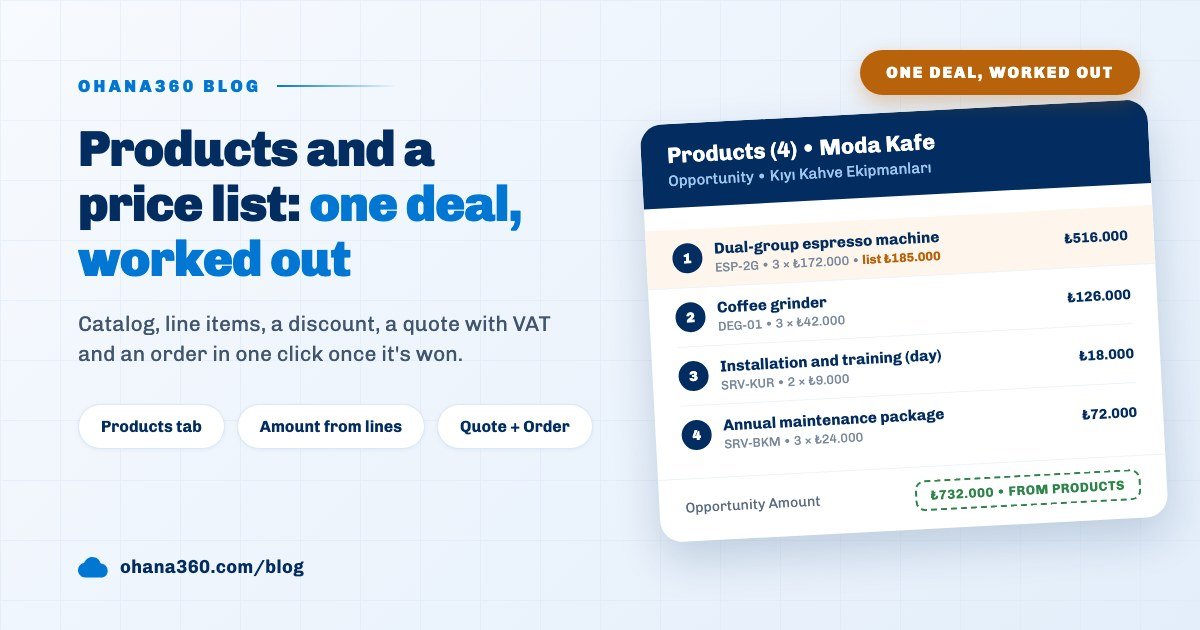
Ohana360 is a business cloud that keeps sales, service and finance records in one database; the product catalog is the shared list that ties sales to finance there. Instead of listing features we follow one calculation. On October 6 Ece Kaya, sales rep at Kıyı Kahve Ekipmanları, a supplier of coffee machines and grinders, opened a deal for the three branches of Moda Kafe. On day one she had typed a guess of ₺700.000 into the amount; after four lines were added that number became ₺732.000 on its own. Below is the breakdown.
Where is the product catalog set up?
In Ohana360 the product catalog is kept on the Products tab of the Sales360 and Finance360 apps, and both apps see the same list. The object's plural name is "Products and Price List"; the New button opens a four-field window:
- Product Name. The only required field. Ece put the unit into the name, "Installation and training (day)", because a line has no separate unit field.
- Code. Left empty, the product is saved with the code GEN. Kıyı Kahve coded by family: ESP- for machines, DEG- for grinders, SRV- for services.
- Unit Price. The list price, before VAT, shown in your org's currency.
- Description. An optional short note.
The Products tab is a full list view: it filters by Product Name, Code and Unit Price, columns are chosen, views are saved and a price is changed in place with a double click. Everything in the list view guide applies here too. The last column is Usage and says how many opportunity lines use the product; Ece sorted by it and saw the most quoted product at a glance. Clicking a product opens its record page, where the Opportunity Line Items card lists every deal that uses it, with quantity, unit price and total.
How do you add products to an opportunity?
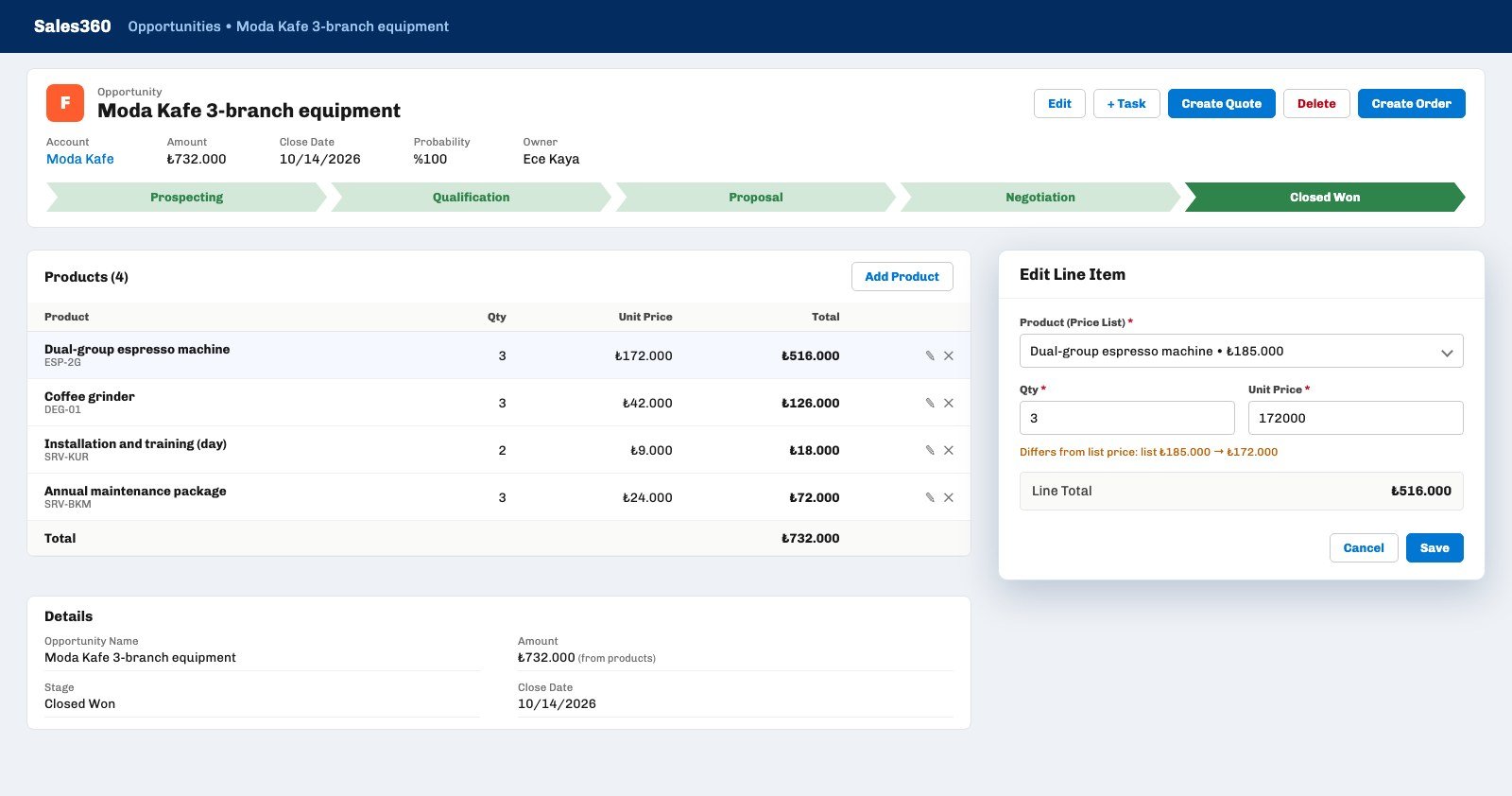
Products are added with the Add Product button on the Products card of the opportunity record page: pick a product from the catalog, type a quantity, the unit price fills in and you press Save. While the card is empty it reads "When products are added, the opportunity amount is calculated from line items." The four lines Ece added to the Moda Kafe deal:
- ESP-2G Dual-group espresso machine, 3 units. The list price ₺185.000 came in; Ece typed the ₺172.000 she had agreed in negotiation. Line total ₺516.000.
- DEG-01 Coffee grinder, 3 units. The list price ₺42.000 stayed as it was. ₺126.000.
- SRV-KUR Installation and training (day), 2 units. At ₺9.000, ₺18.000.
- SRV-BKM Annual maintenance package, 3 units. One package per branch, at ₺24.000, ₺72.000.
In the window the product picker shows each entry as "name • price", Qty and Unit Price sit side by side below it, and the Line Total at the bottom updates live. Save does nothing until a product is picked, while the quantity is zero or negative, or while the price is negative; a zero price is accepted, so a free item can be written at ₺0. On the card, the pencil icon next to each row opens the edit window and the cross removes the line. The card's last row is the Total.
How do you price below the list price, that is, give a discount?
A discount is given by changing the line's unit price by hand; Ohana360 has no separate discount percentage field. When Ece typed ₺172.000 instead of ₺185.000 for the espresso machine, an orange line appeared in the window showing the list price ₺185.000 next to the entered ₺172.000. The warning does not block saving; it only makes the departure from the catalog visible.
This has two consequences. First, the quote document shows only the entered unit price; the customer does not see the list price or a discount rate on it. A team that wants to show the discount writes it in the email that goes with the quote. Second, the discount stays on the line: when Kıyı Kahve raised the espresso machine's list price to ₺195.000 on October 15, Moda Kafe's three machines stayed at ₺172.000, because each line stores its own unit price. The new price only arrives on lines added after the change.
How is the opportunity amount calculated from products?
On an opportunity with product lines, the amount is the sum of quantity times unit price across the lines, before VAT, and it replaces any hand-typed amount from the first line on. Ece's ₺700.000 guess dropped to ₺516.000 the moment the first line was saved and rose to ₺732.000 with the fourth. The calculation is locked in three places:
- Edit form. The Amount field is grey and disabled, and its label says it is calculated from product lines.
- List and kanban. The amount cell on the Opportunities list does not open on double click; on the kanban board the card's pencil editor has the amount box disabled with the note "The amount is calculated from line items." The close date can still be edited.
- Details card. A small "(from products)" appears next to the amount, so a hand-typed figure and a calculated one are told apart at a glance.
When the opportunity is updated for any other reason, for example moved to Negotiation, the amount is rewritten from the lines again; if an inline edit or a mass update tries to change the amount of a deal with lines, the lines win. That is why the amount in pipeline reports is always the total of catalog lines on deals that have them. The one exception is removing the last line: when the card is emptied the amount is not reset, the last calculated value stays and the field becomes editable by hand again.
How do the quote and the order come out of the lines?
The quote is produced from the lines with the Create Quote button on the opportunity page; the order comes from the Create Order button that appears once the deal moves to Closed Won. Both use the same four rows, but at different moments.
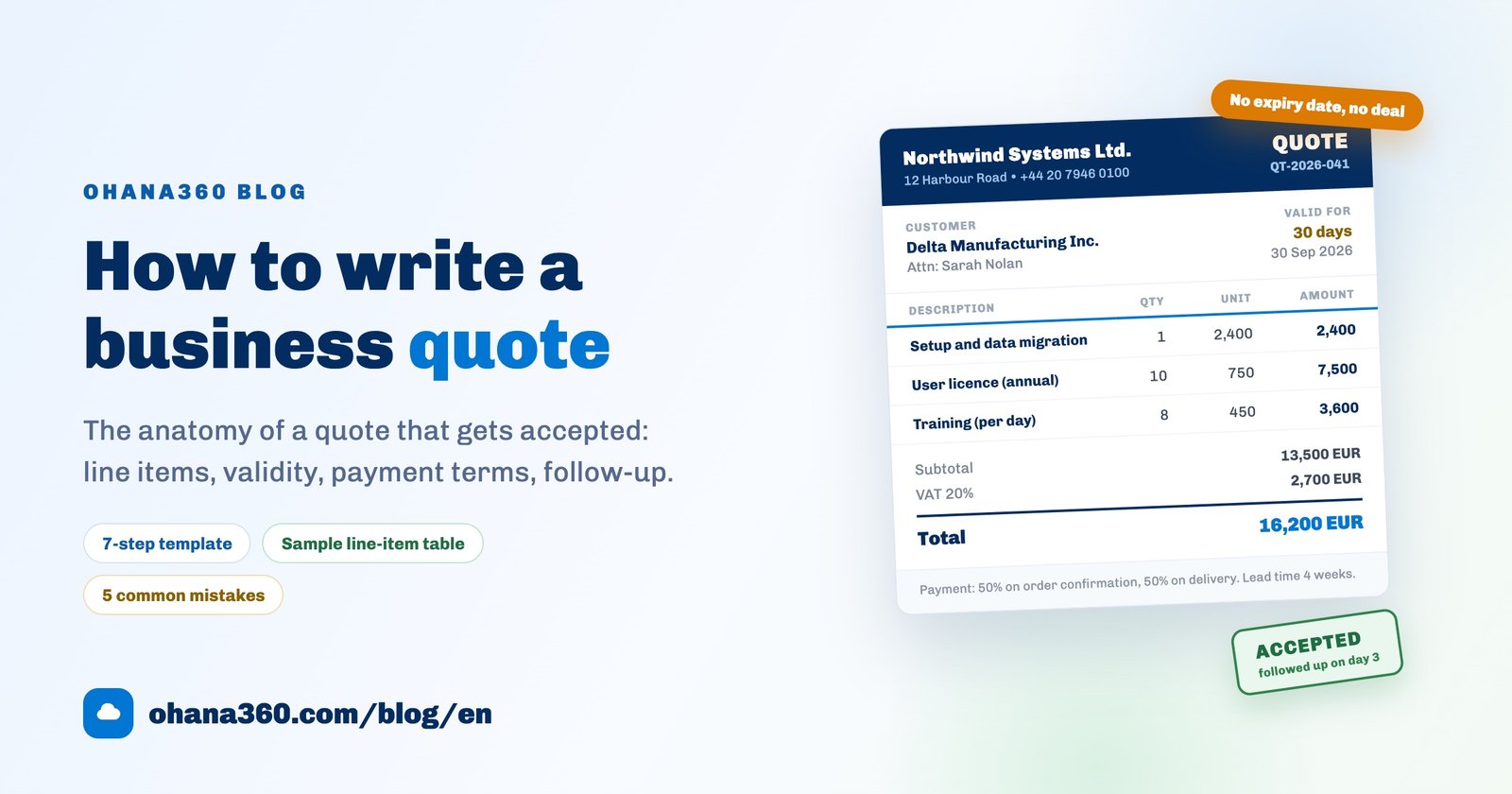
- Quote. Every line enters the document with code, product name, quantity, unit price and row total. The org-wide VAT rate is added to the subtotal; the Moda Kafe quote read ₺732.000 subtotal, ₺146.400 VAT and ₺878.400 grand total. The quote number has the form TKF-year-last six characters of the opportunity ID, and the validity date is today plus the Quote Validity days. If the deal has no lines at all, the quote prints a single row: the opportunity name, 1 unit and the opportunity amount. The layout and sending of the document are in the quote writing guide.
- VAT rate. It sits in Sales360 App Settings > Sales and Quote Parameters under VAT Rate (%); the default is 20, and Quote Validity (days) defaults to 30. The rate is one per org and cannot be changed per line.
- Order. Moda Kafe said yes on October 14, Ece moved the stage to Closed Won and Create Order appeared at the top of the record page. The button copied the four lines with code, name, quantity and unit price into a new Finance360 order in Draft status, gave it the next number with the SIP- prefix and opened the order page. Pressing the button a second time does not open a new order; it goes to the existing one. When an order is opened by hand from Finance360's Orders tab, picking the opportunity brings the same lines too.
The order is a copy, not a link: when Moda Kafe asked for one more grinder for a fourth branch on October 16, Ece added the line to the deal and the opportunity amount became ₺774.000, but the order stayed at ₺732.000. The extra line was written into the order by hand on the order screen. Finance360's structure of quotes, orders and invoices with lines is on the Finance360 page.
Can a product that is in use be deleted?
No; if a product appears on at least one opportunity line it cannot be deleted, and the app says it is used in opportunity line items. Kıyı Kahve got this message when it tried to delete an old single-group machine that had been discontinued, because the machine still sat on two old deals as a line. The way to take a product out of the catalog is to add "(discontinued)" to its name and save a list view filter that leaves those products out; a product has no inactive or archive field.
The reverse direction is free: when an opportunity is deleted its lines go with it, and when it is restored from the Recycle Bin its lines come back with it. A product that is on no line is deleted after a confirmation. How record and deletion traces are read is in the change history guide; the record structure on the sales side is on the Sales360 page.
Not included: what the product and price list does not do
- There is one price list. One unit price is kept per product; separate price lists per customer, reseller, period or currency cannot be defined.
- Lines have no discount field. A discount goes into the unit price; there is no percentage, no amount discount and no separate discount row under the quote, and the quote does not show the list price.
- VAT is not per line. The quote applies one org rate; products with different rates are not calculated separately on the same quote. The opportunity amount is before VAT. The rate field does not accept zero: when 0% is typed and saved, the previous rate stays.
- Price changes do not apply backwards. When a price is updated in the catalog, lines on open deals keep the old price; there is no bulk price update tool.
- There is no stock. The sales and finance catalog has no quantity or stock field; the stock-keeping product catalog is eCommerce360's separate Products object, covered in the inventory tracking guide.
- Lines have no unit, description or order. A line carries only product, quantity and unit price; a unit such as "day" or "hour" is written into the product name, and lines are listed in the order they were added.
- A product has no inactive state. A product used on a line cannot be deleted or hidden; the split is made with the name and a filter.
- Removing the last line does not reset the amount. The last calculated value stays; the right figure has to be typed by hand.
- The order is copied once. Create Order appears only at Closed Won, opens one order per deal and does not carry lines added later.
- There are no bundles. A package that groups several products into one line, such as a "starter kit", or a dependent product rule cannot be defined.
What should you check when setting up the first catalog?
A ten-minute checklist prevents a wrong total on the first quote and products that can't be deleted later. Kıyı Kahve's list:
- Are the codes meaningful? An empty code becomes GEN; rows reading GEN on a quote look careless to the customer.
- Is the unit in the name? For a service not written like "Installation and training (day)", the quantity column is misread.
- Are prices before VAT? The quote adds VAT on top; a price entered with VAT is taxed twice.
- Are the VAT rate and validity right? Check Sales360 App Settings > Sales and Quote Parameters once.
- Is there a filter for old products? Products that can't be deleted are set apart with a name suffix and a saved view.
- Is the order moment clear? The order is a copy taken at Closed Won; finish adding lines before that.