Employee expense tracking means keeping each purchase made on the company's behalf as one record, passing it through a manager's approval and adding it up by category and person at month end. In Ohana360 this happens on the Expenses tab of the HR360 app: every expense opens as Pending with an employee, category, date, amount and description, an admin clicks Approve or Reject in the list, and a report draws the total per category.
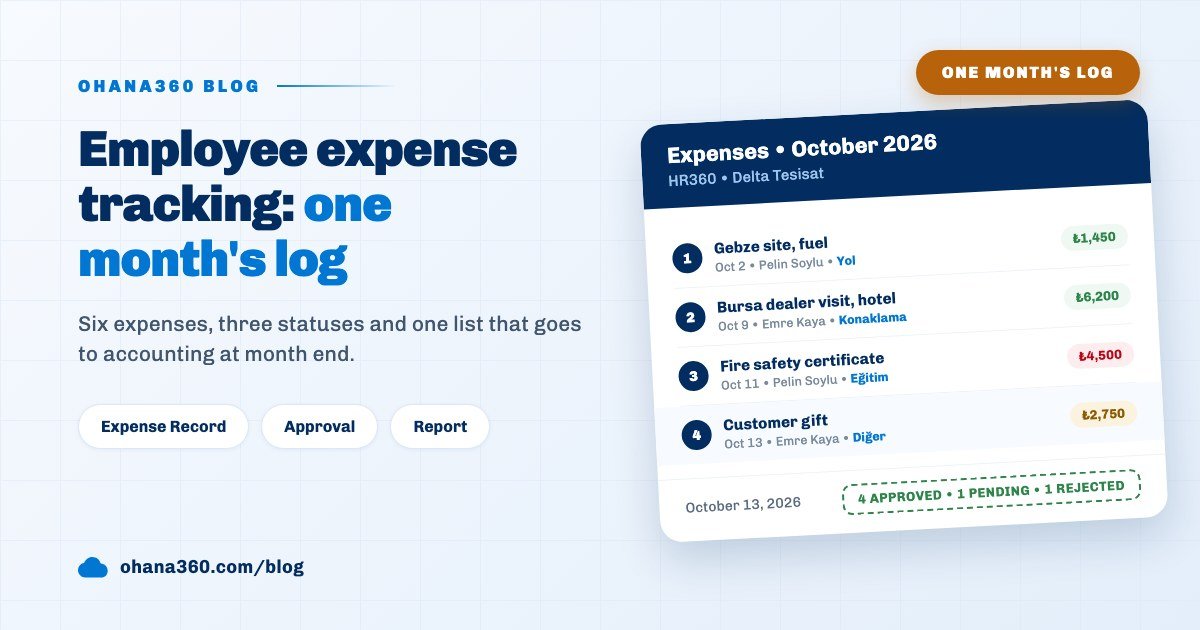
Ohana360 is a business cloud that keeps sales, service and HR records in one database; the expense record lives in its HR360 app and is linked to an employee record. Instead of listing features we follow one month from start to finish. Delta Tesisat, a mechanical installation contractor, had three employees enter six expenses in October: field engineer Pelin Soylu, sales rep Emre Kaya and office coordinator Gül Aydın. Their manager Serkan Ateş looked at every one of them. The log is below; then we open the rule behind each row.
Where and how is an expense entered?
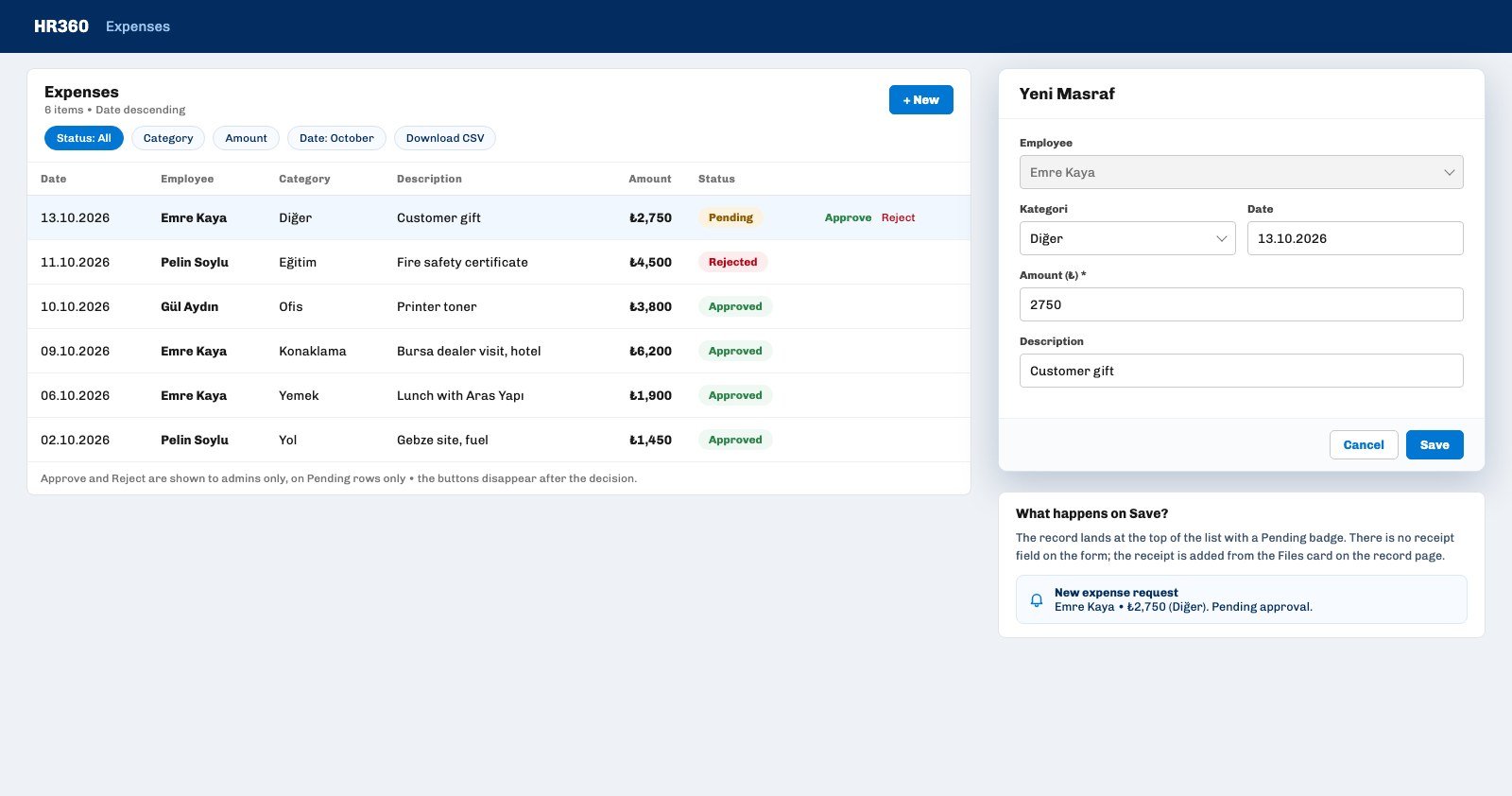
An expense is entered in the New Expense window, opened with the New button on the Expenses tab of the HR360 app or from the + New menu on the HR360 home page; the window asks for five fields and the record always opens with the status Pending. Pelin Soylu entered the fuel she bought on the way to the Gebze site on October 2 from her phone before getting back to the office.
- Employee. The list shows employees whose status is not Ayrıldı (left). If the name of the user account matches an employee record, the field is locked to that employee; a non-admin user cannot enter an expense on someone else's behalf. An admin can enter one for anyone.
- Category. Six fixed values: Yol (travel), Yemek (meal), Konaklama (accommodation), Ofis (office), Eğitim (training), Diğer (other). The values are stored in Turkish and shown as stored in the English interface. Pelin picked Yol.
- Date. Defaults to today and can be moved back or forward; there is no date limit.
- Amount. The only required field, and it must be above zero; with an empty amount the window says the amount is required and does not save. The currency is the org's currency, not chosen per expense.
- Description. Free text, optional: "Gebze site, fuel".
Two things happen on Save. The record lands at the top of the Expenses list with a Pending badge, and a "new expense request" notification appears in the bell of everyone in the org, carrying the employee's name, the amount and the category. The notification goes to everyone who opens the app, not only to the admin. There is no receipt upload field on the form; Pelin attached the receipt in the next step.
How is a receipt or invoice attached to the expense?
A receipt is uploaded to the Files card on the record's own page after the expense is created; there is no file field on the form. Pelin clicked her own row in the list, found the Files card in the right column of the expense page and uploaded the photo of the pump receipt. The file stays linked to that expense and anyone who opens the record sees it.
The expense page uses the same layout as other record pages: Employee, Category, Description, Amount, Date and Status fields on the left; the Activity timeline, Files, Posts and, when the Field History add-on is on, the Field History card on the right. The capacity, preview and delete rules of the Files card are covered in the files and documents guide. Emre Kaya added the hotel invoice from October 9 as a PDF the same way; Gül Aydın uploaded the e-invoice PDF for the toner.
Who approves an expense, and where?
Only a user on the admin profile approves an expense, and does it in the Expenses list with the Approve or Reject button that appears at the end of a row whose status is Pending. Every Friday Serkan Ateş opened the list with the filter Status equals Pending and reviewed that week's expenses in one pass.
The buttons are not shown to other profiles; a sales rep or a team lead cannot approve their own team's expenses. The decision is made on the row, no window opens: clicking Approve turns the badge green Approved and a message with the amount confirms the approval; clicking Reject turns the badge red Rejected. Once decided, the buttons disappear and there is no undo in the same list. If a decision is wrong, the admin opens the record with Edit and changes the status by hand.
Pelin's fire safety certificate from October 11 was rejected; the company had paid the training provider directly, so the employee had not paid out of pocket. There is no field on the form for the reason of a rejection. Serkan wrote the reason on the Posts card of the expense page and mentioned Pelin; that mention was the only notification that rang in Pelin's bell, because an approval or rejection does not notify the employee on its own. Mentions and replies are covered in the team collaboration guide.
How is the expense list filtered and exported?
The Expenses list shows the Date, Employee, Category, Description, Amount and Status columns; the filter bar above it filters by Status, Category, Amount and Date, and the filtered list downloads as CSV with one click. At the end of the month Gül Aydın produced the file for accounting in three minutes:
- Status equals Approved. The rejected certificate and the pending gift dropped out; four rows remained.
- Date within October. A date range is not picked on one line; two filter lines are written: Date after September 30 and Date before November 1. An expense entered at the end of September and approved in October stays in September by its date, because the filter looks at the expense date, not the approval date.
- Download CSV. The file carries the list columns: date, employee name, category, description, amount, status. There is no total row in the file; the total is taken in the spreadsheet.
Columns can be personalized and sorted; the Amount column sorts numerically, so the largest expense comes first. Serkan opened the list sorted by Amount descending and saw the 6,200 lira hotel at the top. List views, saved filters and column choice are covered in the list view guide. There is no Delete button in the Expenses list; a record entered by mistake is either edited or deleted with the Delete button on its record page, which sends it to the Recycle Bin.
How are expenses reported per employee and per category?
Expenses are reported from two places: the Expenses related list on an employee record shows all of that person's expenses with a total of the amount, and the Expenses (HR) source in the Report Builder produces grouped reports with the category, status, amount, date and description fields. Delta Tesisat's October table answered two questions.
| Question | Where | October answer |
|---|---|---|
| What did Emre Kaya spend this month? | Emre's employee record, Expenses related list | 3 records, 10,850 lira in total (one Pending) |
| Which category is the largest? | Ready-made report "Expenses by Category" | Konaklama 6,200, Eğitim 4,500, Ofis 3,800 |
| What is the approved total? | Report Builder, filter Status equals Approved, sum of Amount | 13,350 lira |
The total on the related list ignores the status; 2,750 of Emre's 10,850 lira is still Pending. For the approved total you add a Status filter in the Report Builder. The ready-made Expenses by Category report also sums every status, which is why the rejected 4,500 lira certificate shows in the Eğitim bar. Copying the report and adding the filter Status equals Approved takes a minute, and the result goes on the HR home page as a dashboard tile. The Expenses card on the HR360 home page shows the count and the Pending, Approved and Rejected split on its own; "how many expenses are waiting" is read there without opening Serkan's Friday list.
The grouping, filter and chart options of the Report Builder are covered in the reports guide; an expense report uses the same window.
Can employees see each other's expenses?
Yes, by default they can. The expense record has no Owner field and Ohana360 treats a record without an owner as everyone's own record; so every user with an HR360 license sees the whole team's expenses with amounts in the Expenses list, and setting the sharing to Private does not change that. At Delta Tesisat three people could see each other's hotel and meal expenses and did not mind; for a company that does mind, the only tool is the profile.
- Object permission on the profile. A profile whose read permission on the Expense object is set to None under Setup > Profiles does not see the Expenses tab at all; an employee on that profile reports the expense to the admin, who enters it.
- Editing is just as wide. Because the default sharing gives everyone read and write, one employee can open and edit another's expense; if the amount of an approved expense changes, the status stays Approved. To keep a trail of the change, turn on the Field History add-on; how it works is in the change history guide.
- Salary is protected separately. The Salary column on the employee record is shown to admins only; the Expenses list does not carry that rule.
Profiles and sharing settings are covered in full in the user roles and permissions guide.
Not included: what the expense module does not do
- No multi-step approval. The Approval Processes feature works on the Opportunity, Lead, Case and Account objects; an expense is settled with a single admin click. There is no two-level approval such as team lead then finance, no amount limit and no different approver by amount. What Approval Processes do is in the approval workflow guide.
- The decision does not notify the employee. A new expense rings the bell for everyone; an approval or rejection sends nothing to the employee. To tell them, mention them on the Posts card.
- No flows. Expense is not in the object list under Setup > Flows; a flow such as "send a push to the employee when approved" or "remind about an expense pending for three days" cannot be built.
- Validation rules do not run on the expense form. A rule can be defined for Expense in the Object Manager, but the New Expense window does not evaluate it; the only check is that the amount is above zero.
- No rejection reason field. The reason goes on the Posts card or in the Description field.
- No receipt field on the form. The receipt is attached from the Files card after the record exists; a rule that blocks saving an expense without a receipt cannot be set up.
- No reimbursement record. An approved expense does not create a payment, invoice or ledger entry in Finance360; for a "paid" mark, add a custom Payment Date field to the expense object.
- No budgets or limits. There is no monthly cap per employee, category budget or mileage calculation.
- The category list is fixed. Yol, Yemek, Konaklama, Ofis, Eğitim and Diğer cannot be changed and are shown in Turkish in the English interface; project or customer detail is added with a custom field.
- No currency per expense. The amount is kept in the org's currency; the form label shows ₺ in every org, and the New Expense window title is shown in Turkish in the English interface.
- Expenses are open to everyone. With no Owner field, sharing settings cannot hide an expense; the only tool is the profile permission.
What should be checked at the end of the month?
A five-minute check before the expense log is closed prevents an amount being sent to accounting short or over. Delta Tesisat's list:
- Anything still Pending? The filter Status equals Pending should come back empty; Emre's gift expense is waiting for Friday's decision.
- Does every approved expense have a receipt? Each approved record should have at least one file on its Files card; the list does not show this, so records are opened one by one.
- Is the date inside the month? A late-September expense entered with an October date by mistake is corrected before the CSV.
- Is the payment date filled in? The custom Payment Date field added to the expense object is filled on records that have been reimbursed.
- Did the CSV go to accounting? The file downloaded with Status equals Approved and Date within October becomes the attachment of the month-end close.
The expense record is linked to the employee record inside HR360; the leave request flow in the same app is covered in the employee leave tracking guide, and entering expenses and photographing receipts from the phone in the mobile app guide.